Search for motion graphics software and you get the same list every time: one professional application nobody finds the time to learn, two template tools that hand everyone the same video, and one open source package with a reputation for being hard. None of those pages answer the only question that matters, which is whether the tool can build the shot you have in mind, and how long it will take you to get it out.
This comparison works the other way round. Seven tools, four columns that actually decide, and no pricing line: those tables change every quarter, while capabilities barely move. If the discipline itself is still fuzzy, our motion design guide covers the ground before any software name clouds the decision.
The short answer
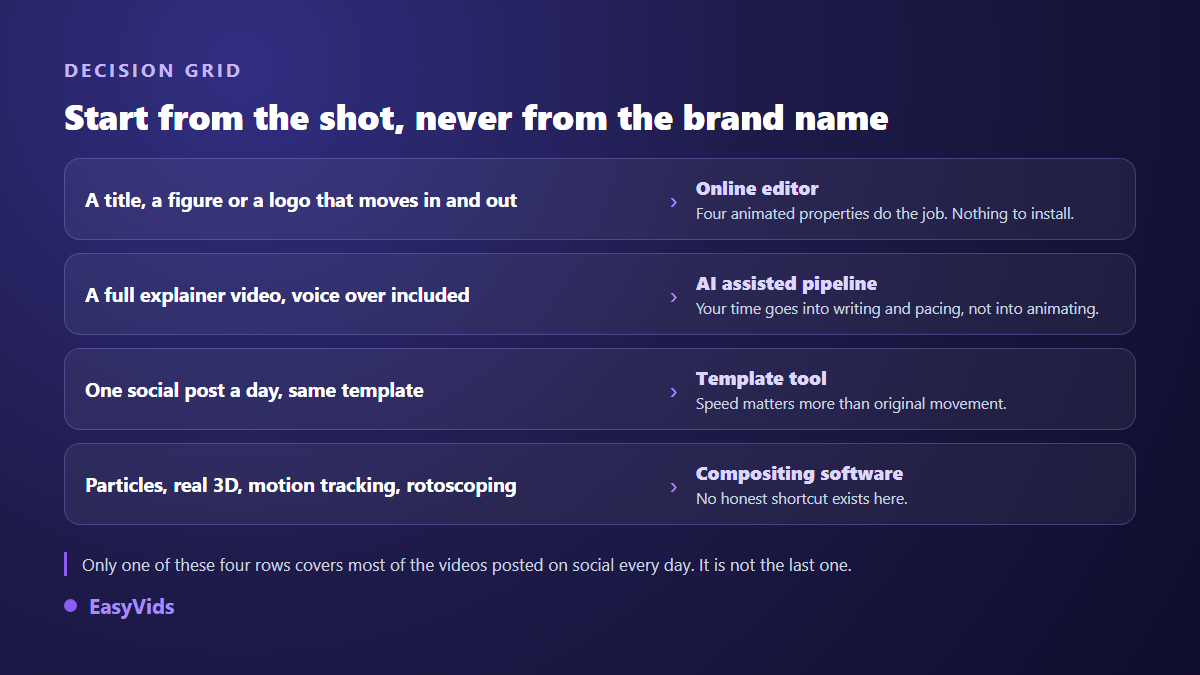
For animated text, numbers, a logo or an explainer, a browser based editor is enough and you publish the same day. For particles, real 3D and motion tracking on filmed footage, you need compositing software, After Effects or the Fusion page in DaVinci Resolve, and you have to accept the learning curve that comes with it. A third route now sits between them: AI assisted chains that write the shots and produce the voice over before you animate anything at all.
What motion graphics software actually means
The phrase covers three families of tools doing three different jobs. Mixing them up is the most common reason a beginner gives up: they install compositing software to animate a title, quit after two evenings, and conclude that motion graphics is not for them. Our explainer on what motion design is defines the discipline; what matters here is the practical consequence for your choice.
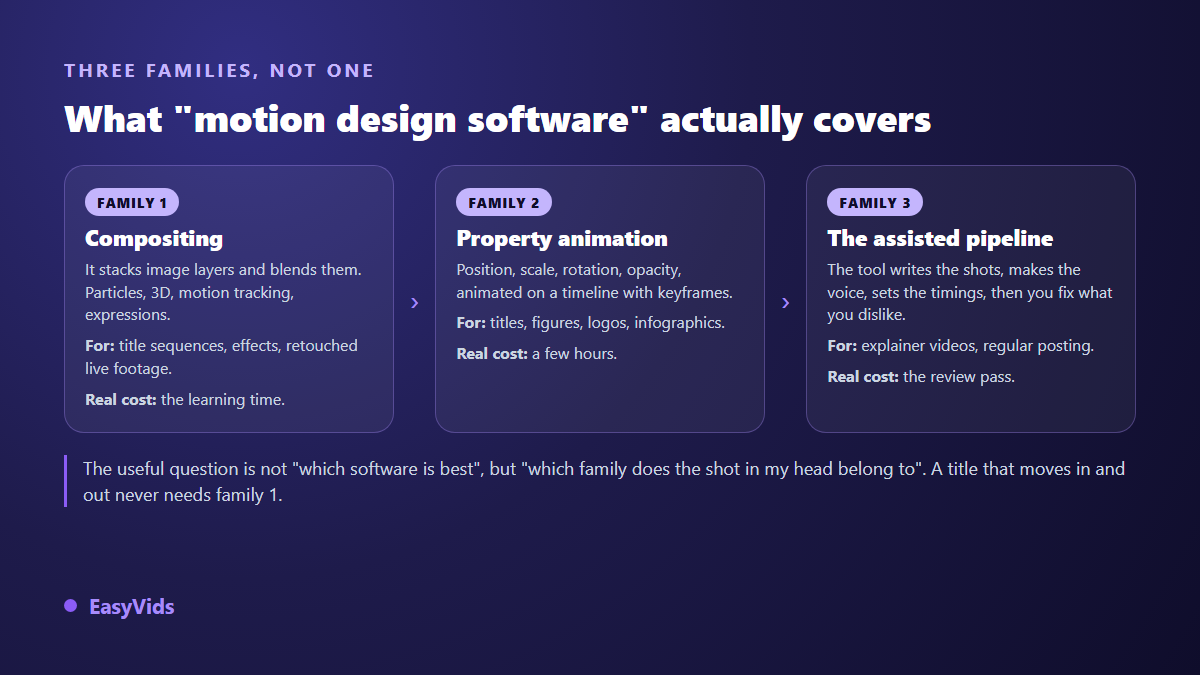
Compositing stacks image layers and combines them, which is where particles, rotoscoping and 3D with cameras and lights come from. The second family animates four properties over time, position, scale, rotation and opacity, and covers the overwhelming majority of what gets published on social platforms every day. The third replaces neither: it moves the work towards writing, shot splitting and voice, then applies animation from rules set once.
Four questions that decide, before any brand name
- Where it runs: installed application, browser, or phone? An installed tool assumes capable hardware and updates to keep up with.
- Keyframes or presets: can you set a value at a precise moment yourself, or must you pick from a closed catalogue?
- What free really means: a full free tier, a free tier with a watermark, or a time limited trial?
- Time to a finished video: minutes, one evening, or a month of tutorials?
- How much of the chain is covered: does it stop at animation, or handle script, voice over, music and export too?
1. After Effects, the reference that asks for real study
It is the tool everyone cites, and it earns that for part of the work. After Effects is compositing software first: stacked layers, keyframes on nearly every property, expressions to drive one value from another, a 3D space, motion tracking, and a plugin ecosystem for the rest. Adobe ships it on subscription with a trial. The trade off is well known and rarely stated plainly: the learning curve runs into weeks, and installation asks for a serious machine. If your need is a title that enters and exits, our method for animating without compositing software saves you that month.
2. DaVinci Resolve, the Fusion page in a free version
Blackmagic Design publishes a free version of DaVinci Resolve, which is the most interesting anomaly on this list. The application bundles editing, colour grading, audio and the Fusion page, a compositing environment built on nodes rather than layers. Particles, tracking, 3D and animated text generators are all there. Node thinking is disorienting for the first few hours, then reads more clearly than a stack of layers on a complex shot. Two honest reservations: the whole thing is heavy on a modest machine, and Fusion stays a specialist environment, not a place to drop a title in three minutes.
3. Blender, free and open, but built far wider
Blender is free and open source, with no crippled edition and no watermark. Its strength for motion graphics rests on two things: Grease Pencil, which lets you draw and animate in two dimensions inside a three dimensional space, and a full 3D engine for anything that has to rotate, unfold or reflect. A logo unfolding in volume belongs there. For animated text over a voice over, you are bringing a truck to carry a letter. Expect a long learning period on an interface designed for 3D before graphic animation.
4. Canva, the template that ships an animation within the hour
Canva offers no keyframes, and that is the model rather than an oversight. You pick a template, swap the text and images, apply an entrance animation from a catalogue, and export. A free tier exists, and a brand area locks colours and fonts on the paid plans. Output is quick and stays tidy. The ceiling arrives just as quickly: the movement does not belong to your brand, it belongs to the template, and your competitors use the same one. For daily posting the trade off holds. For a video meant to represent you, much less so.
5. CapCut, social editing with animated text
CapCut earned its place with creators for a simple reason: it runs on phone, in the browser and on desktop, it drops automatic captions and animated text in a few gestures, and it accepts keyframes on the essentials. It is not motion graphics software, it is an editor that does enough for most short videos. Two limits are worth knowing before you settle in: the free tier has tightened, with part of the AI assisted features moving behind a subscription, and the most popular templates produce videos that end up looking alike.
6. Jitter, motion graphics built for the browser
Jitter is the closest thing on this list to the craft as a motion designer practises it: a timeline, animated properties, adjustable entrance and exit effects, and both video and animated exports, all inside a browser tab. It targets animated titles, social posts and interface mockups, and a free tier lets you judge it on the work. Its limits follow its target: no retouched filmed footage, no 3D, no voice over. General purpose online editors cover other needs and stop elsewhere, as our review of an online video editor shows.
7. EasyVids, writing the shots as well as animating them
Our editor runs in the browser with nothing to install. It sets keyframes on position, scale, rotation and opacity, and ships an animation catalogue sorted by role: entrances, exits, looping accents, and slow moves over a still image, each adjustable in intensity. Export goes out as MP4 or WebM, with a choice of frame rate and quality level. So far, nothing a good online editor cannot do.
The difference sits upstream. The script is written in the same place, the voice over is produced there, and its measured length becomes the shot length instead of being guessed and then endured. We take that logic all the way on our own motion design films, which are built from code: every shot is a page animated in HTML and CSS, photographed frame by frame, then encoded with the voice. Text stays sharp at any size, the project brand is respected to the pixel, and timing is computed in whole frames to avoid drift on a long film. That route is not open to every account yet, and we would rather write it than let you assume it.
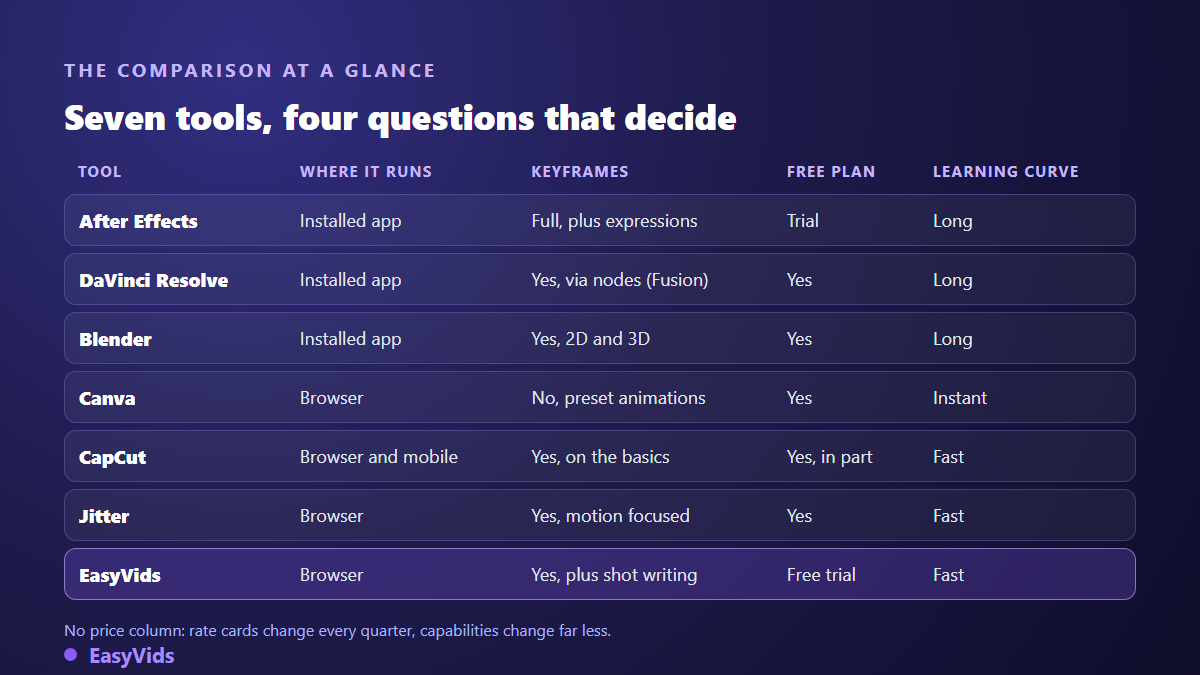
The table, column by column
The where it runs column alone removes half the candidates as soon as you work from an ordinary laptop or a phone. The keyframes column separates tools that let you decide from tools that decide for you, and that is the real line between a template and an animation tool. The free tier column deserves a careful read, since free with a watermark, free with a duration cap and a free trial are three different things. Our own plans and trial sit on the pricing page, which we would rather point to than copy out here, for the same reason that applies to everyone else: those tables move.
What the AI option really shifts
One confusion is worth clearing. AI does not replace fine animation: nobody describes a title sequence in one sentence and receives it finished. What it changes is where the time goes. On a one minute explainer, animation itself is a small share of the work. The rest goes into writing, splitting into shots, the voice, the timing and the export. That is exactly where assistance settles, and why a tool that writes and splits saves more time than a tool that animates better. Our comparison of AI tools for creators sorts those building blocks.
Mistakes that cost a month
- Choosing the tool before the script exists, then finding it cannot build the one shot that mattered.
- Installing compositing software to animate text, then deciding you are not cut out for this.
- Deciding on a showreel: it shows the tool at its best, not your Tuesday project.
- Forgetting the output: vertical format, constant frame rate, no watermark, all checked before rather than after.
- Stacking three subscriptions to cover one production chain that a single tool already covers.
- Confusing easy with fast: a very simple tool costs hours the moment it refuses the one setting you need.
Frequently asked questions
What is the best motion graphics software for a beginner?
A browser based editor with real keyframes. You ship your first video the same day, you learn the four animated properties on a real case, and nothing stops you moving to compositing software later if a project demands it. Starting with the most complete tool is the surest way never to finish that first video.
Is there genuinely free motion graphics software?
Yes, and two stand out. Blender is free and complete, with no crippled edition. DaVinci Resolve ships a free version from its publisher, Fusion page included. Both ask for real study. Among online tools, free often means a watermarked export or a duration cap: judge what the export produces, not what the landing page claims.
Do I need a powerful computer for motion graphics?
For installed software, yes, especially once 3D or particles are involved. For an online editor, no: preview runs on your machine, while visuals, voices and scenes are generated on servers. A wide screen helps more than a fast processor, because most of the work is seeing the whole timeline at once.
Can AI produce motion graphics on its own?
Not in the way the phrase suggests. It writes the script, splits the shots, produces the voice, proposes an art direction and sets the durations. Judgement stays human: what reads, what runs too long, what should go. A fully automatic animated video is spotted within seconds, and it is almost always the pacing that gives it away, not the visuals.
Is a video editor enough for motion graphics?
Often yes, on one condition: it must offer real keyframes rather than presets alone. With position, scale, rotation and opacity animated over time, you cover titles, numbers, logos and infographics. Without them you depend on a catalogue, and your video will look like every other video built from it.
The right motion graphics software is not the most complete one, it is the one that gets you to the end of your next video. Write the script, look at what your most demanding shot actually requires, then pick the matching family: in most cases it will not be compositing. To animate your first shot with nothing to install, creating an account opens the editor and the production studio, and the EasyVids toolset keeps writing, voice, visuals and editing in one place.