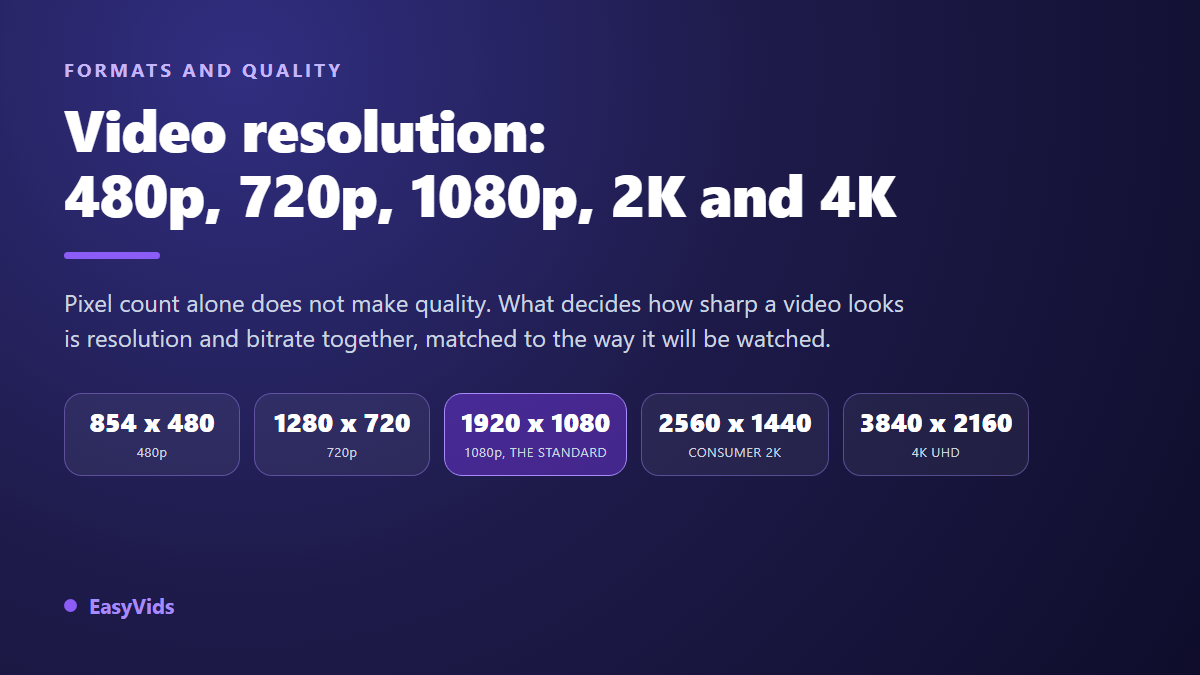
You hit export, and the menu asks for a resolution. 720p, 1080p, 4K. The instinct is to pick the biggest number, because bigger ought to mean better. The export takes three times longer, the file balloons, the upload drags, and on screen the picture looks no better than last week's. Video resolution is the most misunderstood setting in the whole chain, and the one that wastes the most time for nothing.
The reason fits in one sentence: resolution does not measure quality, it measures area. It tells you how many pixels make up each frame, and nothing else. What actually decides the sharpness you see is a second setting almost nobody checks, the bitrate. Five minutes are enough to understand both and stop guessing at export time.
The short answer
A resolution is a pixel count: 1920 by 1080 for 1080p, 3840 by 2160 for 4K UHD. More pixels mean the frame can hold more detail, but nothing guarantees it does. Bitrate, the amount of data kept for each second, decides how much detail survives compression. For almost every online use, a well encoded 1080p is the right call. 4K earns its place on big screens, in an archive master, or when you plan to crop hard into the frame.
A resolution is just a grid of pixels
A video frame is a grid. The resolution gives you both sides: 1280 by 720 means 1280 columns and 720 rows, or 921 600 coloured squares. The number followed by a p, as in 720p, is the height in rows. The p stands for progressive, meaning each frame is displayed whole, unlike the interlaced broadcast of the past, which drew every other line on each pass.
That is also why we say 4K instead of 2160p. From that step up, the habit switched to width: the K means a thousand, and 4K refers to the roughly 4000 pixels of width in the cinema standard. The vocabulary ends up lopsided, small resolutions named by height and large ones by width. Worth knowing, so you never compare numbers that describe different sides of the frame.
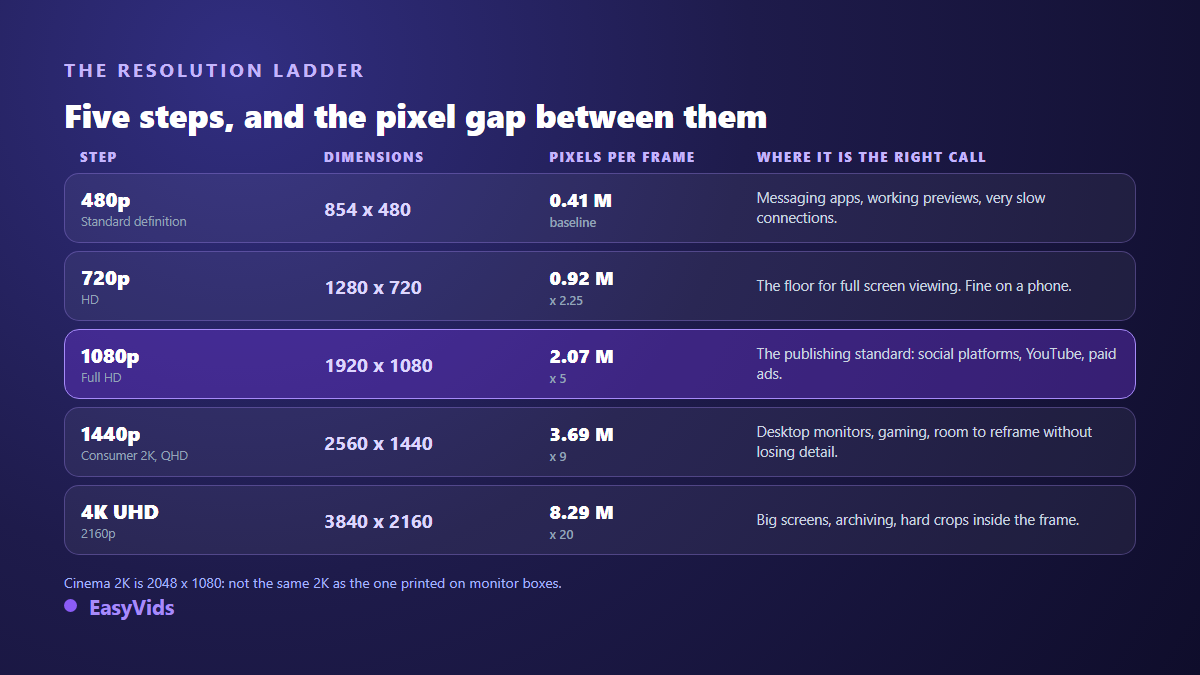
The column that matters is the pixel count. Going from 1080p to 4K does not double the work, it multiplies it by four: 8.3 million pixels per frame against 2.1 million. That multiplication explains everything that follows, from render time to file size to the way compression behaves.
480p, 720p, 1080p, 2K, 4K: what each step really changes
Every step has ground where it still makes sense, and ground where it adds nothing. Here is the practical reading.
- 480p, 854 by 480: standard definition. Still handy for a quick share over messaging, a working preview sent for sign off, or a very slow connection. On a modern screen at full size, it shows.
- 720p, 1280 by 720: the first rung of high definition. It is today's acceptable floor, and it holds up well on a phone at arm's length.
- 1080p, 1920 by 1080: the publishing standard. Social platforms, YouTube, paid ads, landing pages, internal decks. In the vast majority of cases this is the right setting, and the one to polish rather than exceed.
- 1440p, often sold as consumer 2K, 2560 by 1440: the desktop monitor and gaming format. Useful when you want headroom to reframe, or you are targeting a computer display.
- 4K UHD, 3840 by 2160: four times 1080p. It earns its keep on a big screen, in an archive master, or when you plan to punch into the frame while editing.
The term 2K deserves a warning, because it means two different things depending on who is talking. The digital cinema specification published by the Digital Cinema Initiatives consortium defines 2K as 2048 pixels wide by 1080 high. Monitor marketing pinned the same label on 2560 by 1440, which is a different frame entirely. When a client asks for 2K, ask for both numbers.
Resolution versus bitrate: the mix-up that costs the most
This is where the real difference is decided. Resolution sets how many cells you have. Bitrate sets how much information you are willing to spend filling them. It is measured in megabits per second, and it is bitrate, not resolution, that decides what survives compression.
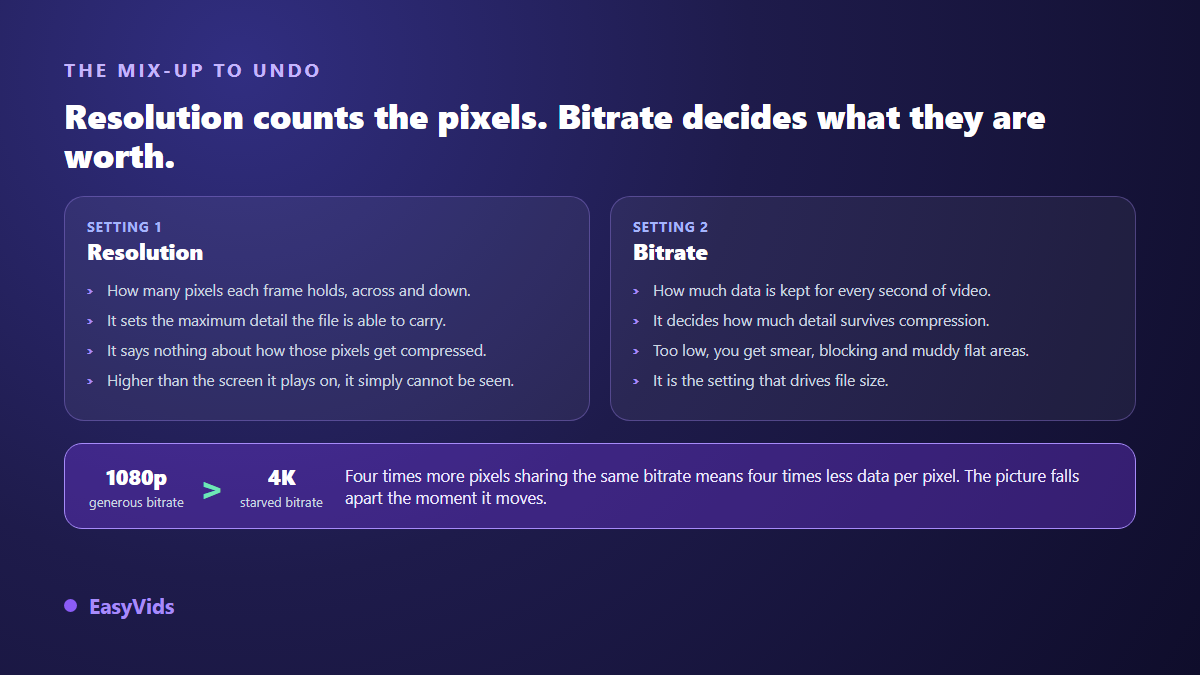
An encoder does not keep your picture as it is, it throws away whatever it judges invisible. The more bitrate you give it, the less it throws. When bitrate is tight, it first smooths fine texture, then blocks appear in dark areas, and gradients turn into visible bands. Those artefacts jump out the moment the image moves, exactly where the viewer is looking.
Platforms publish guidance in bitrate, not only in pixels. According to the recommended upload encoding settings in YouTube Help, a 1080p upload at 30 frames per second targets roughly 8 megabits per second, while a 4K upload at the same frame rate rises to 35 or 45 megabits per second. The gap is not arbitrary: it is the cost of keeping four times more pixels clean.
Why a badly encoded 4K looks worse than a well encoded 1080p
Take a fixed bitrate, the one your software applies by default or the one your connection can carry. Spread it across 2.1 million pixels and each pixel gets a comfortable share. Spread the very same bitrate across 8.3 million pixels and each one gets four times less, so the encoder discards four times more information. You end up with a bigger picture, more thinly spread, and a dirtier one.
That is why a rushed 4K export looks soft while a careful 1080p looks crisp. Viewers do not count pixels, they read edge sharpness and clean flat areas. If you cannot give 4K the bitrate it demands, stay at 1080p: you will ship a better video, faster, in a lighter file.
Resolution, file size and render time
File size comes almost entirely from bitrate and duration. A minute encoded at a given bitrate weighs about the same whatever the resolution, as long as that bitrate holds. What resolution changes is the bitrate you need for the result to stay watchable. The effect is indirect, and it is why 4K files are so heavy: they are given, quite rightly, far more bitrate.
Render time, on the other hand, tracks resolution directly. Across our own generations, a 4K render takes considerably more machine time than a 1080p render for the same video length at identical settings. On a single video that is bearable. On twenty posts a month it shapes your whole publishing rhythm.
What platforms re-encode, whatever you export
No platform serves your file the way you sent it. Each one decodes it, re-encodes it into its own formats, and builds several quality versions to match the viewer's connection. YouTube Help describes this processing explicitly, which is why it publishes recommended upload settings rather than playback settings.
Two practical consequences. First, your export is not what the audience sees, it is the raw material the platform will recompress, so a clean file at a comfortable bitrate gives that pass a better starting point. Second, overshooting the useful resolution rarely helps, since the version served is capped by the viewer's screen and connection anyway.
For vertical video the official documentation agrees. TikTok's published video specifications and the Instagram Help Center guidance for Reels both give the same recommended upload resolution: 1080 pixels wide by 1920 high. Above that, you make the upload heavier without anyone seeing a difference.
Resolution, aspect ratio and framing are three different things
Three settings get confused. Resolution is the pixel count. Aspect ratio is the shape of the rectangle: 16:9 landscape, 9:16 vertical, 1:1 square. Framing is what you choose to let into that rectangle. A video can be 4K and badly framed, or 720p and perfectly composed. Note that 1080 by 1920 and 1920 by 1080 hold exactly the same number of pixels, one standing up, the other lying down.
Choosing a resolution for the way the video will be watched
The useful question is not which resolution is best, but where the video will be seen. A screen cannot show more pixels than it has, and the eye cannot separate two points that sit too close together. The classic limit of visual acuity, one arcminute, is why a phone held at arm's length does not reveal any difference between a clean 1080p and a 4K: the extra pixels fall below what the eye can resolve.
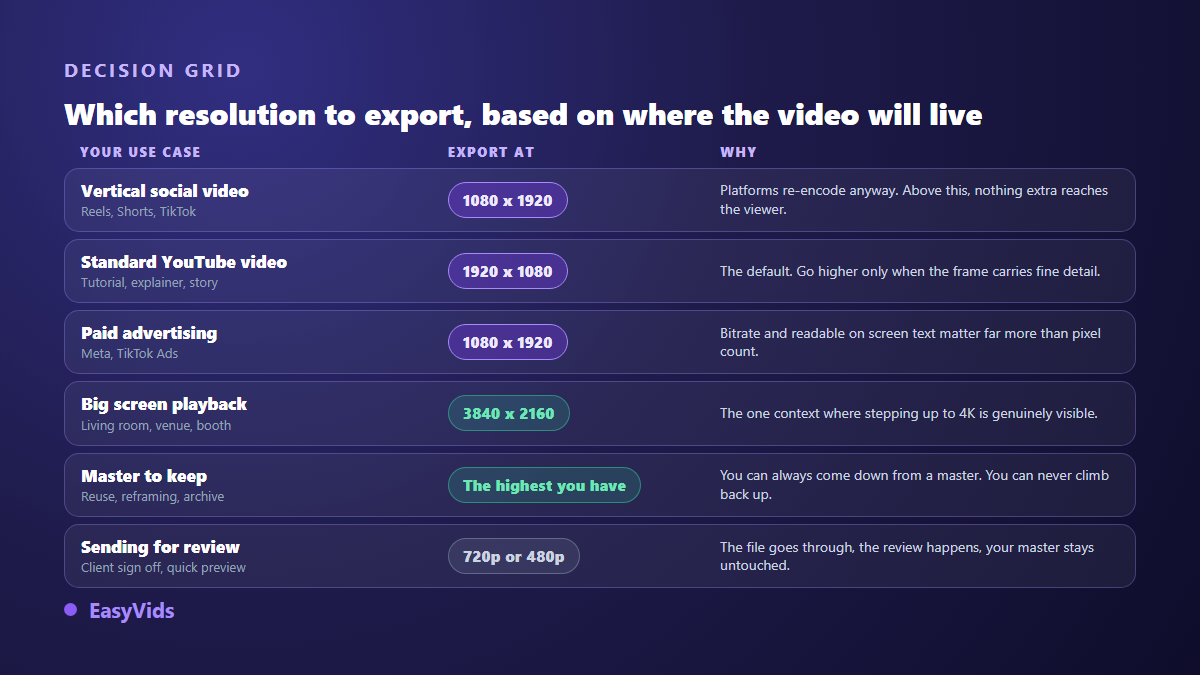
One exception is worth keeping: the master. If the video will be reused, reframed, cut into clips or reposted later, keep the highest version you have. Coming down from a master is instant and visually lossless. Climbing back up is impossible.
Upscaling does not manufacture detail
Exporting a 720p video at 4K does not make it sharper. The operation stretches each pixel over a larger area and the software invents the values in between. The file grows, the picture stays just as soft, sometimes with artificially hardened edges. AI upscalers do better than plain stretching by rebuilding plausible texture, but they rebuild: they cannot recover information the file no longer holds.
The practical rule is one line long: pick the resolution when you create, not when you export. If the source is 1080p, the honest export is 1080p. When an existing video looks dull, the useful lever is almost always elsewhere, in bitrate, lighting, stability or grading.
Where resolution is decided in an AI video
In an AI production chain, resolution is set in two places. First at generation time: every image or video model outputs at a native definition, and that is what caps the detail actually available. Then at the edit, when shots are assembled and exported at the project resolution. Asking for a 4K export from shots generated lower simply upscales them. In the EasyVids studio, aspect ratio and resolution are chosen before generation, so each shot is produced at the right size from the start.
Frequently asked questions
Is 2K 1440p or 2048 pixels wide?
Both, depending on the context, which is exactly the problem. The digital cinema specification puts 2K at 2048 by 1080. Monitor marketing calls 2560 by 1440 2K, also known as QHD or 1440p. Always ask for both numbers instead of the label.
Do I need to produce in 4K to publish in 1080p?
Only if you plan to crop, stabilise or punch in while editing, or you want a reusable master. In those cases the extra headroom is real. If the video goes straight to a social feed, 4K costs render time and file size for no visible gain.
Why does my video look soft on social media when it is sharp on my computer?
Because the platform re-encoded it at its own bitrate, usually far below yours. Upload a file with a generous bitrate, avoid recompressing the same edit several times, and respect the recommended upload resolution. You do not control the output, only the material you hand over.
Which resolution should I use for Shorts and Reels?
1080 pixels wide by 1920 high, which is 1080p turned on its side. It is the resolution the apps themselves recommend and the one mobile players serve. Going higher makes the upload heavier without giving the viewer anything.
Can an AI generated video be exported in 4K?
Yes, but the question that matters is the native definition of the shots. A 4K export built from lower resolution shots is only an upscale. Check the model's native output before you set the project resolution, and remember that visible gains often stop at 1080p for phone viewing.
Resolution is not a quality slider, it is a dimension. It should match the screen that will receive the video, and it should come with a bitrate to match. Decide both once at the start of a project, write them into your production habits, and the question stops coming back at every export. To produce videos with the aspect ratio and resolution locked from the first step, creating an account opens the full studio.