The party is on Saturday. You have four hundred photos on your phone, a wrapped gift, and the nagging feeling that something is still missing. A personalized birthday video fills that gap exactly: the same photos, put back in order, carried by a song that sings their name and by your own voice saying what you will never say at the table. It plays in two minutes, it gets kept for years, and no shop sells it.
Using a birthday video maker no longer means installed software or a lost evening. Four layers do the whole job: a song written for the person, two or three animated photos, a short voice over, and an assembly you drag into place. The selection and pacing logic is the one behind any photo slideshow with music. Birthdays only add two demands, and they change everything: the name has to be heard, and the film has to stay short.
The short answer
Launch the song first, sort the photos while it composes, generate or record a three sentence voice over, then lay everything on a timeline. Allow around ten minutes for a ninety second video meant to be sent as a message, a good hour if you are aiming at a screening when the cake comes out. Order matters more than tooling: the music is chosen before the edit, never after, because it sets the total length and the tempo of the cuts.
Four layers, and the order to build them in
A birthday video that lands is not a slideshow with a title stuck on the front. It is a four layer object, and each layer has a job. The song carries the emotion and fixes the length. The photos carry the memories. The voice over says what the photos cannot. On screen text gives the markers: a name, an age, a date. Remove one layer and the film still holds. Remove two and it goes back to being a parade of pictures.
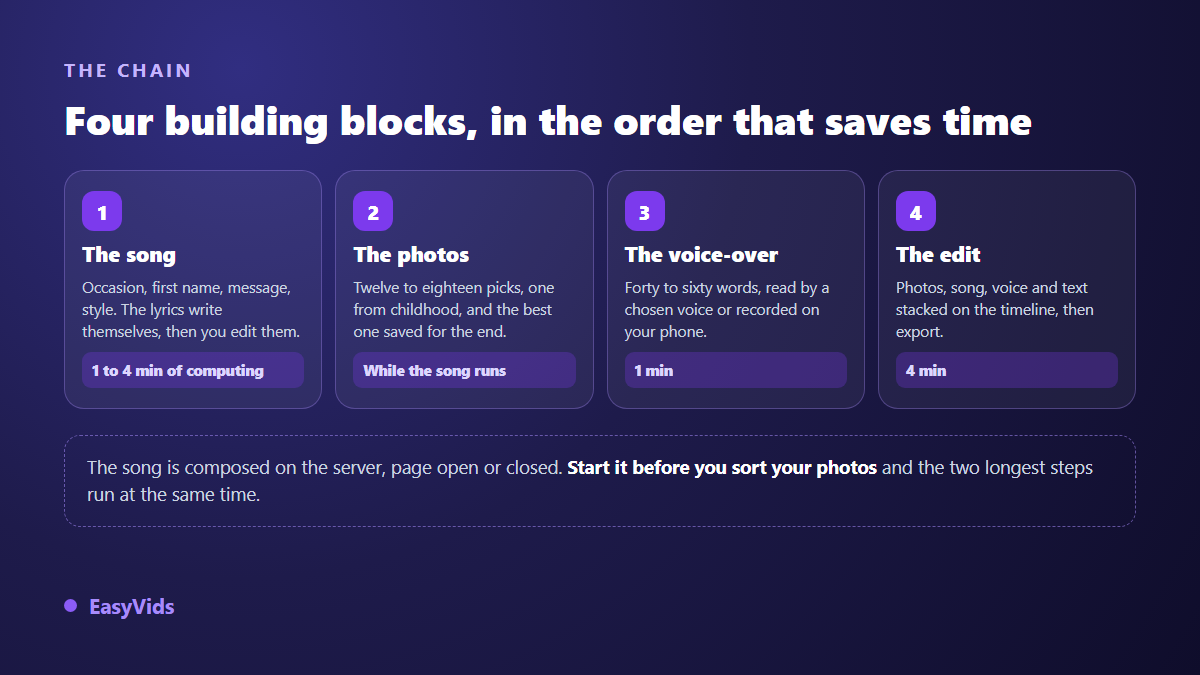
That order is not cosmetic. Composing a song usually takes one to four minutes of server side processing. Launched first, it works while you sort. You can even close the tab: production continues and you find it again when you come back to the page. That simple overlap is what makes ten minutes realistic, not some miraculous speed up.
Step 1: the song with their name, launched first
The Music Studio starts from an occasion picked in one click, birthday at the top of the list, then a field for the name and an open field for your message or your anecdote. You choose a genre from a dozen clickable suggestions, a mood, a tempo, and you ask the AI to write the lyrics. The text comes back structured, with verses and a chorus, and stays fully editable until you launch. The detailed method, including tricky or very long names, is in our guide to the personalized birthday song.
Two settings decide the result. The name first: to be heard, it has to land in the chorus and return every time, never get lost inside a verse. Style next: ask for the music the person actually listens to, not the music you like. Read the lyrics out loud before composing, because lyrics are judged by ear, and the two lines that ring false take thirty seconds to rewrite. One practical note for the edit: exact song length cannot be ordered, so plan to trim the track on the timeline rather than stretching photos to fill it. If your voice over runs long, tick the instrumental option before launching, since a sung track and a spoken voice always fight each other.
Step 2: twelve photos, not two hundred
Selection is the only step that really needs your attention, and it is the one everyone rushes. The benchmark is arithmetic. At five seconds per image, a ninety second video takes twelve to eighteen photos. A three minute screening takes thirty to forty, no more. Past that, the room drifts and nobody will tell you.
- One photo per era, not five from the same evening. Progression shows better than it explains.
- At least one childhood image. It is the one that gets the reaction, at any age.
- Recognisable faces. A group shot taken from too far away says nothing on a phone screen.
- One photo where they are really laughing, even slightly soft. Expression beats sharpness.
- The best one saved for the end, set aside during selection and used nowhere else.
- Resolution checked: an image pulled from a chat thread looks mushy the moment it hits a television.
One honest note, because the promise circulates widely: the studio does not restore old prints and does not upscale low resolution images. That work happens earlier, at the scanning stage. Scan flat rather than photographing an open album, and avoid pushing in on an old photo, since a zoom reveals grain instead of hiding it. A slow pan does the same job without exposing the source.
Step 3: animate two or three photos, never all of them
This is the move that makes people ask how you did it. In the one shot generator you drop a photo in as a reference image, describe the movement you want in one sentence, and the model returns a four to ten second clip built from that image. The aspect ratio is chosen before launching, vertical, square or horizontal, and nothing stops you from running several generations in parallel while you carry on. The available approaches and their limits are covered in our seven ways to animate a photo with AI.
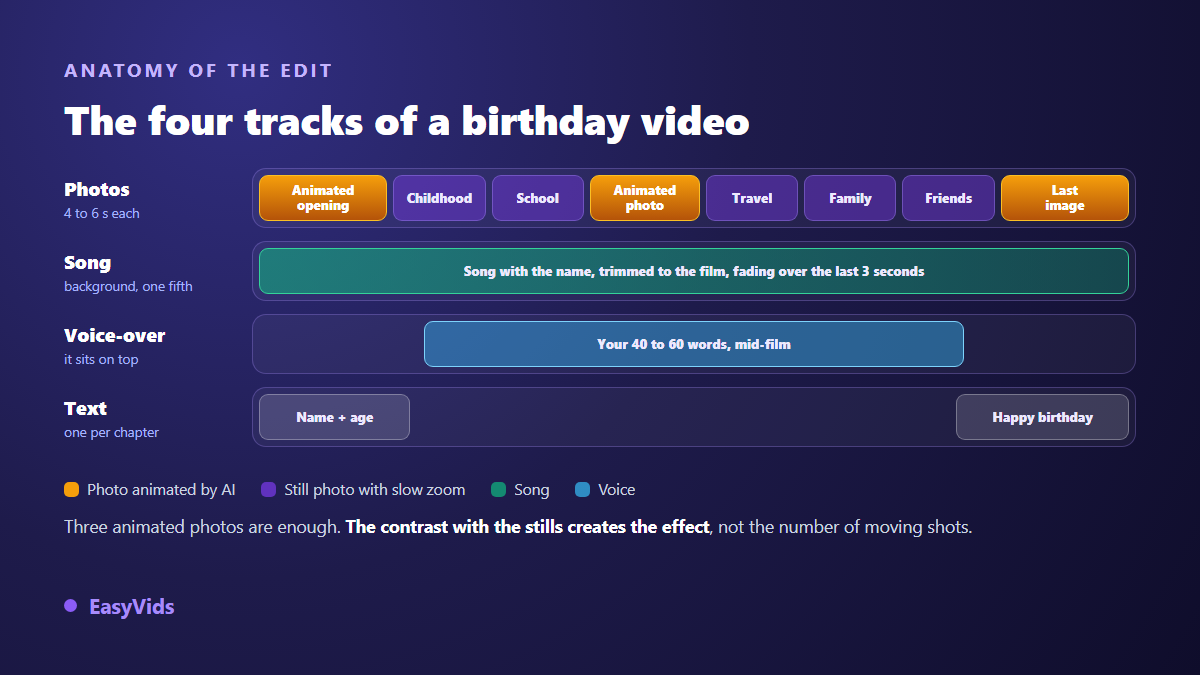
Three animated photos are enough, and they nearly always fall in the same places: the opening, the childhood image, the last shot. A film where everything moves is tiring within twenty seconds. The effect comes from the contrast with the stills, exactly as an underlined sentence only stands out when the rest of the paragraph is not. Watch each clip at full size before keeping it, because generated motion sometimes warps a face, especially in profile or in a group shot. When that happens, keep the still and give it a slow zoom in the editor instead. Cost is counted in credits and depends on the model you pick, the detail sits on the pricing page, and a failed generation is not charged.
Step 4: the voice over, three sentences and no more
This is the layer people skip, and it is the one that turns a nice edit into a gift. Write forty to sixty words, around twenty to twenty five seconds of speech: what you would not say out loud at the table, one funny line, one specific thank you. In the generator you paste that text, pick a voice, and on the first model you add a reading instruction in plain words, along the lines of read slowly, with a smile, as if you were talking to your sister. The settings that separate a believable voice from a robotic one are gathered in our advice for a genuinely natural AI voice over.
The other route stays the best one when it is available: record your own voice on a phone, in a room without echo, and drop the file into the edit. A familiar voice beats any synthesis for a birthday. The generated voice wins back the advantage when the text runs long, when several people need to speak, or simply when you cannot stand hearing yourself.
Step 5: assembly, and the magic edit
The birthday video maker itself is an editor that runs in the browser, with nothing to install. You drop your photos in, they land on the timeline with a default duration of five seconds each, which you stretch or shorten with the mouse. The song takes one audio track, the voice over another, the text a third. None of this requires editing skills: it is stacking, in the order you already settled during selection.
One button is worth knowing, because it saves most of the time. The magic edit drops animations and transitions across the whole main track in one go: photos get a slow documentary style zoom first, and the joins get transitions that never repeat twice in a row. You pick a style family, gentle, dynamic or cinematic, then an intensity. Every run gives a different result, and a single undo removes the whole thing if it misses.
- Set the project format first: horizontal for a screening, vertical for a message.
- Drop the photos in the order you settled on, then bring durations down to four or five seconds.
- Add the song on its track, the voice over on its own, and keep the music around a fifth of the voice level.
- Run the magic edit at gentle intensity, then fix by hand the two or three shots that bother you.
- Add a short opening card, name and age, and a closing one. One per chapter, never one per photo.
- Fade the sound down over the last three seconds, otherwise the music stops mid bar.
- Watch the whole film on a phone before sending it: unreadable text shows up there first.
Pace, length and who receives it
A birthday video is judged on its first three seconds and its last image. Open on the funniest photo or on the name in large type, never on a black screen with a title crawling across it. Close on the image you set aside during selection, held one extra second in silence after the music fades. For length, two benchmarks hold: ninety seconds for something sent as a message and watched standing up, three minutes maximum for a screening with a seated room. Past that the ending, which is the best part, arrives when nobody is really watching.
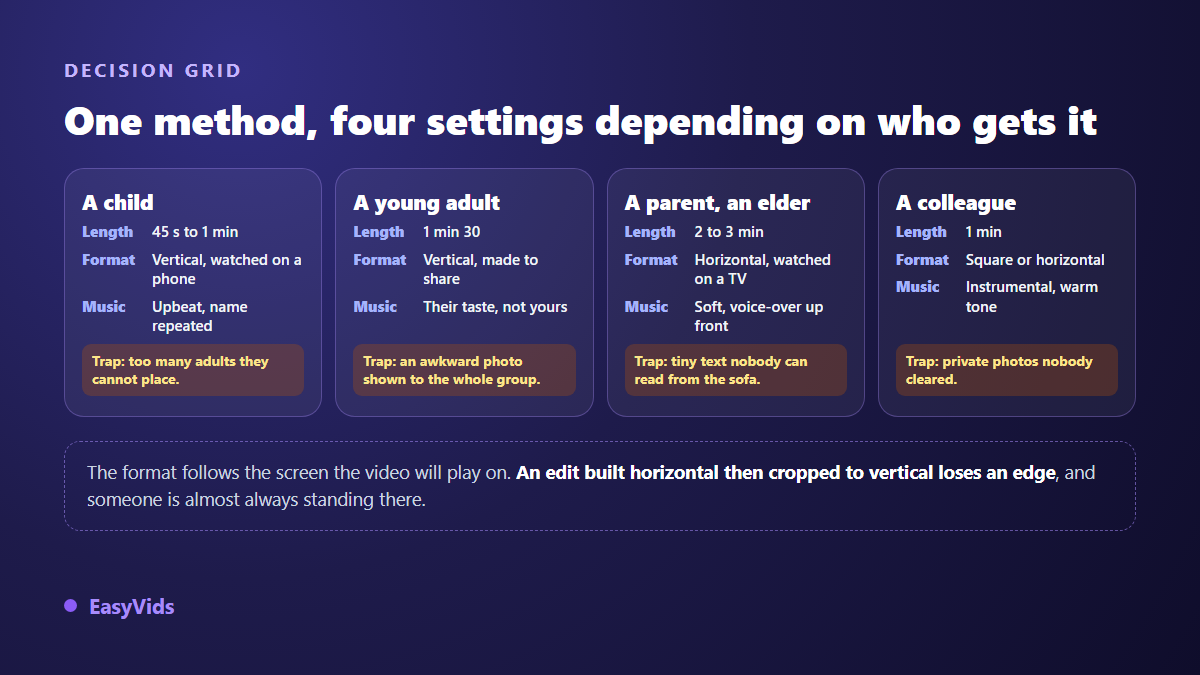
Two cases deserve a note. For grandparents, build horizontally and enlarge the text, because the video will end up on a television or on a tablet held at arm's length. For a child, go short, vertical and lively, with strong colours, and let the people who matter speak rather than lining up photos of adults they do not recognise. For a work team, keep the tone warm but plain, and leave out private photos nobody cleared.
Rights, in two minutes
The question about the traditional birthday song comes up every time. According to the ruling handed down in September 2015 by Judge George H. King of the federal court in Los Angeles, in Rupa Marya against Warner/Chappell Music, the publisher held no valid copyright over the lyrics of Happy Birthday to You, and the settlement approved in June 2016 closed the case by recognising the song as public domain in the United States. Versions in other languages follow their own rules, which no blog post can settle for you. An original song written for the person removes the question entirely: you are not covering anything.
Three habits cover the rest. If the video stays inside a private circle, a message or a family screening, no formality awaits you. If you publish it, note that according to the YouTube help centre the platform has asked creators since March 2024 to disclose realistic content generated or altered by artificial intelligence in the upload form. And the European Union regulation on artificial intelligence, in its article 50, has required since 2 August 2026 that providers of systems producing synthetic audio or images mark those outputs in a machine readable format. What to declare, and to whom, is set out in our article on AI music and copyright. Beyond the rules, common sense: ask recognisable people before publishing, and keep pictures of other people's children inside the private circle.
Frequently asked questions
How long does a personalized birthday video really take?
About ten minutes for a ninety second film, provided you launch the song first and hold yourself to twelve photos. Allow a good hour if you animate several images, write a voice over and aim for a three minute screening. The time goes into selection, not into processing.
How many photos should I use?
Twelve to eighteen for ninety seconds, thirty to forty for three minutes, at four to six seconds per image. If you have a hundred and fifty to place, build two films rather than one very long one, childhood on one side and the last ten years on the other.
Can I make the video on a phone?
The song brief, the lyrics, the voice over and the animated photos all prepare fine from a mobile browser. Fine editing and the final export need a computer, since your machine builds the file. Prepare on the phone, assemble on a computer.
Sung song or instrumental?
A sung song when it is the gift itself and the voice over stays short. An instrumental when you speak over most of the film, because two voices at once cancel each other out. The option is ticked before composing, and nothing stops you producing both versions to compare by ear.
Can two names go into the song, for twins or a couple?
Yes. Give both names together in the same field: they are treated as a single motif and the chorus keeps them in the same breath. On the visual side, alternate photos of the two people instead of building two consecutive blocks, otherwise the film feels like two videos taped together.
A personalized birthday video needs no gear and no editing background. It needs three decisions: the twelve photos you keep, the song launched before anything else, and the forty words you say yourself. The machine handles the processing, you handle what cannot be automated. To get yours ready before the next party, create your account: music, voice and the editor sit in one place on EasyVids.