You have a document. A forty page training manual, a white paper, an internal procedure, a report three people proofread. It is clean, it is accurate, and almost nobody opens it. Turning that PDF to video is often the only way to give the work a second life: the same substance, spoken out loud, illustrated, watched on a phone between two meetings.
The trap is assuming you can drop the file somewhere and wait. A PDF does not hold text the way a word processor holds text: it holds a drawn page, with columns, running heads, footnotes and page numbers. Copy and paste brings all of it along, and a voiceover will read every bit of it without blinking. This guide walks the operation in order, from source file to video file. If your starting point is already clean text, our guide to turning text into video covers the general case: here, most of the work happens before that, inside the document.
The short answer
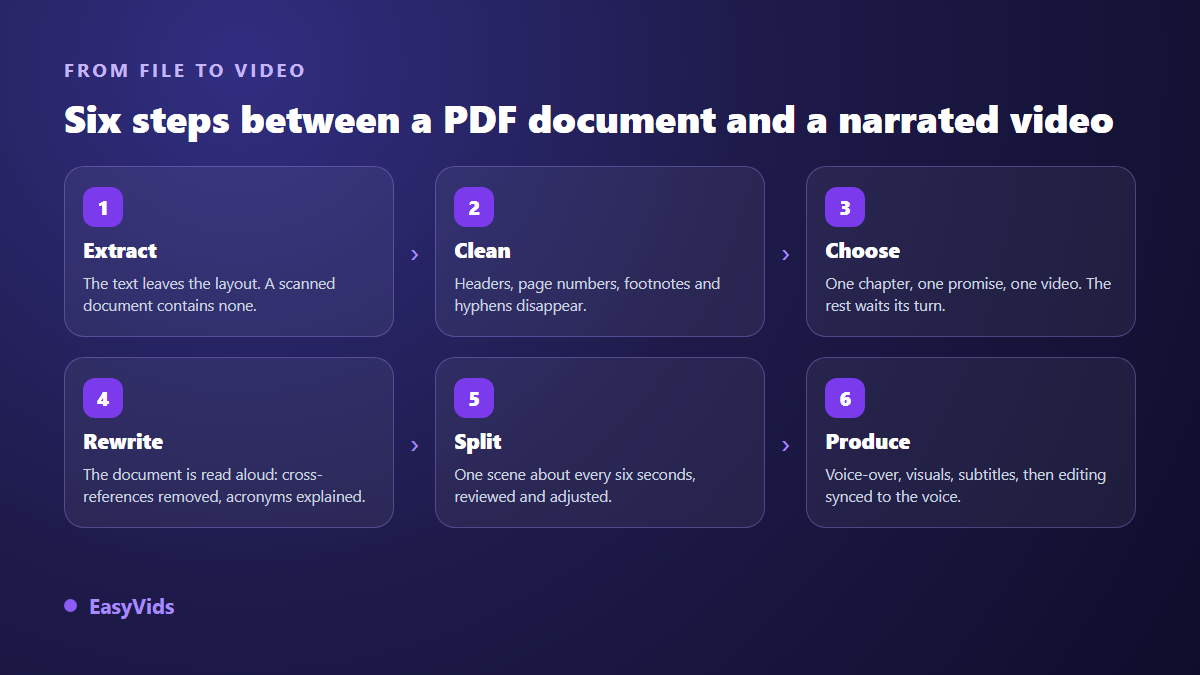
Allow about an hour for a twenty page chapter, and work in this order. Extract the text, then strip the layout out of it. Pick one part, only one: forty pages do not make forty minutes of video. Rewrite for the ear, dropping cross references and spelling out acronyms. Split into scenes of roughly six seconds of voice. Produce the voiceover, the visuals and the edit, then add captions. The first five steps happen on text, before a single generation.
A PDF is a drawn page, not a text file
The format is published as an international standard under the reference ISO 32000, and its whole purpose is to make a page look identical everywhere. So it describes positions: this character, at this spot, in this font, at this size. Reading order is a by-product, never a guarantee. That is why text pulled from a two column document sometimes interleaves, why a line break hyphen splits a word in two, and why a table collapses into a run of words separated by spaces.
Two families of files show up, and they do not ask for the same work. A native document, produced by software, carries a text layer: you can select a sentence and find a word through search. A scanned document is only a series of photographs of pages, and no extraction tool will pull a single word out of it without character recognition. The test takes three seconds: open the file and search for a word you can see on screen. If it is not found, you are holding an image.
Step 1: pull out clean text
Three routes lead to the same place. Manual selection, page by page, slow but reliable on a short document. Saving the file as plain text from your reader, faster and messier. Or a tool that reads the file and hands you its contents. Whichever route you take, the raw output is never usable as it stands: it contains everything the eye skipped effortlessly and the ear will not forgive.
The studio ships a document reader, originally built to describe a digital product: it opens a file of about fifteen megabytes at most, walks up to sixty pages, keeps the first few thousand characters, refuses a scanned document with a clear message, and does not store the extracted text. It is an accelerator, not a magic wand. The cleaning stays your job, and it decides everything that follows.
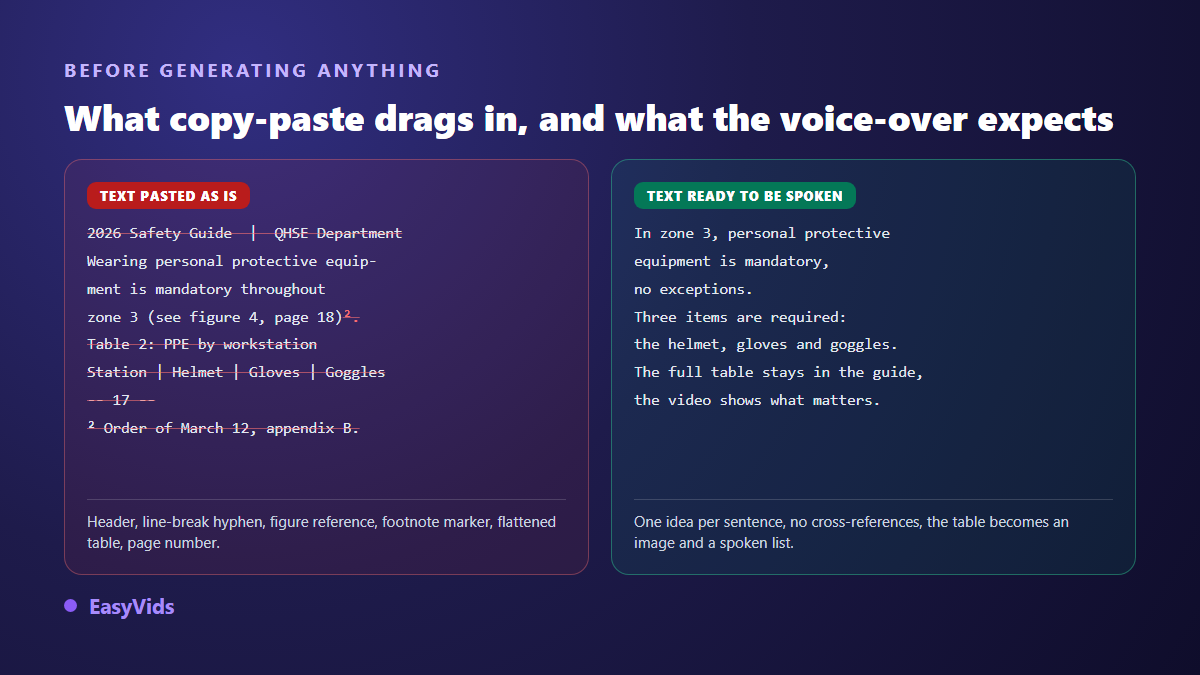
- Running heads and footers, repeated on every page: document title, department name, revision date.
- Page numbers, which land in the middle of a sentence cut by a page break.
- End of line hyphenation: glue split words back together, or the voice will stumble on them.
- Footnote markers and footnotes, which drop into the middle of an argument.
- Internal cross references: see figure 4, refer to appendix B, the table above. None of that exists in a video.
- Tables, unreadable once flattened: keep their conclusion in one sentence, and show the table as an image.
- Contents pages, legal notices and acknowledgements, which have no reason to be spoken.
What to do with a scanned document
A scanned file needs one more step: optical character recognition, which reads the image and proposes text. Most document readers and office suites offer it. The result depends entirely on scan quality. A crisp page gives near perfect text. A crooked photograph gives letter confusions that a voiceover will pronounce diligently, without ever suspecting a thing. Always proofread recognised text before sending it further, especially figures, proper nouns and units.
Step 2: decide what the video keeps
Across our productions, a voiceover runs at roughly 150 words per minute. A twenty page chapter easily holds 8 000 words, close to an hour of continuous reading. Nobody watches that, least of all on a work topic. So the first decision is not technical: it is giving up most of the document, knowing the rest will feed the next videos.
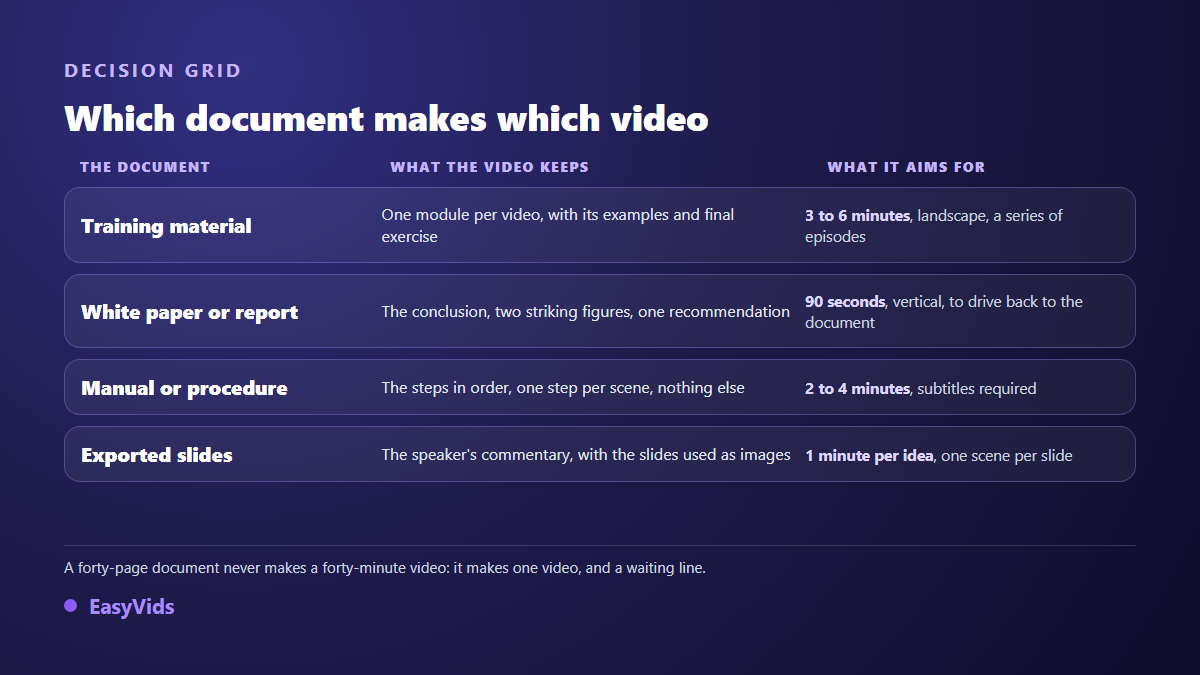
The sorting rule fits in one line. A part that stands on its own becomes a video. A part that depends on the previous one stays with it. A training manual therefore yields a series, one episode per module. A white paper yields a short video that states the conclusion and points back to the document. A procedure yields one video per action, never one video that walks the whole procedure. You then know how many videos your document holds before writing a line.
Step 3: rewrite the document for the ear
A professional document is written for a reader who can go back, skip a paragraph, check an appendix and pick up the thread. A viewer has none of that: they move in a straight line, at the pace you impose. Three habits of written work become dead ends out loud. Nested sentences full of asides. Internal acronyms, obvious inside the department and opaque everywhere else. Impersonal phrasing, which addresses everyone and therefore nobody.
- One idea per sentence, with the subject named up front.
- Say an acronym in full once, then use the short form.
- Cross references become spoken transitions: here is what comes next, and here is why.
- Round the figures and place them in a comparison, or they slide past without leaving a trace.
- Lists unroll one item per scene, after announcing how many there are.
- Read it aloud: whatever leaves you out of breath will do the same to the voiceover.
You can do that pass yourself or hand it to the studio writing workshop. One practical point saves disappointment: the idea field is not meant to receive a whole document, it holds around two thousand characters. What belongs there is the outline of the chapter, its promise and two or three key examples. Tone, language and length are set beside it, and an instructions box saved on your account keeps your writing habits from one project to the next. The full chain, from text to exported file, is described in our guide to the AI video generator.
Step 4: split the text into scenes
A generated video is not one long shot, it is a run of short shots timed on the voice. Splitting turns your cleaned text into a shot list. The studio default targets about 110 characters per scene, roughly six seconds of voice, with presets at six, eight or ten seconds and a character value you can fine tune. The scene count appears before the project is even created, so you see the volume to produce before producing anything.
Two behaviours explain most surprises on a document. A line entirely in capitals is treated as a title and stays alone on its scene, which happens constantly with report headings: leave them in during cleaning and you will get shots that say nothing but a heading. And a segment of five words or fewer is merged with its neighbour, to avoid shots that last one breath. The split stays editable by hand: cut at the exact cursor position, merge two scenes, insert one, edit the text of each.
Step 5: the voiceover is what makes it narrated
This step carries half the perceived quality, and it is what separates a narrated video from a silent slideshow. The studio voiceover tab accepts up to one hundred thousand characters at once, close to an hour and forty minutes of audio. Past three thousand characters the text is split, the parts are generated in parallel, then merged automatically in order into a single file. A whole chapter goes through in one pass, with no manual chopping. The full method sits in our guide to text turned into a narrated video.
Three settings do most of the work. The voice itself, previewed on a short sample before you launch thirty scenes. The reading style, written as one sentence such as read in a calm trainer voice, applied to every segment and saved on your account. And your punctuation, which synthesis engines read the way an actor reads a score: put a full stop where you want a breath. The catalogue brings together natural sounding voices in several languages, and keeping the same one from one document to the next gives the whole collection a recognisable sound.
Step 6: show the document instead of reinventing it
A document holds elements that must not be regenerated: an architecture diagram, a curve, a photograph of a machine, an interface capture. Asking a model to redraw them produces something pretty and wrong, the worst possible outcome on professional material. Do the opposite. Export those elements as images from the source document and drop them into the relevant scene: each scene library accepts your own files, and one scene can run several visuals in the order you set. That principle, show the original instead of having it redrawn, reaches well beyond documents: a memorial montage rests entirely on the files you supply, as our guide to the tribute video shows.
The remaining shots get generated images, and that is where consistency is decided. Lock one visual direction for the whole project, then vary only the subject. For a corporate document, restraint beats spectacle: simple materials, neutral light, no text burned in by the model. The list of things to avoid matters as much as the style itself, and it carries over from project to project.
Captions are not optional
Training videos are often watched in shared offices, with the sound off. The W3C web content accessibility guidelines, in version 2.1, require captions for any prerecorded video that carries audio: that is success criterion 1.2.2, level A, the first tier of conformance. Once the video is assembled, its audio track can be transcribed into a timed file from the captions panel, and the layout that stays readable on a phone is covered in our guide to automatic captions.
Confidential documents: what to check first
Internal material sometimes carries names, addresses and figures that are not meant to travel. The European general data protection regulation states the minimisation principle in article 5: process only the data necessary for the purpose at hand. Applied to a video conversion, it turns into simple moves. Drop the appendices that do not serve the point. Replace people with job titles. Check the file metadata, which often keeps the author name and the original save path.
Two technical notes complete the picture. The studio document reader does not store the extracted text: it hands it back to you, and your own request carries it onward. And if your organisation requires a compliance review, run it on the cleaned text rather than on the source file, since that text is what will be spoken. On transparency, the European artificial intelligence regulation sets information duties for artificially generated or manipulated content in article 50, applicable from 2 August 2026. A clear mention in the credits or the description settles it.
How long the conversion really takes
Here is the split observed on a twenty page chapter turned into a four minute video. Extraction and cleaning take fifteen to twenty minutes, a little more on a two column layout. Sorting and rewriting take the largest share, thirty to forty minutes. Splitting and settings take five minutes. Scene production happens while you do something else, since it keeps running on the server even if you close the page. Review and the final edit take about ten minutes. The second document takes half as long as the first, because the visual style, the writing instructions and the voice settings stay saved on your account. Details of the plans are on the pricing page.
One document, several videos
This is where the conversion pays off. A manual handled once feeds a series of episodes, a vertical clip per chapter, and a welcome video that presents the whole thing. The voice, the visual style and the pace stay identical from one episode to the next, which reads as a collection rather than a pile of experiments. One precaution avoids wasted work: aspect ratio is chosen before production and does not crop cleanly afterwards. A landscape training module and a vertical clip are two separate projects, each with its own hook and its own ending.
Documents that convert badly
Not every file deserves a video, and it is fairer to say so before you spend an evening on it. Five profiles disappoint regardless of production care.
- Pure reference material: rate tables, lookup charts, glossaries. People consult them, they do not listen to them.
- Regulatory text that matters word for word: an approximate spoken rewrite exposes more than it helps.
- Documents dense with figures: past three data points per minute, listeners drift away even with numbers on screen.
- Procedures built on screenshots: a narrated screen recording serves better than a generated image.
- Perishable documents: a video stays online far longer than a file, and you will leave an outdated version on display.
Frequently asked questions
Can I drop in a PDF and get a video in one click?
Not in one click, and be wary of anyone promising it. Reading a document can be automated, sorting cannot: only you know which chapter deserves a video and which nuance must survive. In the studio, the document reader currently feeds the writing of a commercial script from a digital product. For a narrated video, the route runs through the extracted text, pasted into project creation, which splits it into scenes.
What about a scanned or password protected file?
A scanned file must go through character recognition first, then through a careful review of figures and proper nouns. A protected file has to be opened with its password and saved without protection, which you may only do if you have the right to. No serious extraction tool bypasses protection, and you should not try to.
How long should the video be for a twenty page document?
Keeping a single chapter, expect three to five minutes, roughly 450 to 750 spoken words. The whole document read out would approach an hour, which serves nobody. The surplus is not lost: it becomes the next episodes, and it is already written.
Can I keep the diagrams and tables from the document?
Yes, and it is recommended. Export them as images from the source document, then drop them into the library of the relevant scene. A wide table is better split into two or three readable images than shown whole. The rule holds for anything carrying data: show the original, never have it redrawn.
Can the same video exist in several languages?
Yes, by redoing the spoken part. The text is translated, the voice is picked in the target language, then the edit runs again: the visuals do not move and get reused as they are. Just allow some slack on duration, because the same sentence does not carry the same word count across languages, and the captions follow the new track.
Take the document you send out most often, open it, and do one thing: highlight the chapter people keep asking you to explain out loud. That is your first video, and you already know what it has to say. The EasyVids studio brings writing, splitting, visuals, voiceover and editing together in one place, and creating an account is enough to drop in your first extracted text.