You emptied a memory card after a wedding, sorted a holiday folder or collected the birthday pictures, and the same question comes up before you even open an editor: how many photos for a slideshow that holds from start to finish? Too few and the film ends before the emotion lands. Too many and half the room reaches for a phone. The right number is not a matter of instinct. It is arithmetic.
Two numbers settle it: the length you are aiming for, and how long each image stays on screen. Selection, music and transitions come later, and they barely move the count. This article gives you the formula, the table from one to ten minutes, the adjustments per image type, and the fix when the total does not land. For the harder part, choosing the images and finding the order that tells a story, our guide to the photo slideshow with music takes over.
The short answer
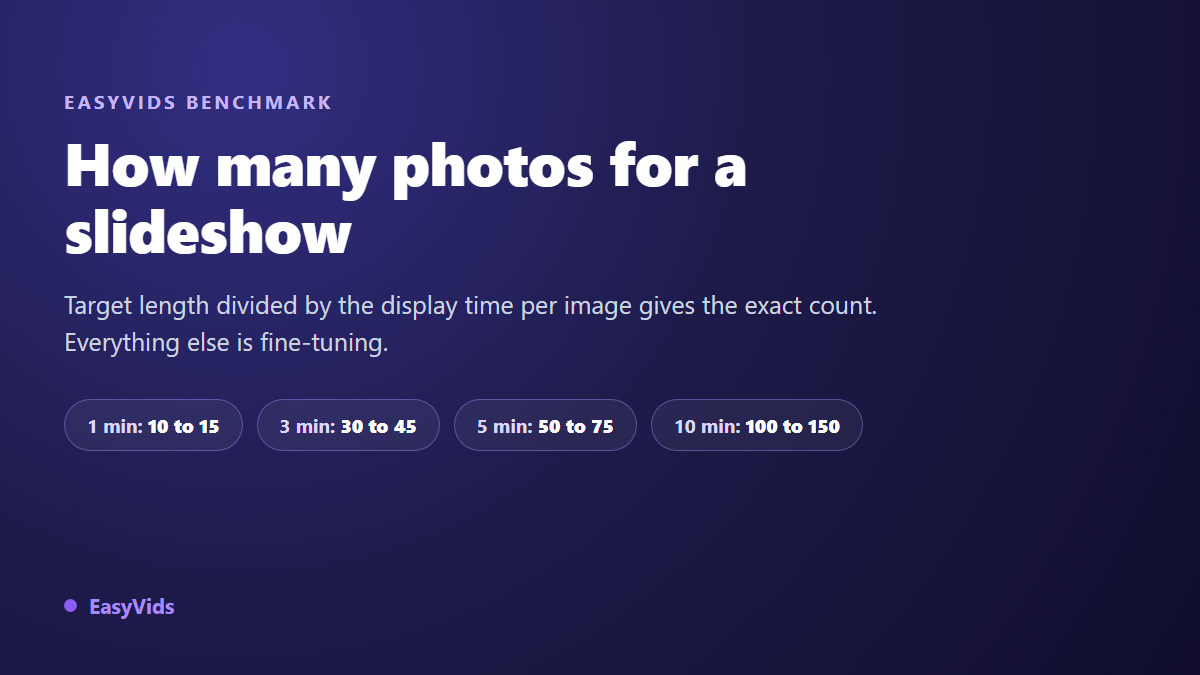
Divide the length you want, in seconds, by the time each photo stays on screen. At the most common setting, five seconds per image, that gives you twelve photos per minute of film. A three minute slideshow needs around thirty six photos, a five minute one around sixty. Depending on pacing, the realistic range runs from ten to fifteen photos per minute. The maths works both ways: a hundred photos held for five seconds run eight minutes and twenty seconds, which is already long for a family audience.
The formula and the three pacings that move it
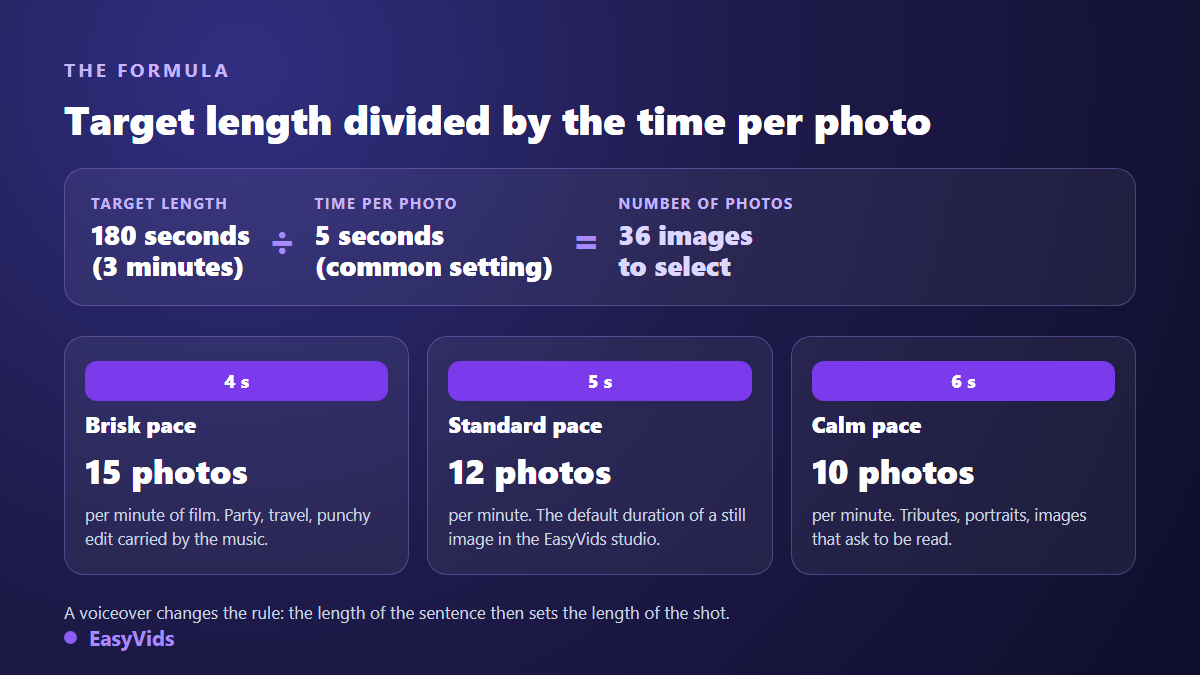
The rule fits on one line: number of photos = target length in seconds divided by the display time of one photo. For a three minute film, one hundred and eighty seconds, at five seconds per image, you land on thirty six photos. That five second figure is not arbitrary: in the EasyVids online editor, an image dropped on the timeline arrives with exactly that duration. It is the compromise that lets a viewer recognise a face without letting attention drift.
Around that baseline, three pacings cover nearly every case. Pick the pacing from the occasion and the music, never from how many photos you happen to have. That order matters: you set the pacing, the count follows, and the selection aligns with the count.
- Fast pacing, four seconds per image: fifteen photos per minute. Right for parties, trips and edits carried by an upbeat track.
- Standard pacing, five seconds: twelve photos per minute. The neutral setting that works almost anywhere.
- Slow pacing, six seconds: ten photos per minute. Keep it for portraits, tributes and detailed images.
- Narrated pacing, eight to ten seconds: six to eight photos per minute. Only justified when a voice is telling something over the shot.
- Below two and a half seconds you are no longer making a slideshow but a music clip: nobody recognises anybody.
The reference table, one to ten minutes
Here is the division worked out for the lengths people ask about most. Take the row for your target length, the column for your pacing, and you have your selection target. Title cards and video clips count as photos here, because they take up room on the timeline too.
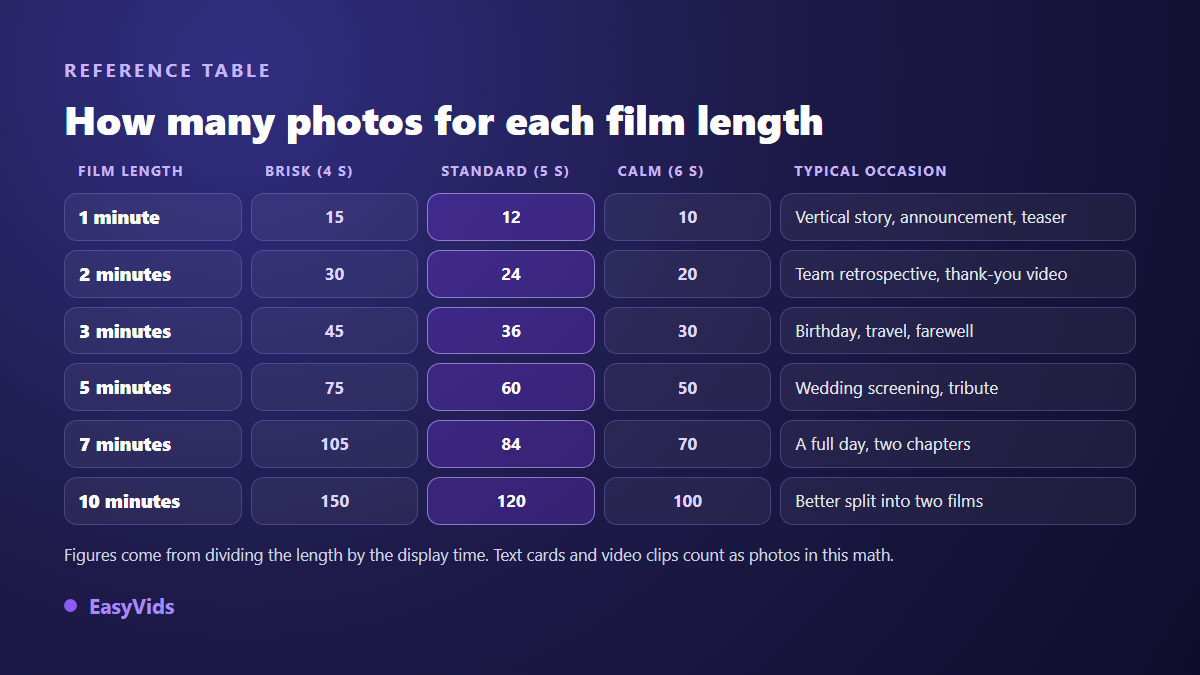
- One minute: 10 to 15 photos. The size of a vertical story, an announcement or a teaser.
- Two minutes: 20 to 30 photos. A team retrospective or a thank you message.
- Three minutes: 30 to 45 photos. The safest length for a birthday or a trip.
- Four minutes: 40 to 60 photos. A full chapter with a clear opening and ending.
- Five minutes: 50 to 75 photos. A wedding screening or a tribute.
- Seven minutes: 70 to 105 photos, provided you commit to two clearly marked parts.
- Ten minutes: 100 to 150 photos. At that point two separate films beat one long one.
The target length depends mostly on where the film will be watched. A screening in a room tolerates five to eight minutes. A file sent through messaging rarely survives past three. A social post plays out in a minute or less, and according to the YouTube help centre a Short cannot run longer than three minutes.
Transitions do not change the count
One question always follows the first crossfade: should you subtract something for transitions? In our editor, no. A transition is built as a pair of animations, an exit placed at the end of the outgoing shot and an entrance at the start of the incoming one. It plays inside the two images, so the total length stays the exact product of photos by duration. The catalogue holds eighteen patterns, from crossfade to wipe, in three intensities.
The reasoning changes in editors where a crossfade overlaps two clips, because each transition then eats its own duration. Across sixty photos joined by half second crossfades, the film loses around thirty seconds against the theoretical figure. If you edit elsewhere and the final length has to be exact, add two or three photos to compensate.
Working backwards from the photos you already have
The other situation is even more common: the pile exists, and you want to know what it adds up to. Multiply the number of images by their display time. Three hundred photos at five seconds run one thousand five hundred seconds, twenty five minutes. No guest will sit through that, however good the selection. The decision is not to speed up the shots, it is to cut the list.
When the total runs far past the target, split into two films rather than accelerating. The ceremony and the party, the way out and the way back, childhood and adulthood: two four minute films get watched to the end where a single eight minute one dissolves into conversation. Shorter files also travel better, since messaging services dislike heavy attachments, and according to Gmail help an attachment stays capped at 25 MB. For a specific occasion the target is usually shorter than you would think, as our ten minute birthday montage shows.
When the music sets the number
If you are attached to one particular track, it decides the length, not you. Take its duration, subtract the run up before the first photo and the fade at the end, then divide. A three minute twenty track runs two hundred seconds; keeping six seconds at the start and eight at the end leaves one hundred and eighty six seconds, so thirty seven photos at five seconds. Select that many and no more, and you will never have to cut the music mid bar.
The fine alignment happens by ear. The audio track shows as a waveform on the timeline, which makes the accents visible before you even hear them. Drop a marker on every strong beat, a drum entry, a silence, the start of a chorus: clips you drag snap onto those markers. Your image changes then land on the music, and the edit reads as considered work when all you did was move three shots.
Not every photo deserves the same time
The formula gives an average, not a uniform rule. The same duration on every image produces a drone that the eye picks up fast. Vary the shots around the average while keeping the total constant: a second added here is taken back somewhere else.
- Close portrait: add a second, the time it takes to read a look.
- Group photo: one to two seconds more, since everyone hunts for their own face.
- Landscape or wide shot: the standard duration is enough, the information reads at once.
- Run of images from the same place: take a second off, the setting is already understood.
- Title card: three seconds for three words, five if the sentence is long.
- Video clip: it counts for its real length, often two to three photos on its own.
With a voice over, the sentence sets the shot
As soon as narration runs over the images, the formula flips. The photo no longer decides its own duration, the sentence spoken over it does. Across our generations, one minute of narration runs to roughly one hundred and fifty words, so a twenty five word sentence takes about ten seconds and the photo stays up for all of it. Count six to eight images per minute, nearly half as many as in a musical slideshow. Write the text first, count the sentences, then pick one image per sentence: that is precisely the route laid out in our step by step tutorial for turning a text into a video, from trimming the source text to syncing the edit on the narration.
How many photos to shortlist
The calculated number is a finishing line, not a starting one. Begin with two to three times as many, then cut. For a forty photo film, shortlist one hundred to one hundred and twenty, and work in two passes. The first removes the obvious: heavy blur, closed eyes, duplicates. The second is the real one, where you keep one image out of five from the same moment.
One practical note on that second pass: sort by moment before counting, never by file name. You will immediately see the overrepresented moments, usually the meal and the speeches, and the forgotten ones, usually the preparations and the goodbyes. A balanced slideshow shows in that far more than in its total image count.
When the count does not land
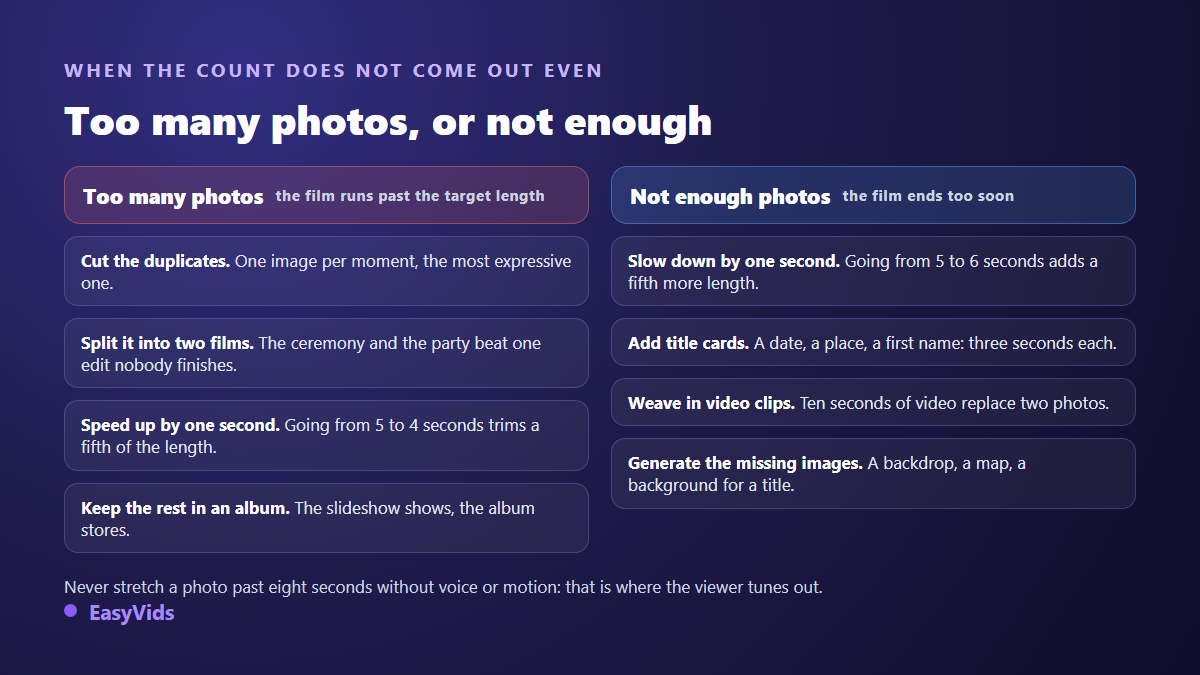
If you are over, the first answer is always selection, never speed. Removing ten duplicates beats shaving a second off every shot. Then comes splitting into two films, and only then the move from five to four seconds, which cuts a fifth of the total in one gesture. Keep the rest for an album: the slideshow shows, the album stores.
If you are short, reverse the order. Move from five to six seconds first, which adds a fifth of length without anyone noticing. Add title cards at chapter breaks, a date, a place, a first name. Drop in whatever short video clips you have. And if a chapter opens without an establishing image, a generated illustration fills the gap without breaking the tone: a setting, a map, a plain backdrop for a title.
Checking the count in the studio
In practice the assembly confirms the maths within minutes. Every photo dropped on the timeline takes five seconds, which makes the total readable at a glance: twenty images make one minute forty. To change the pacing of a whole block, select several clips and resize them together, the same offset applies to each. A cascade editing mode shifts everything that follows, so the film length tracks your adjustments without leaving gaps.
Movement matters as much as duration: a still image held five seconds with no motion reads as dead air. An automatic edit feature drops a slow zoom on every image and a transition at every join in one click, with a style family and an intensity of your choosing, and a single undo removes the whole thing if the result does not suit you. Cutting, text and audio all happen in the same tab, as our guide to online video editing explains.
The studio offers the usual frames, horizontal, vertical and square, plus two older ratios that help when your scans come from paper albums. Everything runs in the browser, from dropping the photos to exporting the final file. Plan details sit on the pricing page, and the full toolset lives on EasyVids.
Frequently asked questions
How many photos for a 5 minute slideshow?
Between 50 and 75 photos, and 60 at the standard five seconds per image. Move towards 50 if the film carries portraits or a voice over, towards 75 if the music is fast and the images easy to read.
How long is a slideshow of 100 photos?
Eight minutes and twenty seconds at five seconds per image. Count six minutes forty at four seconds, and ten minutes at six seconds. Past eight minutes, split it into two films rather than speeding up the flow.
How many photos per minute of video?
Ten to fifteen, with twelve as the reference figure. It drops to six or eight when a voice narrates over the images, since the length of the sentences then sets the length of each shot.
Can you make a slideshow with only 10 photos?
Yes, and it makes an excellent short format: ten images run around fifty seconds, the right length for a social post or an announcement. Take care with the first and last image, add a title card, and let the music carry the rest.
Do video clips and title cards count in the total?
Yes. Anything sitting on the timeline counts towards the length. A title card is worth about one photo, a ten second clip is worth two. Subtract those from your selection target before you start picking images, otherwise the film stretches without you understanding why.
Remember the division and you will not get it wrong again: the length you want, the time per photo, and the count appears. The rest of the work happens in the selection, which is where the attention of a family or a room is actually won. To lay out your images, try two pacings and watch the length change live, creating an account opens the full studio, with the editor, the music and the voice in one place.