Three hundred photos from a wedding, a trip or a whole year sit in a folder nobody will ever open again. An AI slideshow maker promises to turn that pile into a three minute film, music included, without an evening spent in editing software. The promise holds. You just need to know what the tool decides on its own, and what it still expects from you.
That is where most first attempts fall apart. You drop in fifty images, hit generate, and the result races past on a soundtrack that does not fit, with heavy zooms on photos too low in resolution to survive them. None of that is inevitable. These are settings. This guide covers how automated slideshow editing actually works, which parameters change the result, and the limits no tool crosses. If you want the fully manual route instead, our guide to photo slideshows with music covers the sorting and the beat matching in detail.
The short answer
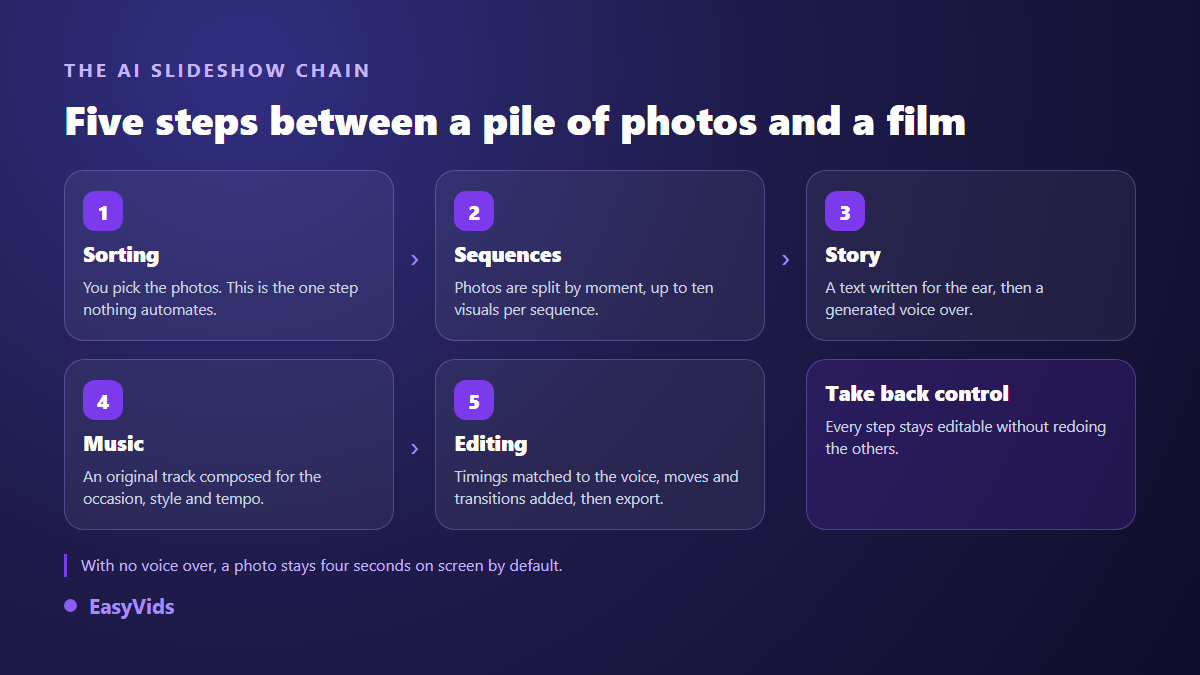
An AI slideshow maker assembles your photos into video by automating four things: the narration script, written to be spoken aloud; the voice over that delivers it; an original music track composed for the occasion; and the edit itself, meaning the duration of each image, the slow camera moves and the transitions. You keep control of the selection and the running order, which is exactly where the value of the film sits. Budget about an hour for a three minute piece, most of it spent choosing photos. The rest is a chain of generations, mapped out in our complete AI video generator guide.
An AI slideshow is not one single button
The label covers two very different mechanisms, and confusing them explains a lot of disappointment. On one side, generation: one model writes a text, another builds a voice, a third composes music, a fourth produces a missing illustration. On the other, edit automation: those are rules, not models. Matching an image duration to the length of a spoken sentence, adding a slow move on a still, inserting a dissolve between two shots, all of that is computed.
The distinction matters in practice. The generated part needs intent from you: an occasion, a tone, a few personal details. The automated part genuinely fires in one gesture, and undoes just as fast. A good tool lets you take back control at every step without restarting the rest, and that is the only criterion separating an assisted edit from a black box.
Three routes, depending on what you start from
Before touching a single setting, identify your starting point. It decides which tool you use, and above all how long the project takes. These three cases cover almost every slideshow.
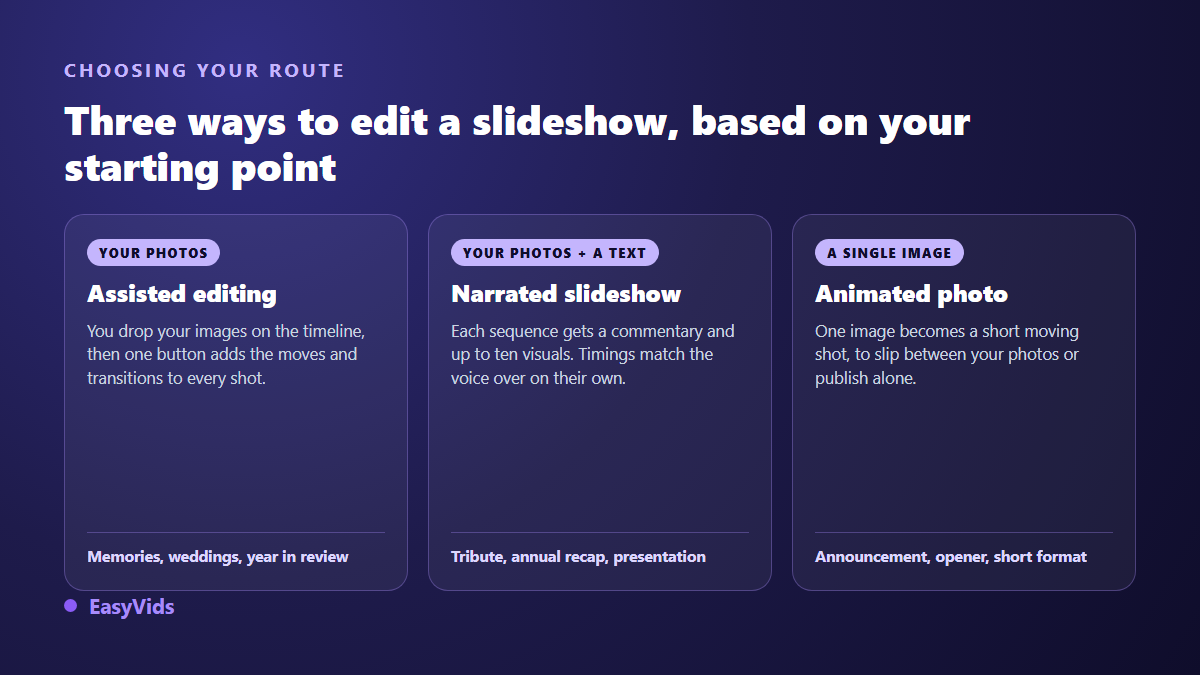
- Photos only: drop them onto the timeline, then let assisted editing apply movement and transitions across every shot. The fastest route for a family memory.
- Photos plus a story: work in sequences. Each sequence takes a piece of narration and its own group of images, and durations align themselves to the voice.
- One strong image: animate it. A single photo becomes a short moving shot, useful as an opening or as a standalone post.
These routes combine. A wedding slideshow gains from opening on an animated photo, moving into narrated sequences, then closing on a fast hand cut montage. The first belongs to our seven ways to animate a photo with AI, the last to the editor, explained in our guide to online video editing.
What automation handles, and what it will not
A good slideshow rests on three human decisions: which photos to keep, in which order, and what tone to set. None of the three can be delegated, because no machine knows that the slightly blurred shot of the buffet is the only one your grandmother appears in. Everything else automates with no loss of quality.
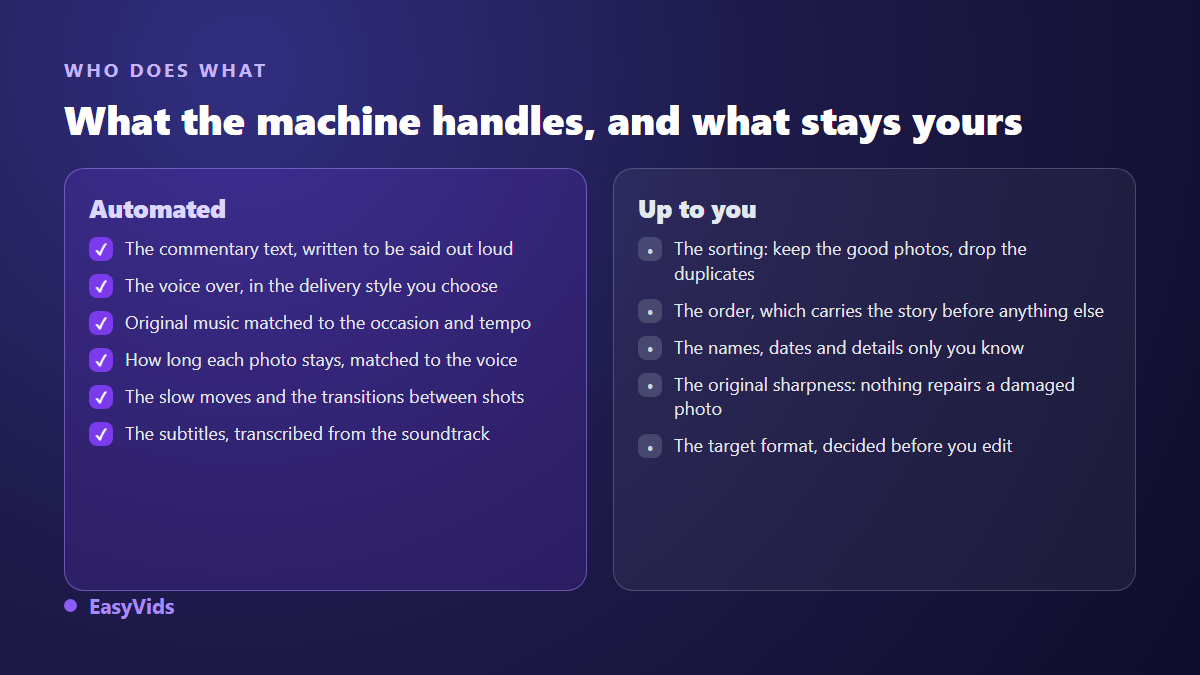
One limit deserves to be stated plainly, because the opposite claim circulates widely: a slideshow tool does not repair a photo. It does not upscale a low resolution image and it does not restore an old print. That work happens earlier, at scanning time. Knowing it before you edit saves you from discovering the problem on the living room screen with everyone sitting down.
Pacing: the duration per photo decides everything
This is the setting that separates a film from a stream of pictures. With no narration, an image holds for four to six seconds, slightly longer for a portrait where viewers search for faces, slightly shorter for a wide shot that reads instantly. In our studio, a photo with no audio stays four seconds by default, which gives an even pace you can publish as is.
With narration, the logic flips: the voice sets the length. A sequence can hold up to ten visuals, and each of them takes either a fixed duration or automatic mode. In automatic, the images in a sequence share whatever voice time remains once your fixed durations are subtracted. So you pin three seconds on the cake photo, and the five other images in that sequence divide the rest without you counting anything.
Three behaviours exist when the series of images does not exactly fill the spoken sentence. The series can loop from the start until it covers the voice, stretch to land precisely, or play once. For a memory slideshow, stretching gives the most natural result: no image repeats, and the last one does not linger in silence.
Music: generate it rather than borrow it
Music sets the tone before the first photo lands. It is also the leading cause of trouble at upload time. According to the YouTube Help Center, Content ID automatically compares every upload against a database of reference files supplied by rights holders, then applies the policy the owner chose: block, track, or monetise to their benefit. A well known song laid over a family montage may pass in a private screening, never on a channel. We covered what the platform actually detects in our analysis of AI music and Content ID.
Generating the track removes the problem at source. You describe the occasion, a style, a mood and a tempo, and you get an original piece, sung or instrumental. For a birthday or a dedication, the lyrics start from what you supply: a first name, a date, an anecdote. One caveat: the exact duration cannot be ordered. Plan to trim the track in the edit rather than stretching your photos to fill it, which always shows.
Voice over turns a slideshow into a story
A narrated slideshow does not follow the same rules as a silent one. As soon as a voice explains who is in the photo and why the moment matters, images can hold far longer without tiring anyone. The viewer is listening, not only looking. It is the single most profitable change for a company retrospective, a tribute or a milestone birthday.
Two routes exist. Record a relative on a phone, in a room with no echo, and drop the file in. Or generate the narration from your text, picking the voice and the reading style. Either way, add captions: a large share of the audience watches with the sound off, and the timeline audio can be transcribed straight from the editor in the language you choose. The settings that matter sit in our guide to automatic captions.
Movement and transitions: automatic, but measured
On stills, a light camera move changes everything: a slow push in, a discreet pan, what editors call a Ken Burns effect. Applying it by hand to sixty photos discourages anyone. In the editor, assisted editing applies those moves and the transitions across every clip at once, with a useful safeguard: never the same pattern on two consecutive shots, never the same transition on two consecutive joins, and a direction of movement that alternates from image to image.
You pick a family, soft, dynamic or cinematic, and an intensity, light, normal or pronounced. Every new run produces a different result, and a single undo removes the whole pass if it misses. Two precautions are worth repeating. Transitions only work between two shots genuinely touching on the timeline: a gap between them falls back to a fade through black. And on an old, low resolution photo, prefer a slow pan to a push in, which reveals the grain instead of hiding it.
Aspect ratio and export: two calls to make before editing
Aspect ratio is decided at the start, never at the end. A wedding screening or a retrospective shown on a television is edited horizontally. A memory meant to travel through messaging or stories is edited vertically, which means favouring vertical photos from the sorting stage onward. If both really matter, edit the main version, then rework it for the second rather than cropping blind: automatic cropping cuts off a head every time.
One technical note that avoids a bad surprise. Assembly of a narrated slideshow happens on our servers: you can close the page and the file waits for you. Export from the manual editor runs inside your browser, and that function is not yet available in the browser on iPhone and iPad. Edit on a computer if the final export goes through the editor. What each plan covers is listed on the pricing page.
The mistakes that make an AI slideshow obvious
A failed automated slideshow is recognisable within ten seconds, and always for the same reasons. None of them come down to the technology.
- Too many photos. Fifty chosen images beat two hundred dumped in: viewers drop out before halfway.
- Folder order. Sorting by file name lets the camera tell the story instead of you.
- A move on every shot, same intensity, same direction. Repetition tires faster than stillness.
- Showy transitions. A simple dissolve works nine times out of ten, and flashy effects age badly.
- Music picked after the edit. It dictates tempo and length, so it comes first.
- Photos stretched to fill the frame. A square image sits centred on a plain background, never distorted.
Frequently asked questions
How many photos does an AI slideshow need?
Between forty and eighty for a three to five minute film. Below twenty, the edit runs short and every image has to hold too long. Above a hundred, attention drops whatever the pace. Work in blocks of five to eight photos sharing a place or a moment: those breathing points are what makes a slideshow easy to follow.
Can AI sort and order my photos for me?
No, and that is deliberate. Sorting means knowing who matters, which moment deserves screen time and which one gets cut. Automatic selection would produce a statistically reasonable and emotionally wrong result. Plan an hour of sorting: it is the best investment in the project.
Can I build an AI slideshow from a phone?
Yes for the generated part, since everything is computed on servers and your device only displays the interface. You can write the narration, generate the voice, compose the music and launch the assembly from mobile. Export from the manual editor needs a computer, and precise image placement stays more comfortable on a large screen.
Does the generated slideshow carry a watermark?
No. Files export with no added mark, in horizontal, vertical or square, and remain usable for personal and professional purposes alike. Just make sure the visuals you import belong to you or are cleared for use.
How long does a three minute slideshow take?
About an hour, half of it choosing photos. Generating the voice and the music takes minutes, and so does assembly. The real time goes into review: replaying a sentence, swapping two images, nudging a duration. That is also what separates a considered edit from a file shipped as delivered.
An AI slideshow maker does not replace your eye on your own photos. It removes the two hours of handling that killed the project: setting durations, hunting for cleared music, placing sixty moves one by one. Pick your images, write three sentences about what you want to say, and let the rest chain together. To start, creating an account opens the full studio, with music, voice and editor in one place. It all runs in the browser, on EasyVids.