You export your video, you upload it, and what comes back looks nothing like what your editor showed you. Edges smear the moment a shot moves, on screen text loses its bite, and two black bars frame the picture. The YouTube video format is not a matter of taste: the platform re encodes everything it receives, and what comes out depends directly on what goes in.
The good news is that these settings fit on one page and barely change from year to year. YouTube publishes its recommended encoding settings in its Help Center, and the rest is decided before you produce anything, through two choices: the frame and the frame rate. If the same video also lives on other networks, our rundown of video formats platform by platform puts every frame side by side.
The recommended upload format, in one line
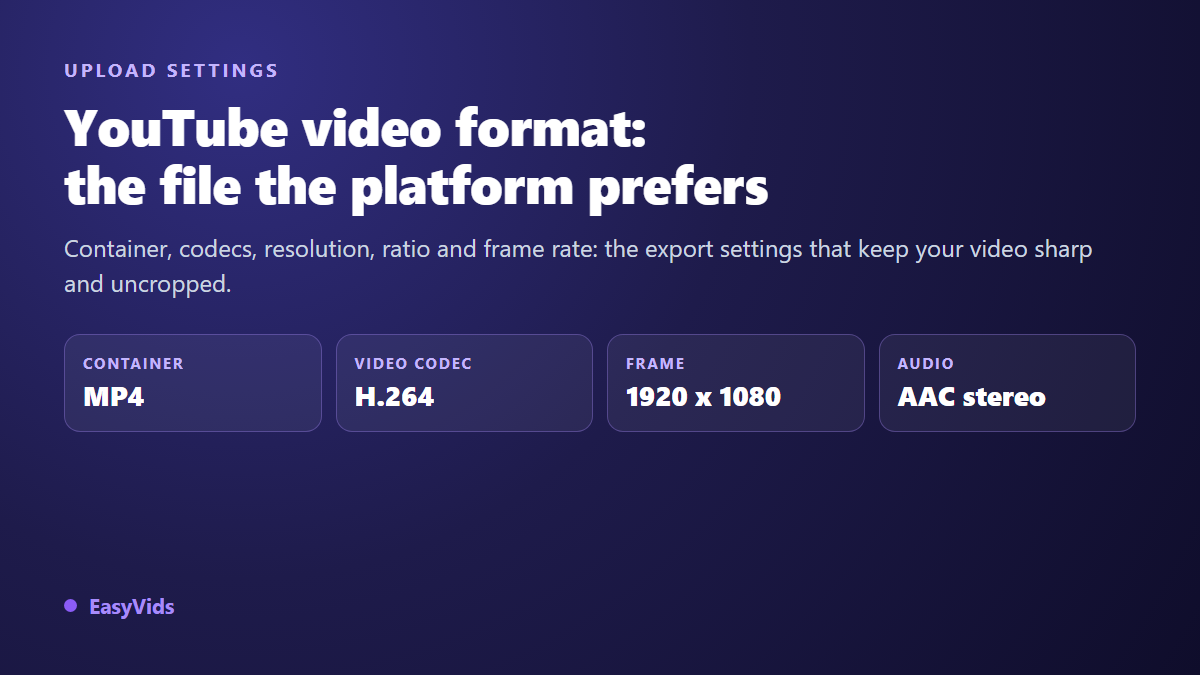
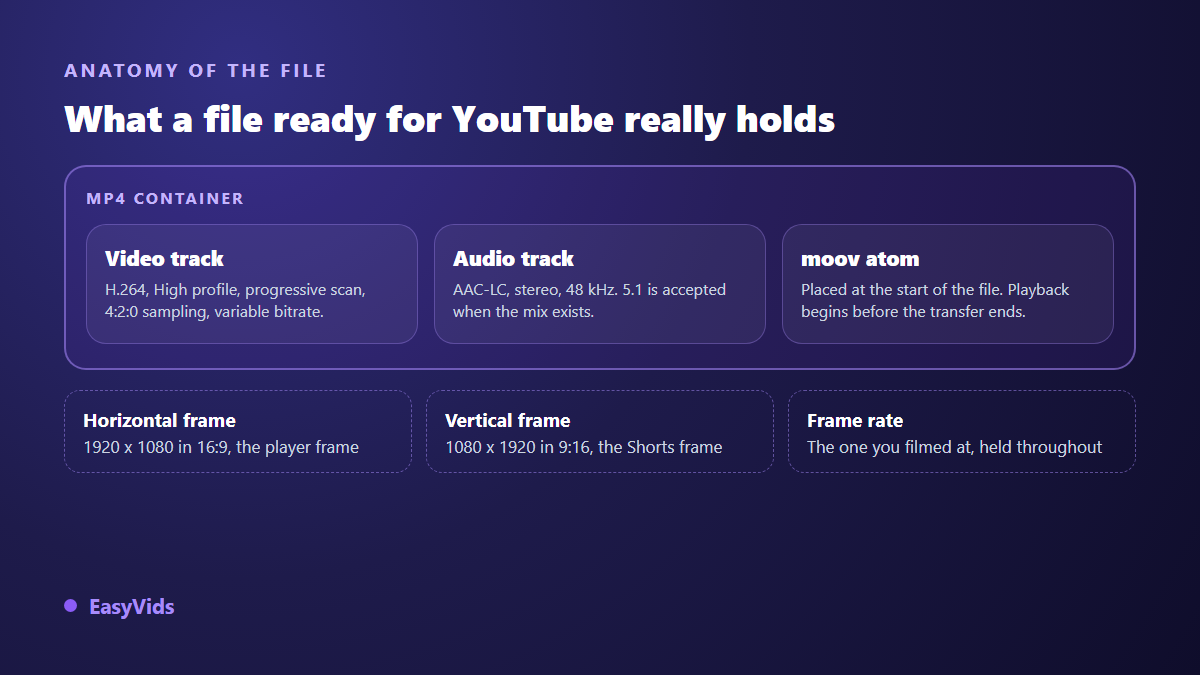
According to the recommended encoding settings page in the YouTube Help Center, the ideal file is an MP4 carrying an H.264 High profile video track, progressive scan, 4:2:0 chroma subsampling, and an AAC-LC stereo audio track sampled at 48 kHz. The reference frame is 16:9, at 1920 x 1080 or above. The frame rate stays the one you shot in, and the moov atom sits at the front of the file. The rest of this guide covers each of those points, and what happens when you drift from them.
The container: why MP4 rather than anything else
YouTube accepts a long list of containers on upload, from MOV to MKV, AVI and WebM. Accepting is not recommending. MP4 is the only format named in the recommended settings, and it is the one that causes the fewest upload problems. A file exported with unusual tracks can fail during transfer, or go through while carrying a drift between picture and sound that nobody notices until publication.
Two details matter inside an MP4, and almost nobody checks them. The first is edit lists, those trimming instructions some editors leave inside the file: the Help Center explicitly asks you to avoid them. The second is the position of the moov atom, the index describing the file structure. At the end, it forces a full download before the first frame plays. At the front, playback starts immediately. Serious exporters offer a fast start or optimise for web checkbox, and on the command line, the movflags faststart option does the same job.
The video codec: H.264 and the settings that actually matter
H.264 remains the codec expected on upload, even though YouTube later redistributes your video in more modern formats. The Help Center spells out a precise set of settings. Most consumer exporters already apply them, but they deserve a check as soon as you encode by hand or route the file through a converter.
- High profile, not Baseline or Main: this is what unlocks the most efficient compression tools.
- Progressive scan is required: interlaced sources must be deinterlaced before upload.
- Two consecutive B frames, and a closed GOP half the length of the frame rate.
- CABAC entropy coding, more efficient than CAVLC at equal perceived quality.
- 4:2:0 chroma subsampling, the only one every consumer playback chain handles.
- Variable bitrate with no imposed ceiling: recommended bitrates are targets, not limits.
Taken one at a time these settings look trivial. Together they decide how much information your file carries at the same weight. An export in Baseline profile, still offered by old online converters, visibly loses sharpness as soon as a shot moves quickly.
Resolution: 1080p as the floor, higher when the source allows
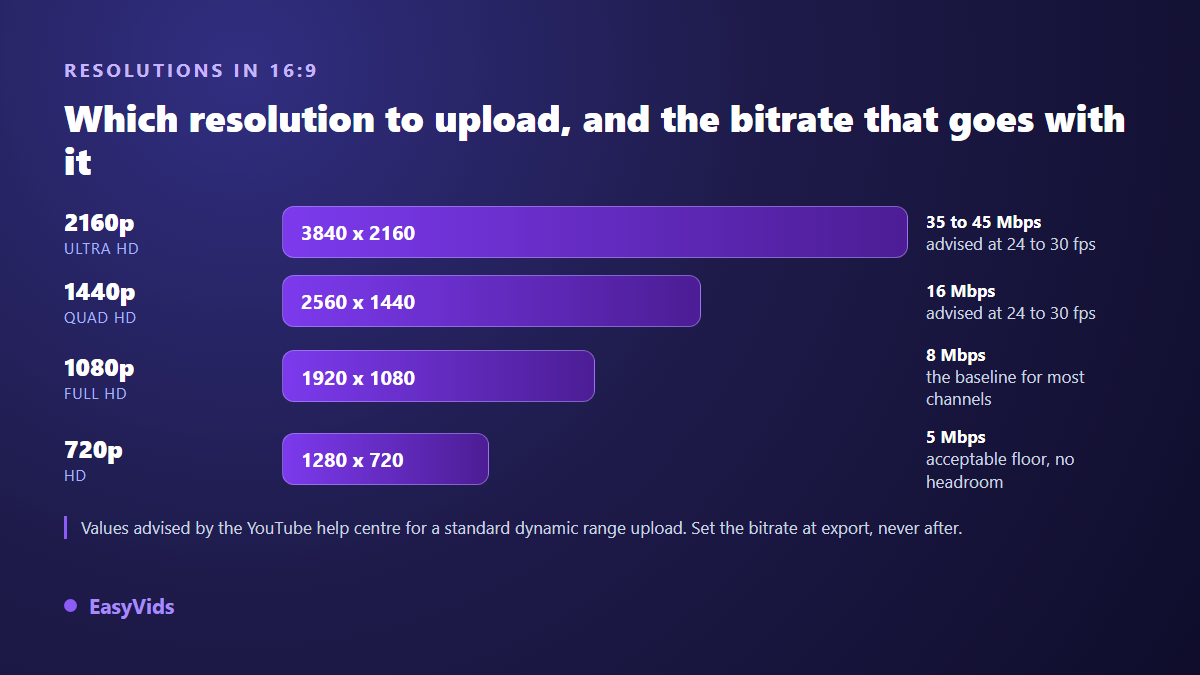
The YouTube Help Center lists the reference resolutions in 16:9: 3840 x 2160 for 2160p, 2560 x 1440 for 1440p, 1920 x 1080 for 1080p and 1280 x 720 for 720p. Below that, the video still uploads, but the player has nothing left to serve viewers on a large screen, and a busy thumbnail becomes unreadable in the recommendation feed.
Should you always upscale to 4K? No. A resolution above your source adds no detail, because the encoder only interpolates pixels that already exist. You get a much heavier file, a longer upload, slower processing, and the same picture. Plenty of creators still upload in 1440p hoping for a more generous encode. YouTube documents no such rule, and we will not claim one on its behalf. The safe instruction stays simple: upload at your source resolution, never below, never artificially inflated.
Bitrate, the setting that decides sharpness
Resolution says how many pixels. Bitrate says how much information per second describes them. That is what explains why a 1080p video looks crisp for one creator and mushy for another. YouTube publishes recommended bitrates for standard dynamic range uploads: roughly 8 Mbps at 1080p, 16 Mbps at 1440p, and 35 to 45 Mbps at 2160p, for 24, 25 or 30 frames per second. At 48, 50 or 60 frames, those targets rise by about half.
Two habits are enough. Aim for the recommended bitrate of your resolution rather than the maximum your software allows: beyond that, you build a huge file whose excess the platform discards on re encode. And if your video carries heavy motion, gameplay or highly textured shots, go slightly above the target rather than below. Bitrate is set at export and never afterwards, because no processing recovers information that was never encoded.
Aspect ratio: 16:9 for the player, 9:16 for Shorts
The YouTube player is built around 16:9. Videos arriving in another ratio display with bars added automatically, top and bottom or on the sides. Those bars are not a mistake, but they shrink the usable surface of your image in a feed where everything is decided in one second. Shorts change the frame entirely: vertical or square, and up to three minutes since YouTube extended the format in October 2024. The exact limits and the length that holds attention sit in our guide to YouTube Shorts duration.
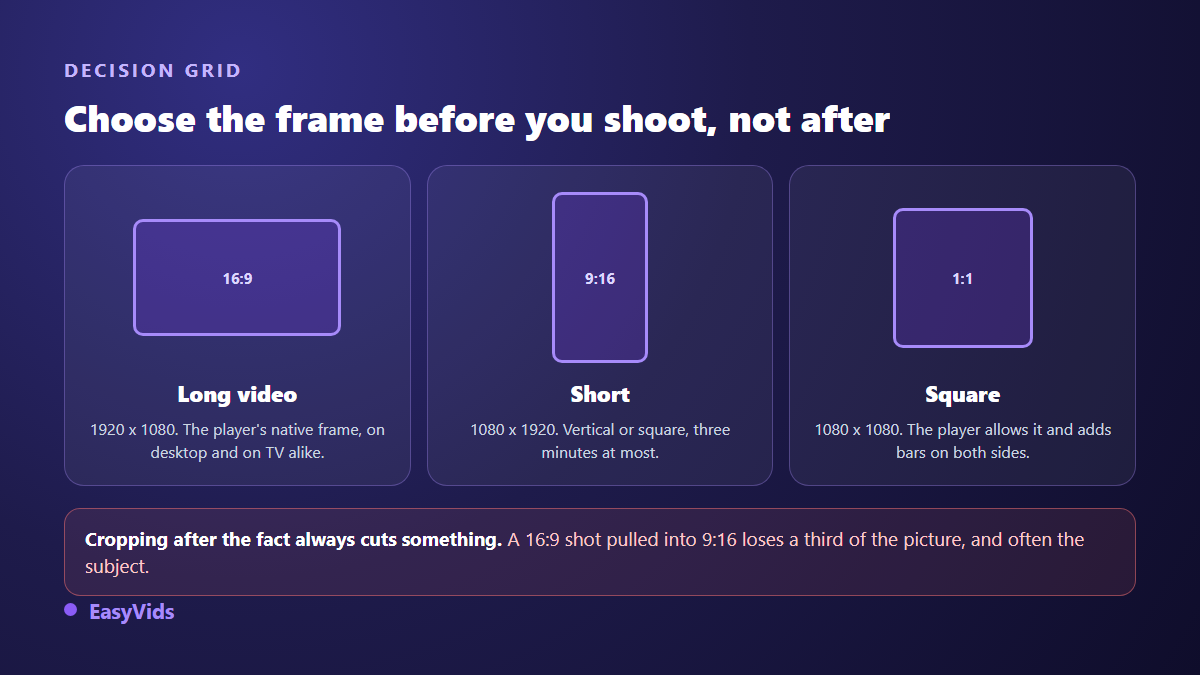
The practical consequence fits in one sentence: pick the frame before you produce. A shot composed in 16:9 then pulled into 9:16 loses a third of its image, and the subject often ends up out of frame. When the same video has to live on several networks, produce one version per frame instead of letting an automatic crop decide for you.
Frame rate: keep the one you shot in
YouTube accepts the common frame rates, from 24 to 60 frames per second, and its Help Center gives an unambiguous instruction: encode and upload at the original frame rate of the content. A video shot at 30 frames per second then exported at 60 gains no smoothness. It duplicates frames, inflates the file, and sometimes introduces micro stutters on pans.
The other direction does more damage. Going from 60 to 30 frames per second throws away every second frame and chops the motion. So fix the frame rate at capture or generation, then hold it across the whole chain, from edit to export. One special case remains: interlaced sources, typical of older camcorders and some broadcast feeds, must be deinterlaced before upload, which the Help Center states explicitly.
Audio: AAC stereo, and the loudness trap
The recommended audio track is AAC-LC in stereo, sampled at 48 kHz or 96 kHz. A 5.1 mix is accepted when it genuinely exists, which stays rare outside professional production. Recommended bitrates sit around 384 kbps in stereo, comfortable for voice over and music alike. A 44.1 kHz track uploads without trouble: it gets re encoded like everything else.
The real trap is not the codec, it is the level. YouTube turns down videos that are too loud on playback, but never lifts the ones that are too quiet: a timid mix stays timid. Aim for a steady dialogue level rather than a signal crushed against the ceiling, and keep music well under the voice. A viewer who has to reach for the volume because of you notices it, and does not enjoy it.
Length, file size and account limits
By default, an unverified account cannot upload a video longer than 15 minutes. Verifying the account, which is free, lifts that limit: maximum length then goes to 12 hours and maximum file size to 256 GB, according to the YouTube Help Center. Those ceilings are high, and a properly exported file rarely comes close. When an upload drags or fails, the culprit is almost always a file oversized for no reason.
What YouTube does with your file after upload
Your file is never served as it is. The platform re encodes it into its own formats and several resolutions, to suit every device and connection. That is why a video looks soft during the first minutes after publishing: only the low resolutions are ready, the higher ones follow as encoding progresses, sometimes hours later on a long high resolution upload.
Two practical consequences. Do not judge an upload within the first quarter of an hour: come back the next day and force the highest resolution in the player menu. And avoid double compression. A file already re encoded by an online converter takes a second hit from YouTube, and it shows on flat colours and gradients, which break into bands.
Exporting the right format when the video is made with AI
A generated video does not escape these rules, it meets them earlier. In the EasyVids studio, the frame is chosen when the project is created, among 16:9, 9:16 and 1:1, and it holds end to end: shots are generated in that frame instead of being cropped afterwards. The final edit comes out as MP4, H.264 with an AAC stereo track, index at the front of the file, and resolution is set at export in 720p, 1080p or 4K. When the starting point is a document you have already written, the step by step route from text to video shows where that frame choice belongs, between cutting the script into shots and editing on the voice over.
The online editor follows the same logic: the working canvas is set to 1920 x 1080, 1080 x 1920 or 1080 x 1080, and the export produces a file YouTube reads with no intermediate conversion. If you start from an idea rather than a finished edit, our guide to building a YouTube video with AI walks the whole chain, from script to upload ready file.
Export mistakes that damage a YouTube video
- Exporting above the source resolution: the file swells, the picture gains nothing.
- Leaving bitrate at the software minimum to save time: the leading cause of mushy footage.
- Changing frame rate between the edit and the export, in either direction.
- Uploading a file already compressed by an online converter, stacking two losses.
- Cropping a horizontal video to vertical at the last minute instead of producing it vertical.
- Forgetting the fast start option that moves the index to the front of the file.
- Mixing the voice too low and counting on the platform to lift the level.
Frequently asked questions
Should I upload 1080p footage as 4K?
No. Upscaling a 1080p source to 3840 x 2160 adds no detail, since the encoder only interpolates existing pixels. You get a file several times heavier, a longer upload and slower processing, for an identical picture on screen. Upload at your real source resolution.
Does YouTube accept MOV, AVI or MKV?
Yes, those containers are among the accepted upload formats. The Help Center does not recommend them for all that: its recommended settings describe an MP4. A properly encoded MOV or MKV goes through fine, but you lose the compatibility guarantee, especially on unusual audio tracks.
Why does my video look blurry right after publishing?
Because processing of the higher resolutions is not finished. The platform publishes the low versions first, then adds the others as encoding progresses. On a long high resolution upload that delay can run into hours. Wait, then force the maximum resolution in the player menu before drawing any conclusion.
Vertical or square for a Short?
Vertical, at 1080 x 1920. Square is accepted, but it leaves two empty zones on a phone screen, and that wasted space is exactly what holds attention. Keep square for networks whose feed displays in a narrow column.
Should captions be burned into the picture?
Not on long form. A caption file uploaded separately stays switchable, automatically translatable and readable by search. Burning in keeps its value on vertical formats, where animated captions are part of the rhythm and the native display sits badly.
Upload format is not a specialist subject. It is a list of six settings you configure once in your exporter and never reopen: frame, resolution, bitrate, frame rate, codec, fast start. The time saved goes back into what actually decides a video, the idea and the edit. To produce straight into the right frame, with no conversion step, create your account and lock the format when you create the project.