You go looking for a free video editor with no watermark, install one, spend two hours cutting, and the finished file comes out with a logo in the corner. Or capped at 720p. Or it refuses to export until you remove the effect you had just picked. None of that is an accident. It is the stated business model of a large share of free editors.
Editing itself is rarely the blocker. Trimming, stacking clips, adding a title, sliding music underneath: almost every one of these apps does it, and often does it well. The decision sits somewhere else. What does the export hand back, and on what terms? That is the single criterion used here, applied to nine options, with each limit taken from the tool's own official page. For the wider picture of what a browser timeline can actually do, our guide to editing video in the browser sets the scene.
The short answer
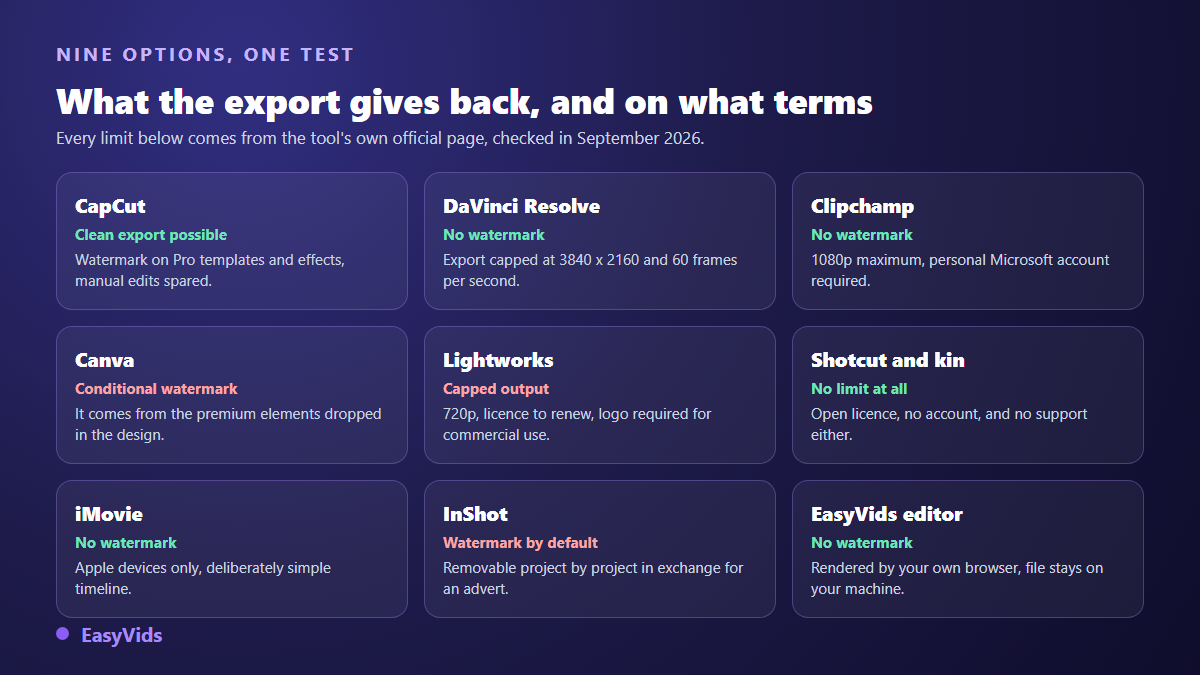
Three options give you a clean file and ask for nothing: the free build of DaVinci Resolve, the open source family around Shotcut, and iMovie if you already live on Apple hardware. Three more do it with a condition attached: Clipchamp in exchange for a Microsoft account, CapCut as long as you stay away from anything marked Pro, and a browser based editor such as ours, which renders the export on your own machine. That leaves three where free is visibly paid for: Canva, where the watermark comes from the premium elements you dropped in, Lightworks, whose file output is capped, and InShot, which trades its end mark against an advert.
What free actually hides
A video editor is not funded by generosity. It is funded by one of six tolls, sometimes two at once. Spotting the toll in advance matters, because none of them shows up while you edit. They all appear at the last step, once the work is done and switching tools means starting over.
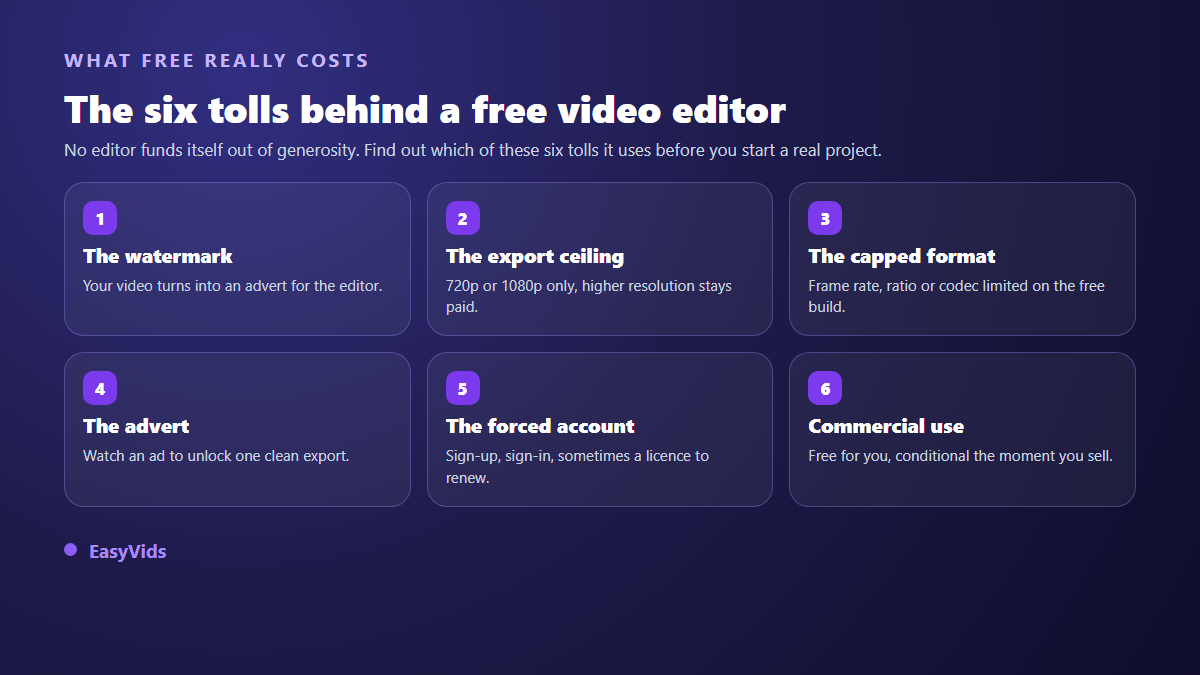
- The watermark: a logo burned into the frame, or a short end card added for you. Your video becomes an advert for the editor.
- The export ceiling: maximum resolution locked below your own footage, usually at 720p or 1080p.
- The capped format: frame rate, ratio, codec or duration limited on the free build, while the timeline itself is complete.
- The advert: watch an ad to unlock one clean export, then do it again on the next project.
- The forced account: sign-up, sign-in, and sometimes a free licence you have to renew.
- Commercial use: free while you film for yourself, restricted the moment the video sells something or bills a client.
None of these tolls is unfair in itself. The damage comes from finding out late. The watermark costs the most, less for how it looks than for what it says: a stamped video reads as a draft, even when the edit is good. Where the footage is generated rather than filmed, we covered the ways to get clean exports with no watermark separately.
How the nine were separated
An overall score would be meaningless here: the perfect tool for a family memory is unusable for a daily channel. So a single criterion was kept, because it can be checked and does not depend on taste: what the tool agrees to hand back at the end, and on what terms. Every limit below comes from the official page of the tool concerned, named in the sentence and checked in September 2026, never from a forum post. The same method was used to compare seven ways to build a free slideshow.
1. CapCut: clean on manual edits, stamped the moment you use a template
CapCut is where a lot of creators start, on phone and on desktop, and the free build covers short form editing properly: fast trimming, animated text, auto captions, a sound library. The watermark is not automatic, and that is the nuance most articles miss. CapCut's official help page about exporting without a watermark, checked in September 2026, explains that the mark comes from ready made templates, which often append a short branded clip, and from certain premium stickers, transitions and filters. An edit built by hand with the standard tools comes out clean. The working rule: anything wearing a Pro badge will charge for its place on your export.
2. DaVinci Resolve: the most complete, with an honest ceiling
This is the oddest entry on the list. A professional grade application, used in post production, given away, with no watermark and no account needed to edit. The free build is still not the full build, and Blackmagic Design documents that plainly. Its official comparison page between DaVinci Resolve and DaVinci Resolve Studio, checked in September 2026, states that the free version handles 8-bit video formats up to 60 frames per second and up to Ultra HD 3840 x 2160. Higher resolutions, higher frame rates and 10-bit depth move to the paid version, along with temporal noise reduction, magic mask and the neural engine. The real cost of this free is the learning curve: expect several evenings before it feels natural. For animated pieces rather than footage, our comparison of motion design software covers a different family.
3. Clipchamp: watermark free up to 1080p, in exchange for an account
Built into Windows and available in the browser, Clipchamp aims at fast editing and says so: simple timeline, templates, screen recording, captions. Its official plan comparison page, checked in September 2026, advertises watermark free exports up to 1080p, with 4K reserved for the paid tier. Two conditions come with it. You must sign in with a personal Microsoft account, and a project containing a premium item, a stock clip or a paid effect, will not export until that item is replaced or unlocked. That is the classic trap: you meet the obstacle after dressing the whole video.
4. Canva: the watermark comes from the elements, not the export
Canva is not a cutting room, but its video editor is enough for an animated presentation, a story or a brand clip. The free plan exports without a mark, with one caveat that catches many people out. Canva's official help centre, on the page about watermarks appearing on a design, checked in September 2026, states that premium elements stay covered by a criss-cross pattern until they are bought individually or unlocked by a subscription. The watermark does not punish the export, it punishes what you dropped into the project. The fix is a habit: filter the library on free elements from the first minute.
5. Lightworks: the free build that asks you to show its logo
Lightworks carries a cinema reputation it has earned, and a free version still exists. This is where the word free needs the most attention. The official Lightworks FAQ, checked in September 2026, states that file output on the free version is restricted to YouTube and Vimeo at 720p, and that exporting above that requires a paid licence. Two further conditions sit on that same official page. The free licence expires every 90 days and is renewed by signing back into the application. And for commercial content made with the free version, Lightworks asks you to place its logo at the end of the video and a link to its site in the description. The watermark is not burned in by the software: you are asked to add it yourself.
6. Shotcut, Kdenlive, OpenShot: no limits, and no safety net
The open source family is the only group where free hides nothing. Shotcut, Kdenlive and OpenShot are published by their respective official projects under an open licence, with no account, no watermark, no export ceiling and no commercial restriction. The code is public and the file you produce is entirely yours. These are genuine multitrack editors, able to carry a long project. The trade is real but different in kind. Nobody answers when a render fails: there is a forum, community documentation and your own patience. Interfaces are dated, some updates are unstable, and encoding leans entirely on your machine. Perfect if editing interests you for its own sake, painful if you only want to join a few clips into one film tonight.
7. iMovie: clean and simple, if you are on Apple
iMovie ships with Macs, iPhones and iPads, costs nothing, adds no watermark and exports in high definition. For a family edit, a travel video or a memory to project on a wall, it is often the fastest answer, and it takes about half an hour to learn. Its limit is announced rather than hidden: it exists only on Apple hardware, and the timeline stays deliberately simple, with few stacked layers and a restricted set of titles. The day you need three text layers over two videos, you are out.
8. InShot: the watermark traded against an advert
On mobile, InShot remains one of the most used editors, and the free tier is complete for vertical work: cropping, speed, text, music, transitions. The model is explicit. The free version adds an end mark, removable project by project by watching an advert, and removable permanently by moving to the paid tier. That is honest enough, provided you know the step repeats on every video. On a channel that posts daily it becomes a daily chore. Other mobile apps take the opposite stance and burn nothing in by default, which is worth checking in the settings before the first export.
9. The EasyVids online editor: the export rendered by your own machine
Ours comes last, and we may as well say where we stand. The EasyVids editor opens in a tab, with nothing to install and no licence to activate. You drop your files in, you work a multitrack timeline with text, captions, transitions, effects and sound, then you export. The render is computed by your browser, using your own hardware: imported files are never uploaded to a server, and the export joins no queue. There is therefore no technical reason to burn a mark into the frame, and there is none.
Two honest limits, since that is the subject here. Timeline editing needs a wide screen, and the editor warns you below a certain width; browser export is not available on iPhone or iPad. And while editing itself consumes nothing, the features that need server side computing, automatic caption generation for instance, draw on your account credits. The detail lives on the pricing page, which we would rather let speak than quote figures that move.
The five minute test that prevents the bad surprise
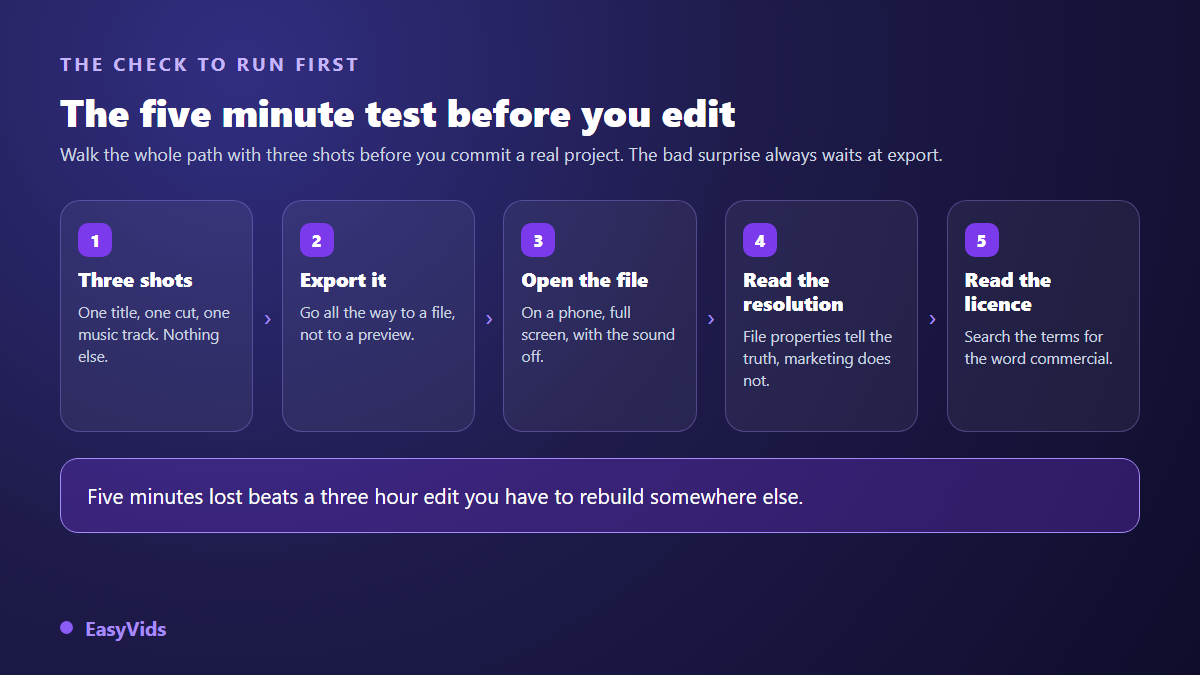
Plan pages change faster than the articles describing them, and this one will age like the rest. The only check that never expires is the one you run yourself, and it takes five minutes. Run it before you commit a real project, not after.
- Cut three shots, no more: one cut, one title, one music track. The point is not to look good, it is to reach the export.
- Go all the way to a file, never to a preview. Watermarks and ceilings only appear on the final render.
- Open the result on a phone, full screen, with the sound off. A discreet logo on a large screen becomes loud in vertical.
- Read the file properties: width, height, frame rate. That is the only place the real resolution is written.
- Search the terms of use for the word commercial. If you plan to sell, bill or monetise, that search beats every comparison.
The commercial use trap
This is the least examined limit and the most expensive one. A tool can be free, watermark free and uncapped while still restricting what you may do with the result. Lightworks asks for its logo on commercial content, as its own official FAQ states. Music catalogues built into social apps do not travel outside those apps. Stock libraries bundled with free tiers almost always carry a licence separate from the software licence. The working rule fits in one sentence: the licence of the software and the licence of the content you drop into it are two different things, and the second one causes most disputes. Before monetising, check where every imported element came from, music first. A production chain you control end to end avoids that grey area, which is the principle behind the EasyVids studio.
Frequently asked questions
Which free video editor adds no watermark at all?
The free build of DaVinci Resolve, the open source editors such as Shotcut, Kdenlive and OpenShot, iMovie on Apple devices and Clipchamp up to 1080p all export a clean frame. So does CapCut, as long as your edit borrows no Pro template or effect. A browser based editor that renders on your own machine, like ours, has no reason to add one either.
Can I edit video for free without installing anything?
Yes. Recent online editors work inside the tab, with trimming, tracks, text, captions and export. The difference is where the computing happens: a service that uploads your files to its servers has a commercial reason to cap the export, an editor that processes them in your browser has none.
Is a free editor enough for a YouTube channel?
For the editing itself, easily. What runs out after a few weeks is rarely a feature, it is time: captioning by hand, rebuilding the same title cards, re-exporting to the right format. The gain lives in automating those repeated steps, not in a more expensive application.
Does free allow 4K export?
Sometimes. The free version of DaVinci Resolve exports up to Ultra HD 3840 x 2160 at 60 frames per second, according to Blackmagic Design's official comparison page. Clipchamp stops at 1080p on its free plan and Lightworks at 720p, according to their official pages. Check that ceiling before you shoot in high definition, or you will publish a shrunken version of your own footage.
Do I need a powerful computer to edit for free?
For installed software, yes: encoding leans entirely on your processor, and a long project on a modest machine gets painful. For a browser based editor, an ordinary computer copes with short formats, provided the browser is recent and you keep an eye on available storage.
The right instinct is not to hunt for the most complete application. It is to decide first what the finished file must be able to do: travel without a logo, exist in high definition, sell something. That one decision rules out six of the nine options above. If what you need is to edit fast, in a tab, with a clean file at the end, create an account and try the editor on a three shot edit before trusting it with a real project.