You spent hours on a video, and it ends with a rushed thanks for watching over a black frame. That exact moment is where the next view is won or lost. A YouTube outro is not a decorative credit roll: it is the backdrop your clickable end screen elements sit on, and the only point in the video where a viewer chooses between leaving, subscribing and watching another one of your pieces.
The blocker is rarely taste. It is technical. Most channels drop an end screen over a frozen frame, without knowing how long it should run, where the thumbnails will land, or what to say during those seconds. This guide takes the three questions in order, then covers how to build an animated ending without professional software. If the vocabulary of animation is new to you, our guide to motion graphics sets out the rhythm and legibility rules used here.
The short answer
A good outro runs 10 to 15 seconds, leaves empty zones exactly where the clickable elements will land, keeps sound going instead of cutting dead, and asks for one priority action. According to the YouTube Help Centre page on adding end screens, your video must be at least 25 seconds long to carry one, the end screen occupies between 5 and 20 seconds of the ending, and it accepts a maximum of four elements. Everything else is editing: a background that moves, very short text, a recognisable sting. To see where this step sits in a full production, our step by step YouTube video walkthrough covers the whole chain.
Outro, end screen and card are three different things
The outro is your video sequence: the images, text and music of the final seconds. It lives inside your file and exists even if you never publish. The end screen is an interactive layer the platform lays over that sequence, made of clickable elements you position yourself in the YouTube Studio editor. A card is the small teaser that appears in the top right corner at a moment you choose, usually mid video.
Mixing them up always produces the same mistake: a carefully designed ending whose message ends up hidden behind a thumbnail. The two are designed together. You compose the outro with reserved slots, then drop the clickable elements right into them. According to the same help page, the available elements are a video or playlist, a subscribe button, another channel, a link to an approved website, and a best for viewer thumbnail whose content the platform picks for you.
What YouTube actually allows on an end screen
Four constraints decide what is possible, and all of them are stated on the official help page. The video has to reach 25 seconds, otherwise the option never appears. The end screen lasts 5 to 20 seconds and sits in the final stretch. It holds four elements at most. And it does not apply to Shorts: on a short vertical video, the invitation travels only through the voice, the on screen text and the pinned comment.
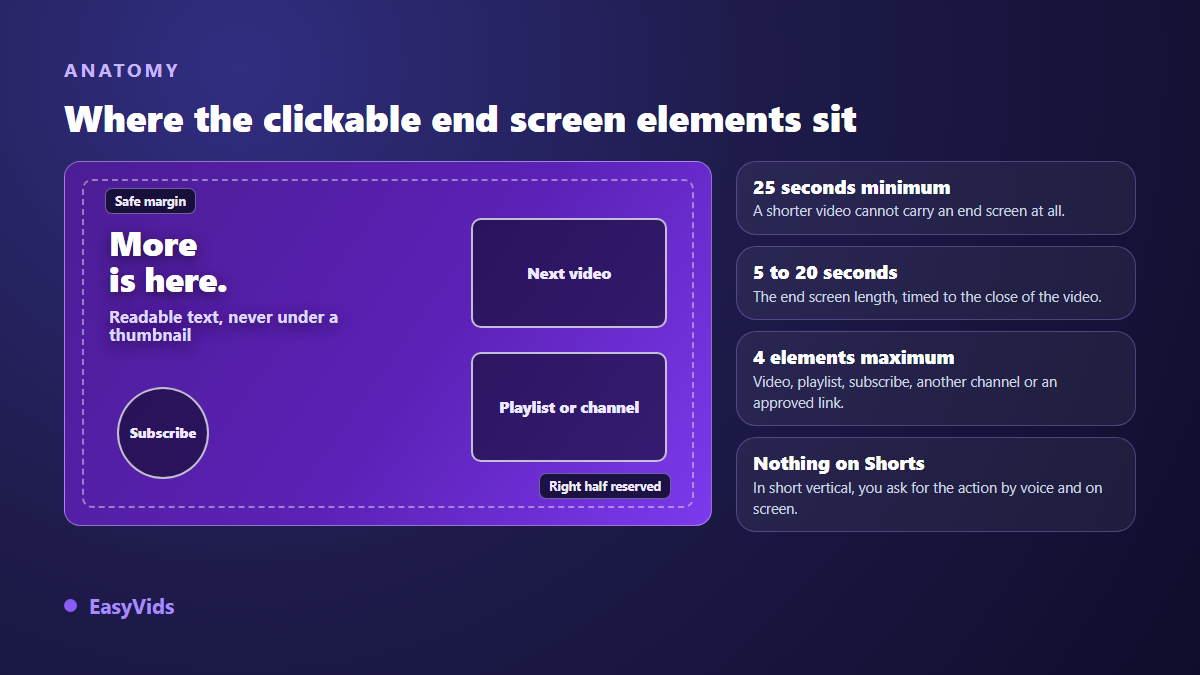
Two very practical consequences follow. First, put no important word where the thumbnails will land, in practice the right half of the frame and the bottom strip. Second, since you place those elements freely, align them with empty frames drawn inside your animation: a thumbnail that settles into a prepared slot reads as a designed interface rather than a sticker added afterwards. It is the same compositional discipline as the image that earns the click upstream, covered in our guide to the YouTube thumbnail.
Six ingredients of an outro that gets clicked
An ending that works is recognisable by how little it asks. It asks clearly, and it keeps moving while the viewer decides.
- Continuous movement. A frozen background announces that the video is over. A slow drift, a breathing shape or a moving gradient holds the eye a few seconds longer.
- One priority action. Watch another video, or subscribe. Asking for four things gets you none of them.
- Three words on screen at most. Next episode. Watch this one. Subscribe. A full sentence cannot be read in ten seconds while a thumbnail moves beside it.
- Empty slots, drawn at thumbnail size, so the clickable elements land exactly inside them.
- Sound that carries on. Music fades down instead of stopping, and a short sting signs the channel.
- Your colours and your typeface, identical from one video to the next: that is what turns a generic ending into a recognisable signature.
Add one safety rule that applies everywhere: keep anything meant to be read away from the edges, at least five per cent of the width. The progress bar, the player controls and the recommendation overlays eat into those margins, especially on phones and television sets.
Length: twenty seconds is rarely the right call
The maximum allowed is not a target. Twenty seconds of end screen on a three minute video is more than a tenth of the running time, and that share drags your average view duration down as soon as nobody watches it. The right length is not guessed, it is read in the retention curve inside YouTube Studio. Find the exact second your outro starts, then look at the slope. A vertical drop means your ending is too long or too talkative. A workable benchmark: 10 to 15 seconds on a long video, 5 to 8 seconds under three minutes, nothing at all on a Short.
The five seconds before the outro matter as much as the outro
Nobody clicks a thumbnail because it looks nice. They click because someone just told them why. So the transition line belongs in the script, never in the edit: if that setting helped, the video appearing on the right shows the full version. You name the benefit, you point at the slot, and the end screen only has to confirm. Two editing details finish the job. Do not cut the music at the transition, because that is the sound of the end, and it cancels everything that follows. And avoid a fade to black right before the end screen, for the same reason.
Building an animated outro, step by step
None of this needs a professional animation package. The sequence has six steps, and the second one matters most: deciding the reserved zones before composing anything. The same production chain serves other short sequences, such as those covered in our guide to animated infographics, where a few figures have to hold the screen without tiring anyone.
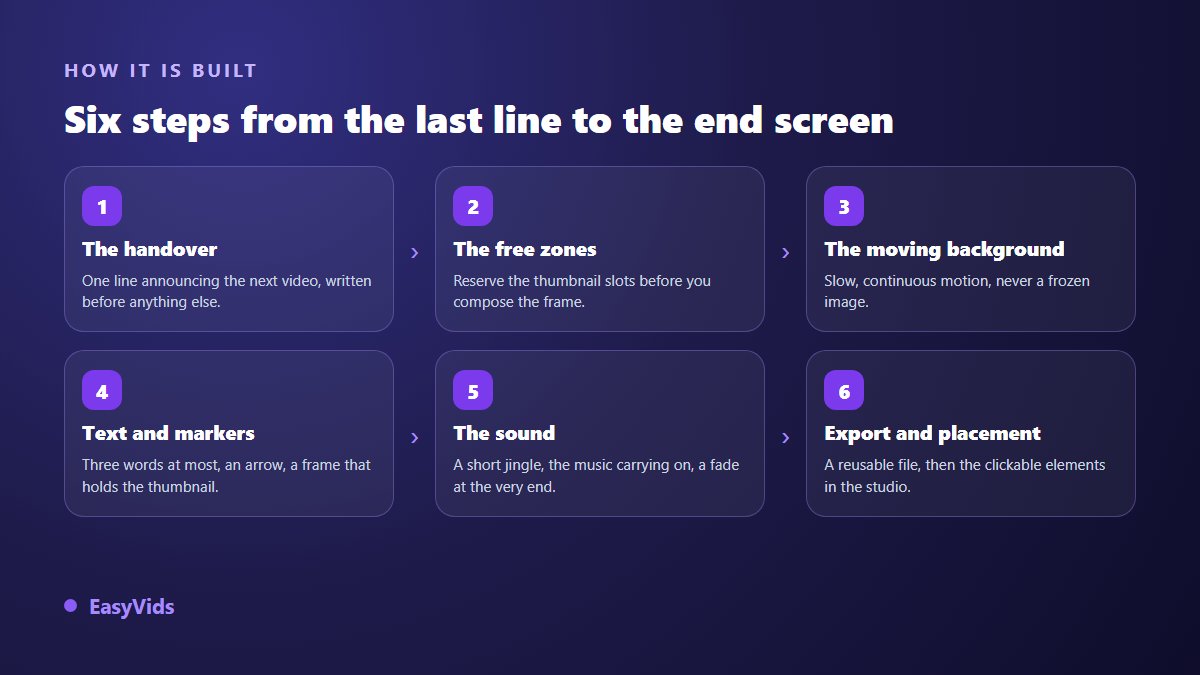
- Write the transition line, then record it or have a synthetic voice read it. Its real duration gives you the length of the outro.
- Set the frame and the empty zones. Choose the aspect ratio before composing: an ending built in landscape and cropped to vertical always loses something.
- Build the animated background. A slow gradient, a loop generated from a description, or an image from your world put gently in motion. What matters is that nothing freezes.
- Add text and pointers. In the online editor, the text panel takes entry and exit animations, from fade to bounce and zoom, and the sticker set provides the arrows and bubbles that point at a thumbnail.
- Mix the sound. A three to five second sting, the main music fading down, and a clean ending rather than an abrupt cut.
- Export, then place the clickable elements. The file comes out as MP4 or WebM at the quality you pick. The end screen itself is added afterwards in YouTube Studio.
Two honest notes to close this step. The frame is decided at the start, and our video format reference gives the useful dimensions platform by platform. As for our engine that builds animation entirely from code, with no prefabricated template, it is still under construction and is not open on every account today. The online editor is more than enough for an outro, and what each plan includes is listed on our pricing page.
The sound of an outro does half the work
A closing sting is the one element of your channel people recognise with their eyes shut. Three to five seconds is plenty: a short rise, a two note signature, a fall. You can have it composed from a plain description of the mood, like any background track, and our guide to AI music generators explains how to phrase the request to get something usable.
Mixing matters as much as melody. Keep the sting well under the voice, around a fifth of its level while anyone is speaking, then let it rise once the last sentence lands. Finish with a two second fade. Check that the track is cleared for the platform you publish on: a claim on an outro hits every video at once, since the same file is repeated everywhere.
Reusing the same outro without rebuilding it
The value of an outro comes from repetition. Export it once as a separate file, store it with your brand assets, then import that file at the end of every new project: consistency takes care of itself and your edit only grows by a minute. Keep the original layered project alongside it, so you can change a word or a colour without rebuilding anything. On the platform side the work copies too: the YouTube Studio end screen editor can import the layout from a previous video, so your elements return to their positions and you only swap the featured video.
The mistakes that make people leave before the end screen
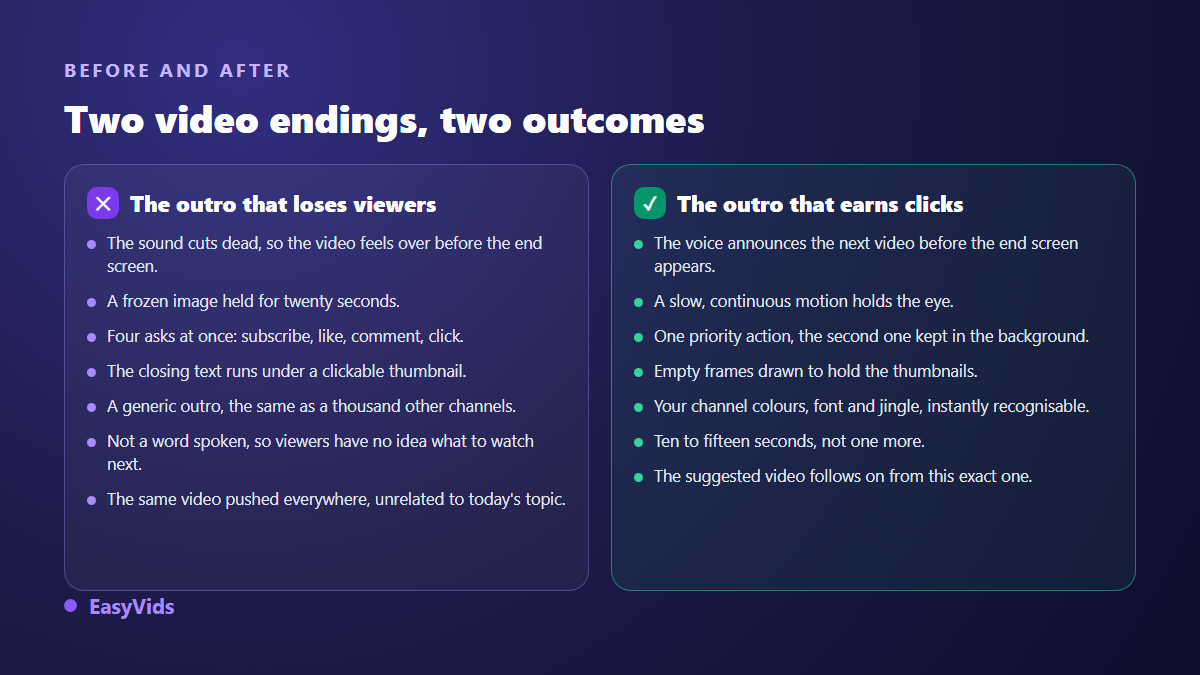
- Cutting music and picture the second the outro starts: viewers assume the video is over.
- Twenty seconds of static background while a voice thanks everyone at length.
- Writing a full sentence on screen when three words would do.
- Stacking logo, text and thumbnails in the same spot so everything overlaps.
- Asking for the subscription, the like, the comment, the bell and the click in one breath.
- Reusing a stock outro that thousands of other channels also use.
- Never checking the result on a phone, where thumbnails take up far more of the screen.
Measuring whether your outro works
YouTube Studio publishes a dedicated end screen report in its analytics: clicks per element, click rate and the most clicked video. That is the only measurement worth trusting, because it separates what you find beautiful from what triggers a second view. Read it after fifteen or so published videos, not after two. Then test one variable at a time: length, then the transition line, then the video you feature. Changing three things at once makes the result unreadable.
Frequently asked questions
How long should a YouTube outro be?
Between 10 and 15 seconds on a long video, 5 to 8 seconds on a short one. The platform allows up to 20 seconds, but that length only makes sense if your ending is still saying something. Find where the drop starts on your retention curve and cut just before it.
Can I add an end screen to a Short?
No. According to the YouTube Help Centre, end screens do not apply to Shorts. On a short vertical video the only way to send viewers elsewhere is the spoken line, the on screen text and the pinned comment, which makes the last second even more valuable.
Does every video need an outro?
No. A video under 25 seconds cannot carry an end screen anyway. On a very short tutorial or a news piece meant to be watched once, a clean closing sentence is enough. An outro earns its place as soon as your catalogue holds a logical next step to offer.
How do I keep the same outro across every video?
Export it once as a video file, then import that file at the end of each new project, and keep the editable project aside for updates. On the platform, the end screen editor can import the layout from a previous video, which saves placing every element by hand.
Do I need a voice over in the outro?
It is not mandatory, but the line spoken just before the end screen changes a great deal. Music alone leaves the viewer deciding without an argument. A short sentence naming the benefit of the next video gives them a reason to click, and it is written with the script.
A strong ending is not improvised in the edit. It is written with the script, composed around empty zones, and judged in the analytics. Start with one outro, short, in your colours, reusable everywhere, then watch the click rate move across your next ten videos. Creating an account opens the studio to write the transition line, generate the animated background, compose the sting and assemble the sequence. The rest of the chain lives in the same place on EasyVids.