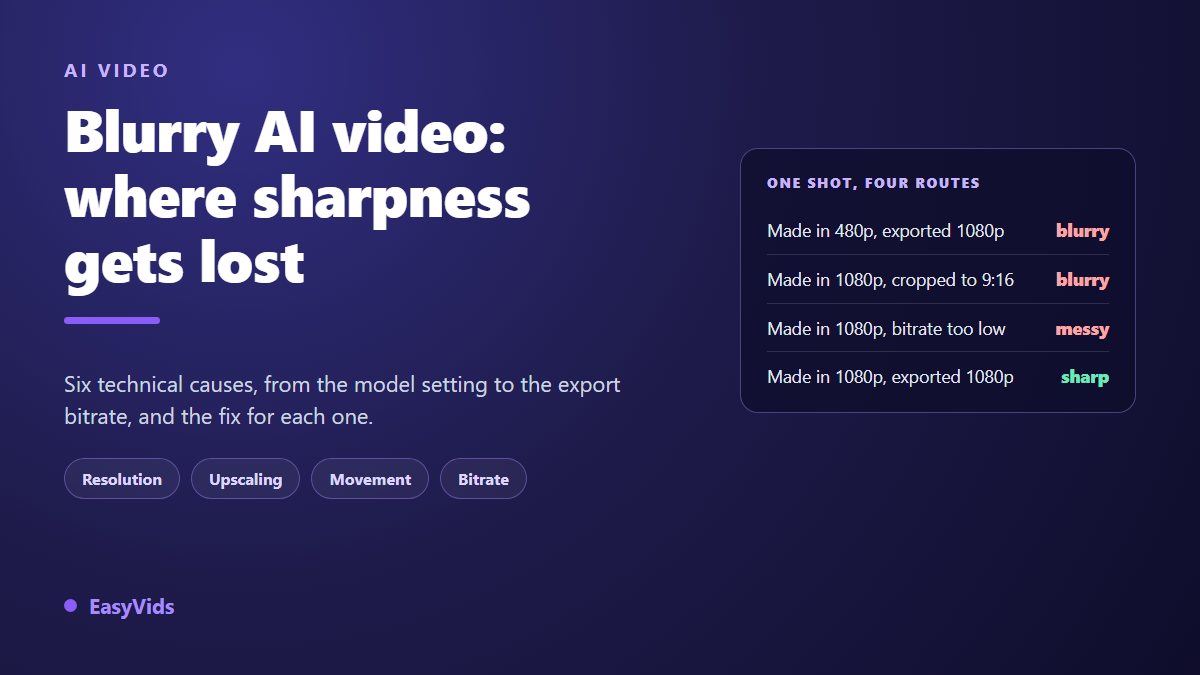
You hit play and nothing lands. Edges are soft, faces lose their features the moment the camera moves, on screen text looks smudged. If you are asking why is my AI video blurry, the answer is almost never that the model is bad. It is a setting left at its lowest value somewhere between generation and the platform player.
Sharpness is lost in stages, and every stage leaves its own signature. Blur that survives a paused frame has nothing to do with blur that only appears during movement. This guide takes the causes one at a time, from model resolution to export bitrate, with the exact fix for each. If your videos also struggle with pacing or consistency, our review of what makes an AI video fail covers the rest of the picture.
The short answer
Four facts explain almost every case. The model produced a resolution lower than your export. A small frame was enlarged to fill a bigger canvas. The motion you asked for goes beyond what the model can hold. Or the final file was compressed at too low a bitrate. Before you touch the prompt, check the actual pixel size of the generated file. That is where the answer usually sits, and it takes ten seconds.
Five links in the sharpness chain
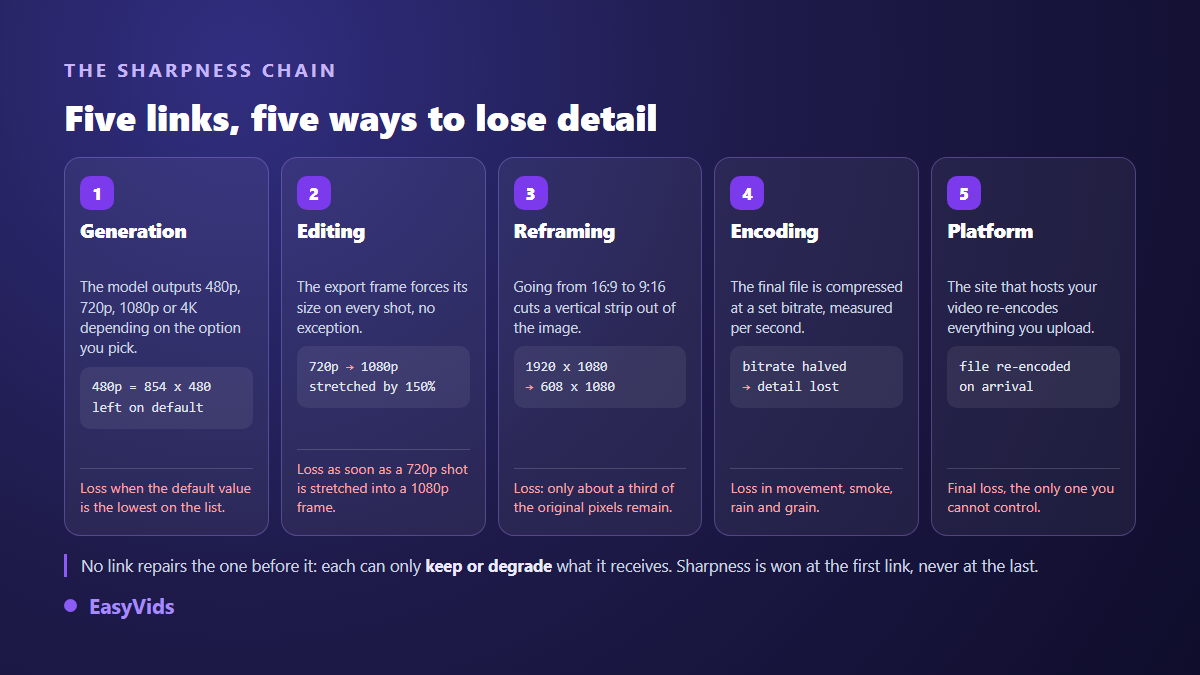
A generated video passes through five stages before it reaches a viewer, and each one can destroy detail. None of them can create any. That single rule shapes everything else here: sharpness is won at the start of the chain, never at the end.
Fix 1: raise the model resolution, it often defaults to the lowest option
This is by far the most common cause. Video models do not all output the same frame size, and many offer several tiers: 480p, 720p, 1080p, sometimes 4K. The value offered by default is not always the highest one. Across several models in our catalogue, the default is simply the first item in the list, and that first item is sometimes 480p. You then end up with a file 854 pixels wide, dropped into a 1920 by 1080 edit.
Open the model options before you launch, never after. In EasyVids every model states the resolutions it offers, its duration range and the aspect ratios it accepts, and our complete guide to AI video generators walks through that chain of options. Two caveats: some models expose no choice at all, so the only way up is a different model, and a higher tier costs more credits, which argues for drafting low and finishing high.
Fix 2: stop expecting upscaling to add detail
Enlarging an image spreads the same information across more pixels. A 720p shot stretched into a 1080p canvas fills the screen, but every edge is now smeared over an area half again as wide. The result is not sharper. It is bigger, and softer.
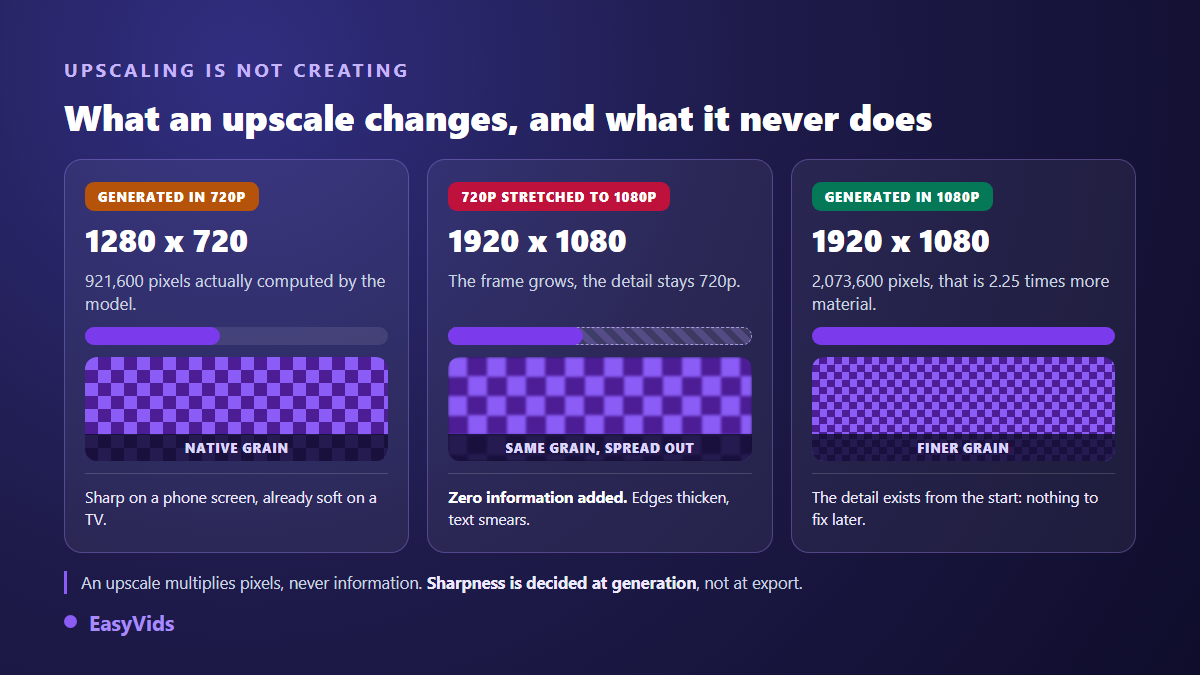
The arithmetic settles it. A 1280 by 720 frame holds 921,600 pixels; a 1920 by 1080 frame holds 2,073,600, which is 2.25 times more. Upscaling does not create that gap, it fills it by interpolation, averaging between existing pixels. That average is precisely what your eye reads as blur. AI upscalers from specialist vendors do better than plain interpolation because they rebuild plausible detail, but that detail is invented, and across a moving sequence it can shift from frame to frame, which makes textures crawl. Regenerating the shot at the right resolution stays more faithful, and is usually faster.
Fix 3: slow the camera down, motion blur is not a pixel problem
Run the freeze frame test. If the shot is sharp on pause and soft only while it moves, resolution is innocent: the model is losing its grip on motion. These models predict each frame from the previous ones, so the larger the displacement between two frames, the rougher the prediction. A fast pan, a running character, a camera orbiting a subject, and faces start to melt.
The fix lives in the prompt. Describe slow movement, and one action per shot. A camera that moves in very slowly gives far cleaner results than a camera orbiting a running character. You can also split the shot in two, each with a single simple gesture. One more trap sits in the edit: slowing a clip down so it matches a voice over duplicates frames, which makes movement judder and adds to the mushy feeling. Generate a slightly longer clip, or shorten the line, rather than stretching the footage.
Fix 4: raise the bitrate when compression is eating the picture
Resolution says how many pixels you have. Bitrate says how much data is reserved each second to describe them. Two files can both read 1920 by 1080 and look nothing alike. A starved bitrate has telltale signs: flat areas breaking into small squares, crawling noise in shadows, banding across a sky.
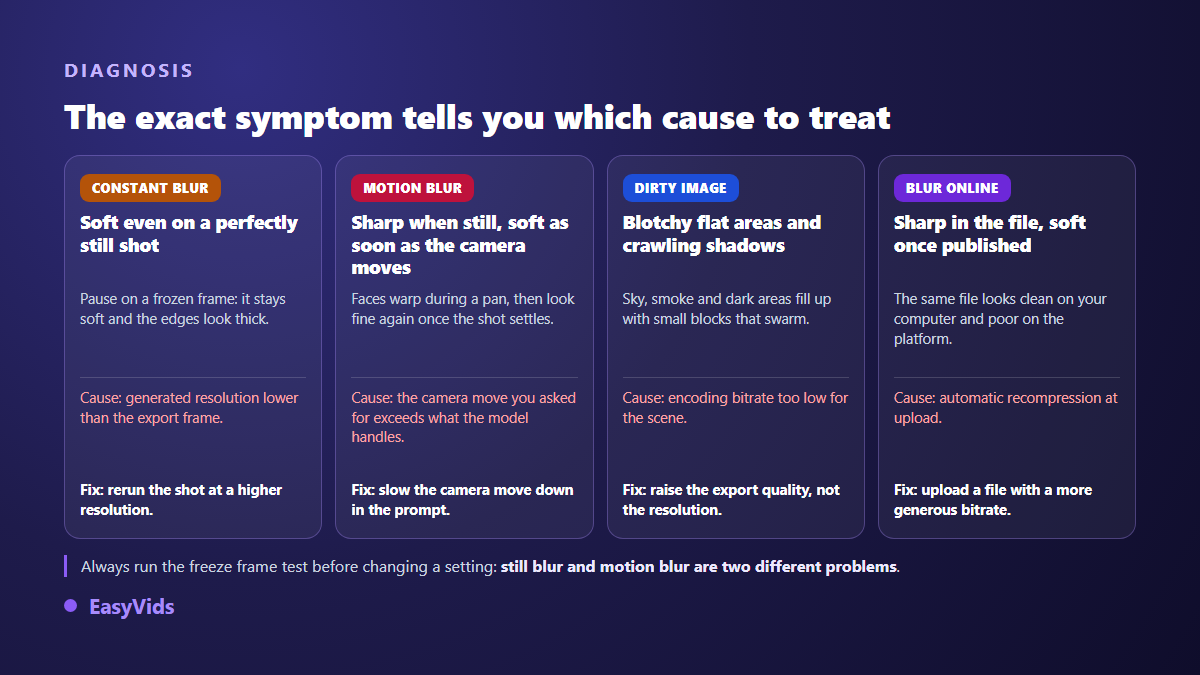
Some scenes cost far more bitrate than others: rain, smoke, fire, water, confetti, film grain, a moving crowd. Compression cannot predict those textures. If only those shots look soft, raise the export quality rather than the resolution. For a reference point, the YouTube help centre publishes recommended upload bitrates, around 8 megabits per second for 1080p at a standard frame rate and considerably more for 4K. A low quality export often lands far below that, and the gap shows immediately on busy scenes.
Fix 5: choose the aspect ratio before generating, not after
A video framed in 16:9 and then cropped to 9:16 does not only lose composition, it loses pixels. Inside a 1920 by 1080 frame, the vertical strip you keep is roughly 608 pixels wide. To fill a 1080 by 1920 canvas that fragment then has to be enlarged by nearly 80 percent, so you stack the first two causes without noticing. Generate vertically from the start instead, and our guide to video formats lists what each platform expects. The same mechanism applies to zoom effects on stills: the harder the zoom, the smaller the region of the original actually shown, which is why our editor prepares each image in a canvas larger than the output before animating it.
Fix 6: send a generous file, because the platform always re-encodes
A published file is never served as you sent it. According to the YouTube help centre, every upload is re-encoded into several resolutions to suit different connections and devices. Social platforms do the same, often more aggressively. Your export is raw material, not the version people watch. Two practical consequences: judge your video on the target platform rather than in your own player, and upload a file with more headroom than you think you need, because compressing an already compressed file stacks artefacts.
Fix 7: diagnose in five minutes before you regenerate anything
Let the symptom do the talking. This sequence isolates the cause in order, from the most common to the rarest.
- Pause on a static shot. If the frame stays soft while frozen, the cause is resolution or upscaling, not motion.
- Check the pixel size of the generated file against your export size. Any gap names the culprit.
- Confirm the aspect ratio: was the shot generated vertically, or cropped afterwards?
- Isolate the shots that fail. If only fast moving ones look soft, resolution will change nothing.
- Look for small squares in skies and shadows. They point to an encoding bitrate that is too low.
- Compare your export with the published version. The difference is what the platform took back.
What you can control in EasyVids
The Director builds a full video from an idea, and the model choice is explicit: each model states the resolutions, durations and ratios it supports, and that choice, made before launching, decides the sharpness of every shot. The production screen goes further and lets you set resolution, duration and ratio by hand, shot by shot. At assembly time you pick the aspect ratio and an output quality from 720p to 4K, and the interface warns that a 4K export merely enlarges scenes generated in 720p. Inside the editor, project size and export quality are separate settings, so you can raise the bitrate without touching the resolution. A higher tier costs more credits, which is why drafting low and finishing high pays off; plan details sit on the pricing page.
Frequently asked questions
Why is my AI video sharp on my computer and blurry on YouTube?
Because the platform re-encodes your file. According to the YouTube help centre, every upload is processed into several resolutions. If your export was already tight on bitrate, that second pass finishes the job. Upload a more generous file, and make sure the player is set to full resolution before you judge.
Does generating in 4K always look sharper?
No. 4K only helps if the model genuinely computes in 4K. Exporting a 720p shot at 4K gives you a heavier file, a longer render, and exactly the same softness. For most uses a real 1080p beats a fake 4K.
Can an AI upscaler rescue a video that is already generated?
It can improve the impression of sharpness, not recover lost information. Added detail is invented, and across a moving sequence it sometimes shifts between frames. When the shot really matters, regenerate it at the right resolution instead.
Why do faces fall apart as soon as the character moves?
Because the model predicts each frame from the previous one. Fast movement widens the gap it has to guess, and the most detailed areas, eyes, mouth and hands, degrade first. Slow the movement described in the prompt, or split the shot into two simple gestures.
Should I export at 24, 30 or 60 frames per second?
Match the frame rate your shots were produced at. Going from 24 to 60 creates no new information: the edit duplicates frames, and at a fixed bitrate each frame receives less data. A higher frame rate only pays off when the footage was genuinely captured that way.
Remember the habit that matters: check resolution before the prompt, and the symptom before the setting. Constant blur, motion blur and a dirty picture call for three different fixes, and each takes minutes. To test the whole chain, from model choice to export, create an account and run a first shot straight at high resolution. The EasyVids studio keeps generation, assembly and editing in one place, which removes the round trips where sharpness quietly disappears.