Your phone never leaves your pocket, and that is usually where video ideas show up: on the bus, between two meetings, right after a piece of content stops your scroll. Then the friction begins. Get home, open a laptop, import files, learn an editor. Most ideas die at that step. An AI video app exists to remove that detour, and the good ones remove the download step too.
One misunderstanding needs clearing first. A phone does not compute an AI generated video. It shows an interface and sends instructions. Everything heavy happens elsewhere, on dedicated machines. That single fact shapes the rest: which tool to pick, how much mobile data you burn, and whether closing the tab costs you your work. Our complete guide to AI video generation covers the full production chain; this page stays on the small screen.
The short answer
Yes, a smartphone is enough for a complete video: script, visuals, voice over, music and edit. One condition. Use a studio that runs in the mobile browser instead of an editing app you have to install. You open an address, you type your idea in one sentence, you pick the vertical format, generation runs on servers, and the finished file lands in your gallery. An entry level handset is fine, because it computes nothing.
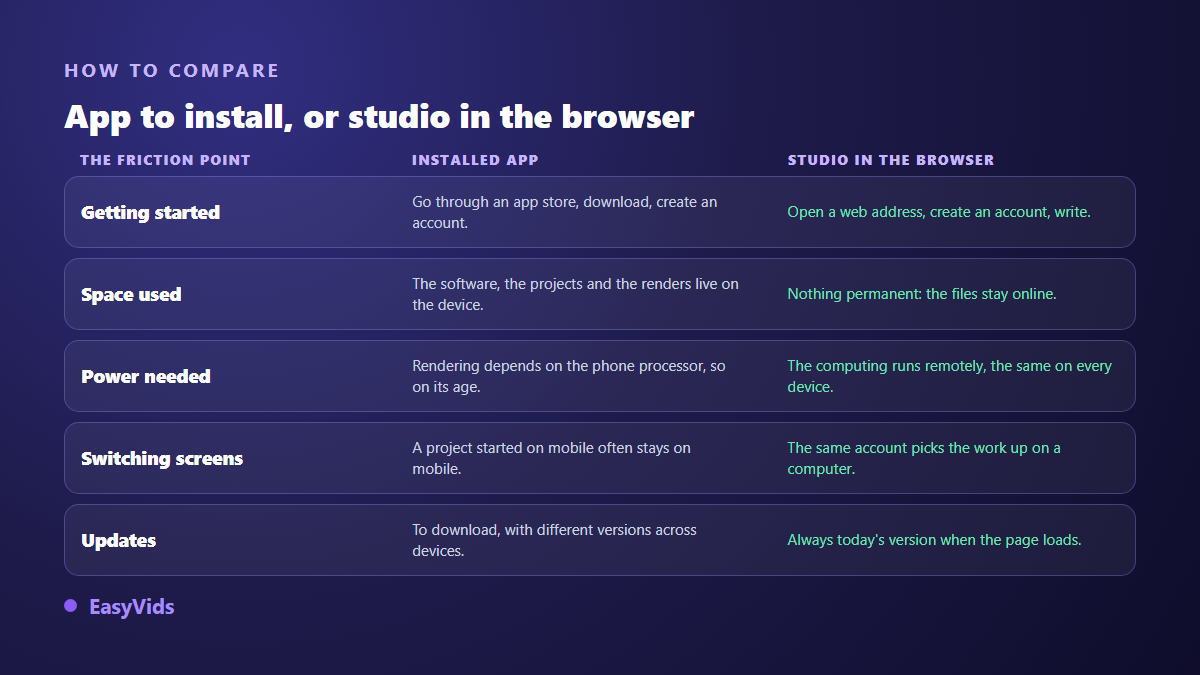
Installed app or browser studio: what actually differs
Mobile video tools split into two families, and the icon on your home screen does not tell you which one you have. The first family edits locally: it reads your files, renders with the phone processor, and writes the result into internal storage. The second is a shop window in front of remote servers: it uploads your text, waits, then displays the result.
For AI generation, only the second family exists. No phone on the market runs a video model locally. So the question becomes blunt: if the app only talks to servers, why download it at all? A browser studio delivers the same service without taking up space, without an app store, and without a different build depending on whether you run Android or iOS.
What the phone does, what the servers do
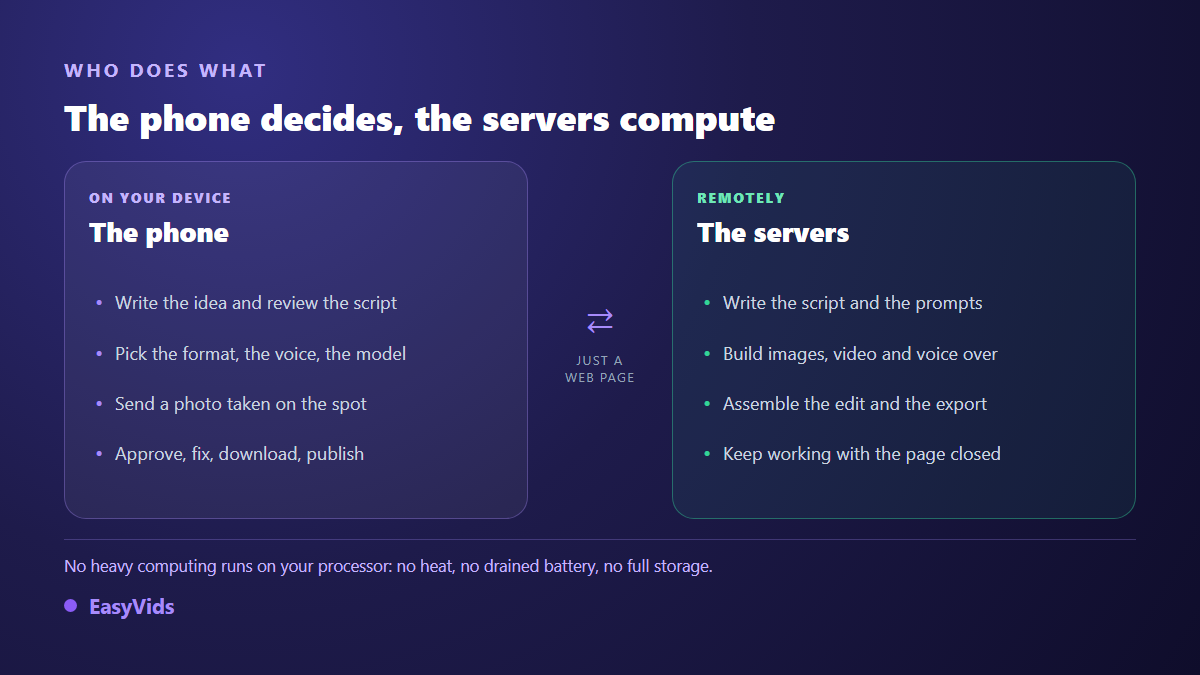
The split of duties explains most of the pleasant surprises. Your device writes, chooses and approves: it types an idea, opens a format picker, previews a voice, validates a scene, downloads a file. All of that is a few kilobytes and a screen refresh. The servers write the script, build the images, animate the shots, synthesise the voice, assemble the edit and store the output.
The practical result: your phone stays cool, the battery survives the render, and storage stays free until you download the final file. Local editing does the opposite. It ties up the processor for minutes, heats the device, and then asks for room to keep the project, the source clips and the export. On a handset already full of photos, that detail decides everything.
The full workflow, from idea to published file
Here is the real sequence, done with one thumb. No editing skill is required at any point, and any step can be redone without restarting the whole thing.
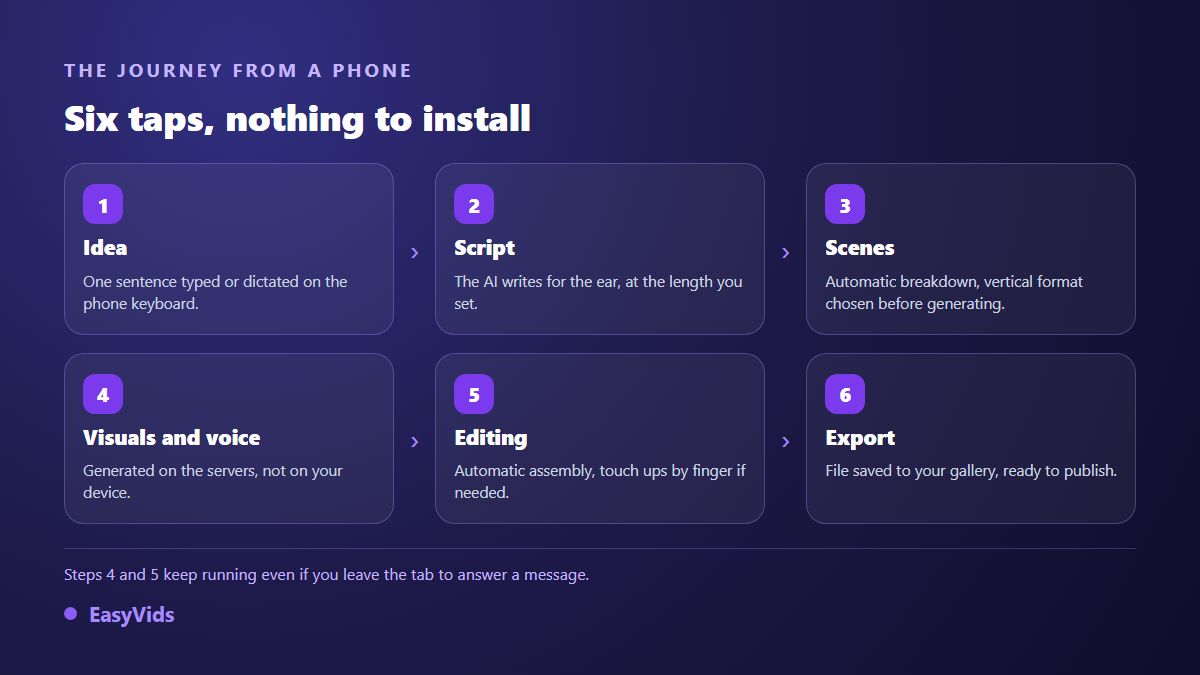
- Write the idea: one sentence, typed or dictated. Give the length in minutes rather than in words, so the script comes back calibrated.
- Review the script: the AI writes for the ear. On mobile, just break up the long sentences.
- Pick the format: vertical is decided here, before any generation, never by cropping later.
- Launch visuals and voice: each scene goes to the servers. You can close the tab.
- Check the edit: shots are timed to the real length of the voice, so you only touch what bothers you.
- Export: the file downloads to your gallery, ready to post from the platform app.
Every generation spends credits, and the cost appears before you press the button, which matters more on a phone than anywhere else. Plans and the free trial live on the pricing page.
Start from a photo you just took
This is the advantage a desktop will never have: the camera is already in your hand. A shop front, a product on a table, a dish, a street. The photo becomes the starting frame, and the model handles the motion. When you attach an image, the phone picker offers the camera next to the gallery, so the shot can be taken on the spot. Seven ways to bring a still image to life are covered in our guide to animating photos with AI.
Vertical is chosen before generating, not after
This is the classic mistake of phone first creators. They generate in landscape, crop afterwards, and throw away half the frame. Video models accept a 9:16 ratio natively, so ask for vertical from the start and the composition is built for it. According to the TikTok help centre, the recommended in feed video is 1080 by 1920 pixels, which is that same ratio. According to the YouTube help centre, a Short is a vertical video no longer than three minutes, so writing a four minute script for a Shorts channel is wasted work from the first line.
Closing the tab without losing the render
Nobody watches a loading screen for twenty minutes on a phone. A call comes in, a message pops up, the signal drops in a lift, and mobile browsers suspend background tabs to save battery. A tool that loses its work in those conditions is unusable on the move, however good its models are.
The fix is architectural, not cosmetic. When a generation is stored as a server side job, it continues with the page closed and picks itself back up when you return. That is the choice we made: running jobs stay visible in the header on every page, an accidental refresh loses nothing, and you can launch several generations of the same type in parallel instead of queueing behind the first one.
Touch editing: how far it goes
Automatic editing already gives you a publishable file. To go further, the editor also opens in the mobile browser, laid out for a thumb: the preview takes the full width, the timeline sits underneath, and the media and properties panels open as full page sheets instead of shrinking into unreadable columns. Trimming, splitting and moving a clip all respond to touch. The general principles are in our guide to editing video in the browser.
One task deserves to be systematic before posting: captions. A large share of mobile views happen with the sound off. Automatic transcription lays down the text, you fix the proper nouns, and the styling takes two taps.
Five habits that change the result on a small screen
- Make on screen text twice as large as feels necessary, and keep it to four or five words.
- Leave the edges alone: platform icons and the account name cover the bottom and the right side.
- Cut every five to fifteen seconds of voice. Across our productions, that range holds attention without chopping the story.
- Save the final download for a wifi connection, and validate scenes with the online preview while on mobile data.
- Check the result holding the phone at arm's length, the real distance of a viewer rather than a creator leaning in.
Frequently asked questions
Do I need to install an app to make AI videos on a phone?
No. An up to date mobile browser is enough, on Android and on iPhone. Since the computing happens remotely, the app would only add an icon and occupy storage. If you want that icon, most mobile browsers can add a shortcut to a site on your home screen.
Does generation keep running if I close the browser?
In our studio, yes: the job is stored server side, continues with the page closed and reloads when you come back. It is not a universal guarantee though. Plenty of tools run the loop inside the tab, and closing the page cancels everything. Test it with a short generation before relying on any service on the move.
Is an entry level phone enough?
Yes for generation, which does not depend on its power. The limits show up elsewhere: smooth playback of a high definition preview and comfortable fine editing ask for a slightly recent device. To write, generate, approve and publish, a modest handset with a decent connection does the job.
How much mobile data does it use?
Writing and launching a generation costs almost nothing, since you only send text and sometimes a photo. The heavy part comes at the end: a one minute vertical video in high definition weighs a few tens of megabytes. Keep downloads for wifi and approve your scenes in preview while on mobile data.
Can I publish straight to TikTok or YouTube from my phone?
Publishing goes through the platform app, exactly like any other video in your gallery. You download the export, it appears in your photos, and you select it when you post. That is also where the description and hashtags belong, since each platform treats them differently.
A phone is no longer a fallback for making videos. It is the fastest starting point, because the idea, the camera and the audience are already inside it. What was missing was a studio willing to work remotely while you go about your day. To try the full workflow in a few minutes, create your account and launch a first vertical video from your browser. Everything else waits for you on the EasyVids studio.