Your video is cut, the pacing works, and it still sounds empty. Learning how to add music to a video looks like a two click job, yet the result disappoints more often than not: the track buries the voice, it stops dead in the middle of a sentence, or it triggers a copyright claim a few hours after you publish. The technical move takes a minute. The decisions around it are what separate a finished video from a spoiled one.
This guide runs through the whole operation in order: the six moves it is made of, the level settings that almost nobody bothers with, and the four places to find a track without putting your revenue at risk. All of it happens in a browser, with nothing to install, like the rest of the work covered in our guide to online video editing.
The short answer
Import your audio file into the project, drop it on its own track below the video, trim it to the exact length of the edit, bring its volume well under the voice, then add a short fade in and a longer fade out. For the track itself, three sources hold up: the library built into the platform you publish on, a licensed catalogue whose proof of purchase you keep, or an instrumental composed for your video. A commercial hit, even three seconds of it, is not one of them.
The six moves behind the operation
Whatever the tool, the sequence never changes. An audio file enters the project, it takes its place on a track of its own, it gets adjusted in length, then in level. The first two moves come naturally. The next two get skipped, and those are exactly the ones your viewers hear.
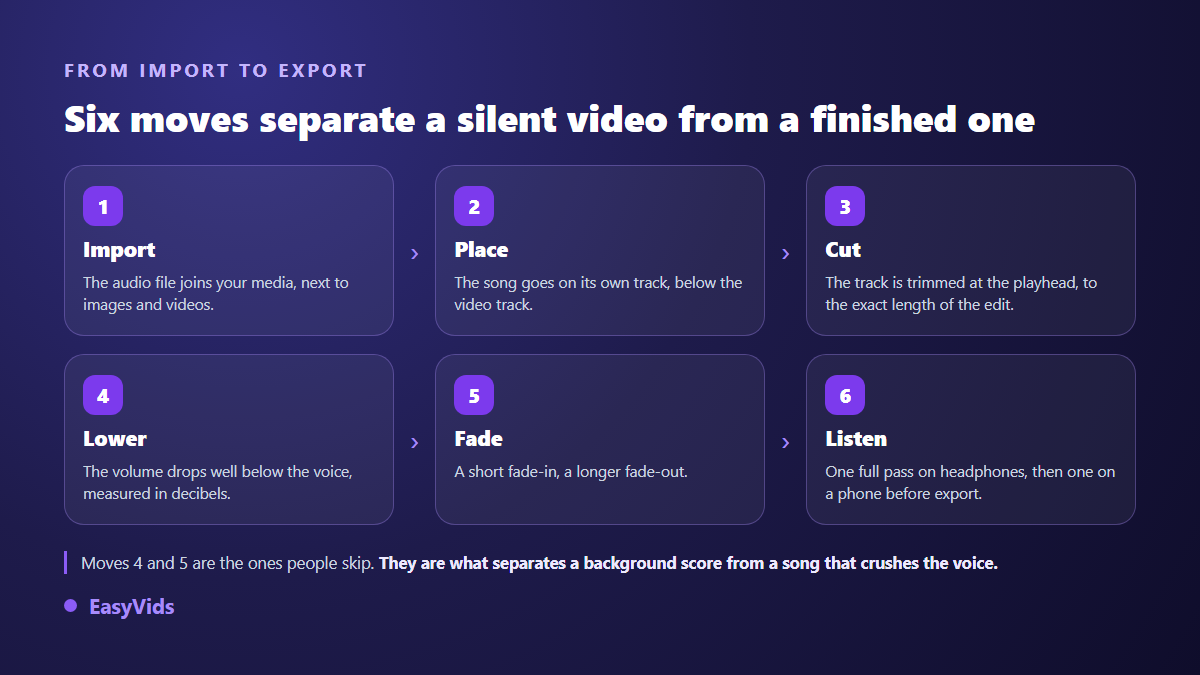
In the EasyVids online editor each one maps to a named control. The file comes in through the Media tab, which accepts audio the same way it accepts images and video. The track is cut at the playhead, exactly where you want it to stop. The properties panel carries the volume in decibels, a mute switch, and the two fade durations in seconds.
- Volume, in decibels: the starting value is 0, and background music lives well below it.
- Mute on a clip, to kill a video's original audio without touching the picture.
- Audio separation, to move a video clip's sound onto its own track and balance it apart.
- Fade in and fade out, set in seconds on the track that needs them.
- Cut at the playhead, to trim the track to the exact length of the edit.
- The Sounds tab, around thirty in-house stings from 1 to 20 seconds: transitions, impacts, jingles, short beds.
Where to find music that will not get claimed
This is the real question, and it is settled before the edit. Four families of sources coexist, and they do not offer remotely the same safety. What matters is not the price tag: it is the scope of the right you obtain, and your ability to prove it the day a claim lands.
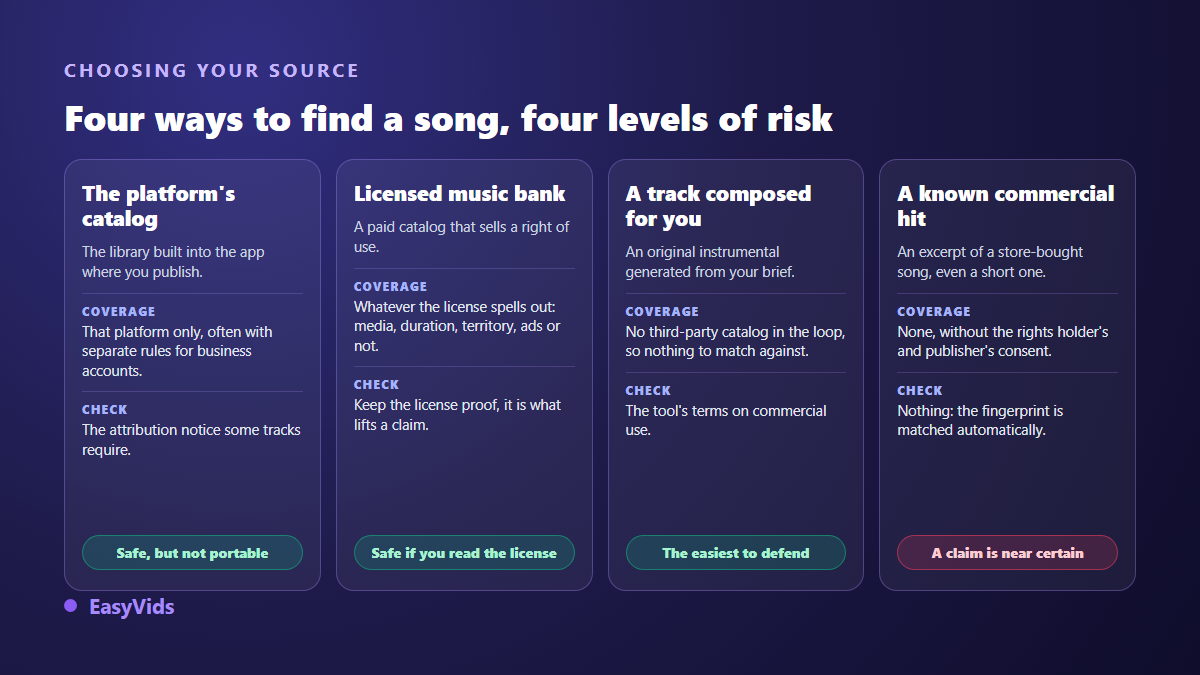
Every large platform runs its own catalogue, and every catalogue stops at its own border. The audio library inside YouTube Studio offers tracks cleared for YouTube, some of them on condition that you credit the author in the description, with the requirement shown on the track sheet according to YouTube's help centre. TikTok keeps a separate commercial music library for business accounts, according to its help centre. Meta publishes music usage rules that draw a line between personal and professional use. They share one flaw: the right covers the platform hosting the catalogue, not the same video reposted elsewhere.
That leaves the fourth route, the one that changed most in the past two years: having the track composed. An instrumental written for your video matches no existing catalogue, so it matches no fingerprint stored in a recognition system. Our guide to AI music generators walks that path from the brief to the downloaded file.
Royalty free does not mean free of rules
The phrase creates confusion, and the confusion is expensive. Royalty free describes a payment model: you pay once, you owe nothing per broadcast. It says nothing about what you are allowed to do. The same licence can cover a social video and exclude an advertisement, clear one territory and not another, run for three years and not for ten. Read the line about commercial use, that line and not the summary on the sales page, then file the receipt with the project.
Open licences follow the same logic: the Creative Commons Attribution licence, as Creative Commons defines it, is generous but still requires you to credit the author. Generated music raises a different set of questions that people tend to mix together, and our article on AI music and copyright takes them one at a time.
Volume is the setting that decides everything
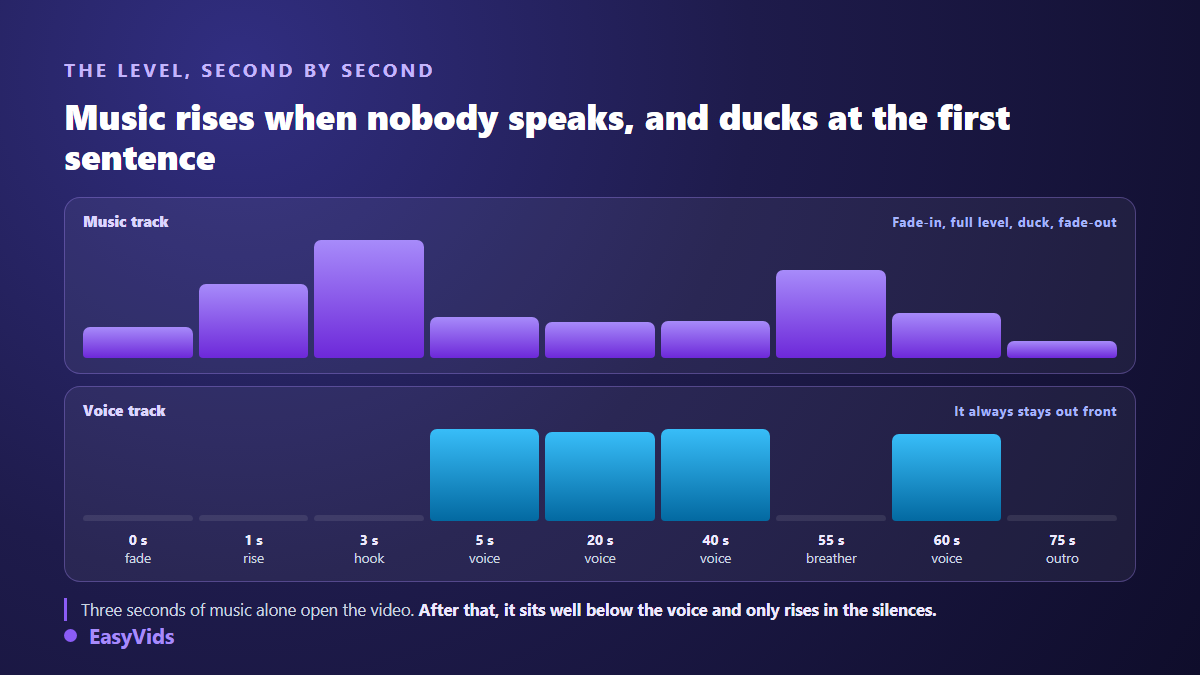
A well chosen track badly balanced does more damage than an ordinary track balanced properly. The working rule fits in one line: the voice stays in front, the music sits far behind, and it only comes back up in the pauses. Across our own edits, background music sits about ten decibels under the voice, and further down when the track is heavy on bass or brass.
Two technical points are worth knowing. Pushing the volume gains you nothing: according to YouTube's help centre, video loudness is normalised on playback, so a video that is too loud is simply pulled back towards the common reference. And your ear judges badly on headphones at high volume. Listen once on headphones for precision, then once on a phone speaker for the truth.
Timing the track against the edit
Music that starts on the very first frame and stops dead at the end gives the edit away. Three adjustments fix it. Give the track two or three seconds alone at the start, enough to set the mood before the first sentence. Cut the end on a musical beat rather than mid bar, even if it costs you a second of picture. Always finish with a fade out, longer than the fade in.
If the track is shorter than the video, do not stretch it: duplicate it, overlap the end of the first copy with the start of the second by about a second, with a fade on each side. The seam becomes inaudible. If your video is a run of still images, the logic reverses and the music sets the length of each shot, as our guide to photo slideshows with music shows.
When the video already has sound
Phone footage, a narrated screen capture, a generated shot: they all arrive with an original audio track. There are two options, not three. You keep it, and the music has to sit even lower, under the room noise as well as under the voice. Or you remove it, and the editor lets you either mute it with one switch or separate it onto its own track to balance it precisely. Both controls sit next to the other basics, laid out in order in our beginner walkthrough of an edit, from import to export. The bad option is leaving both at the same level: the viewer hears mush and leaves without knowing why.
Having an original track composed for the video
Hunting for the right title in a catalogue often takes longer than the edit itself. The EasyVids Music Studio attacks the problem from the other end: you describe the occasion, the style, the mood and the tempo, and the composition starts from there. An instrumental of around thirty seconds works as a bed and duplicates cleanly across the length of a video. A full song with vocals is written from your own lyrics, or from lyrics the AI proposes and you stay free to rewrite. Composing takes one to four minutes, and you can close the page while it runs. The file downloads, then imports into the editor like any other audio, and the pricing page covers the plans.
Claims, Content ID and monetisation
This is the fear that brings most creators to the subject. On YouTube, protected recordings are matched automatically by audio fingerprint. According to YouTube's help centre, a Content ID claim is not a strike against your channel: depending on what the rights holder chose, the video can be blocked in some countries, monetised for their benefit, or simply tracked. In other words the video often stays up, while its revenue goes elsewhere. These rules change, so check the official page before a publication that matters.
A groundless claim can be disputed, and that is where proof of licence earns its keep. Keep the track name, its source and the date with the project, not buried in an inbox. Generated music deserves its own treatment, between automatic matching and platform policy, and our article on AI music and YouTube monetisation goes through it.
The mistakes that waste a good track
- Starting the music at the exact moment the voice starts, with no head start.
- Cutting the track dead at the end of the edit, with no fade out at all.
- Putting a sung track under a voice over: two voices fight for the same space.
- Holding one level from start to finish, when the pauses call for a lift.
- Stacking music, original audio and sound effects without lowering anything.
- Exporting without listening to the whole video once, from first shot to last.
One last point that sits outside the topic and matters as much. A large share of your audience will watch with the sound off, on a commute or inside a feed. The soundtrack then counts for nothing, and on screen text carries the message, which is why the reasons to caption every video deserve a read before you spend an hour picking a track.
Frequently asked questions
Can I add music to a video from a phone?
Yes, as long as the editor runs in the browser: the audio file is picked from the phone storage exactly as it would be on a computer. If the exported file is too heavy to send from the phone, shrinking it online without hurting the picture takes less than a minute. Fine tuning volume and fades stays more comfortable on a large screen, simply because the track is easier to read there.
How loud should background music be?
Low enough that every word stays effortless to follow. In practice the music sits around ten decibels under the voice, and further down on a dense track. The test never lies: if you turn the volume up to catch a sentence, the music is too loud, however good it sounds.
What happens if I use a well known song for a few seconds?
The fingerprint is matched automatically, including on very short excerpts, and changing the speed or the pitch is not a reliable way around it. Depending on the platform and the rights holder, the video can be blocked in some territories, demonetised to your cost, or muted. It is not worth the gamble.
Can I put music on an AI generated video?
Yes, along two paths. Inside an EasyVids production, the project soundtrack setting can request background music generated within the video itself, off by default and adjustable scene by scene. For real control over length and level, drop a separate track in the editor instead: volume and fades then stay in your hands.
Should each part of the video have its own track?
Rarely. One track held from start to finish gives a unity that changes tend to break. A switch earns its place when the video genuinely changes tone, between a demonstration and a closing section for instance. When it does, crossfade the two tracks over a second rather than butting them together.
Music is not the decorative layer you add last: it sets the tone before the first sentence, and it decides whether the video breathes or tires. Pick the source before you edit, fix the level instead of changing the track, and keep proof of what you use. To have an instrumental composed for your video and place it next to your footage, create your account and open the EasyVids studio.