You have a song. It is mixed, you are proud of it, and it is sitting in a folder because nobody ever sees it. On video platforms, a track with no images barely exists: no thumbnail, no shares, no life. An AI music video generator solves that without a camera, without extras and without a shoot day. You build the images shot by shot, from the music you already have.
The order matters more than the tool. Generated music videos rarely fail because of the video model. They fail because the images were produced before the song was broken down, and then had to be forced into the track. This guide follows the chain that actually works: song first, structure second, shots last. If the track does not exist yet, our guide to AI music generation covers how to write and compose it before you think about visuals.
The short answer
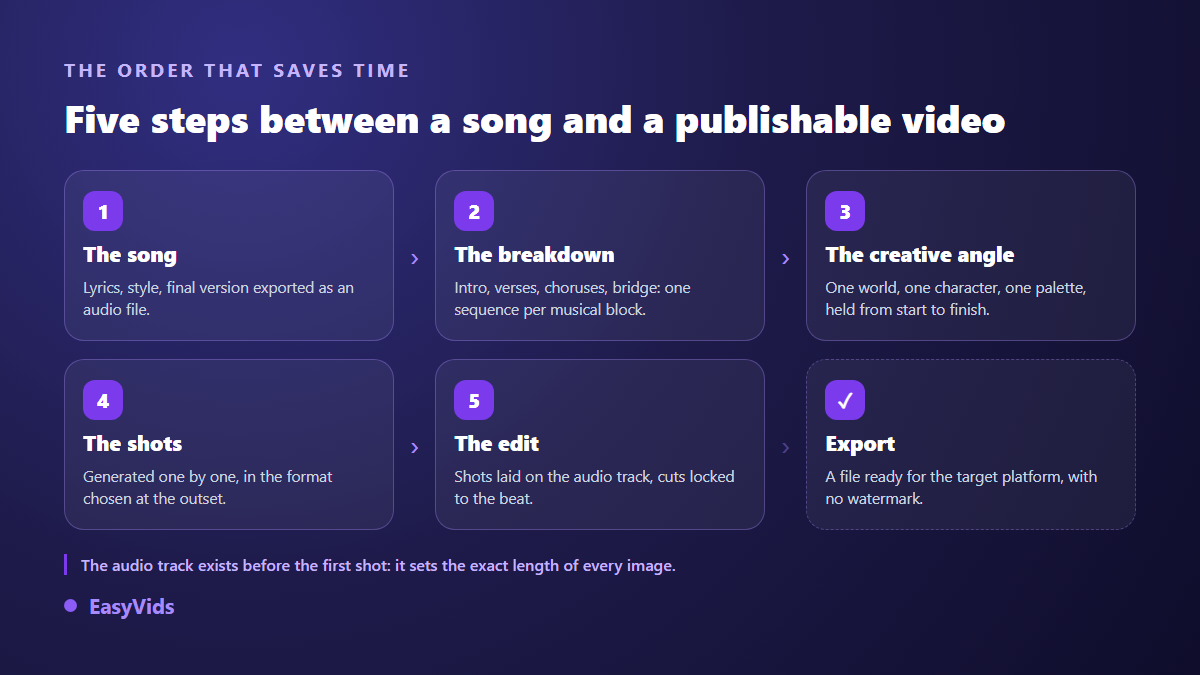
Export the final audio file first. Break the song into blocks: intro, verses, choruses, bridge, final chorus. Write one line of visual intent per block, then generate one shot per line, in the same world and the same aspect ratio. Drop those shots over the audio track in an editor and cut on the beat. The EasyVids studio brings those four moves together: writing the song, generating the shots, editing and exporting.
Step 1: finish the song before the first frame
The rule is short: the music leads, the picture follows. A song lasts exactly as long as it lasts. If you generate shots before the master is final, every mix tweak breaks your edit. Wait until you hold the file you will actually publish before spending a single generation.
Starting from nothing, the EasyVids Music Studio writes a track from a short brief: a theme or occasion, a name if the song is addressed to someone, a genre, a mood, a tempo. You can have the lyrics written by AI, edit them line by line, then launch the composition. Generation continues on the server, so you can close the page and come back later. The track can be replayed, downloaded, and stays in your account history. An instrumental option is there too, which is what you want when a recorded vocal already exists.
Step 2: cut the song into blocks, not into minutes
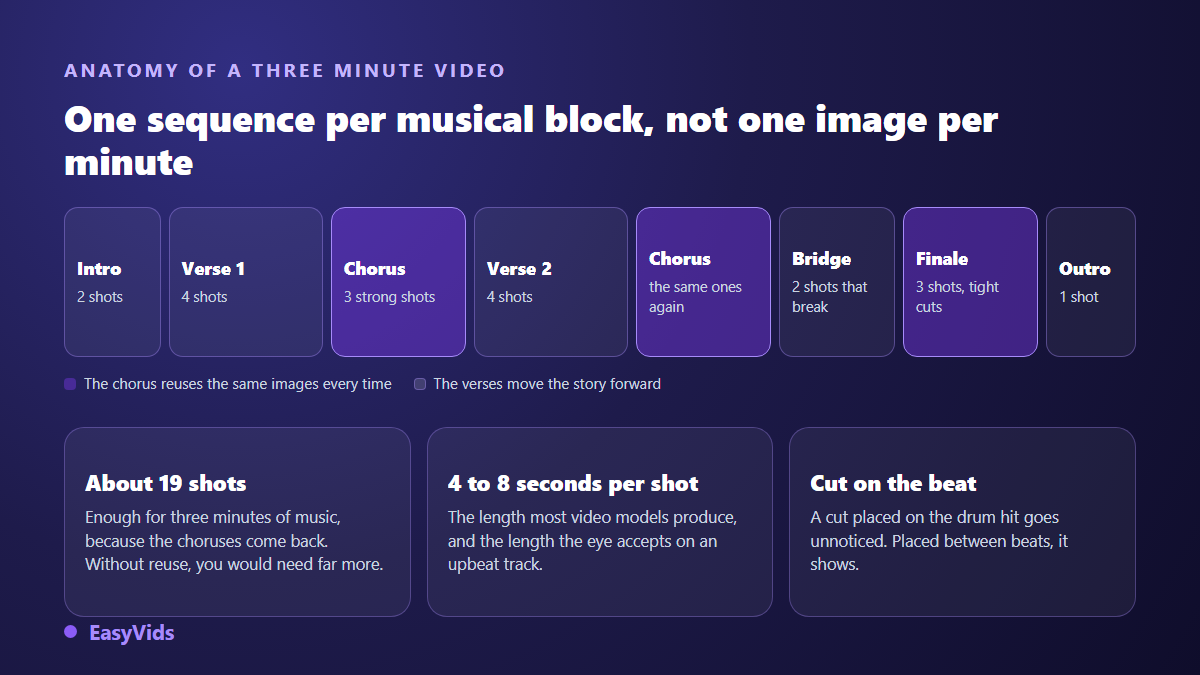
The instinct is to think three minutes of music, three minutes of footage. That is how you end up with a slideshow. A music video is structured like the song itself: intro, verse, chorus, verse, chorus, bridge, final chorus, outro. Every block gets one visual intent, written as a single line. Those few lines become your shooting script.
The chorus changes the whole economy of the project. It comes back two or three times, and listeners want it to come back the same way. Reuse the same shots on every pass, reordered if you like. A three minute video holds together with about twenty distinct shots when choruses repeat, and roughly double that if you insist on making every second unique.
- Play the track once with a timer and note the start second of every block.
- Give each block a title based on the feeling, not on what is on screen.
- Turn each title into one descriptive line: place, character, light, movement.
- Count the shots each block needs, aiming for 4 to 8 seconds per shot.
- Flag chorus shots as reusable: they only get generated once.
One line per shot is exactly what the EasyVids Director expects as input: you paste the list, each line becomes a scene, and the tool builds a coherent production plan before anything is generated. The logic mirrors our scene by scene short film method, except that here the length of each scene comes from the music instead of a voice over.
Step 3: pick one visual direction and hold it
A video that changes style every eight seconds looks like a folder of test renders. Decide before you generate: which world, which palette, which era, which film grain. Four directions cover almost every project, and each one solves a different problem.
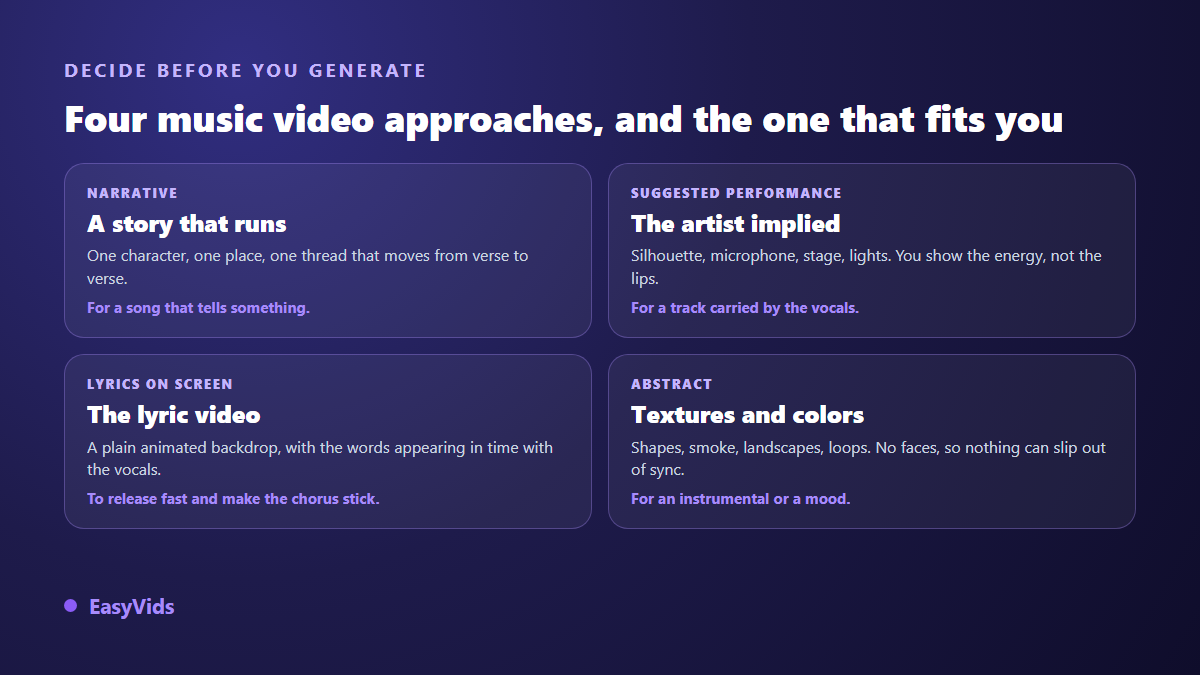
The most underrated option is abstract. Textures, smoke, ink in water, slow landscapes, geometric loops: no face on screen, therefore no consistency risk between scenes. On an instrumental or a mood track, that direction delivers surprisingly strong results for very little effort. Narrative demands far more discipline, but it is what keeps people watching to the last chorus.
Step 4: generate shots without the face drifting
The moment a person appears in more than one shot, the number one problem of generated music videos shows up: the face drifts. Repeating the same description in each prompt does not fix it, because the model reinvents the features on every call. The method that works is to build one reference image of the character and feed it back into every scene where they appear, which is exactly what our guide to keeping a consistent character describes.
Second precaution: lock the aspect ratio before the first generation, not at export. A video built in landscape and cropped to vertical loses heads and half the set. On EasyVids the format chosen at the start of a project applies to both images and generated video, and it holds until the end. Model, clip length and resolution stay adjustable scene by scene. If 720p, 1080p and 4K still feel like vague labels, what video resolution actually changes sorts them out in five minutes and keeps you from aiming at a definition nobody will see. And our complete AI video generator guide explains how those choices interact.
Step 5: edit over the audio track
Editing a music video is easier than editing a narrated one, because nothing has to match spoken words. Import the audio file, drop it on a track, then lay your shots above it. Cut on strong beats: a cut placed on the snare disappears, the same cut between beats jumps out. Our browser based video editing guide covers the basics if the exercise is new to you.
Three settings decide the final feel. Mute the generated clips, otherwise their ambient sound fights the music. Add a short fade in on the audio and a longer fade out, so the video neither starts nor ends abruptly. And keep one image running over the last second of silence: a file that cuts to black on the final note reads as truncated.
The singing face trap
Let us be blunt, because this is the most common question. Current video models can sync lips to speech under specific conditions. On singing, with held notes, vibrato and an articulation that has nothing conversational about it, the result rarely stays convincing for more than a few seconds. Nobody should promise you otherwise. The workaround real music videos have used for decades still applies: suggest the performance instead of filming it head on. A backlit silhouette, a tight shot on the microphone, a hand on the stand, a shot from behind, stage lights. The energy lands, and the lips are never the subject.
When a lyric video is the smarter choice
The lyric video remains the best return on working time: one restrained animated background, the words appearing in time with the vocal, nothing else. It also works as a holding release while you produce the main video, and it helps listeners memorise the chorus. In practice you add text blocks on the timeline and place them by hand on each sung line. Automatic transcription engines target speech and often stumble on singing, so plan a proofread. For the way words appear, our animated text effects look far more alive than a plain fade.
Rights, Content ID and monetisation
Two different questions hide behind one worry. The first is what you are allowed to publish, which depends on the terms of the service that produced the music and on how you produced it. We gathered what can actually be verified in our piece on AI music and copyright. Read it before you publish, not after.
The second is automatic claims. According to the YouTube Help Centre, Content ID compares every upload against a database of reference files supplied by rights holders, and a match triggers a claim that can redirect revenue to the claimant without taking the video down. A track you generated yourself is not in that database unless someone put it there. It is worth understanding in detail before building a channel on it, and our article on AI music and YouTube monetisation walks through the real cases.
The mistakes that give an AI music video away
A video generated without method has a signature, and viewers catch it before the first chorus. These are the ones we see most often, with the fix for each.
- Shots of identical length from start to finish: vary them, tighten on the chorus, let the bridge breathe.
- A face that changes between scenes: go through one reference image reused everywhere.
- Camera movement in every single shot: alternate locked and moving frames or the eye gets tired.
- Cuts placed at random: align them with the rhythmic grid of the track.
- Generated clip audio left running under the music: mute it every time.
- An aspect ratio decided at export: choose it before the first image, cropping never recovers it.
Frequently asked questions
Do I need editing skills to make an AI music video?
Not for a first one. Laying shots over an audio track and cutting in the right place takes an evening to learn. Editing becomes useful when you want to shape the rhythm, layer effects or craft a chorus transition, not to get a publishable video out.
How many shots does a three minute music video need?
Around twenty distinct shots if you reuse the chorus images on every pass, roughly double that if every second must be unique. The first option usually reads better, because visual repetition on the chorus is part of the pleasure.
Can I use a song I recorded myself?
Yes. The editor accepts audio, video and image imports, so a track recorded in a studio or on a home microphone drops onto the timeline like any other file. The structuring method is identical, and you keep full control of your rights to the music.
Should the video be vertical or horizontal?
Both, but not in the same file. Produce the main version in the format of your priority platform, then cut a short vertical edit from the same shots. Automatic cropping from one ratio to the other always removes something that mattered.
Can I make a music video from a phone?
Yes for writing lyrics, composing the song and generating shots: everything runs in the browser and the compute happens on servers. Fine editing stays far more comfortable on a wide screen, because cutting to the beat demands precision.
A good music video does not depend on the most impressive model of the month. It depends on a locked song, an honest structure, one visual direction held to the end, and cuts placed on the beat. The rest is generation. To run the whole chain on your own track, create your account and produce one block before committing to the full video.