A recorded talk you would rather listen to while walking. A two hour lecture where only the words matter. A room tone captured during your own shoot that would sit perfectly under different footage. In every one of those cases the picture is dead weight, and the file is ten times heavier than the part you care about. Extracting audio from a video solves exactly that: keep the sound, drop the rest.
The good news is that the sound does not have to be created. It already sits inside the file as a separate stream. The real questions are how to get it out without damaging it, which format to aim for, and what you may legitimately do with it afterwards. If your end goal is an edit rather than a standalone audio file, our guide to editing video in the browser covers the rest of the journey.
The short answer
Three routes exist, and the right one depends on what the sound is for. An online service is enough for a short clip: drop the file in, get an MP3 back. Software installed on your computer handles heavy files without sending anything over the internet. A single command copies the track without re encoding it, which is the only method that returns the original sound exactly as it was. If the audio is going back into a video, do the extraction inside an editor, where the detached track stays aligned with the picture.
A video file is a box, and the sound is already stored separately
MP4, MOV, MKV, WebM: those extensions do not describe a compression method, they describe a container, a box holding several streams side by side. One picture stream compressed with H.264, HEVC or AV1. One sound stream compressed with AAC, Opus or AC3. Sometimes subtitles, chapters, a thumbnail. Your player runs them in parallel and creates the illusion of a single block.
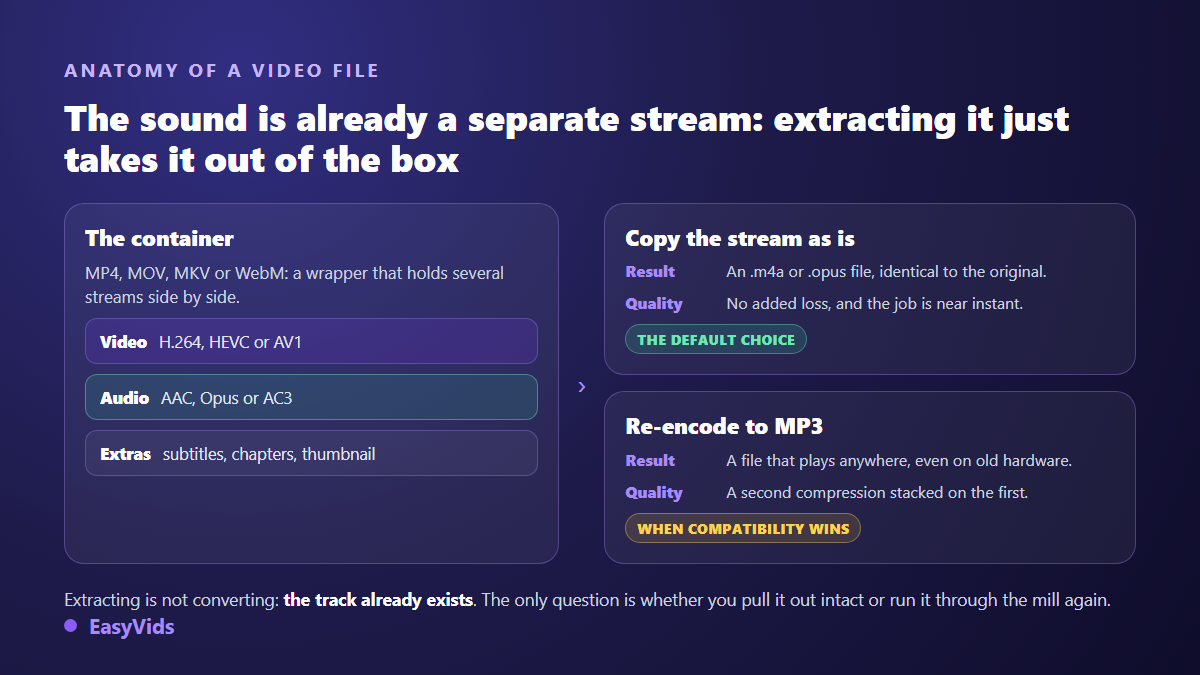
That structure reframes the whole operation. Extracting audio is not a conversion, it is a disassembly. A decent tool opens the box, lifts the sound stream out and writes it to its own file. It takes seconds even on an hour long video, because no compression maths happens. What takes time is precisely what you want to avoid: re encoding.
Copy the track or convert to MP3: the difference that matters
The audio stream inside an MP4 is almost always AAC, and inside a WebM almost always Opus. Both are lossy formats already: information was discarded at encoding time and never comes back. Turning that stream into MP3 stacks a second lossy pass on top of the first. The result is perfectly listenable, but it will never be more faithful than the source. Pulling the stream out untouched gives you a .m4a or .opus file identical to what the video carried.
On the command line the whole difference is one word. ffmpeg -i video.mp4 -vn -c:a copy sound.m4a copies the track as it stands. ffmpeg -i video.mp4 -vn -c:a libmp3lame -q:a 2 sound.mp3 re encodes it into a solid MP3. The -vn flag simply means no video. Choose MP3 when the file has to land on older hardware, a car stereo or a fussy piece of software, and keep the raw copy in every other case.
- Speech only: a mono MP3 around 96 to 128 kbit/s is plenty and halves the file size.
- Music: aim for 192 kbit/s or higher in stereo, below that cymbals and reverb tails fall apart.
- Archiving or later editing: prefer a stream copy, or WAV if the sound goes back into audio software.
- Transcription: quality barely matters, mono at a low sample rate yields the same text for a fraction of the weight.
- Podcast publishing: keep levels consistent across episodes, since many platforms normalise playback volume and an over loud file comes back squashed.
Three routes, depending on what you have at hand
None of these methods improves the sound: your output is at best as good as the source track. They differ on three far more practical points, the file size you can process, the privacy of the material, and how much of your time you are willing to spend.
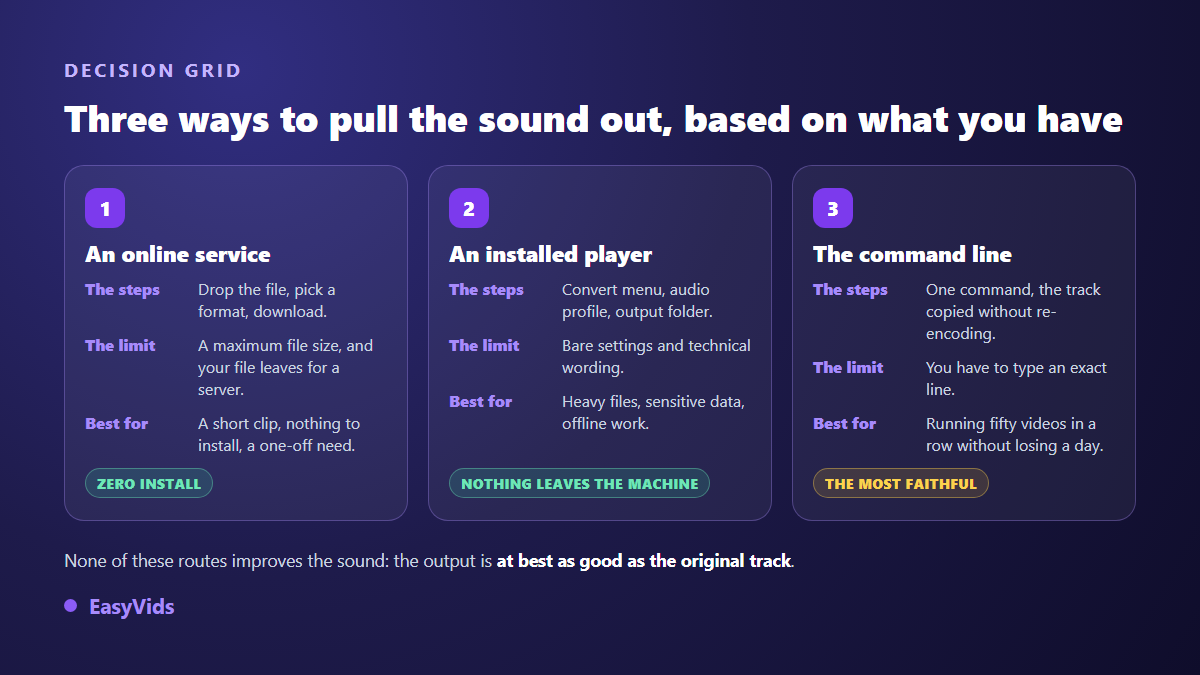
Online converters are the fastest to use: one page, one button, one file coming back. Their limits show up quickly. A size ceiling, often a few hundred megabytes, rules out long recordings. The conversion happens on somebody else's server, which is fine for a public clip and unacceptable for a confidential interview, a consultation or an internal company recording. Installed software has no such issue: a free media player such as VLC offers a Convert / Save entry under its Media menu, with ready made audio profiles that output MP3 or FLAC whatever the file size.
The command line wins as soon as volume enters the picture. A loop over a folder extracts fifty soundtracks while you do something else, copying every track without touching its quality. It also removes the guesswork: you can see, in the command itself, whether the audio is being copied or re encoded, which no web interface makes that explicit.
When the sound has to go back into a video
There is one case where producing an MP3 is a pointless detour: when the audio belongs in an edit. You want to keep an interview voice under different footage, salvage three seconds of ambience, or slide the sound out of sync with the picture on purpose. In the EasyVids studio the video lands on the timeline, a right click on the clip offers Extract audio, and the soundtrack becomes an independent track you can move, cut and rebuild at will. The reverse action puts it back, so nothing you do is one way. The gesture works the same on a laptop and on a phone screen, and our comparison of editing on mobile and editing in the browser spells out what each support really allows.
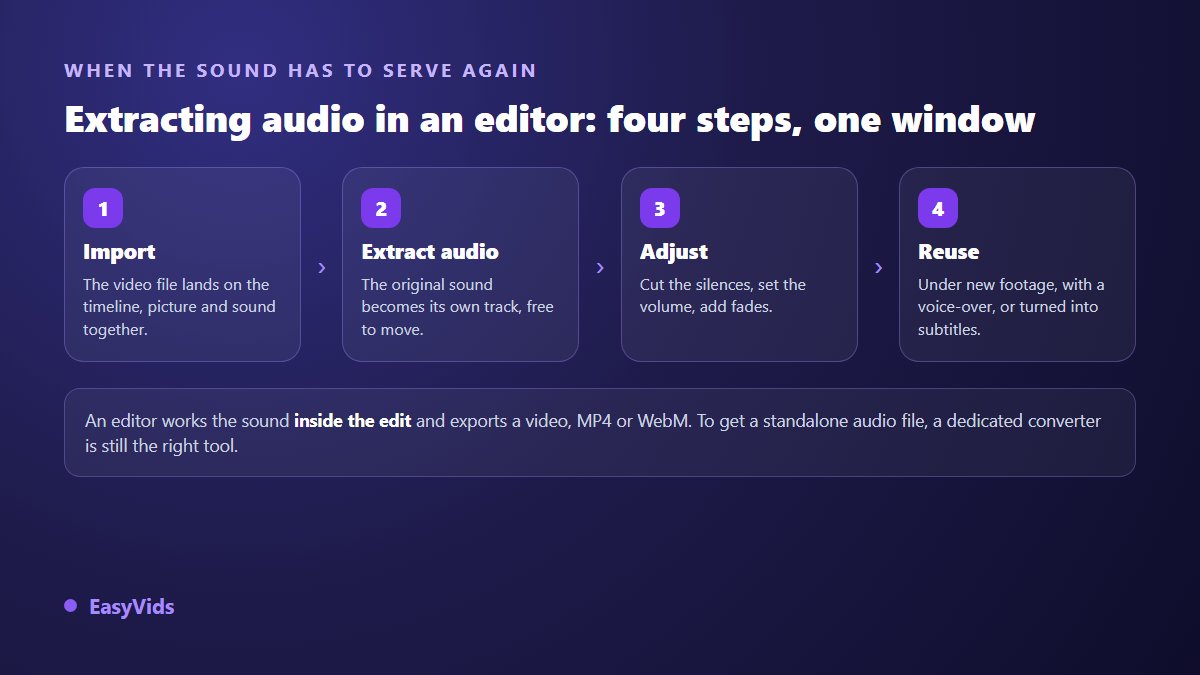
With the track isolated you can trim silences, set levels, add fade ins and fade outs, or replace the soundtrack entirely. That last option is often the best use of an extraction: rescue badly recorded speech, then rebuild it cleanly with a generated voice over. Be clear about what an editor does and does not do, though. It exports a video, MP4 or WebM, with a checkbox to include the audio or leave it out. For a standalone sound file, a dedicated converter is still the right tool. Our pricing page covers the plans once the free trial has told you whether this workflow suits you.
When it is the text you are after, not the sound
Plenty of extractions have nothing to do with listening. You want the minutes of a meeting, the quotes from an interview, the script of a video you shot without one. Going through an MP3 and then a transcription tool adds a step for nothing: modern editors transcribe the track sitting on the timeline directly, and our guide to automatic captions walks through the language settings that make the result usable.
One technical detail explains why transcription is so much faster than a full extraction: speech recognition does not need fidelity. In our studio the audio is reduced to mono at a low sample rate before being sent, which cuts the transmitted weight by roughly ten compared with a stereo track at disc quality, and changes nothing in the text that comes back. The output arrives as time coded captions you correct word by word, restyle, then burn into the picture at export, and the studio also imports an existing .srt file when the text was prepared elsewhere.
What you may legally do with extracted audio
Being able to extract and being allowed to publish are two separate things. The YouTube terms of service, in their permissions and restrictions section, forbid downloading content except through a download feature offered by the service itself. That applies to sound as much as to picture, whatever tool you use. On your own footage, or on files a client handed you, the question obviously does not arise.
The second guardrail is music copyright. Lifting a soundtrack from a film or a music video transfers no rights at all. According to the YouTube help centre, the Content ID system automatically compares uploads against a database of works submitted by rights holders, and the owner of a match can block the video, monetise it for themselves or simply track its audience. Music generated for your own project avoids that whole argument, provided you know its exact terms, which we set out in our piece on AI music and copyright.
Mistakes that spoil an extraction
- Re encoding to MP3 when a stream copy would have done: quality lost for nothing.
- Picking a low bitrate for music, then wondering why the result sounds flat.
- Uploading a confidential recording to a public converter because it was the first search result.
- Forgetting that a file may hold several audio tracks, one per language, and extracting the wrong one.
- Expecting an extraction tool to fix clipped or wind battered sound: it copies the flaw exactly as it is.
- Exporting a video with a black screen and calling it an audio file: it is still a video, and a far heavier one.
Frequently asked questions
Does extracting audio reduce the sound quality?
Not if you copy the track without re encoding: the file you get is identical to the one inside the video. Loss only appears when you convert to another format, MP3 included, because a second compression pass is applied to an already compressed signal. At a sensible bitrate the difference stays inaudible on ordinary speakers.
Can I extract audio from a YouTube video?
Tools claim to do it. Legally, the YouTube terms of service rule it out beyond the download features the platform provides, and the music stays under copyright regardless. For a video you made yourself, the clean route is to start again from your source file or from the export available in your own account.
MP3, M4A or WAV: which format should I choose?
M4A, obtained by copying the track straight out of an MP4, is the best default: no added loss, sensible size, playable on any recent device. MP3 exists for universal compatibility, mainly with older hardware. WAV is only worth it when the sound goes back into audio software, since the files are very large.
How do I extract only part of the soundtrack?
Two approaches work. In a conversion tool, set a start point and a duration before running the job. In an editor, detach the audio, cut the track and keep only the segment you want: you see the waveform, so you cut in the right place first time, which blind timecode entry rarely achieves.
Can I separate voice from music in an extracted file?
That is a different operation, called source separation, and it needs specialised tools. Our studio does not offer it: it works with the track as it was recorded. When speech and music share one recording, separation results stay approximate, and rerecording the narration cleanly almost always beats trying to dig it out.
Remember the logic rather than the recipe: the sound already exists inside your file, your job is to lift it out with as few middle steps as possible, then pick a format that matches the final use. When that use is another video, extraction and editing happen in the same place instead of bouncing between three services. Creating an account opens the full studio, with your own file imports, a detachable audio track and automatic transcription.