Your video is finished, the edit holds up, and the only thing missing is the image that will represent it in the feed. So you go looking for a free YouTube thumbnail maker, open three of them, and two hours later you hit download. The editor name is stamped across the file. Back to the start, one evening poorer.
The problem is not free itself, it is what each tool means by free. Some hand you everything except a clean export. Others put no mark on the image but rule out commercial use inside the licence. Others are genuinely free and only ask for your time. This page walks through seven routes and says, for each one, what you get without paying and where it stops. For the creative side, subject, contrast and framing, our full guide to YouTube thumbnails stays the reference.
The short answer
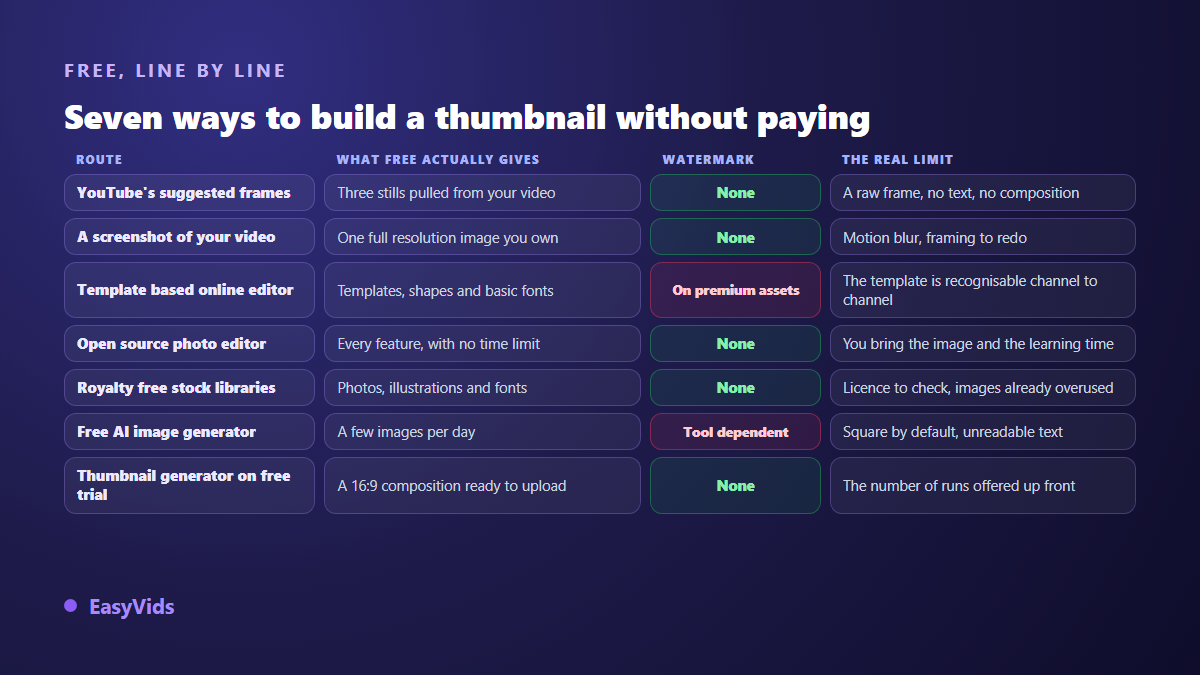
Four routes never watermark anything and cost nothing: the frames YouTube pulls from your video, a still exported from your editing software, an open source photo editor, and openly licensed image and font libraries. Three more are free with conditions: a template based online editor, where the watermark hides on reserved assets; a free AI image generator, capped in volume and often square by default; and a thumbnail generator on a free trial. Whichever you pick, one habit protects you: export a throwaway image and open the downloaded file before you compose anything.
What free really means, and where no watermark stops
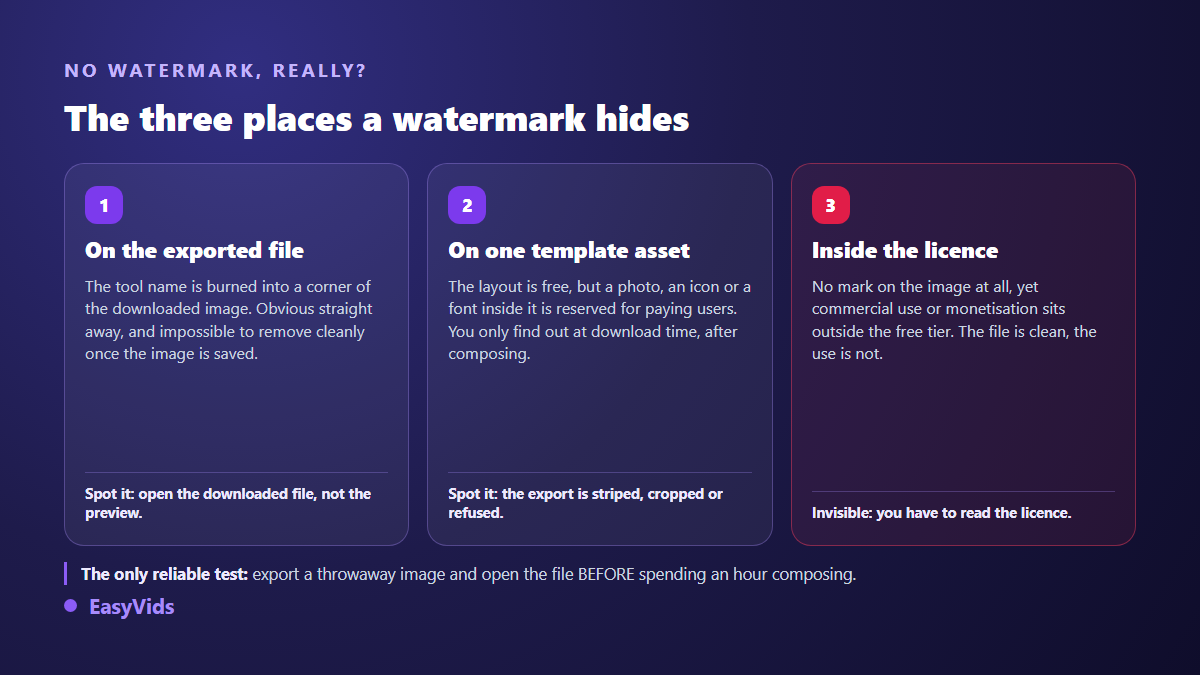
A watermark is only one of three ways a tool keeps a hand on what you make. The obvious one is burned into the exported file: the editor name, across the image or tucked in a corner. The second is quieter. The layout is free, but a photo, an icon or a font dropped inside it is reserved, and the whole export comes back striped, cropped or refused.
The third is invisible. No mark at all, a clean download, and a licence that excludes commercial use or monetisation. On a monetised channel that distinction matters, because your thumbnail travels with content that earns. Read the usage line before you get attached to a visual. Thirty seconds of reading against a whole image to rebuild.
Route 1: the frames YouTube already offers you
The most free option there is, and the most forgotten. According to the YouTube Help Centre, the platform pulls three stills from your video at upload and lets you pick one. Nothing to install, nothing to upload, and no watermark is possible because the image comes from your own file.
The limit is blunt: these are raw frames chosen by an algorithm, with no text and no composition. They will do for a follow up video, a re run or an internal clip. On a video you actually expect views from, they put you behind every channel that composes its image. Keep them as a safety net, not as a method.
Route 2: a still pulled from your own video
Second genuinely free route: export the frame yourself. In your editing software, park the playhead on the shot that tells the story best, then export that single frame. A still exported from a timeline carries the full resolution of the project, while a screen capture only carries the size the player happened to be displayed at. On a laptop screen the gap shows immediately.
Then crop it to the right format and add what is missing: a short line of text, stronger contrast, the subject pulled towards a third of the frame. The trap here is motion blur. A moving shot gives a soft image nobody notices at full size and everybody notices in a small tile. Pick a static shot, or a frame taken at the start of one.
Route 3: a template based online editor
The most common reflex, and it works. Most of these services ship a library of layouts already in the right ratio, with text boxes in place. You start from a composition that stands up instead of a blank page, and the export at 1280 x 720 takes two clicks.
Two honest limits. First, the asset watermark: the layout is free, the photo or font placed inside it is not, and you only find out at download time. Second, the resemblance. A popular template is recognisable from one channel to the next, and a thumbnail that looks like a thousand others loses exactly what it is there for. Change the font, the text block colour and the crop at minimum; the text rules that stay readable at tile size give the values worth keeping.
Route 4: an open source photo editor
GIMP, Krita and the free editors that run in a browser give you every feature, with no time limit, no account to open and no mark on the export. This is the one family where the watermark question never arises. Set the canvas to 1280 x 720, compose, export as JPG or PNG, and the file is entirely yours.
The price is paid in time. These tools bring no templates and no images, so you arrive with your own photo, your own background and your own idea. Budget an evening to get comfortable with layers, selection and type, then a few minutes per thumbnail. That learning pays off if you publish weekly, much less if you publish three videos a year.
Route 5: openly licensed images and fonts
A thumbnail is built from materials: a background, a cut out subject, a typeface. Openly licensed libraries hand those over for free and without watermarks. One rule matters: the licence is checked image by image, never site by site. The same site usually hosts both open visuals and contracted ones, and only the individual file page settles it.
The weakness of this source is its popularity. The top ranked photos end up on thousands of tiles, and your viewer has already seen them without knowing where. The fix is never to use a photo as it comes: crop hard, add a strong colour, cut the subject out and swap the background. The thirteen background types that make a subject stand out show how much that single move changes.
Route 6: a free AI image generator
An image generator creates the background or the subject you do not have. A free tier usually means a few images per day, which covers a channel publishing once a week. Three things deserve a check before you get attached to a result: whether the export carries a mark, what aspect ratio comes out, and what the licence allows commercially.
Ratio is the most frequent trap. Many of these tools default to square, and a square image cropped to 16:9 loses the top or the bottom of the composition, which usually means the subject head. Second trap, well known: never ask the model for the thumbnail text. Letters come out bent or misspelled inside a generated image. Text goes on afterwards, in an editor, where you control the font and the contrast.
Route 7: a thumbnail generator built for the format
The last route removes the round trip between three tools: a generator that outputs a 16:9 thumbnail composition directly, subject placed, background worked, space left for the text. That is what the EasyVids thumbnail studio does, and the step by step walkthrough covers the prompt that describes a composition rather than a scene.
What you get without paying: a free trial when you open the account, no watermark on the images produced, and the 16:9 ratio straight out of the generator. What you do not get: unlimited use, since every image draws on credits. Plan details live on the pricing page, which moves from time to time. Judge it plainly: count the thumbnails you publish in a month, then count the evenings the other routes take from you.
Which route fits which situation
None of these seven is better in the abstract. What decides is the constraint you are under right now: the time left before upload, the material you already have, and whether you are holding a visual identity across a whole channel.
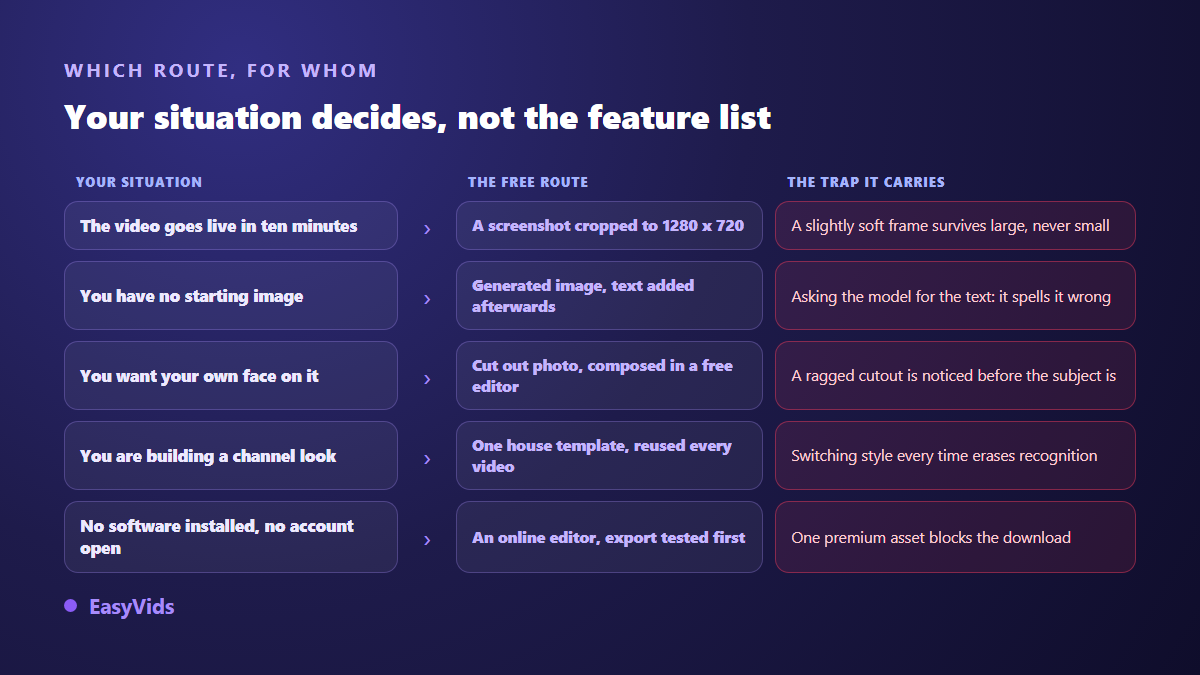
One rule holds over time: the route that lasts is almost never the fastest one, it is the one that produces the same thing twice. A house template, reused, with the same font and the same text position, beats a brilliant thumbnail rebuilt from scratch every week. You can build that template in any of the tools listed here, including the online creation studio we run.
What the platform requires, whatever route you take
Whichever route you pick, the file has to clear the platform check. According to the YouTube Help Centre, a custom thumbnail meets the values below, and uploading one stays tied to account verification.
- 1280 x 720 pixels as the recommended size, with a minimum width of 640 pixels.
- 16:9 ratio, the shape of the player and of every preview: a square image gets cropped or padded.
- JPG, PNG or GIF as accepted formats. A GIF does not animate in a tile, only its first frame counts.
- 2 MB maximum for the uploaded file.
- A verified account: without verification, the custom thumbnail button does not appear in YouTube Studio.
Those values sit in the official documentation and rarely move. The full dimensions sheet covers the zones the interface overlays and how to stay under the size limit without damaging the image. One last free habit: shrink your thumbnail to thumb size before uploading. That is the size a large share of your audience will see it at.
Frequently asked questions
Can you really make a YouTube thumbnail for free with no watermark?
Yes, in several ways. YouTube's own suggested frames, a still exported from your edit, an open source photo editor and openly licensed libraries put no mark on the file at all. Watermarks show up mostly in template based online editors, and usually on specific assets rather than the whole export. The test takes a minute: export an empty image before you compose.
Which route is fastest when the video has to go live now?
Export a still from your own edit, crop it to 1280 x 720 and drop three words on it. You keep full resolution, you depend on no service, and the result beats the automatic frame every time. If the project is no longer open, take one of the three frames the platform suggests and replace it later: a thumbnail can be changed at any point without losing the views already earned.
Is an AI generated thumbnail a problem on a monetised channel?
Not in itself. The altered or synthetic content disclosure YouTube asks for covers what the video itself shows. For the tile, the rule that applies is the misleading thumbnails policy set out in 2026 in YouTube's Community Guidelines: an image promising something the video never delivers can get that video removed. Two extra cautions: do not depict a real person without their agreement, and check that the tool licence covers commercial use.
Do you need a verified account to upload your own thumbnail?
Yes. According to the YouTube Help Centre, uploading a custom thumbnail stays limited to verified accounts. If the button is missing in YouTube Studio, look there before suspecting your file or its weight. Verification is free and takes a few minutes.
How do you spot a watermark before wasting an hour?
Create an empty document at the right size in the tool, drop a coloured rectangle on it, export, then open the downloaded file in a viewer. The preview inside the editor often lies, the file never does. Run the same test with an asset flagged as premium in the library: that is where most services place their real limit.
Pick the route that fits your week, not the one with the longest feature list. If you publish rarely, a still pulled from your edit is plenty. If you publish weekly and thumbnail building is eating your evenings, a generator that composes straight into the right format hands that time back. Open an account and try the thumbnail studio on your next video: one image is enough to tell whether the method suits you.