You publish a decent video and nobody clicks. So you open a YouTube thumbnail maker, describe what you want, and the image that comes back is pretty but unusable: one extra tooth on the face, a word that exists in no language, and a file in the wrong ratio. The idea was fine. The tool was simply never judged on the right criteria.
A thumbnail is not an illustration. It is a working image: it has to survive a brutal downscale, hold its own next to twenty rivals in a feed, and pass the upload checks. This page ranks nothing and sells no verdict. It lists what a maker must be able to do, why each skill matters, and how to decide for yourself. If you want the full walkthrough first, our tutorial on building a thumbnail with AI goes step by step.
The short answer
A YouTube thumbnail maker is not judged on the beauty of its sample gallery, but on six skills: a sharp, expressive face, short text that stays readable when small, hard contrast between subject and background, a clean cutout, an export that matches upload requirements, and fast variants so you can test instead of guess. Three tries tell you whether a tool holds: a portrait, the same image with three words beside the face, then three versions of one idea.
A thumbnail is a technical problem first
The starting mistake is judging a thumbnail full screen while you build it. Viewers never see it that way. They meet it shrunk, in a grid, usually on a phone held at arm's length, surrounded by titles and other thumbnails. At that size half the detail vanishes. A subtle gradient becomes a smudge. An eight word sentence becomes a grey line.
Second constraint: your file is not shown the way you exported it. The platform resizes and recompresses it for every placement, from the home feed to a television screen. What was borderline on your monitor becomes unreadable there. A maker that ignores both realities produces images that look great inside its own preview and disappear where they have to work.
The six skills that make a maker usable
Here is the grid worth using to evaluate a thumbnail tool. It says nothing about style or taste. It only describes what the tool must produce so that you never have to reopen an image editor behind it.
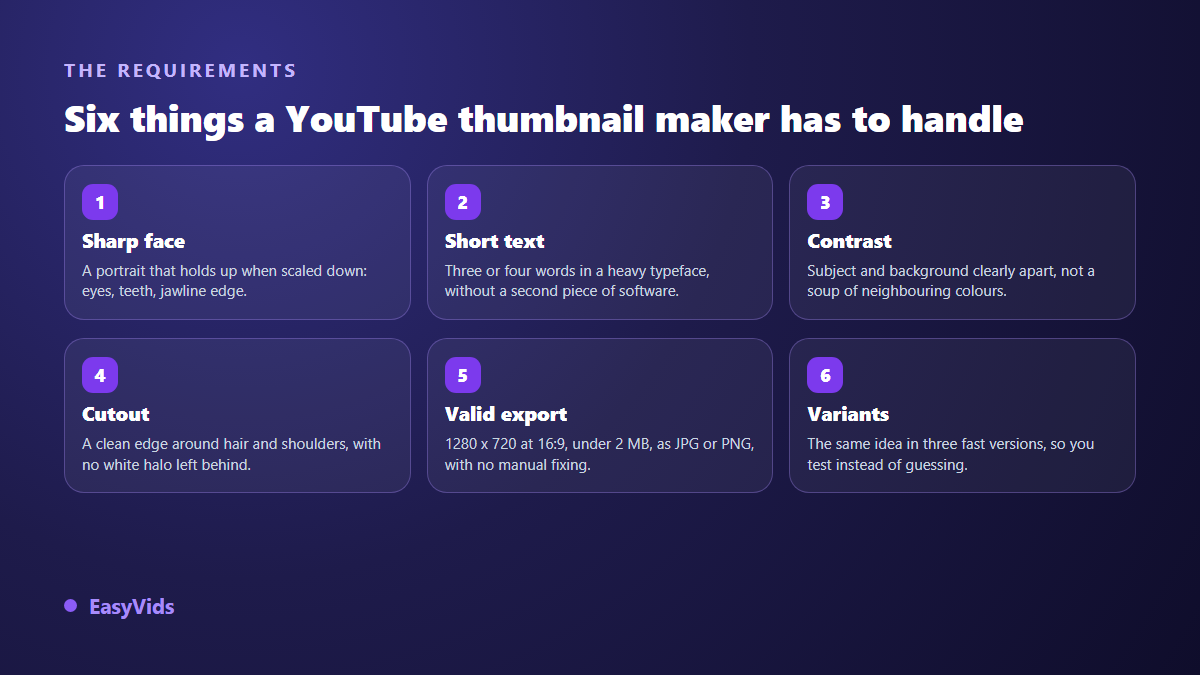
The six do not weigh the same on every channel. A face driven format lives or dies on the first one. A faceless tutorial channel is decided mostly by text and contrast. Find the box that decides for you, and judge tools on that one first.
Skill 1: a sharp face and a readable emotion
The face is the most looked at part of a thumbnail, because the eye finds it before anything else. Two things have to hold: sharpness and emotion. You check sharpness by shrinking the image. You check emotion by showing it to someone who has not seen the video and asking what the person is feeling. If the answer hesitates, the expression is too soft. On the technical side, generated faces fail in the same places every time: eyes pointing in different directions, teeth that multiply, lopsided ears and earrings, hair edges bleeding into the background.
A good maker also accepts a photo of you as a reference instead of inventing a new face on every try. Without that reference your channel changes face from one video to the next and loses the visual anchor that makes your uploads recognisable in a feed.
Skill 2: short text that survives at feed size
Thumbnail text runs to three or four words. That is not a style preference, it is the only length that stays legible once the image is scaled down, while the video title already sits right next to it. So the question for any maker is simple: is the text placed as text, with a typeface you chose, or drawn into the image by the model? The first answer gives you a correct, editable word. The second gives you an invented letter sooner or later. Word choice and typeface are covered in our guide to thumbnail text.
The check takes ten seconds: shrink the image to the width of a thumb, or step two metres back from the screen. If the words stop reading, they are too long, too thin, or sitting on a background that swallows them. Here is what a tool should let you do with that text layer.
- A heavy typeface, bold or black: thin letterforms vanish when the image shrinks.
- An outline or drop shadow under the letters, so the text holds on any background.
- A text block you can move freely, because it belongs beside the face, never on it.
- A safe margin at the edges: anything touching the frame looks cropped.
- The bottom right corner left empty, since the video duration is stamped over it.
- The ability to fix a single word without regenerating the whole image.
Skill 3: contrast, what makes you visible from a distance
A thumbnail is noticed before it is read, and the first signal is contrast: between your subject and your background, then between your image and the ones around it. A dark subject on a dark background melts into the grid, however good it looks full screen. A serious maker lets you swap the background without touching the subject, lighten or darken a zone, and add a glow behind the head to lift it off. One useful test: turn the thumbnail black and white. If subject and background become two neighbouring greys, your contrast rested on colour alone and it collapses next to brighter neighbours.
Skill 4: a clean cutout, where tools give themselves away
Cutting out means separating the subject from its background to place it somewhere else. It is the most frequent thumbnail operation and the one where tools differ most visibly. Look at three places: strands of hair, where a poor cutout leaves a pale halo; shoulders and arms, often shaved off; and held objects, a microphone, a controller, a product, which lose a chunk on the way. A bad cutout does not always show at full size, but it leaves a rim that makes the image look like a collage. Viewers will not name what is wrong, they will just click something else.
Skill 5: a valid file, with no manual fixing
According to the YouTube Help Center, a custom thumbnail must be 1280 x 720 pixels, keep a 16:9 ratio, be at least 640 pixels wide, arrive as JPG, PNG or GIF, and weigh under 2 MB. These are not suggestions: a file outside those bounds is rejected at upload. A maker that exports square, in WEBP, or at some exotic size forces you through a converter before every publication. The full dimension sheet lives in our page on YouTube thumbnail size.
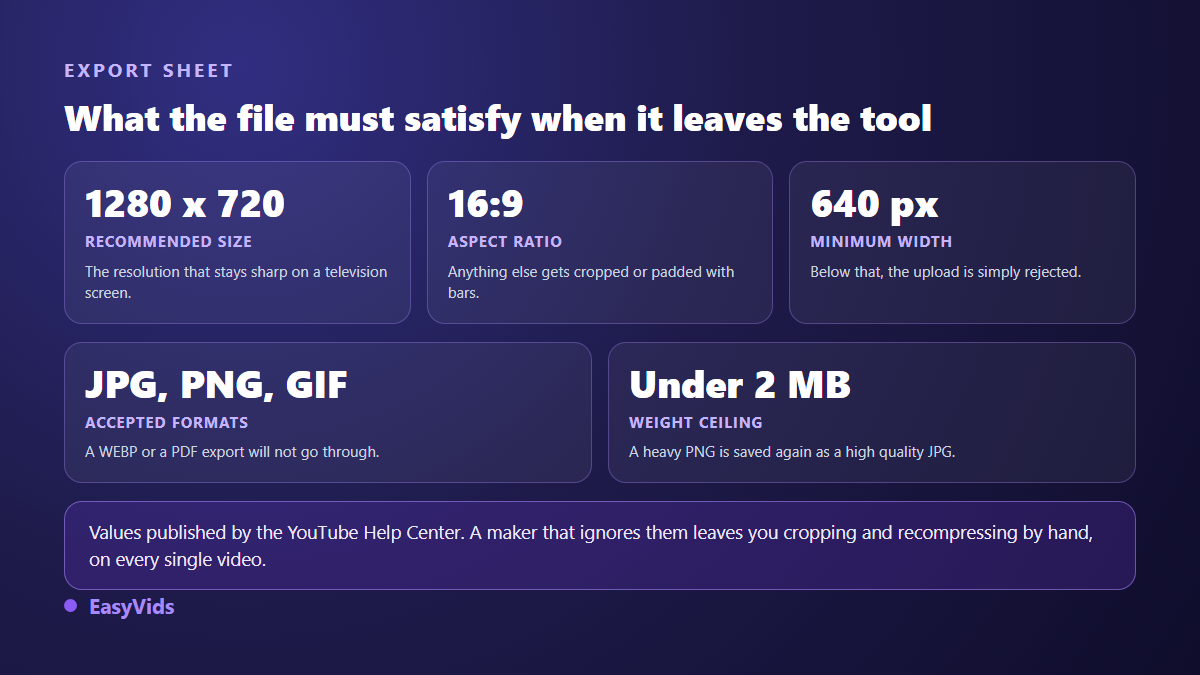
Weight deserves special attention. Generated images often come out as PNG, a heavy format, especially with a gradient background. If your tool offers no JPG option you will recompress by hand, and clumsy recompression brings noise back around the letters. Check this on the very first try: it is the kind of detail that turns into a daily chore once you publish often.
Skill 6: fast variants, so you test instead of guessing
Nobody finds the right thumbnail on the first attempt, and no rule replaces a measurement. The real question is not the quality of one isolated image, but how long it takes you to produce three comparable versions. A maker that restarts from scratch for every variant condemns you to publishing the first acceptable image. The rule for testing fits in one line: change one thing only between two versions. The background, or the wording, or the expression, never all three, otherwise you learn that one version wins without ever learning why.
Judging a maker in three tries
Sample galleries prove nothing: they are the best results, picked by the people selling the tool. Run this three step test with your own photos and your own subject instead. Twenty minutes is enough, and keep the outputs side by side.
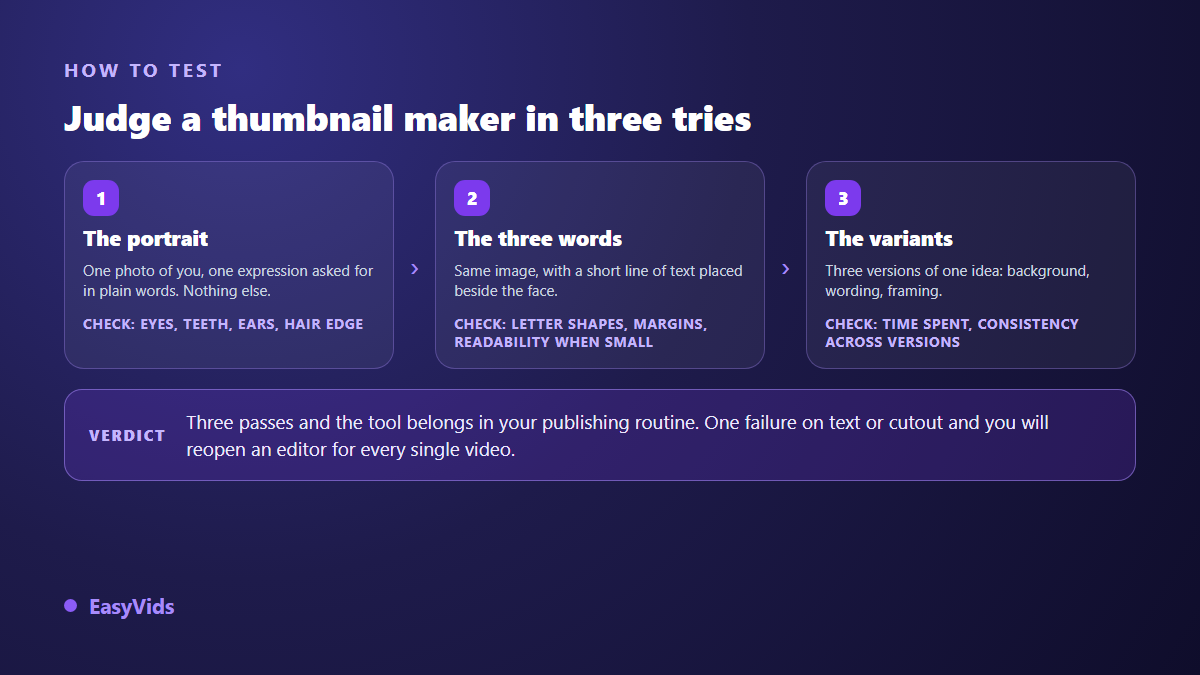
Try 1, the portrait. Feed it a photo of yourself and ask for a precise expression, surprise for instance. Look at the result small, then large: eyes, teeth, ears, hair edge. A tool that fails on a clean photo will not save itself on a hard subject.
Try 2, the three words. Take that same image and place short text beside the face. Check that every letter is correct, that the typeface stays readable when shrunk, and that you can move the text block without launching a whole new generation.
Try 3, the variants. Ask for three versions of one idea, changing a single element each time. Time it. If all three arrive within minutes and look close enough to be compared, the tool holds. If every version restarts from zero and drifts, you have a toy rather than a publishing instrument.
What a maker will not do for you
No tool finds the angle of your video. A thumbnail that works promises something specific: a tension, a before and after, a number, a mistake the viewer recognises. That promise comes from you, your subject and your audience. A tool wins you the execution, never the judgement. The fastest routine builds the thumbnail in the same workspace as the edit, from the same ingredients: your face, your palette, your typeface. That is the approach of the EasyVids creation studio, where the video, the thumbnail and the promotional visuals come out of one place.
Frequently asked questions
Is a free YouTube thumbnail maker enough?
To get started, yes, provided you check two things before committing: whether the export carries a watermark, and the real resolution of the file. Many free options deliver a marked image, or one too small to be accepted at upload. Watch the daily limit too: a tool that allows one image per day forbids the variant testing that matters most. Our plans and what they unlock are on the pricing page.
Do I need prompt writing skills to use one?
Not in any technical sense. A short, concrete description is enough: subject, emotion, background, lighting mood. The requests that fail are the ones stacking too many elements at once. Describe a simple scene, look at what comes out, then correct in small steps rather than writing one perfect paragraph.
Does an AI generated thumbnail have to be disclosed?
YouTube's rules on disclosing synthetic content, published in its Help Center, target realistic material that could mislead viewers, and apply mainly to the video itself. A stylised thumbnail or a generated background raises no issue. Showing a real person in a situation they never lived, however, exposes you to a complaint whatever box you tick. These rules change, so check the current text when you publish.
How many thumbnails should I make per video?
Two or three, no more. One leaves you nothing to compare, ten burn an afternoon on differences nobody notices. Two clearly different versions, left up long enough to gather views, teach you more than ten near identical variations.
Take the thumbnail from your last video and run it through the three tries on this page, using whatever tool you already have. Twenty minutes will tell you whether it costs you time or gives it back. To run the exercise on our studio, create your account and generate a first thumbnail from one of your photos, then look at it shrunk to the width of a thumb: that is the only judge that counts.