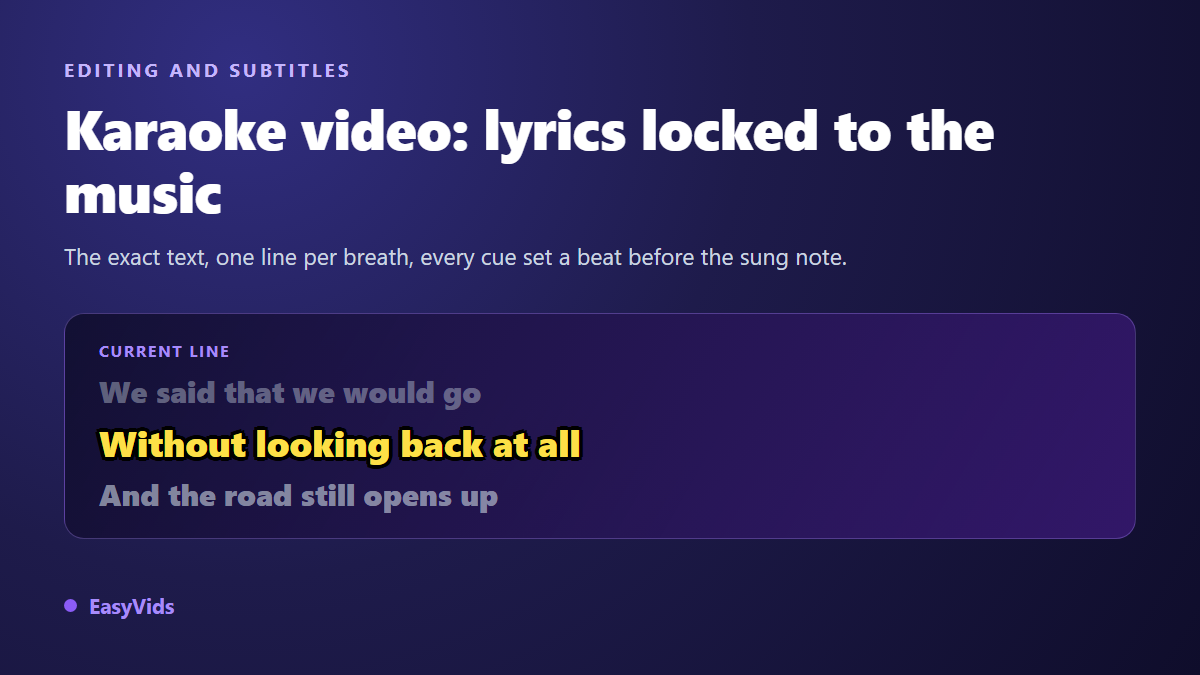
You have a song, and you want every line to land on screen exactly when it is sung. That is a karaoke lyrics video, and it is also the most thankless edit there is when you go about it the wrong way: fifty lines placed one by one, a two second rewind between each of them, and a song you end up hating.
The styling is rarely the hard part. White text with a thick black outline already does the job. Timing is the hard part, and music makes it harder than speech, with held notes, silences and choruses that look alike without being identical. This guide walks the whole chain, from the lyric sheet to the exported file. For the pure transcription side, our guide to automatic subtitles covers the ground; here we deal with what singing adds.
The short answer
A karaoke lyrics video needs three things: an audio file, the exact lyrics, and an editor that lets you place text on a timeline. The shortest route is to produce the song and its lyrics in the same place, which is what an AI music generator does, then import the audio into a browser editor, let transcription lay down a first grid of timed lines, and fix the entry points by ear. Budget about half an hour for a three minute song the first time round. The second one goes twice as fast.
Karaoke, lyric video, word by word captions
Three formats look alike on screen and are edited very differently. True karaoke exists to be sung: the viewer has to read the line before producing it, so text stays up longer and the current line is set apart by colour. A lyric video exists to be watched: one line appears, then leaves, nobody is singing along, and the need to read ahead disappears.
The third format shows lyrics one word at a time, in the style of vertical videos. It grabs attention and takes very little room, but it makes singing along impossible, because what comes next stays hidden. Pick your format before you place the first word: the way you split lines depends entirely on it.
The full chain, in five steps
A karaoke video is always built in the same order, and the order matters. Every step you skip costs double at the next one: loose lyrics force a second timing pass, and a sloppy split forces you to recut lines already placed to the millisecond.
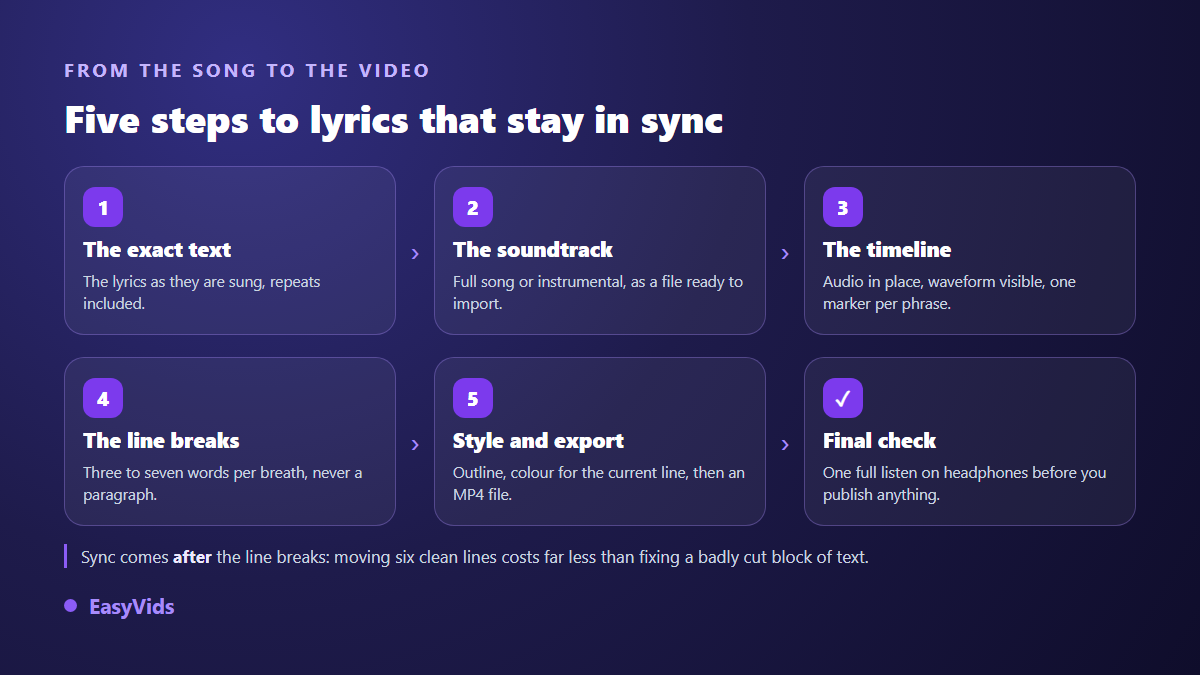
- The exact lyrics, as they are sung, repeats and ad libs included.
- The soundtrack, either the full song or an instrumental if the room is meant to sing instead of the vocal.
- The timeline, with the audio imported, the waveform visible, and a marker on every phrase start.
- The split, three to seven words per breath, never a paragraph.
- Styling and export, outline, colour on the current line, then an MP4 or WebM file.
Step 1: the exact lyrics come before anything else
You need the words as they are sung, not as they are written. Repeats count, held notes count, closing ad libs count, and so does the order of the verses. One missing line shifts everything after it, and that is painful to repair, since every element placed later has to move.
If you produce the song yourself, you start with the text in hand, which removes half the work. The EasyVids Music Studio follows that order: pick an occasion, a genre, a mood and a tempo, drop in a name or a message, and one button writes the lyrics for you. Title and text stay editable before generation, and an option produces an instrumental with no vocal. The credit cost depends on the engine you choose and is listed on the pricing page.
If the song already exists, type the lyrics out or have them transcribed, then proofread while listening. Transcription slips on rare words, proper nouns and passages where several voices overlap. Fixing ten words before timing takes two minutes. Fixing them after fifty lines are placed takes thirty.
Step 2: lay the audio down and read the waveform
The EasyVids browser editor imports images, video and audio files directly. Drop the song on the timeline: it draws as a waveform, and that curve is your score. Vocal attacks are visible, so are the silences, and a chorus is recognisable by its shape alone. Plenty of people time lyrics by ear when half the information is already in front of their eyes.
Two tools handle the tedious part. The Add marker button pins a mark at the playhead, and elements snap to those marks afterwards, so you can run through the song once placing a marker at every phrase start without writing a single line of text. The S key splits the selected element at the playhead, which is how you turn one long text block into two separate lines.
Set the project format before styling anything. The editor offers 16:9, 1:1 and 9:16. Switching format later moves every piece of text you have positioned, and on a karaoke video that means starting the layout again.
Step 3: split lyrics into lines people can actually read
A karaoke line is not a sentence, it is a breath. Three to seven words, two lines on screen at most. The subtitle guidelines published by the BBC set a limit of roughly 37 characters per line for comfortable reading, and that limit holds for singing too: past it, the eye drops out and the singer loses their place.
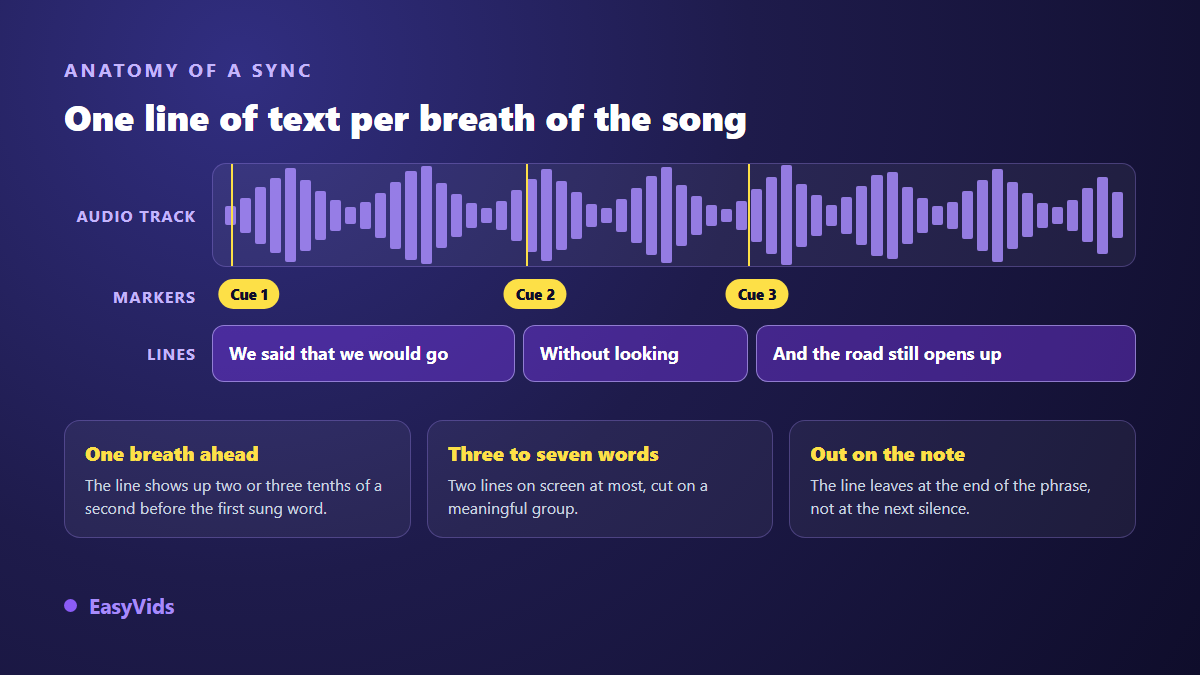
- Break on a sense group: 'without looking / back at all' reads better than 'without / looking back at all'.
- Two lines on screen maximum, never three, even in landscape.
- Never split a word across lines, however long it is.
- Treat a long held note as a line of its own once it runs beyond a second.
- Save capitals for titles: a full line in caps loses the word shapes that make reading fast.
- Keep punctuation minimal, sung text hardly needs commas.
Step 4: time the lines without losing the night
The editor's Subtitles panel offers two ways in. Generate subtitles sends your timeline audio off for transcription, in the language you pick or with automatic detection, and the result comes back as timed lines inserted on a new text track. Import a file accepts an .srt or .ass file prepared elsewhere. The SRT format carries nothing but text and timestamps, which is plenty here, since styling happens afterwards in the editor; our guide to SRT files breaks the structure down.
One honest warning: singing transcribes less accurately than speech. Held notes stretch syllables, stacked voices overlap, reverb blurs consonants. Treat automatic transcription as a starting grid rather than a result. It hands you plausible timestamps; you then replace each line's text with the exact lyrics you already have. It remains the fastest road to clean timing.
Then comes the fine pass, and it fits in one rule: a line appears two to three tenths of a second before the first sung word. That small head start is what separates karaoke from an ordinary caption. Play the track, drag the next line until it lands just ahead of the vocal, move on. If the whole text runs late by the same amount, do not start over: select the lines and shift them as a block.
Step 5: the styling that makes it karaoke
The editor ships eighteen ready made text styles, from a clean outline to neon, broadcast caption and yellow card. On a karaoke video the thick black outline stays the safest bet: the background moves, brightness changes with every shot, and text without an outline vanishes half the time. The WCAG 2.2 accessibility rules published by the W3C ask for a contrast ratio of at least 4.5 to 1 between text and its background; over moving pictures, the outline or a box is what keeps you above that line in every shot.
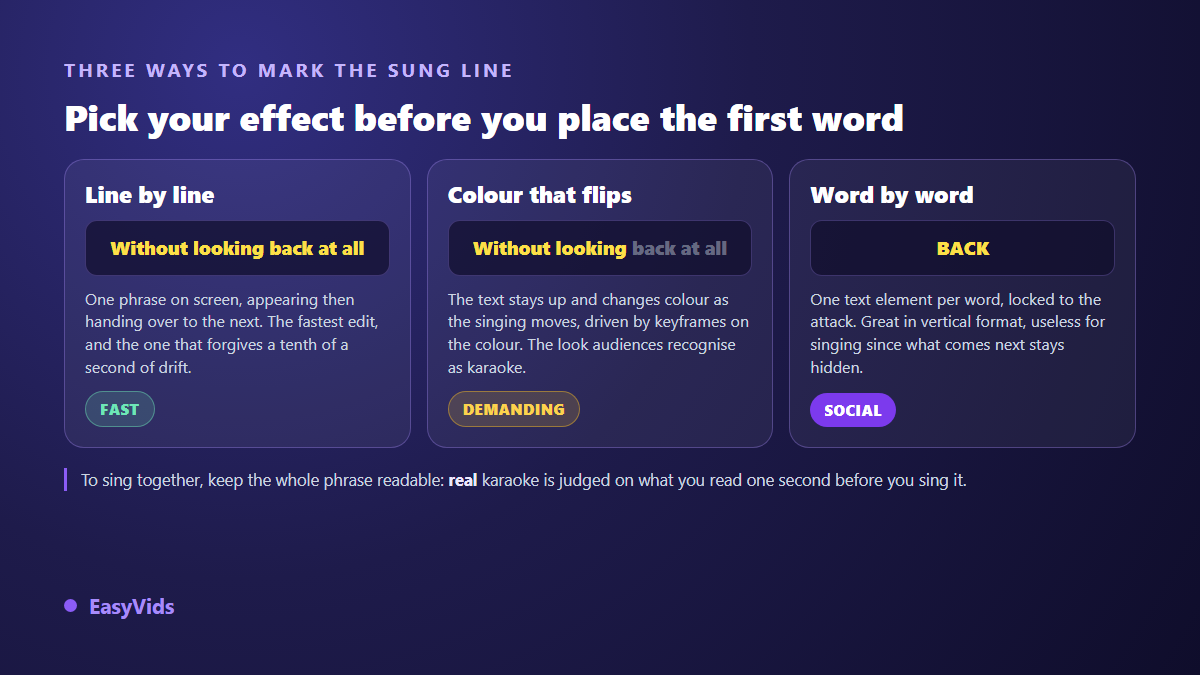
Marking the current line can be done three ways. The first shows one line at a time with a gentle entrance animation from the Animations panel. The second keeps the text on screen and flips its colour on the beat: text colour accepts keyframes, so you place one before the phrase and one at the moment it is sung, switching instantly or gradually. The third shows a single word at a time. All of it runs in the browser with nothing to install, and the full studio is introduced on the EasyVids home page.
Syllable by syllable fill: what works and what does not
Living room karaoke colours each syllable as it goes, like a bar filling up. That effect comes from the ASS subtitle format, which defines karaoke tags carrying the duration of every syllable. It is a real specification, used for years by subtitling communities, not an editing trick.
Here is the precise limit: when an .ass file is imported into our editor, text and timestamps survive, the line's general style largely survives too, but tags placed inside the text are stripped, and the editor tells you how many subtitles were affected. The syllable fill does not rebuild itself.
The workable substitute is the colour keyframes described above, applied word by word instead of line by line: the result is close, the edit takes longer. For a song meant to be sung by a group, flipping colour line by line is more than enough.
Rights: the question that sinks karaoke channels
A karaoke video built on a well known song raises two issues, not one. The recording is protected, and so are the lyrics: putting them on screen reproduces the text. According to the YouTube help centre, Content ID compares every upload against a database of reference files supplied by rights holders; on a match, the claim can block the video, leave it up while ad revenue goes to the rights holder, or simply track its statistics. Performing the song yourself changes nothing there: per the same documentation, a cover still depends on the rights of writers and publishers.
The calm route is to work on a track whose whole chain you control: a song you generate, with lyrics you wrote or had written for you. Read up on ownership and publication before launching a full channel, because a claim always arrives after the hundredth video, never before the first.
Frequently asked questions
Do I need a subtitle file to build a karaoke lyrics video?
No, but the text has to exist somewhere. A plain block you paste line by line is enough. An .srt or .ass file becomes useful when someone has already done the timing elsewhere, or when the same lyrics feed several edits.
Does automatic transcription work on singing?
It works, with lower accuracy than speech. Held notes, stacked voices and reverb blur the words. Use it for starting timestamps, then replace the text with the exact lyrics: the time saved is still substantial.
Can I get the classic syllable by syllable fill?
Not in one click. Karaoke tags inside an .ass file are stripped on import, and only text and timestamps survive. Colour keyframes placed word by word get close, at the cost of a longer edit. For group singing, a line by line colour switch does the job.
Can I publish a karaoke video of a famous song?
Technically yes, legally it is risky: the recording and the lyrics stay protected, and the YouTube help centre spells out the claim mechanism that applies. For a channel you want to keep, start from a song whose rights you control.
A karaoke lyrics video does not live on a spectacular effect. It lives on three tenths of a second of head start and on lines short enough to read at a glance. The rest is care. To try the whole chain, from a generated song to lyrics timed on the timeline, creating an account opens the studio and its browser editor. Start with a song you know by heart: timing is felt, not calculated.