You have a few clips, some stills, a voice over, and somehow it all has to become one video that holds together. An online video editor exists for exactly that moment: open a tab, drop your files in, cut, arrange, export. No multi gigabyte installer, no licence to activate, no machine brought to its knees for an hour.
The question few articles answer honestly is how far a browser based editor actually goes, and where it stops. This guide covers the whole picture: the core edits, tracks and layers, text and captions, audio, transitions used with restraint, what editing can rescue and what it cannot, export choices by destination, and a fair comparison with installed software. It is written for someone editing alone, with no formal training.
The short answer
A modern online video editor covers everything a normal edit needs. Split a clip, arrange shots, set durations, layer text and images over the footage, add music, generate captions, apply transitions and effects, then export a clean file with no watermark. It shows its limits on very long timelines, very heavy footage, and precision colour work. For almost every video published on the web, which runs under ten minutes, it is more than enough. The quickest way to judge is to open one and try it.
What a browser based editor really does now
For years, editing in a browser meant uploading your files to a server, waiting, and getting back a video stamped with someone's logo. That era is over. Current browsers decode and encode video directly, using your machine's hardware. In our editor, your files stay in browser storage: both the preview and the export are computed by your own computer. Nothing is shipped off to be edited elsewhere.
Three practical consequences follow. The project saves itself continuously, so you find it untouched when you reopen the tab the next day. Export never waits in a queue. And the weight of your media is measured in available browser storage rather than a subscription quota, which is the one place a browser editor genuinely gives way on large projects.
If your shots come from AI generation, the handoff is direct: a project built in the studio opens in the editor with its scenes already laid out, each visual aligned to its voice over. The production chain behind that is covered in our guide to AI video generation. Editing picks up precisely where generation stops.
Six edits that do most of the work
Editing is not a hundred features. It is six moves repeated hundreds of times. Learning them on the keyboard rather than the mouse cuts the time you spend on a video, and you feel it within the first hour.
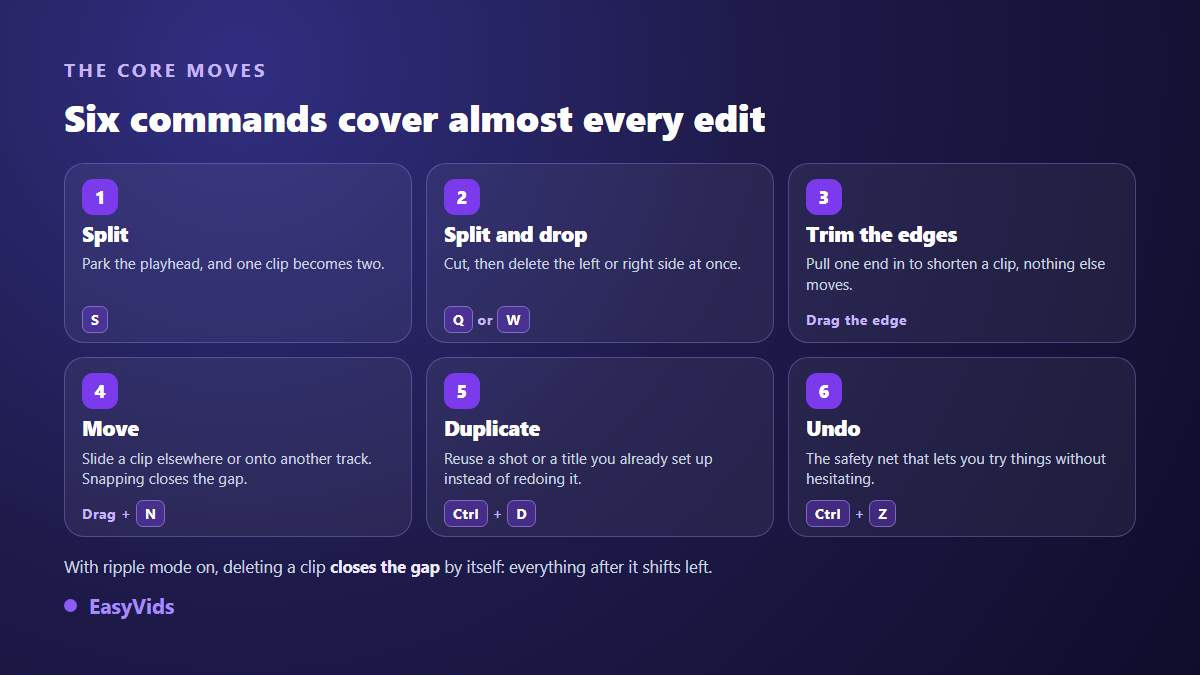
- Split: park the playhead where you want the cut, one key turns the clip into two independent pieces.
- Split and discard: one variant deletes everything before the cut, another everything after. This is what cleans a raw take in seconds.
- Trim: grab the edge of a clip and pull, shortening its head or tail without touching anything else.
- Move: drag a clip elsewhere on the timeline, or onto another track. Snapping sticks it cleanly against its neighbour.
- Duplicate: reuse a shot or a text you already styled instead of rebuilding it, especially for a run of matching title cards.
- Undo: the safety net that lets you experiment without thinking twice, as long as the page stays open.
Two toggles are worth knowing on day one. Snapping makes clips stick to each other and to the playhead, which prevents the single frame gaps nobody notices while editing and everybody notices on playback. Ripple editing closes the gap automatically when you delete a clip, pulling every following shot forward. Without it, half your time goes into chasing empty space.
Tracks and layers, the only concept to grasp
The vocabulary sounds technical, the logic fits in two sentences. A track is a horizontal lane: it carries time, left to right. The stack of lanes carries depth: whatever sits higher plays in front of whatever sits below. Everything else follows from that.
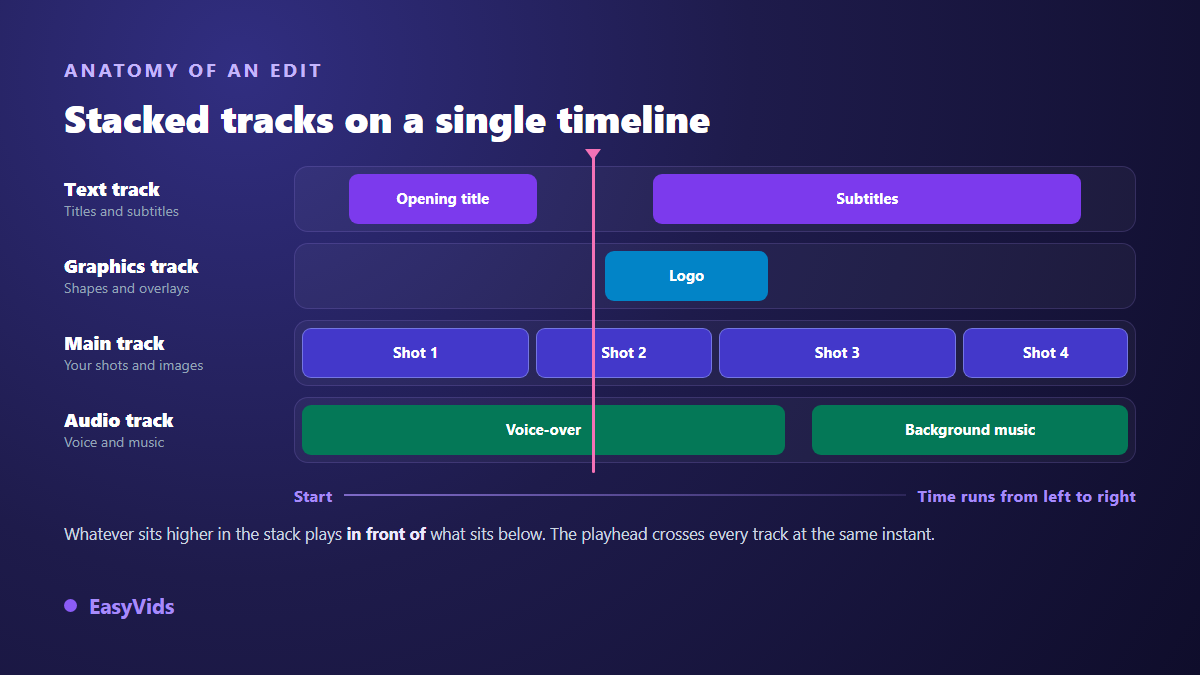
In practice you work with a main track holding your shots and stills, overlay tracks for text and graphics, and audio tracks for voice and music. A text placed on an upper track appears over the footage playing underneath, for exactly as long as the text block lasts. Each element is adjusted on its own: position, scale, rotation, opacity, blend mode. You can hide a track with one click to compare two versions, mute a clip without deleting it, or detach the audio from a video onto its own track and treat it separately.
On screen text without making it unreadable
Text is the most used element in any edit, and the most abused. You control the typeface, size, weight, alignment, line height and letter spacing, then colour, an optional gradient, a background box with its padding and corner radius, an outline and a drop shadow. The font catalogue runs to nearly two thousand entries, which is both good and bad news.
The bad news first: an interesting typeface never rescues a sentence that is too long. Three rules cover it. Six words per block at most, a size that stays readable on a phone held at arm's length, and a background or outline as soon as the text sits over a bright image. Ready made text styles save you an afternoon: one click applies a complete treatment, outline and shadow included, which you then tune. Captions are their own case, with size and contrast constraints that shift with the destination screen, and our comparison of subtitle fonts gives the settings platform by platform.
Captions decide how far your video travels
A large share of viewers watch with the sound off. Captions are not a comfort feature, they decide whether your video gets watched or scrolled past. Two routes exist. You import a subtitle file you already own, in the usual formats. If you are not sure how that file is built or how to fix it by hand, our guide to the SRT file goes through it line by line. Or you ask for automatic generation: the editor pulls the audio out of your timeline, has it transcribed, and lays the result back onto a text track at the right timings.
Transcription handles around ten languages, with automatic detection if you leave the choice open. The genuinely useful part comes after: generated captions become ordinary text blocks. You fix a misheard word, restyle the whole set, nudge the one that lands half a second early, exactly like any other text. That is more flexible than a frozen file, and it removes the round trip through an external tool. The whole chain, from transcription to the review pass and the readability rules, is covered in our guide to automatic subtitles.
Audio carries half the perceived quality
Sound editing comes down to three controls, and they cover almost everything. Volume per clip, with the classic rule of keeping music well under the voice. Fades in and out, expressed in seconds, which remove abrupt starts and hard cuts at the end of a track. And speed, with the option to preserve vocal pitch when you nudge a slow passage forward. Everything else about a voice over is decided before the edit: punctuation, sentence length, the timbre you pick. A good voice forgives many visual flaws; the reverse is never true.
Transitions and effects: restraint first
This is where beginners get lost. The editor offers the classic transitions, cross dissolve, wipes, zooms and slides, plus entrance and exit animations for every element, including the slow drift over a still image that gives life to a shot that has none. On the look side, an effects library covers basic corrections and finished moods, from high contrast black and white to warm or cool grades.
One sentence covers the discipline: a transition has to be justified by a change of place or time, never by the urge to fill a gap. A whole video built on cross dissolves feels limp. The hard cut is almost always right, and dissolves belong to the breathing points. Same logic for effects: one correction held across the entire video beats a different filter on every shot. When time is short, an automatic styling command will walk your timeline and place varied animations and transitions for you, never repeating the same one twice in a row, and everything stays editable afterwards.
What editing can rescue, and what it cannot
You rarely edit perfect material. Here is what editing genuinely saves, in order of impact. Pacing first: cutting silences, hesitations and the three dead seconds at the head of every shot fixes a boring video far more reliably than any filter. Brightness and contrast next, which lift a flat image with two sliders. Sound last, since a discreet bed of music masks an uneven recording.
Three things do not get rescued, and knowing that saves you an evening. Blurry or shaky footage stays blurry. A framing that cuts off your subject's head stays bad: you can reposition and scale a clip inside the frame, which is not the same thing as a true crop. And a confused message stays confused whatever you do to it. Scripts get fixed in writing, never afterwards.
Choose your export before you cut
The costliest mistake happens at the start, not at the end: picking an aspect ratio once the edit is finished. A video conceived horizontally and then cropped to vertical always loses something that mattered, often the subject itself. The editor offers the usual frames, horizontal, vertical, square and the classic television ratio, plus a custom size when a destination demands one.
- Full screen vertical for short social feeds, with text pulled toward the centre so it never hides under the interface.
- Horizontal for a long video meant for a hosting platform or embedded in a web page.
- Square when the same video has to serve several places without being re edited.
- A steady frame rate from start to finish, chosen before you edit rather than at export time.
- Audio included unless you have a specific reason to drop it, and one full playthrough before you start the render.
The final file is written in the standard web video formats, at several quality levels, at the resolution of the frame you picked at the start. Your browser computes it, with a progress bar and a cancel button. A compatibility check warns you before you start, and it is blunt: on iPhone and iPad, browser export is not available, whichever browser you use. Editing belongs on a computer screen, and that is the constraint to accept.
Online editor or installed software
The comparison deserves to be made without partisanship, because both win, on different ground.
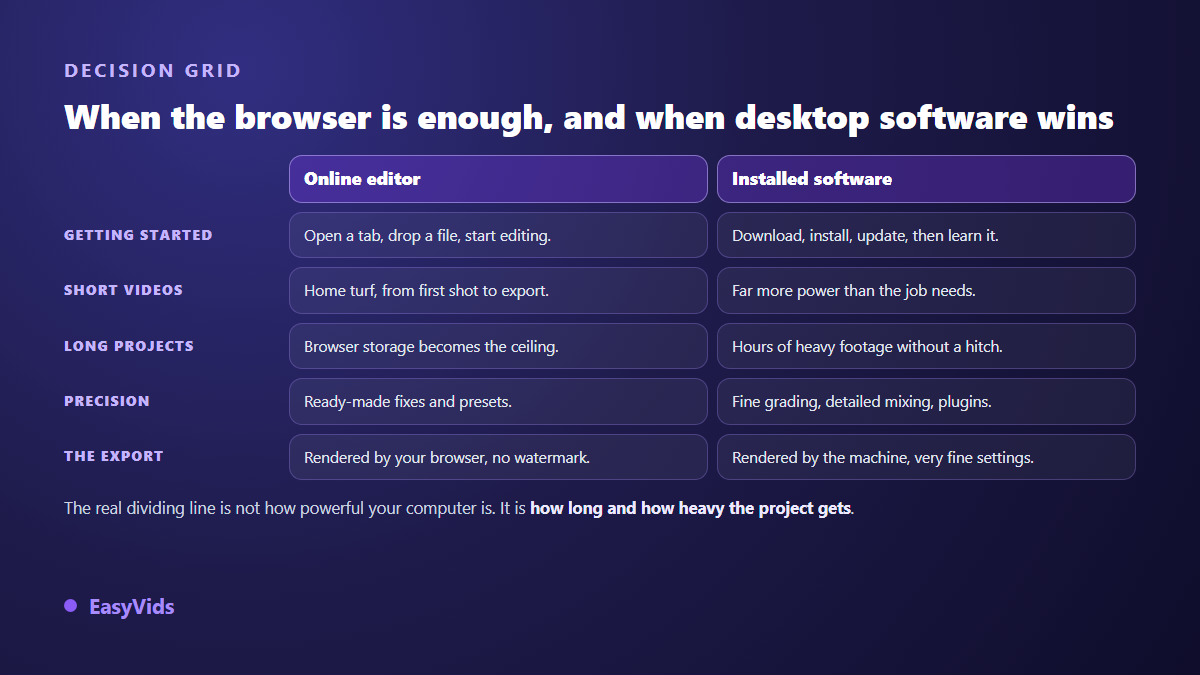
The browser wins on setup, portability and short formats. Nothing to install, nothing to update, a modest computer is enough, and the project follows you from one machine to the next. Installed software takes the lead the moment a project turns long or heavy: hours of timeline, high definition rushes measured in tens of gigabytes, calibrated colour grading, multitrack mixing, specialised plugins. There is no overall winner, only a project to size up. One technical caveat, stated rather than hidden: visual effects rely on the browser's graphics acceleration, so on an older browser they are simply skipped while the rest of the edit keeps working. Our pricing page sets out what each plan covers.
Frequently asked questions
Is an online video editor free?
The editor opens and runs without paying: you import your files, edit, and export with no watermark. Only the features that need computation on our servers, such as automatic caption generation, draw on the credits attached to your account. Our help pages go through the details.
Do my videos get uploaded somewhere?
No. Imported files stay in your browser storage and the render is computed by your computer. The trade off is that a very heavy project eventually fills the available space. The editor tells you plainly, with the file size and the room left, instead of failing silently.
Can I edit a video from a phone?
Not comfortably. The interface needs a wide screen and the editor shows a warning below a certain width. On iPhone and iPad, export is not possible in the browser anyway. Writing, generating and publishing from a phone works well, but timeline editing asks for a computer.
What happens to my project if I close the tab?
It is kept. Saving fires automatically after every change and your edit is waiting when you reopen the editor. Only the undo history resets: what you did is stored, but undo will not step back past a page reload.
How long does a three minute video take to edit?
Around half an hour the first time, ten minutes once the shortcuts are in your fingers. Most of that goes into review passes rather than the cuts themselves. A project imported from the studio arrives already assembled, each shot aligned to its voice, which reduces editing to adjustments.
An online video editor is no longer a watered down version of real editing, it is a different balance: fewer precision controls, far less friction, and a short path between an idea and a published file. Start with the six core edits, hold one style from beginning to end, decide your frame before you cut the first shot. The rest comes with practice. To open a timeline on your own footage, create an account and drop in a first video.