Your deck is ready, it landed well in the room, and now it has to reach everyone who was not there. A slide file on its own says nothing. Without the person who spoke over it, it is just a run of screens nobody scrolls to the end. Turning PowerPoint into video solves that, on one condition: the video does not need the same words as the presentation.
The usual trap is exporting the deck as it stands and letting silent slides drift past for twenty minutes. What makes a deck watchable is the narration: a script spoken over each screen, written for the ear rather than the eye. That is the same logic as our guide to turning any text into video, applied here to a document that is already laid out.
The short answer
There are two routes. The first uses the export built into the software: you record your voice slide by slide, then create a video file. The second exports every slide as an image, pairs it with a written narration spoken by a generated voice, and holds each image on screen for exactly as long as the audio runs. The second takes a few extra minutes up front and gives you a video you can correct, caption and reissue in other languages. The EasyVids studio covers that route end to end.
Two routes, two very different results
PowerPoint has shipped a video export for years. According to Microsoft support, it sits under File, then Export, with the Create a Video option, and it builds a video file from the timings and narration you recorded beforehand. The upside is real: it keeps your animations and transitions, which nothing else will reproduce exactly.
The downside is just as real. You record your own voice, into a microphone, slide after slide. One fluffed sentence means recording the whole slide again. A figure corrected three weeks later reopens the recording session. And the file you get carries no captions and no vertical version.
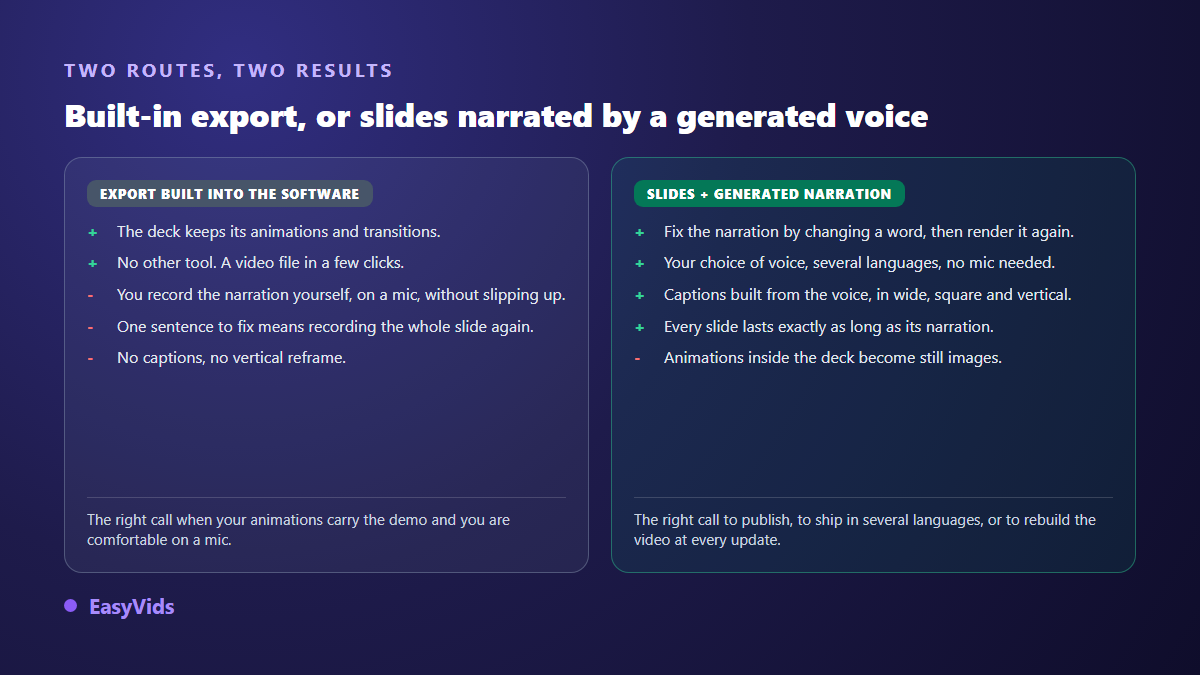
The second route separates picture from sound. Slides become images, the narration becomes a text you proofread like any document, and the voice is generated on demand. The same mechanics apply to any laid out document, as our method for turning a PDF into a narrated video shows.
Step 1: export your slides as images
PowerPoint can save a whole deck as pictures. According to Microsoft support, Save As with PNG or JPEG selected does it: the software asks whether you want every slide or only the current one, then writes a folder with one numbered image per slide. That folder is your raw material.
Two details deserve care right here. Aspect ratio first: recent decks default to 16:9, which happens to be the shape of horizontal video. Resolution second. Aim for images at least 1920 pixels wide. Below that, slide text turns soft the moment a platform compresses your video, and that text is exactly what viewers are trying to read.
- Strip slide numbers and footers. They mean nothing once the deck becomes a video.
- Thin out crowded screens. What reads on a projector is unreadable on a phone held at arm's length.
- Check that every chart makes sense without a presenter pointing at the right column.
- Prefer PNG over JPEG so text stays crisp, with no halo around the letters.
- Keep your section slides, they let the video breathe, but give each one a short line of narration.
- Verify file order before importing. Alphabetical sorting sometimes drops slide ten right after slide one.
Step 2: write the narration one slide at a time
The most common mistake is reading the slide out loud. Viewers read faster than anyone speaks: they finish your bullet before the voice reaches it, and they leave. The narration has to say something else than what is on screen. The slide shows the number, the voice explains why it matters.
Calibration comes down to one rule. A minute of voice over runs to roughly 150 words. A slide held for 8 seconds therefore needs about twenty spoken words, and a summary slide worth 20 seconds needs about fifty. Write those lines in the speaker notes if you prefer staying inside the software, or in a plain text file, one paragraph per slide.
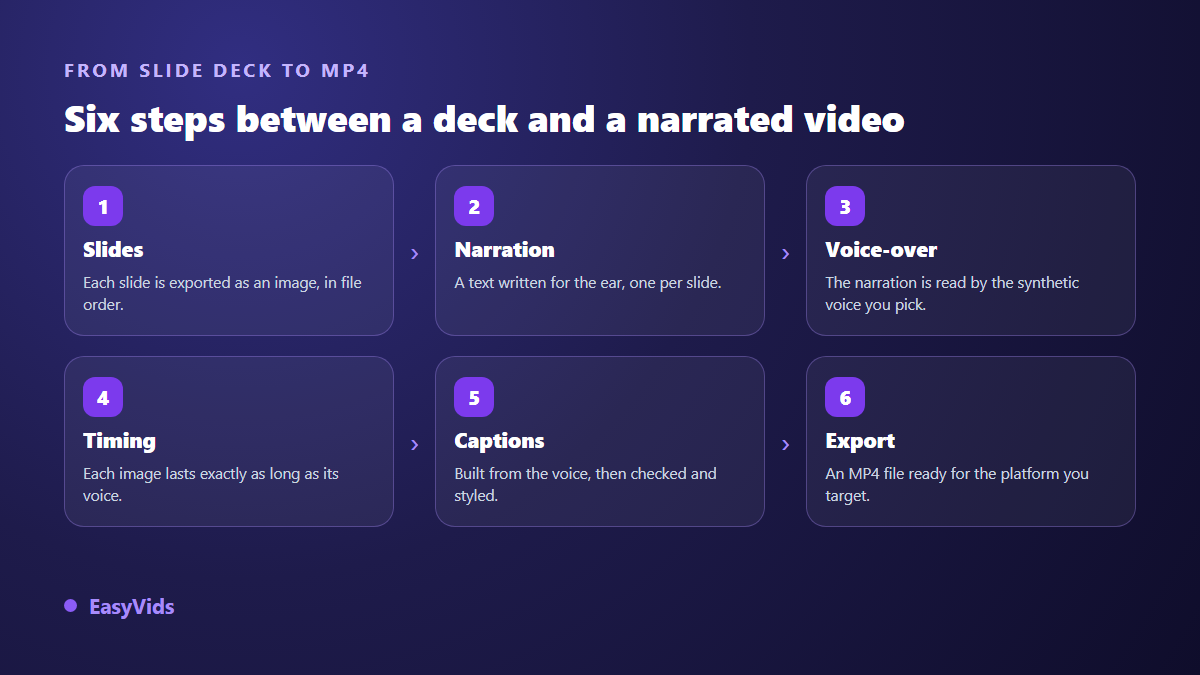
Step 3: the voice over, and the settings that decide everything
A badly chosen synthetic voice sinks a good deck within ten seconds. Three things carry most of the result: the voice itself, the pace, and the punctuation of your text, which synthesis engines read the way an actor reads a score. A missing full stop becomes a sentence that never lands. The full method sits in our guide to AI voice over.
On EasyVids the voice is generated from the generator in voice mode, or scene by scene inside the workshop. A reading style lets you ask for a specific intention, from the measured tone of a training module to the brisk pace of a sales deck. The catalogue offers natural voices in several languages: once a voice is chosen, a whole series of modules keeps the same timbre without anyone going back to the microphone.
Step 4: hold each slide for exactly its narration
This is where most slide videos fail, because it gets done backwards. Do not decide that a slide lasts 10 seconds and then squeeze narration into it. Do the opposite. The narration is spoken, it lasts what it lasts, and the image stays on screen for precisely that long. A dense slide naturally earns more screen time, a transition slide goes by quickly.
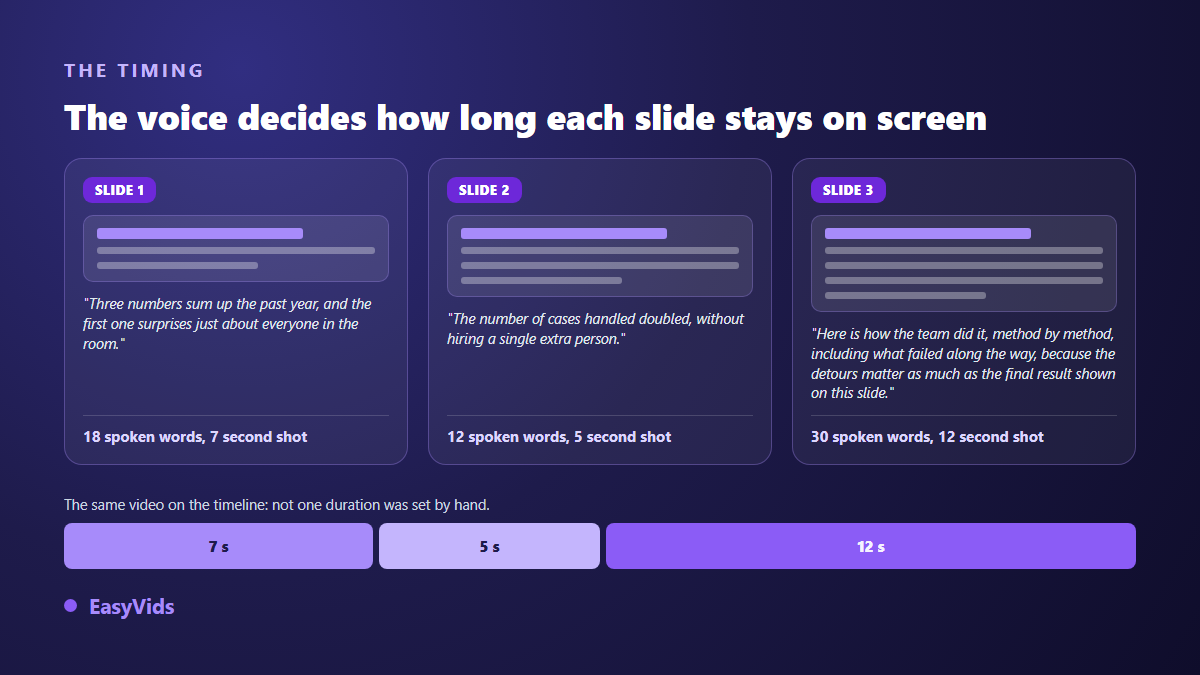
In the workshop each scene takes your imported image and its narration text, and automatic editing handles the timing. Two options are worth a note. A slow camera move can animate stills and spare you the frozen slideshow feel, but switch it off on text heavy screens: a slow zoom across a table makes reading unpleasant. Transitions are better kept discreet on professional material, where a plain fade is enough.
Step 5: captions, on screen text and export
Slide videos get watched with the sound off, in a corridor or in a feed. Captions are not a courtesy added at the end, they are part of the content. The editor generates them from the voice, in the language you choose, and you proofread before burning them in. The settings that actually make them readable are covered in our guide to automatic captions.
Then comes the export. The online editor writes an MP4 at several quality levels, and automatic editing offers horizontal, square and vertical framing, from standard definition up to very high definition. If you want to rework the result shot by shot, add an animated title or move a pause, it all happens in the browser, as our guide to online video editing explains.
Reusing the same deck for social media
A twenty minute deck does not belong on a social feed as it stands. Three of your slides, however, make a strong forty second vertical video. Take the one carrying your most striking number, add two context screens, rewrite the narration as a hook plus an explanation. Watch the framing: a 16:9 slide dropped into a vertical frame becomes a thin strip in the middle of the screen, and our platform by platform video format sheet gives the dimensions to aim for.
The mistakes that stop a slide video from being watched
The same faults come back on the decks we see. None of them is technical, and all of them can be fixed before the first generation.
- Narration that reads the slide word for word: the viewer finished reading long before you did.
- One slide held for 90 seconds because it carried a lot of text. Split it across three screens.
- A logo and a date repeated in the footer of all forty images: nobody looks at them, they eat space.
- Thirty seconds of introduction before the first interesting thing. Lead with the result, explain afterwards.
- Images exported at too low a resolution: fine print turns unreadable once the platform compresses the file.
- No sense of progress. On a long video, a plain chapter number on screen holds attention far better.
The real payoff comes with version two
A deck rarely lives once. Numbers move, an offer is added, a training module gets corrected after feedback. With narration recorded into a microphone, every update reopens the recording session, and you have to recreate the same room sound so the join does not show. With written narration you change the sentence, regenerate the voice of that scene alone, swap the image of the slide you edited, and export. The rest of the video does not move.
That is also what makes several languages realistic. Translating a narration script and having a native voice speak it costs a fraction of a traditional dub. The trade off is worth knowing: the text printed on your slides stays in its original language until you re export the images from a translated version of the deck.
Frequently asked questions
Can I import a slide deck file directly?
No. EasyVids works with images, video and audio, not with slide files. Exporting to images takes under a minute and brings one real benefit: you see exactly what the viewer will see, with no missing font and no chart shifting out of place.
Do I need a microphone to narrate a deck?
Not if you use a generated voice: you write the narration and it gets spoken for you. A microphone still helps when you want your own voice and its inflections. A third option is cloning, offered by many specialised tools: one sample, and every later narration keeps your timbre.
Are my slide animations preserved?
Not with the image route: a slide exported as PNG is frozen, and staged reveals disappear. When an animation genuinely carries the demonstration, export that slide as several images, one per stage, and give each its own line of narration. You get the effect back, and you gain control of the pace.
How long does a twenty slide deck take to convert?
Exporting the images takes a minute. Writing the narration is the real work: allow around half an hour for twenty slides when you know the subject. Voice generation and editing are a matter of minutes. Then plan a full review, once without sound to check readability, once with it to check pace.
Can I edit the video afterwards without starting over?
Yes, as long as the project stays in the editor. Every slide, every voice track and every caption block remains a separate element on the timeline. Swap an image, regenerate a sentence, export again. Scenes that did not change have no reason to be rebuilt.
A narrated deck is not a slideshow on a timer: it is a sequence where each screen lasts as long as there is something to say about it. The fastest way to see that is to skip the full forty slides. Take one section, ten screens is plenty, write their narration and look at the result. You can start now by creating a free account, and the plans are laid out on the pricing page.