Every December, the same scene plays out. You want to hand your family a year in review video, or publish your company recap before the holidays. You open the camera roll, thousands of photos scroll past, you drop sixty of them into a timeline and lay a song over the top. What comes out is a slideshow of thumbnails nobody finishes, yourself included.
The problem is almost never technical. It sits in the selection and in the order. A good recap does not show your year, it tells one version of it. This guide walks the whole method in the order you actually work: sort, pick an angle, build a frame, cut to the music, then edit. If your material is photos only, our guide to photo slideshows with music covers that narrower case.
The short answer
A year in review video is a short edit that sums up a period, usually twelve months, from your own footage. Five moves carry it. Gather everything into one folder. Cut down to thirty or fifty shots. Arrange those shots in three acts rather than twelve months. Pick the music before you cut anything. Then edit, landing every image change on a strong beat. Aim for around two minutes for a family film, closer to sixty seconds for a brand recap posted to a feed. Animations and transitions come last, never first.
The sorting pass decides everything, and it happens outside the editor
The most expensive mistake is importing the whole year into the timeline and sorting there. You spend three hours revisiting your own memories without cutting a single second, and you end up keeping everything, because every frame reminds you of something. Sorting is a decision, not a contemplation. Do it in the file browser, on thumbnails, in one sitting.
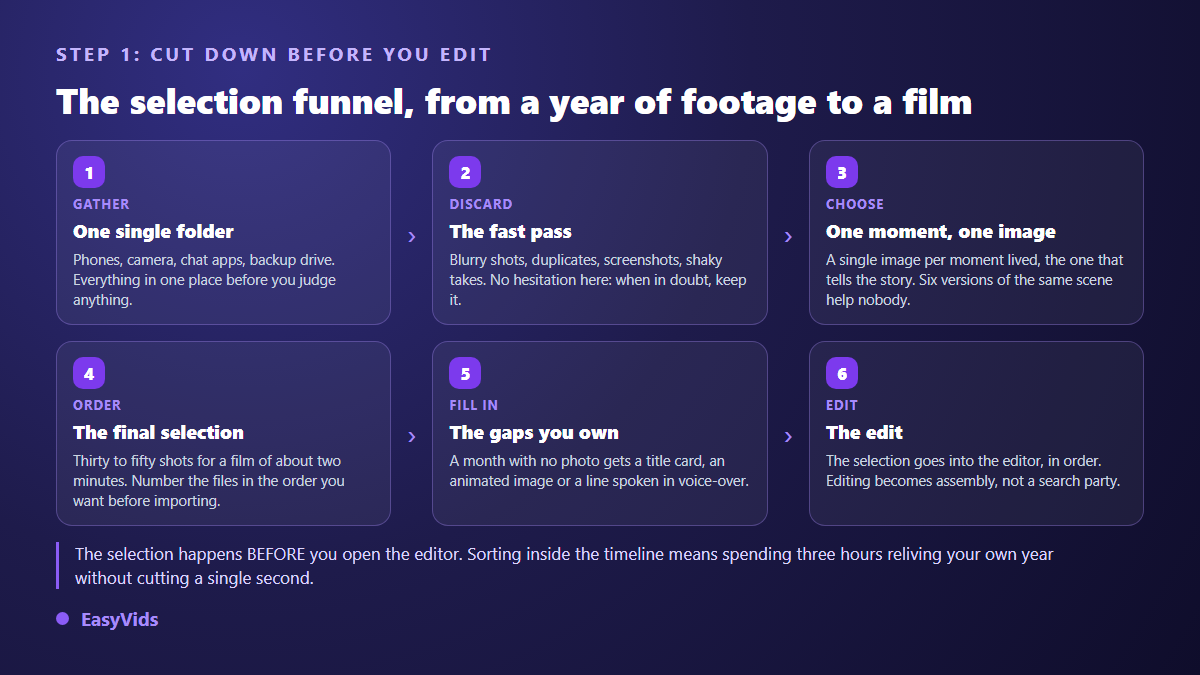
One rule makes the cutting bearable: one image per moment lived. You have seven photos of the same birthday table, you keep one, the one where somebody looks at the lens. The other six add nothing, they dilute. For video, write the timecode of the good second into the file name, something like birthday-0m12, and you will not hunt for that passage three times during the edit.
Aim for thirty to fifty shots for a two minute film. That number looks absurdly low when you start from thousands of files, and it is exactly what separates an edit that breathes from a catalogue. Then number the survivors in the order you want them: they arrive sorted, and editing becomes assembly instead of excavation.
A family year and a brand year are not told the same way
The word recap covers two very different jobs. On the personal side the material is irreplaceable and often badly shot: vertical framing, rough composition, background noise, and an emotional weight that forgives all of it. On the brand side the material is cleaner but colder, and the viewer owes you nothing. You have to earn the fourth second.
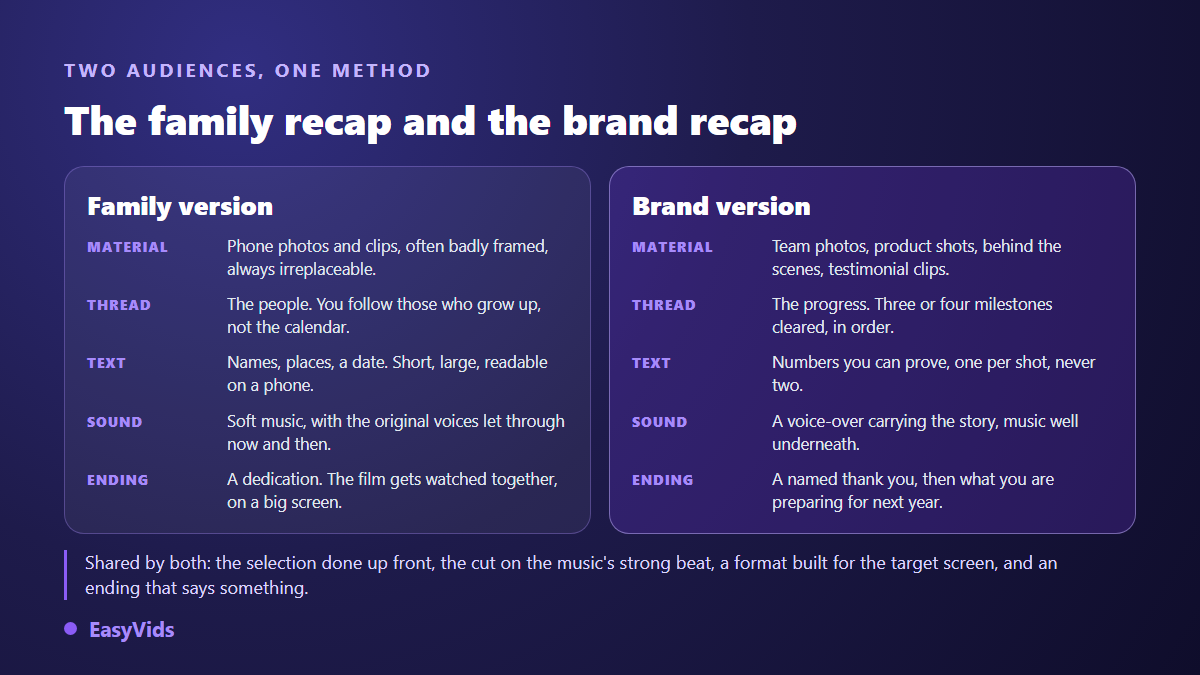
For a brand, one rule changes everything: show only numbers you can prove, and one per shot. A recap stacked with unverifiable claims turns against you in the comments. Show the orders shipped, the city where you opened, the people you hired, the product that shipped in June. And thank named people rather than an abstract community, because that is what gets shared.
Three acts beat twelve months in a row
Chronological order is the quiet enemy of the recap. Following the calendar produces a flat edit where every month weighs the same, with no peak and no ending. Use the frame of any ordinary story instead: where you started, what happened, what changed. Dates stay readable on screen, they simply stop dictating the order of the shots.
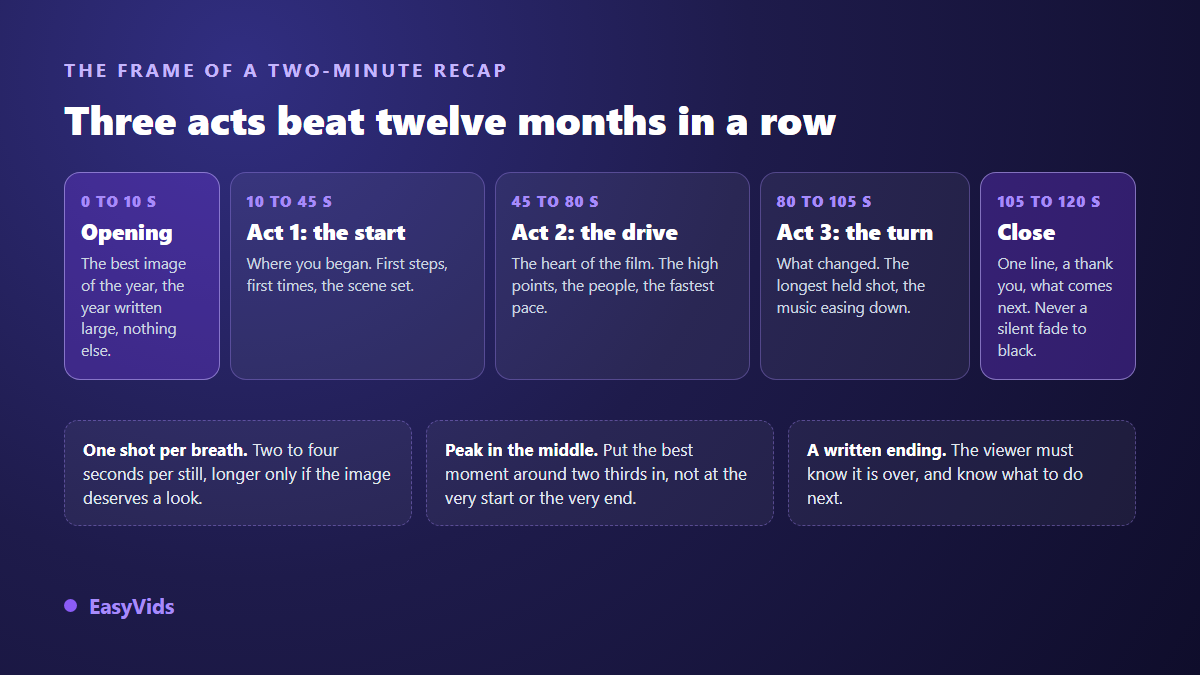
Put your strongest moment around two thirds of the way through. Keep the last frame free for the close: one line, a thank you, a date. A recap that ends on a silent fade to black leaves the viewer hanging, while three words on screen are enough to signal a finished film and say what happens next.
Music sets the rhythm, so pick it first
Choose the track before you place a single shot. It fixes the length of the film, where it breathes, and how fast you cut. A slow build forces a calm opening. A track that starts loud obliges you to open on your best frame. Describing precisely what you are after, the genre, the tempo and the mood, saves you from auditioning dozens of tracks: our music prompt examples by genre give wordings you can reuse as they are. The one editing habit that changes everything: change image on a strong beat, never between two. A cut dropped at random reads as sloppy work even when the images are excellent.
On rights, stay careful. The YouTube help centre explains that Content ID matches uploads against recordings registered by rights holders, who can then block the video or take its revenue. A chart hit inside a family film shared privately is not the same risk as a brand recap on a monetised channel. The clean way out is an original track composed for the occasion and the mood you want, which is what our AI music generator produces, at a length matched to your edit.
On screen text: few words, well placed
Three uses of text are enough in a recap. The opening card carrying the year. The act titles that separate the chapters. The captions that place a name, a city or a date. Nothing else. Write short, set it large, add a background or a shadow, because these films get watched on a phone held at arm's length. And hold every line long enough for a slow reader to read it twice.
If your recap carries a voice over or audible speech, add captions. Our editor builds them by transcribing the audio track inside the browser, and it also imports an existing subtitle file. Plenty of viewers scroll their feed with the sound off, and a brand recap without captions loses half its message before anyone judges it.
Filling the gaps without inventing a year
Every year has months with no footage: a busy stretch, a lost phone, a moment nobody thought to film. Three honest fixes exist, and none of them means faking memories. The first is a title card: one sentence on a plain background covers a quiet month perfectly. The second is a cutaway, a generated image that sets a season, a mood or a place without ever pretending to be a photo of you.
The third is motion. A still that lingers becomes watchable the moment it moves: a slow push in, a gentle pan, what editors call a Ken Burns move. Our editor ships a catalogue of them, applied to stills in one click, with several intensities and directions. To turn a photo into a genuinely animated shot, our method for putting movement into an image covers where it works and where it shows.
Editing the recap, step by step
Here is the full sequence. It works in our online video editor as well as in whatever software you already use, because the order of the moves matters more than the tool.
- Create the project in the right shape from the start: landscape for a living room screen, vertical for a feed, square if you are still hesitating.
- Import the sorted selection in one go: photos, clips and audio files land together in the project library.
- Lay the music down first and mark its strong beats, those are your cut points.
- Drop the shots in the order of your three act frame, without worrying about exact durations yet.
- Trim each cut so it lands on a beat, working from the start of the film forward.
- Add the opening card, the act titles and the closing line once the rhythm holds.
- Apply animations and transitions last. Our magic edit spreads them across every shot in one click, reruns for a different result, and undoes cleanly if you dislike it.
- Balance the levels: music well under the voice, around a fifth of it, and let the original sound through on two or three shots.
- Watch the whole thing on a phone, with sound. That is the only test that counts.
- Export, then store the file somewhere other than your browser.
Aspect ratio, length and where it gets posted
A family recap gets watched together, usually on a television or a laptop: build it landscape, around two minutes. A brand recap gets consumed in a feed: build it vertical, shorter, with the hook inside the first three seconds. If you need both, edit the long version first, then pull the short one from the same project rather than cropping the export.
Late cropping is the single most common cause of ruined recaps: faces slide out of frame and text gets sliced in half. The editor offers the standard shapes at project creation, and our sheet on video formats by platform lists what each destination expects. On length, the YouTube help centre caps a Short at three minutes, which leaves room for a full vertical recap.
What to check before you send the film
A recap travels fast, usually beyond your control. Four checks avoid the unpleasant surprises.
- The people on screen: ask before publishing anything public, especially for children and colleagues. Image rights differ from one country to the next, prior consent is the only position that holds everywhere.
- The music: confirm it can be used on the platform you are targeting, a question covered in our piece on AI music and copyright.
- Sensitive details in the background: an address, a licence plate, a document on a desk, a whiteboard covered in internal numbers.
- The final file: export it, then copy it into durable storage. An edit project lives in your browser, an export lives wherever you put it.
Frequently asked questions
How long does a year in review video take to make?
Around an hour of sorting if your year is tidy, two or three if it is not, then one to two hours of editing for a two minute film. Sorting is half the job, and it is the half no tool can take over, because only you know what mattered.
What is the ideal length for a recap video?
About two minutes for a family recap, thirty to sixty seconds for anything posted to a feed. Past three minutes you need real narration, a voice over and chapters, otherwise attention drops even when the footage is personal.
Can I edit a year in review video on a phone?
Sorting and assembly work in a phone browser, but the final export needs a browser that can encode video, which Safari on iPhone and iPad does not always provide. The safest split is sorting on the phone, editing and exporting on a computer, where the detailed work is more comfortable anyway.
What if several months have no footage at all?
Cover the empty stretches with title cards, generated cutaways or one line of voice over. The line not to cross: never present a fabricated image as a real memory. A map, a sentence or a mood shot passes easily, a fake family photo damages trust.
Do I have to pay to edit a recap?
The editor, importing your own files and exporting cost no credits. Credits go to the AI generations: an original track, a voice over, a cutaway image. A free trial comes with the account, and the current plans live on the pricing page, since they change.
A good recap does not depend on the software, it depends on what you agree to leave out. Sort first, build three acts, choose the music, then edit. Once the frame holds, the assembly takes an evening. To start on this year's film, creating an account opens the editor, the sound library and the music studio in one place, and the EasyVids studio has what you need for both the long cut and the short one.