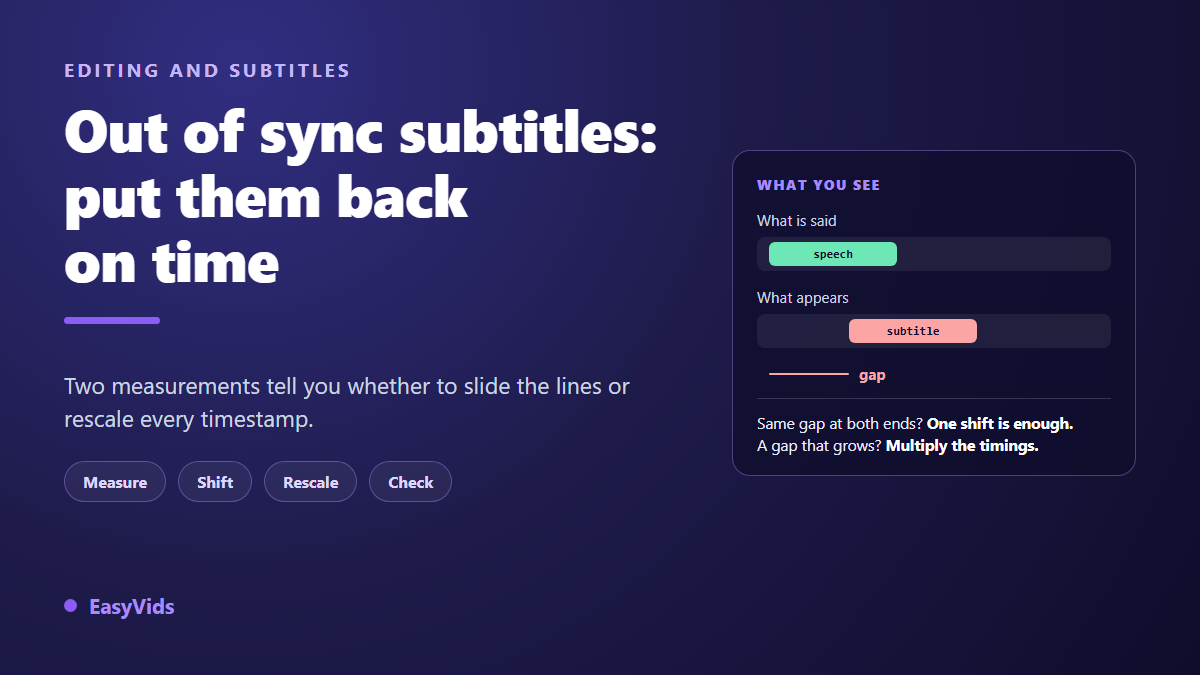
The voice says one thing, the text shows another. Subtitles out of sync ruin a good video in ten seconds: viewers read a line they have just heard, or discover the punchline before it is spoken. The usual reaction is to start again, run a fresh transcription, retype every line. That work is almost always wasted.
A timing problem has a shape, and that shape shows up in two measurements. Whether the gap stays the same from start to finish or grows as the video plays, the fix is completely different: sliding the whole track in one case, recomputing every timestamp in the other. If the format itself is new to you, our technical guide to the SRT file explains line by line what a subtitle file contains.
The short answer
Measure the gap on the first subtitle, then on the last one. If the gap is identical at both ends, the offset is constant: move every line by the same amount and you are done. If the gap grows, the video and the subtitles do not run at the same speed: multiply the timestamps by a factor instead of shifting them. In the EasyVids online editor, every imported subtitle becomes an independent element on the timeline, so the constant fix is a selection and a drag, with the wording left untouched.
The two measurement test, before any correction
Play the video, stop on the first spoken sentence, note when the word actually starts and when the subtitle appears. That difference is your first measurement. Do the same on the last sentence of the video. Two readings, one minute of work, and you know which fix applies.
Take those readings frame by frame rather than by ear. In our editor the left and right arrows move the playhead a single frame, which puts the marker exactly on the attack of the word. A marker clicked roughly on the time bar can be half a second out, and half a second is enough to send you towards the wrong remedy.
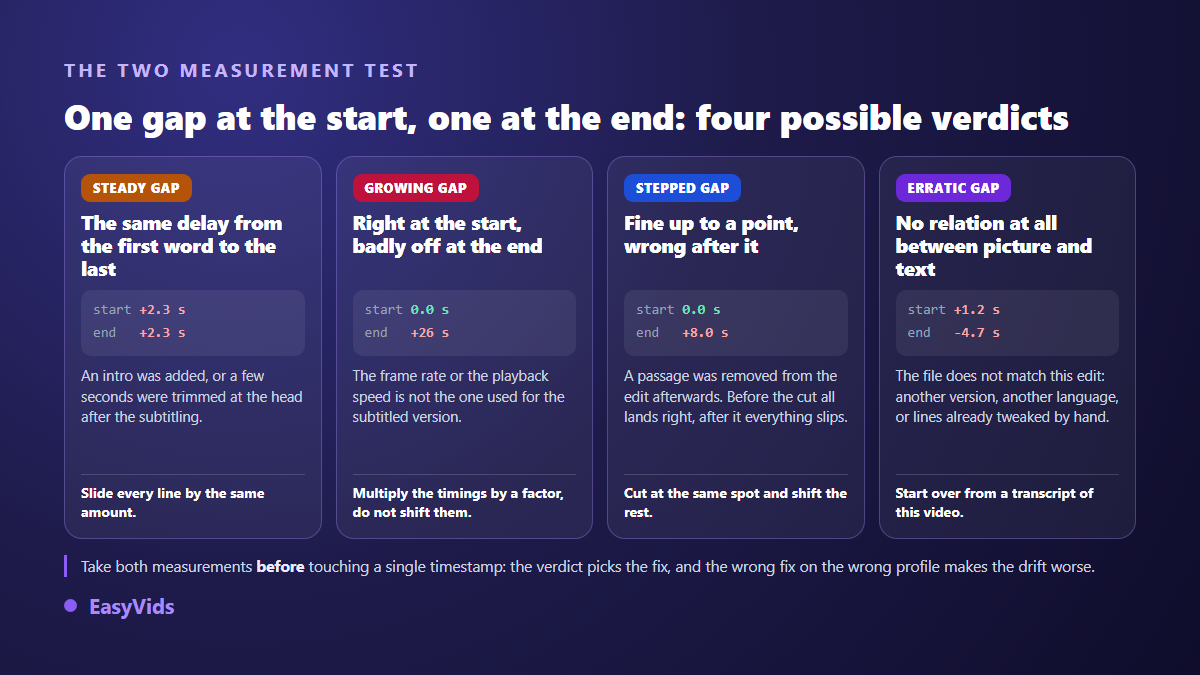
- Same gap at both ends: constant offset. The starting point of the video moved after the captions were written.
- No gap at the start, growing steadily: drift. The two versions do not run at the same frame rate.
- Correct until one precise moment, then wrong: a cut was made in the edit after captioning.
- A gap that jumps around, sometimes early, sometimes late: the file does not belong to this version of the video.
The constant offset: your starting point moved
This is by far the most common case. You captioned one version, then added an animated opener, a title card, two seconds of breathing room before the first word. The edit grew at the front, the subtitles stayed anchored to the old zero, and everything now lands late by the same amount.
The opposite happens too. Cut a silence or a throat clearing at the top and the subtitles run early. Only the sign changes: add time when the text leads the voice, remove time when it follows. One precaution matters more than the rest, which is to apply the shift to every line rather than to the ones currently on screen. Fixing the first five and pressing play looks like a repair, right up to the sixth.
Progressive drift: the frame rate trap
When the gap grows steadily, no shift will ever catch it. The file was written against a version that does not run at your speed. Every second adds the same relative error, so the first line looks fine while the last one lands tens of seconds away.
Frame rate is nearly always the cause. The same sequence of frames played at 25 frames per second runs about 4 % shorter than at 24, and the so called NTSC rates, 23.976 and 29.97 frames per second, are exactly 24 and 30 divided by 1.001, a legacy of American colour television. A file written against a 25 frames per second version and dropped onto a 23.976 one drifts by roughly 25 seconds over ten minutes.
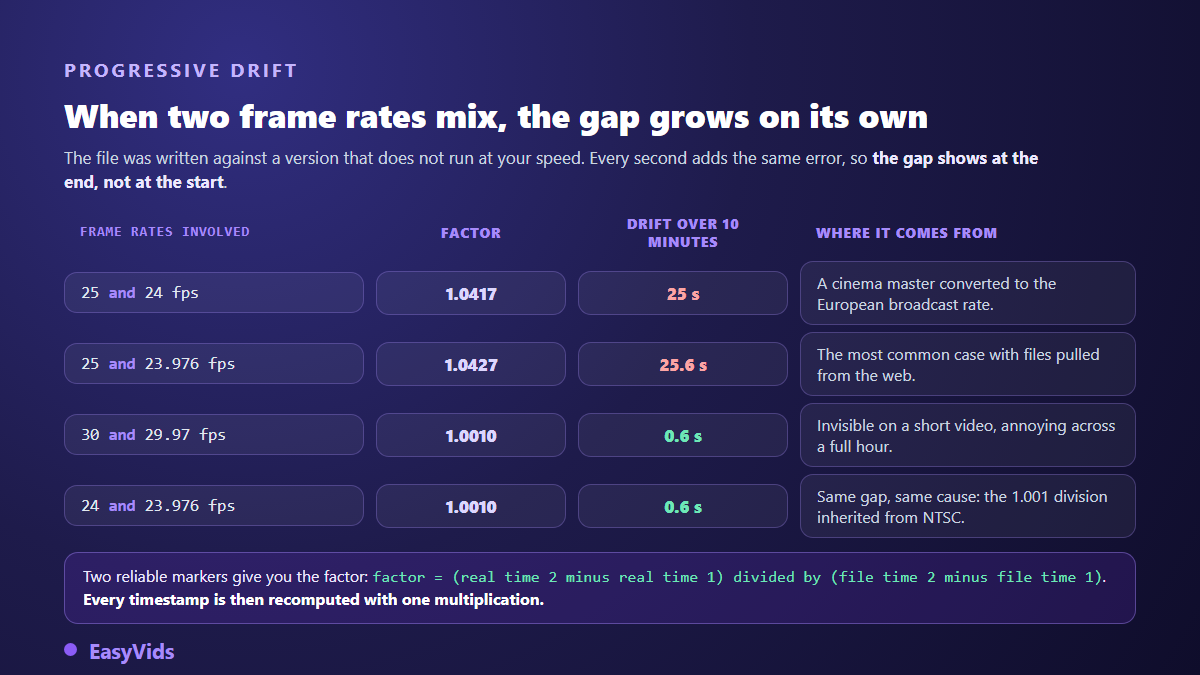
The fix is to multiply every timestamp by the ratio between the two rates. Take two reliable markers, one near the start and one near the end, and note for each the time written in the file and the real time in the video. The factor is the difference between the real times divided by the difference between the file times. The remaining offset is the first real time minus the factor multiplied by the first file time.
An example makes it obvious. The file puts the first line at 4.000 s and the last at 600.000 s, while they actually land at 6.500 s and 628.000 s. The factor is 621.5 divided by 596, that is 1.0428. The offset is 6.5 minus 1.0428 multiplied by 4, roughly 2.33 s. Every timestamp is then rebuilt by multiplying it by 1.0428 and adding 2.33 s, which a spreadsheet does across a thousand lines in one formula.
When subtitles run early
Running early deserves its own paragraph, because it is harder to live with than running late. Across our own reviews, a subtitle half a second late usually goes unnoticed: the eye accepts reading just after hearing. The same half second early jumps out, because the text announces the sentence and kills the punchline. The SRT format, inherited from the SubRip software, also refuses negative times: if you need to pull every line back by three seconds and the first one starts at one second, it cannot go past zero, and the opening lines pile up against the edge.
Realigning inside the editor, gesture by gesture
An editor that treats subtitles as timeline elements makes the constant fix almost trivial. In our online editor, the Subtitles panel imports an SRT or ASS file and places every line as a text block on its own track, added at the top of the timeline. Malformed blocks are skipped and counted in a warning, which tells you straight away whether the source file was clean.
From there the work happens with the mouse. Draw a selection rectangle over the caption track to grab the lines you need, hold Shift to add more, then drag the group. The spacing between lines is preserved, only the block moves. Snapping pulls the edge of the first element towards the playhead, so the opening line lands exactly on the word you marked.
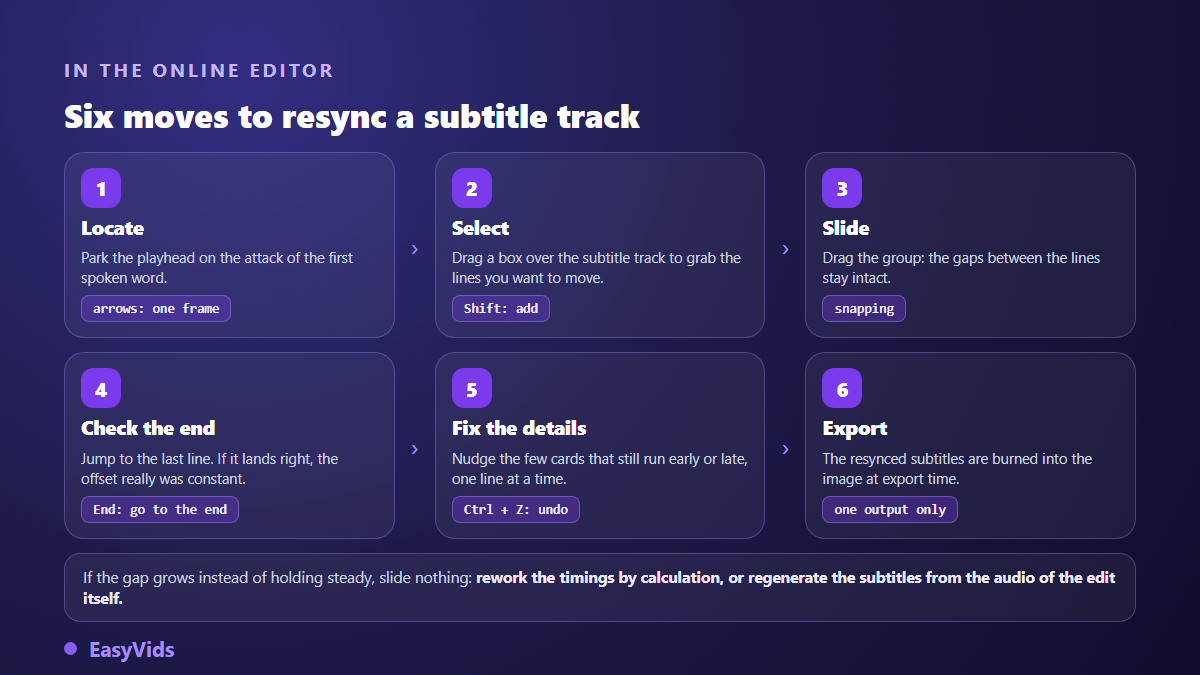
- Put the playhead on the attack of the first spoken word, moving frame by frame.
- Rectangle select the lines you want to move, on their caption track.
- Drag the group until the first line snaps to the playhead.
- Jump to the end of the video and check the last line: if it lands correctly, the offset really was constant.
- Fix the few remaining early cards one at a time, leaving the rest alone.
- Export: the realigned subtitles are burnt into the final image.
Fixing the file instead of the timeline
Sometimes the repair belongs in the file, typically when you hand a separate subtitle file to a platform rather than burning the text into the image. An SRT is plain text: a number, a timestamp line in hours, minutes, seconds and milliseconds, then the wording. Editing it by hand is fine, as long as the punctuation is exact.
Two details silently break a hand edited file. SRT separates milliseconds with a comma, while the WebVTT specification published by the W3C requires a full stop, and mixing both conventions in one file produces ignored lines. Saving must also happen in UTF-8, otherwise accented characters come back as symbols. Our importer tolerates both separators, but a strict player does not.
The problems that are not timing problems
Some apparent offsets come from neither the file nor the edit. Rule them out before recomputing anything, or you will fix a problem that never existed and create a real one.
- The player applies its own delay. Desktop players expose a track synchronisation setting in milliseconds, VLC under its Tools menu for instance. A value left over from a previous session shifts every video you watch.
- Two sets of captions overlap. Burnt in text plus the platform automatic captions produce two lines saying different things at the same moment.
- Cards stay on screen too long. A correct line held three seconds too long spills onto the next one and reads as a general delay.
- The audio moved, the text did not. Nudging a voice over along the timeline leaves the captions exactly where they were.
Keeping the problem from coming back
The best fix is the one you never have to make, and it comes down to the order of operations. Caption last. While the edit still moves, while you hesitate over an opener or the length of a sequence, every change invalidates the previous alignment. That starts with the soundtrack: a voice over re-recorded afterwards moves every line, so settle the tone and the pacing of the narration first, a job our guide to advertising voice over covers for short formats.
The second rule is to transcribe from the edit itself rather than from a source file. In our editor, generation reads the audio of the timeline in its current state, so timestamps are born in the time of the edit and a constant offset becomes impossible by construction. The panel takes an explicit language or automatic detection, and cuts speech into short segments, seven words at most, so the lines stay readable.
The third rule is the one most people skip: write down the frame rate of the version you captioned, and export at the same rate. A subtitle file carries no frame rate information at all, only absolute times. Nothing in it says which version it was written against, which is exactly what makes a drift so unpleasant to diagnose weeks later.
Frequently asked questions
Why are my subtitles out of sync when they were fine yesterday?
Because the edit changed in between, nearly always at the front: an opener added, a shot removed, a silence trimmed. Subtitles keep absolute times and do not follow the edit. Measure the gap on the first line, apply the same shift to every line, then check the last one.
How do I shift all subtitles at once?
In an editor, rectangle select the lines on their track and drag the group: the internal spacing is preserved. In the file, add or subtract the same value from every timestamp, remembering that an SRT cannot go below zero.
Is half a second really noticeable?
Late, it usually passes unnoticed. Early, it stands out immediately, because the text announces what is about to be said. If you have to choose your error, let the subtitle appear slightly after the word rather than slightly before.
Do I need to redo the transcription?
Rarely. A new transcription is only justified on the erratic profile, where the file does not belong to this version of the video. A constant offset or a steady drift are both fixed while keeping the wording, which is where most of the work sits.
Why are my subtitles right in the editor and wrong once published?
Two causes dominate. You uploaded a file written for another version of the video, the one before your last change. Or the platform is showing its own automatic captions on top of yours. According to the YouTube Help Centre, the subtitle editor in YouTube Studio lets you revise the text and the timing of each line without uploading the video again, which settles the first case in minutes.
Subtitles out of sync are not an unavoidable cost of production, they are a symptom you can read. Two measurements, one profile, one gesture. The hours you would have spent starting over shrink to a selection and a drag, and the wording you already proofread stays exactly as it was. To realign a track in your browser, import an existing file or generate captions from the audio of your own edit, creating an account opens the full studio.