You filmed in your living room and the take is fine, except for one thing: the wall behind you. A crooked frame, a half open door, a pile of laundry nobody was meant to see. Trying to remove a video background feels like it should be a setting somewhere, a box to tick. It rarely is, and the reason fits in one sentence: a video is not a picture, it is the same picture repeated dozens of times per second, and the cutout has to land identically on every one of them.
The good news is that a green screen is no longer the price of entry. The less good news is that no single method works on every shot. This guide covers what automatic cutout gets right today, what it still gets wrong, how to shoot so the model has an easy job, and one route most people overlook: never having a background to remove in the first place. If browser based tools are new to you, our guide to editing video online sets the vocabulary first.
The short answer
Three routes lead to the same place. AI cutout reads every frame, recognises the subject and erases the rest: it accepts footage you already shot, in any room, at the cost of edges that sometimes wobble. Colour keying, the classic green screen, gives a crisp and steady edge but forces you to shoot against a plain, evenly lit surface decided in advance. The third route is to produce the shot directly in the background you want, which deletes the question rather than answering it. And for a locked off shot with a subject who barely moves, a hand drawn mask often beats both of the first two.
Cutting out a subject and keying a colour are not the same job
The two ideas get used as synonyms, and the confusion costs hours. Colour keying understands nothing about your picture: it finds a hue, declares it transparent, and lets whatever sits behind show through. That is why it demands a plain backdrop with no folds and no shadows, and why green and blue are the usual choices, being the hues furthest from skin tones. AI cutout does the opposite: it looks for a subject rather than a colour, then traces its silhouette. It does not care what colour your wall is, but it can be wrong about what counts as the subject.
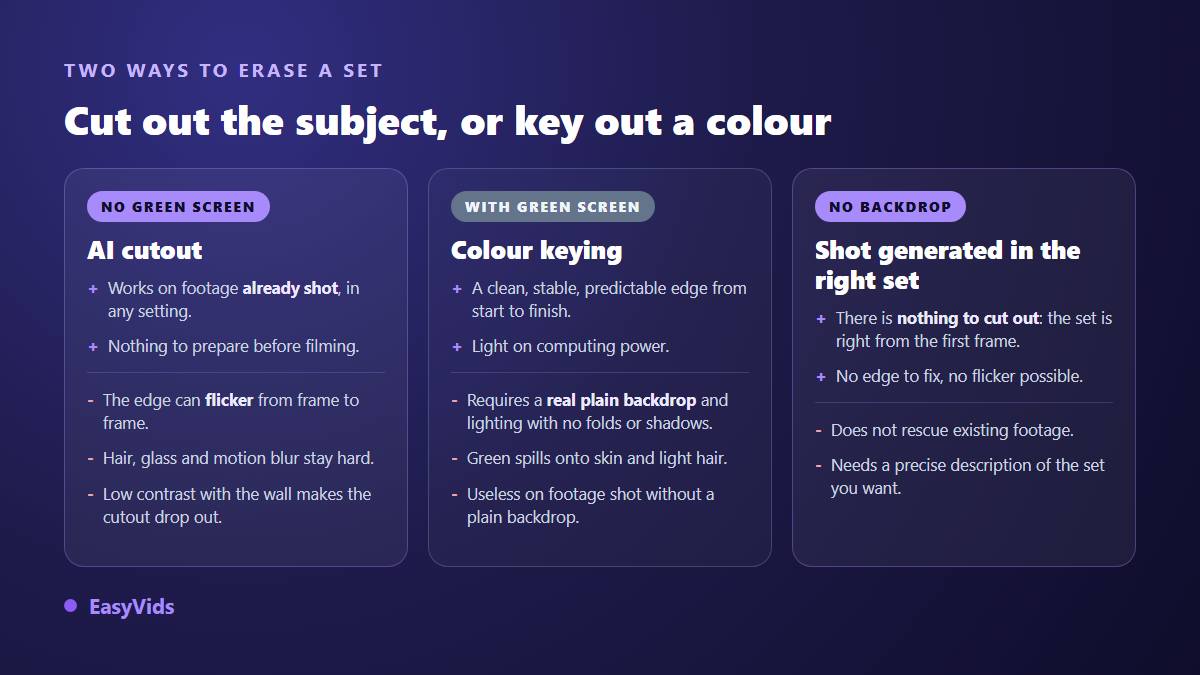
That difference decides the method. Existing footage shot on a phone in a kitchen leaves one option: cutout. A set you rebuild every week for the same show justifies buying a plain backdrop and lighting it separately, because a predictable result beats flexibility. Most creators buy the backdrop after spending an evening fixing edges, which is the wrong order.
What the model is actually looking for
A cutout model does not output a video, it outputs a mask: a greyscale frame where white means keep, black means drop, and grey means keep partially. That grey is where the work lives. It carries strands of hair, steam off a cup, the soft edge of a hand passing through. A crude cutout knows only black and white, and you see it instantly: the subject looks scissored out of paper.
Video adds a difficulty stills do not have, and that is consistency over time. A model that treats each frame on its own makes a slightly different decision every time. None of them is wrong, but strung together they produce an edge that shimmers. Viewers could not name the flaw, they simply feel that something is off. The better pipelines use the previous frame to steady the next one, and that is exactly what separates a clean result from one that is tiring to watch.
The five flaws that give a cutout away
Before hunting for a tool, learn to spot the five signs that tell a viewer the shot has been tampered with. Four of them are fixed while filming rather than while editing, which makes them worth reading closely.
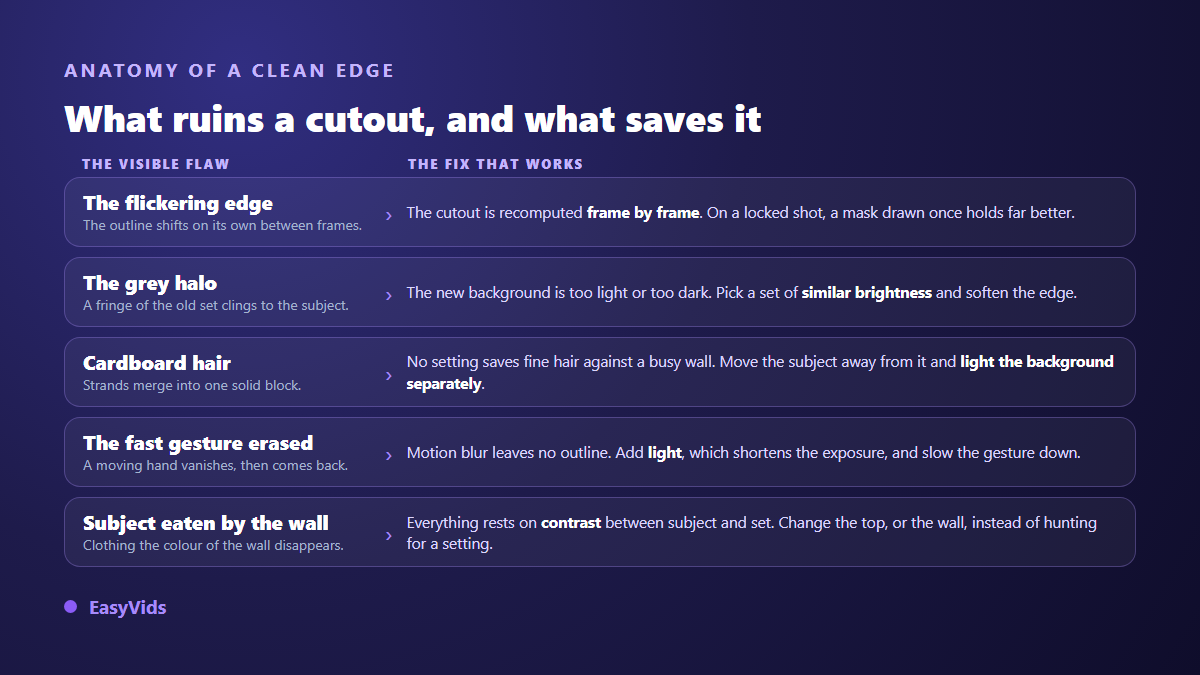
A sixth flaw deserves its own line, because nothing about it is technical: lighting mismatch. Your subject was lit warm and from the front, and you drop them into a night street lit from the left. The edges are perfect and the frame still reads as fake. The eye reads the direction of light long before it examines a contour. Picking a replacement background whose lighting resembles the shoot does more for realism than ten minutes spent refining a mask.
Filming so the cutout can succeed
Cutout quality is mostly decided in front of the camera. Well prepared footage almost separates itself, badly prepared footage resists every tool on the market. Six habits are enough, and none of them needs special gear.
- Put a good arm's length or more between the subject and the wall: depth helps the model split the planes.
- Light the background separately, even faintly, so it stops merging with the shoulders.
- Avoid clothing in the colour of the wall, and very fine patterns that blur the contour.
- Add light rather than raising sensitivity: noise eats edges.
- Lock the camera on something steady, a stable frame gives a stable mask.
- Slow down gestures close to the lens, those are the ones that dissolve into motion blur.
One point comes back constantly: the sharpness of the source. A model cannot draw a border it cannot see, and soft footage always yields a vague contour. Fix that before you talk about backgrounds at all, and you will gain more than from any feather slider.
The file trap: transparency does not survive every format
Here is the wall most people hit, and it has nothing to do with cutout quality. Once the background is gone, your shot carries an alpha channel, the layer describing what is transparent. Not every container can carry it. The WebM project documentation describes alpha channel support for VP8 and VP9 streams, and Apple's technical notes on ProRes state that the 4444 profile carries alpha as well. The H.264 profiles commonly used inside consumer MP4 files, by contrast, provide no alpha channel. Still images follow the same logic: PNG and WebP hold transparency, JPEG does not.
The consequence is very practical. You export a proud MP4, open it, and the background is black or white again. Nothing failed: the format simply flattened what was transparent. Two ways out. Either export to a format that keeps alpha, accepting a heavier file that not every platform will take. Or, almost always the better call, composite before exporting: drop the cut out subject onto its new background inside the edit, then export an ordinary file with no transparency left to preserve.
The method that deletes the problem: generate the shot in the right place
Step back and look at what you actually want. You do not want a transparent background, you want a shot where the subject is somewhere else. Stripping one backdrop to glue on another is a detour, not a goal. When the shot has not been filmed yet, the detour vanishes: a video generator builds the scene directly in the described setting, and there is no edge left to police. On EasyVids, one shot generation accepts one or more reference images alongside the text, so you can start from a real photograph and ask for the surroundings you want around it.
Ecommerce is the clearest case. A product photographed on a kitchen table becomes a shot on a marble worktop, on pale sand, in a bright bathroom, with nothing ever cut out. Many shots do not need filming at all: one well cut still, lightly animated, beats a frame by frame video cutout, simply because there is a single contour to get right instead of several hundred. Our guide to cutting out a product photo covers both ways of doing it, the cut and the AI rewrite.
Choosing the route that fits your shot
No method beats the others outright. What decides is the nature of the shot: how much the subject moves, how steady the frame is, whether footage already exists. The grid below reduces the usual situations to six cases, each with its recommended route.
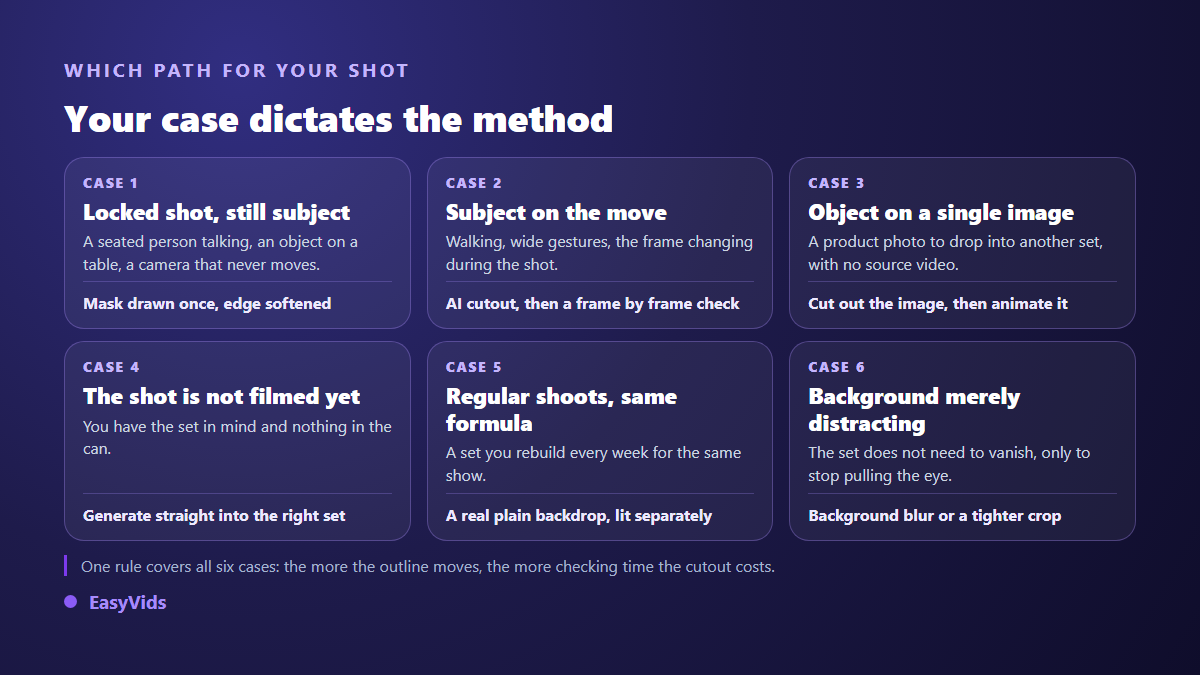
One habit saves time in every case: never process the whole video. Isolate the passage that genuinely needs a different background first, usually a few seconds. You divide the compute time, you divide the review time, and you spare yourself corrections on shots that never needed any.
What the EasyVids studio does, and what it does not
Better said plainly, because a false promise costs more than a missing feature. The EasyVids online editor does not automatically cut a subject out of a video. What it does offer serves the same goal directly: stackable video tracks so one shot sits over another, shape masks and a freehand mask with edge feathering, image adjustments, a background blur on the project canvas, text, captions, sound and export to MP4 or WebM. On a locked off shot, a mask drawn once is steadier than a cutout recalculated on every frame.
The honest trade off: that mask does not follow a subject who walks across the frame. It suits static shots, objects and fixed cameras, not someone crossing the image. For those shots, generating the plate in the right setting stays the fastest and safest route. What each plan includes is listed on the pricing page.
Frequently asked questions
Can you really remove a video background without a green screen?
Yes, and it is now the common case. A segmentation model recognises the subject with no reference colour at all. The limit is no longer feasibility but edge quality: fine hair, glass, motion blur and low contrast against the wall remain the four situations where the result needs a human look.
Why does my export have a black background when the cutout looked fine?
Because the chosen format does not carry transparency. A consumer MP4 flattens the alpha channel onto a solid colour. Two fixes: export to a format that keeps alpha, or place the subject on its new background inside the edit before exporting, which makes transparency unnecessary in the final file.
Do I need a powerful computer for this?
Not if the processing runs on servers: your machine only displays the interface and receives the result. A cutout computed locally is another story, leaning hard on the processor and the graphics card, and a moderately long clip can tie up a laptop for many minutes.
Is the result good enough for an advert or a product page?
Yes, provided you watch the clip full screen before publishing rather than in the small preview pane. Edge flaws show up at large sizes and on bright screens. For a product page, a cut out still that is then animated often looks cleaner than a video cutout.
Is blurring the background better than removing it?
Very often, yes. A background blur forgives contour flaws because the eye no longer has a hard border to inspect, and it keeps the real light of the scene. Save full removal for cases where the new setting carries information, a brand or a mood that a blur could not tell.
Removing a background is never the goal in itself: it is a way to put a subject where it belongs. So ask the question backwards before opening any tool. If the shot exists, prepare the source, isolate the useful seconds and match the method to how much the subject moves. If the shot is still ahead of you, describe the setting and let generation spare you the edge work entirely. Creating an account opens the full studio, generation and editor in one place, so you can test both approaches on your own footage.