You have a video, and what you actually need is the text. Meeting notes, a script you want to reuse elsewhere, raw material for an article, or simply the exact sentence someone said twelve minutes in. To transcribe video to text by hand means listening, pausing, typing, rewinding: several times the length of the recording, with attention that collapses after twenty minutes.
Speech recognition does that job while you do something else, and the result is usually better than people expect. What remains is knowing where to run it, what quality to expect, and above all what to fix afterwards, because a raw transcript is never publishable as it stands. This guide covers the text itself. For the on screen side of the job, our guide to automatic captions takes over.
The short answer
Nothing to install: drop the file into an online video editor, open the captions panel, pick the spoken language or leave automatic detection on, and start the transcription. The engine isolates the audio track, writes what it hears, and pins every passage to its exact moment. On a twenty minute video, expect a few minutes of processing and roughly as much proofreading. In the EasyVids online studio, this is one button: the text comes back split into blocks, aligned with the voice, and editable passage by passage.
Transcript, captions, chapters: three different things
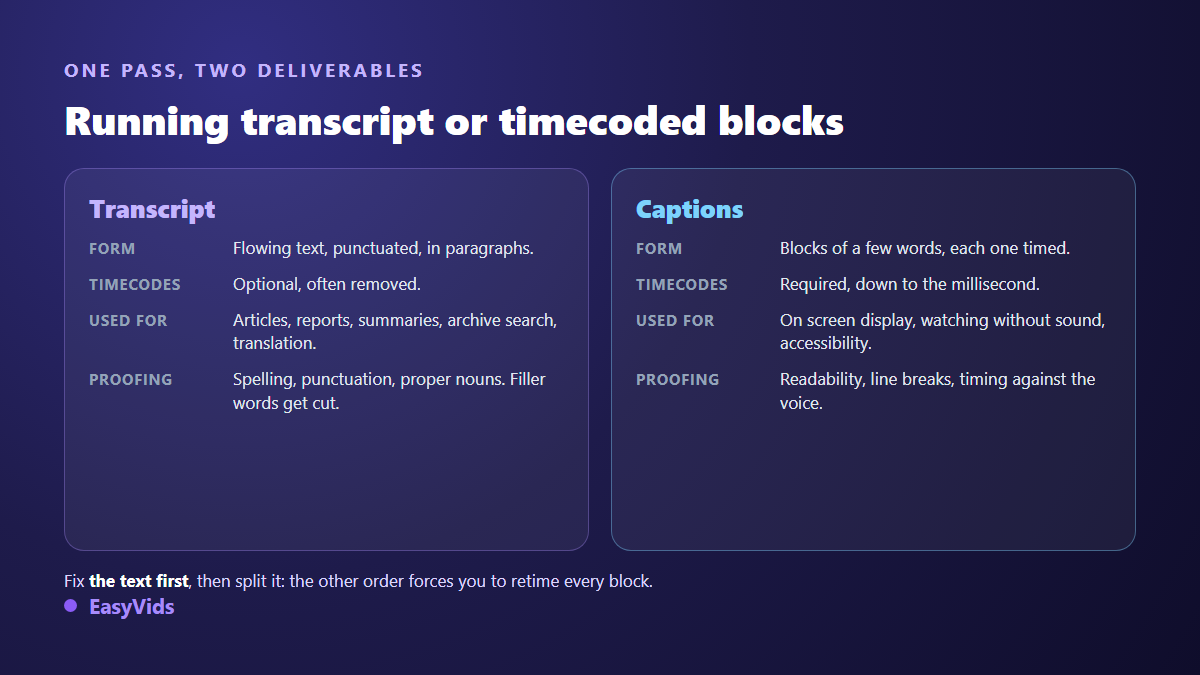
The three words travel together but describe different objects. A transcript is continuous text: what was said, punctuated, in paragraphs, with no timing. Captions are the same content cut into short blocks, each carrying a start and an end time. Chapters are a third thing entirely, a table of contents that names slices of the video.
The distinction matters because all three come from the same machine pass. The engine always produces text and timings. What you keep depends on the use: drop the timings for a readable document, keep them to display text on screen. One well proofed transcript serves both needs, provided you work in the right order.
How a machine turns sound into text
A speech recognition engine does not understand sentences, it recognises chains of sounds and predicts the most likely continuation. That is the source of its errors, and it explains why it fails in the same places every time. The full chain has four steps, and each one shapes the next.
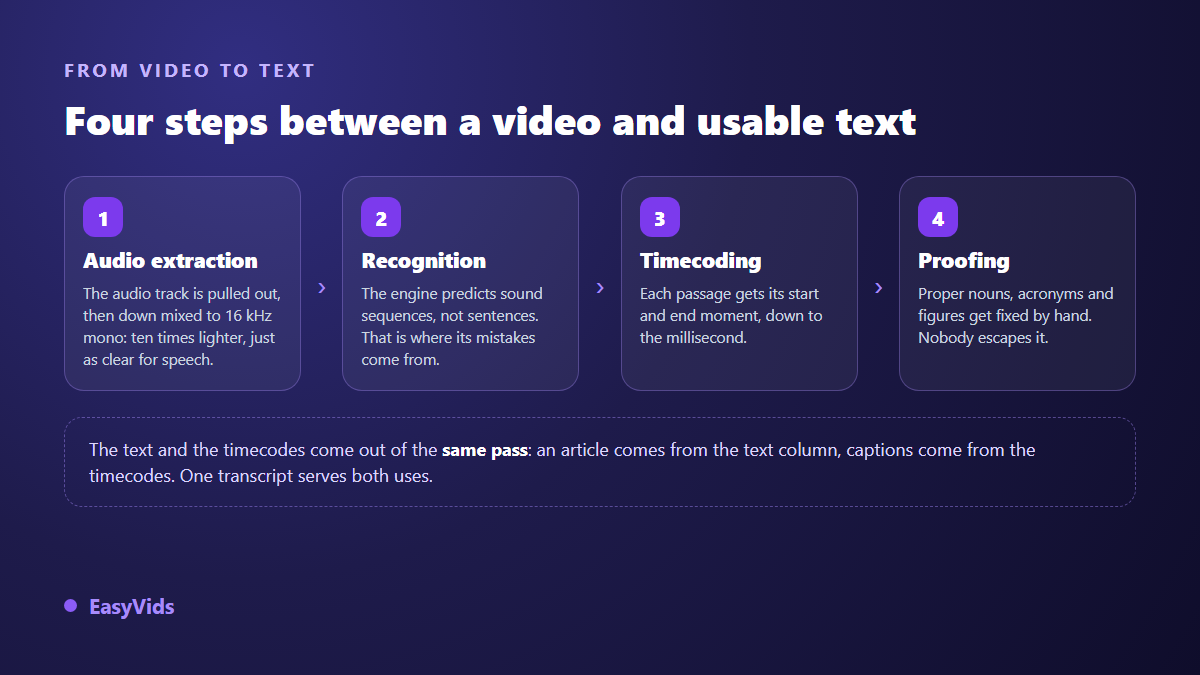
Two details explain almost everything else. First, the audio is reduced to mono at a low sample rate, around 16 kHz. That sounds brutal, but the human voice sits comfortably inside that band and the file becomes light enough to process fast. Second, most engines work in overlapping windows of a few tens of seconds, so a word never gets cut in half at the seam.
The practical consequence: transcript quality is decided while recording, not while processing. A microphone close to the mouth, a room without echo, one person speaking at a time, and the error rate collapses. No software setting rescues sound captured three metres away in a tiled room.
The free route: what platforms already do for you
Before hunting for a tool, check whether the text already exists. According to the YouTube help centre, the platform generates automatic captions for part of the videos uploaded to it, in a limited set of languages, and the channel owner can edit them in YouTube Studio. The same help centre describes the transcript panel shown under the description, which scrolls the text with its timings.
That is as free as it gets, and it is enough in many cases. It has three limits worth knowing. Automatic captions are not generated for every video or every language. Punctuation stays approximate on long monologues. And the route only covers videos already published on the platform, which rules out unedited footage, a client file, or a confidential recording.
- The video is already online on the platform and you own the channel.
- It is spoken in a common language, by one person, with clean sound.
- You want an indicative text, not a document to publish as it is.
- You accept copying the text out of the panel with no formatting.
- Exact block timing does not matter, because you will not reuse those captions elsewhere.
Transcribing inside the editor, step by step
The procedure is the same in any serious online editor, and it takes six moves. Here is how it runs in the EasyVids studio, where transcription lives in the Captions panel.
- Import the video and drop it on the timeline. Nothing to install: it all happens in the browser.
- Open the captions panel in the assets column.
- Pick the spoken language, or leave automatic detection on if you are unsure which one dominates.
- Start the generation. The editor extracts the timeline audio, converts it, sends it to the server and waits for the text.
- Proofread. The text returns as blocks placed on the timeline, each editable like ordinary text.
- Decide what happens next: keep the blocks to display captions, or copy the text out as a document.
One point avoids a bad surprise. Transcription runs on the timeline audio, meaning whatever is audible at that point of the edit. Cut a passage and it will not be transcribed. Add loud background music and recognition suffers. So transcribe before you dress the video, or mute the tracks that do not carry the voice. The operation is billed in credits based on the length of audio processed, and the plans are on the pricing page.
Why the text comes back in pieces
The most common exchange format is still SRT, a plain text file you can open anywhere. Its structure explains the shape your transcript takes: numbered blocks, each with two timestamps and its text, separated by a blank line.
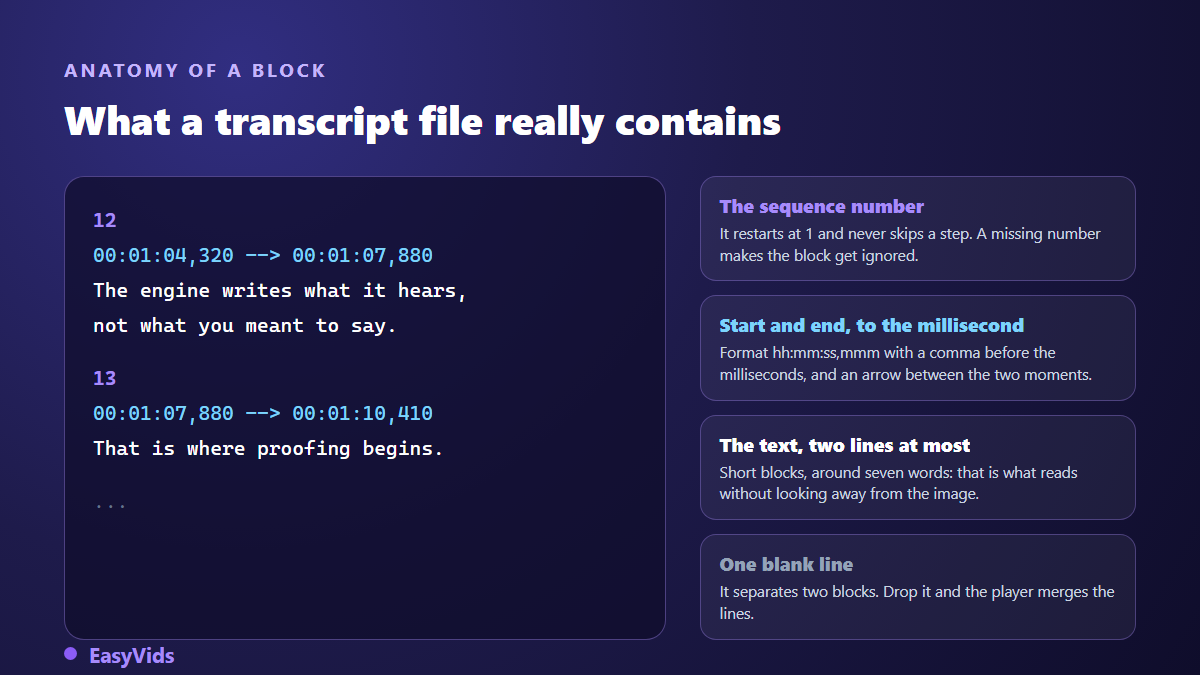
The split is a readability choice, not a technical constraint. Blocks stay short, around seven words, because a caption has to be read without looking away from the picture. For a written document that same split becomes a defect: you have to glue the pieces back together and repunctuate. If you handle these files often, our guide to the SRT file covers the full syntax and the encoding traps.
The mistakes speech recognition always makes
Automatic transcripts do not fail at random. Errors cluster in a handful of categories, which is good news: you know exactly where to look while proofreading.
- Proper nouns. Brands, cities, first names, product names. The engine picks the nearest common word and gets it wrong on the first pass.
- Acronyms. They come out glued together, lowercased, or turned into a real word.
- Numbers and dates. Sometimes spelled out, sometimes in digits, rarely in the format you wanted.
- Homophones. The engine decides on probability, not on the meaning of your sentence.
- Foreign words inside a sentence. A borrowed expression in the middle of a paragraph often comes back mangled.
- Overlapping voices. Two people talking at once produce mush, even with the best engines.
Cleaning up in three passes
Proofreading does not mean listening to the whole video again, or you lose the benefit of automation. First pass, eyes only: scan for words that make no sense in context. An engine always writes something, never a blank, so an error shows up as an oddity rather than a gap. Second pass, ears: replay only the spots you flagged, starting a few seconds earlier.
Third pass, formatting. This is what turns a transcript into a document. Cut the hesitations and repetitions, restore strong punctuation, break paragraphs every three or four exchanges, and add subheadings once the text runs past a page. Keep a short list of the terms you say often, brand names included, and always correct them the same way.
What the finished text is worth
A transcript only matters through what you do with it. The same text feeds very different uses, and the sorting happens during proofreading, because the work is not identical depending on where the text ends up.
The most profitable uses are rarely the flashy ones. A webinar transcript becomes a long form article in an hour of rewriting. Customer interview verbatims give you the exact wording to reuse on sales pages. A transcribed archive finally becomes searchable. And in the other direction, a proofed text can go back into video production, which is exactly what our method for turning text into video covers.
Limits worth knowing before you start
No automatic transcript is perfect, and a few technical constraints deserve attention before a large batch. Length first: the audio sent to the server is capped by weight, which leaves a little under an hour of sound per run in practice. Beyond that, split the video in two and transcribe each part. Language next: the editor offers automatic detection plus a list of common languages including English, French, Spanish, Italian, German, Portuguese, Russian, Japanese and Chinese. On a bilingual recording, name the dominant language rather than leaving detection to guess.
Frequently asked questions
Can you transcribe video to text for free?
Yes, in two situations. If the video is published on a platform that generates automatic captions, the text already exists and costs nothing to collect. And EasyVids grants credits on sign up, enough to transcribe your first videos without paying and without a bank card. Regular work on long files becomes a running cost like any other.
How accurate is automatic transcription?
On a clean recording, one voice and a decent microphone, current engines leave a few wrong words per hundred, and those words are almost always proper nouns or acronyms. Accuracy drops noticeably as soon as the sound degrades, several people talk over each other, or the accent sits far from what the engine heard most.
How do I transcribe a video in a foreign language?
Select the language spoken in the video, not the one you want to read. Transcription always happens in the original language; translation is a second step, done from the proofed text. Translating a raw transcript simply spreads its errors into every target language.
Do I need to install software?
No. An online editor does the work in the browser: your device only shows the interface while processing runs on servers. A modest laptop or a tablet is enough, and you avoid heavy installs that tie up the processor for an hour.
What about videos with several speakers?
Transcribe first, then restore the turns while proofreading by prefixing each take with a name. If you are still recording, the real fix is upstream: one microphone per participant and one rule, never talk at the same time.
Transcribing a video is no longer the chore it used to be: the machine types, you proofread, and that is a fair split. The real shift happens when the step becomes a habit, because every video then produces an article, searchable notes and captions from a single shoot. To try it on your own file, create your account and drop the video into the editor.