There is a sketch in your notebook. A character in pencil, a furniture idea, a logo scribbled during a meeting. The shape is there, the intent too, but the page is not something you can show anyone. Sketch to image AI answers exactly that: your lines keep control of the composition, the machine handles material, light and render. The drawing stops being a private draft and becomes a picture you can show, print or sell.
Most failed attempts start from one misunderstanding. People expect the tool to colour the drawing in, neatly, following every outline. It colours nothing. It builds a brand new image using your sketch as a construction plan, and the outcome hangs on a setting most beginners never touch. This tutorial walks through the six moves between a sheet of paper and a usable visual. If image generation is new to you, our complete guide to AI image generators covers the ground this tutorial assumes.
The short answer
Shoot your drawing flat, in daylight, and crop it so the lines fill the frame. Load that photo as a reference in an image generator, then write a prompt describing everything the pencil cannot show: materials, light, render style, background. Set reference fidelity to a medium level, generate several variants, keep the best one, and start again from it changing one single thing per attempt. Upscaling comes last, once the render is approved.
What the AI actually does with your drawing
An image generator does not read your page the way a person does. It analyses the photo you hand it and pulls out a structure: the main masses, the outlines, how light and dark are distributed. That structure then acts as a constraint while the final image is built. In other words, your drawing supplies a frame, not pixels. That is why a very messy sketch can produce an excellent result, while a neat drawing shot badly produces a poor one.
The same mechanism explains the classic beginner disappointment. Expect a faithful colouring job and you will be frustrated: proportions shift, a detail vanishes, a hand changes. Treat the sketch as a direction rather than a contract and the tool becomes surprisingly obedient. The right mindset fits in one line: you decide the scene, the AI decides how it is rendered.
Step 1: photograph the sketch without betraying it
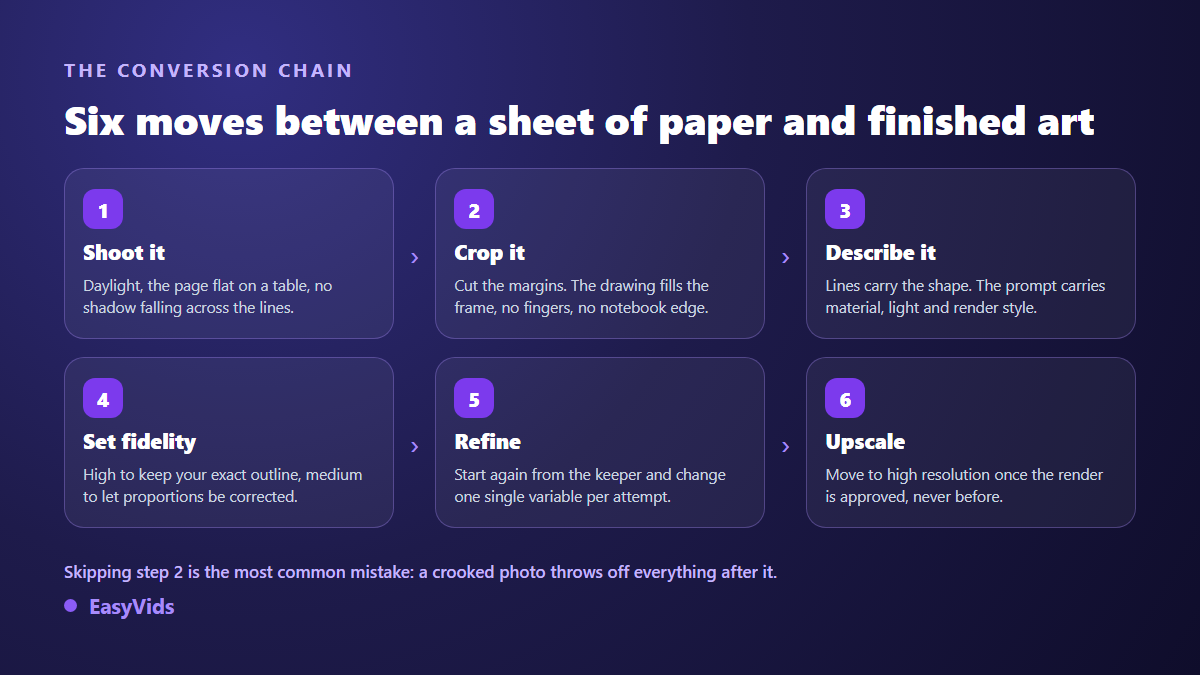
This is the step everyone rushes, and it decides half the result. On our generations, disappointing conversions almost always trace back to the source photo rather than the model. A hand shadow across the paper becomes a dark stain in the final render. A page shot at an angle produces a leaning object. A spiral notebook leaves black holes that the generator reads as part of the scene.
- Lay the page flat on a plain surface, never hold it up in your hand.
- Work near a window in daylight, with no lamp casting a shadow on the paper.
- Hold the phone parallel to the page, directly above the drawing.
- Crop straight away so the sketch touches the edges, with no wasted margin.
- Raise the contrast if the pencil is pale, until the line reads clearly against a light ground.
- Erase notes, arrows and annotations that are not part of the picture you want.
Step 2: write what the pencil cannot say
The prompt and the drawing split the job. The drawing carries shape, pose, framing and how many things sit in the frame. The prompt carries everything else, and restating what is already visible on paper only dilutes the instructions that matter. Write materials, light source, render style and setting, in that order. Our 21 image prompt examples to copy give ready made wording for each of those four blocks.
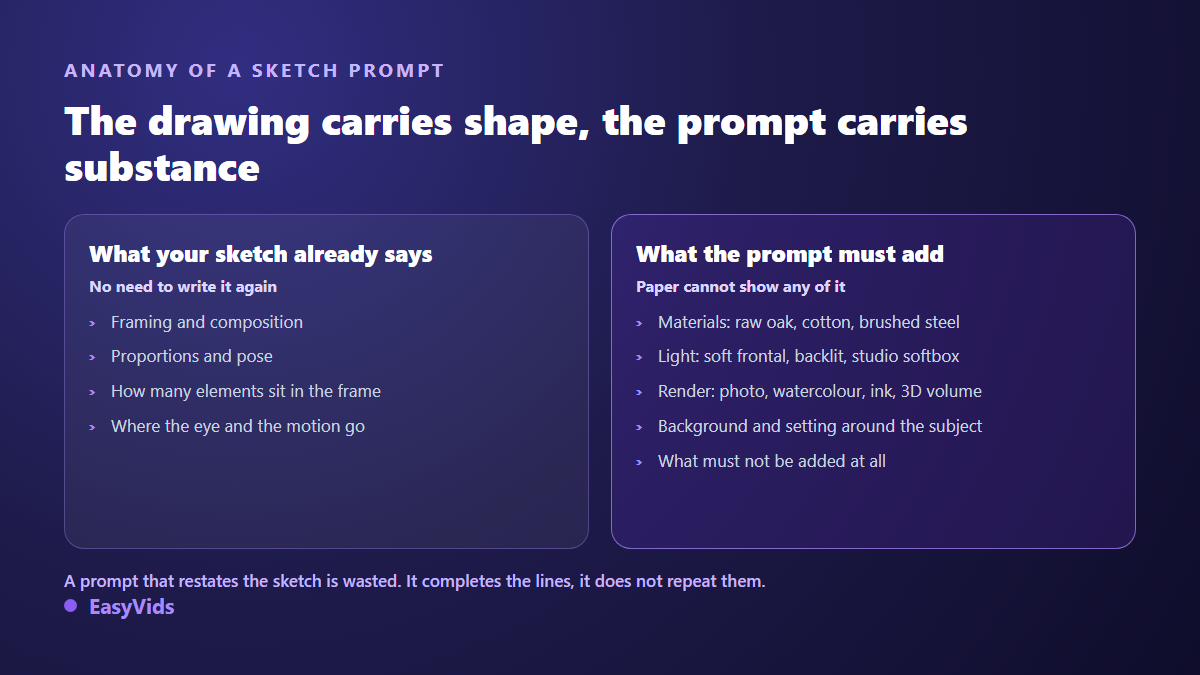
One concrete example beats an abstract rule. For an armchair sketch, do not write that it is an armchair seen at three quarters with a rounded back, since the drawing shows it. Write instead: bottle green velvet, light oak legs, soft light from the left, interior photograph, plain grey background, shallow depth of field. Now the model knows what to add, and you keep your armchair.
Step 3: set the fidelity dial
This is the control that changes everything, and it goes by different names: reference strength, image influence, likeness. The principle is identical everywhere. Pushed to the top, it forces the model to follow your outline closely, which also means reproducing your clumsy bits. Dropped to the bottom, it keeps only a vague idea of your page and hands back an image that is no longer really yours.
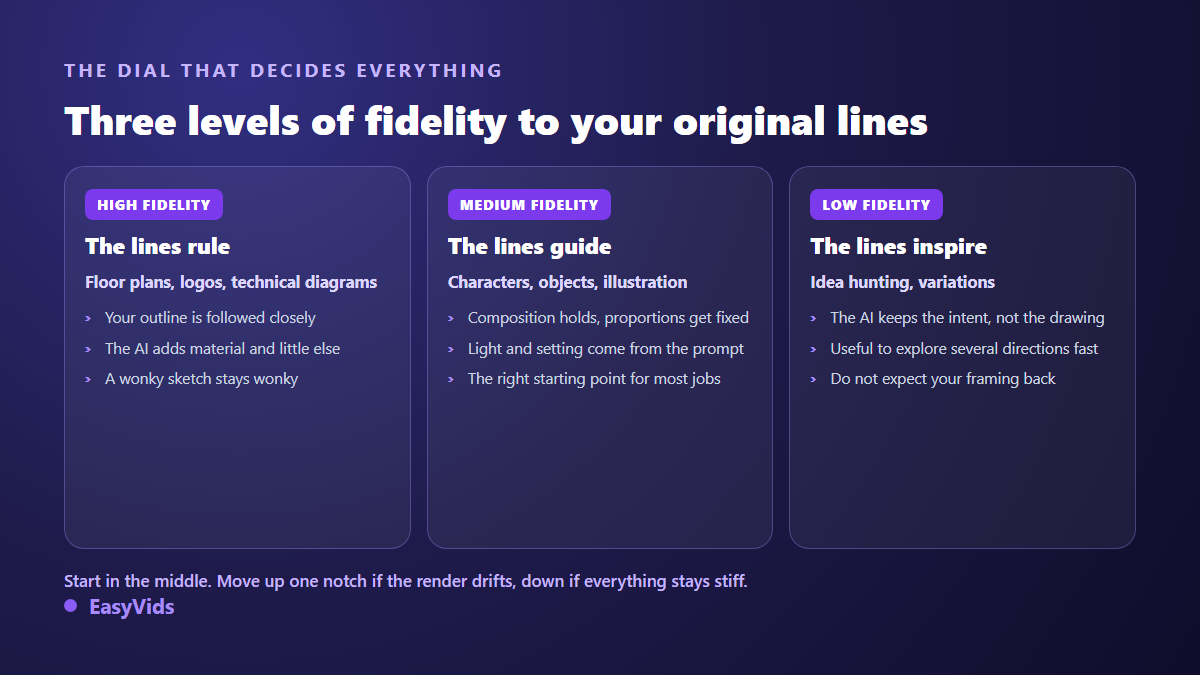
The time saver is to generate the same prompt three times at three fidelity levels, then pick. Within minutes you know where your drawing sits on that scale, and you keep that setting for the whole series. A technical plan or a logo belongs at high fidelity, because geometry is the subject. A character or a setting belongs in the middle, because you actually want the model to correct proportions.
Step 4: refine one variable at a time
Once a version works, the classic mistake is to fire off a completely rewritten prompt. You lose everything you just gained. Do the opposite: start again from the keeper and change one single variable per attempt. Light, then material, then background. That discipline turns a generation session into a series of measurable improvements instead of a lottery. It is how the EasyVids image studio works, where every visual keeps its prompt and its reference so it can be picked up again as is.
Step 5: finish the image for its real use
An approved image is not yet a finished image. The resolution coming out of a generator is fine for a screen, rarely for print or a large display. Upscaling comes last, on the final version, never on drafts, because that is compute spent for nothing. Our piece on upscaling an image with AI covers where the gain is real and where it adds almost nothing.
If your drawing shows a character who has to appear in several images, the conversion is only the start. You then need to lock that face so it stops drifting from scene to scene, which is a different technique, explained in our method to keep the same character across every image. Convert first, then lock: the first successful image becomes the reference for all the others.
Where sketch to image really pays off
- Fashion sketches: a drawn silhouette becomes a worn garment, which virtual model photography then extends into a full series of poses.
- Room layouts: a rectangle and a few pencil pieces of furniture turn into a believable interior view.
- Comic characters: your line style stays readable underneath the colour render.
- Product concepts: furniture, jewellery or packaging shown before anything is manufactured.
- Logos: a freehand idea tested across ten renders before moving to vector.
- Storyboards: each frame becomes a visual you can put in front of a client or a team.
Mistakes that give a bad conversion away
- The notebook shows through: ruled lines, spirals, a corner of the table.
- The photo was crooked, so the final object leans for no reason.
- The prompt repeated the drawing instead of completing it, and the render stays flat.
- Fidelity was maxed out, so every clumsy line came back faithfully.
- The aspect ratio changed midway, so the model invented the edges.
- Upscaling was launched too early, on a version later abandoned.
Your drawing, the generated image and the rights
This matters if you plan to sell the result. Your original sketch stays your work, protected as soon as it is created in the countries bound by the Berne Convention, with no registration required. The generated image follows a different logic. According to the United States Copyright Office report on the copyrightability of works made with artificial intelligence, published in January 2025, purely machine generated material is not protectable, while identifiable human contributions, including an input drawing, remain so. Keep the dated original and the reference photo, and read the terms of the tool you used, as detailed in our guide to copyright and AI images.
Frequently asked questions
Do I need to know how to draw?
No. A school level sketch is enough as long as it places the elements correctly relative to each other. What the tool uses is the layout and the overall proportions, not the quality of the line. At medium fidelity, a rough drawing often beats a highly detailed one, because it leaves the model the room it needs to build a coherent picture.
Is a plain pen sketch on white paper enough?
Yes, and it is the most favourable case. A firm black line on plain white paper is what models read best. Pale pencil, squared paper and coloured backgrounds all make the analysis harder. If your line is faint, raise the photo contrast before uploading: the improvement is immediate and saves several attempts.
Can I keep the colours from my original drawing?
Partly. High fidelity preserves where the colours sit, but the exact shades nearly always drift. If a colour really matters, name it in the prompt rather than relying on the drawing. A written colour name carries far more weight than the marker stroke on the page.
Can the result be used on a product I sell?
That depends on the terms of the tool that produced it, not on copyright law alone. Check that the licence covers commercial use and that exports arrive without a watermark. Keep your original sketch too: it documents your share of the creation, which matters the day someone asks you to prove your visual came first. Our pricing page sets out which plans include commercial use.
A notebook full of sketches is a stock of images waiting for a conversion. The method is short: a clean photo, a prompt that completes the lines instead of repeating them, a fidelity dial set at the right notch, then one edit at a time. Take the drawing that has been sitting there longest, run these six moves on it, and see what it becomes. Open a free account on EasyVids and test the conversion on your first sketch.