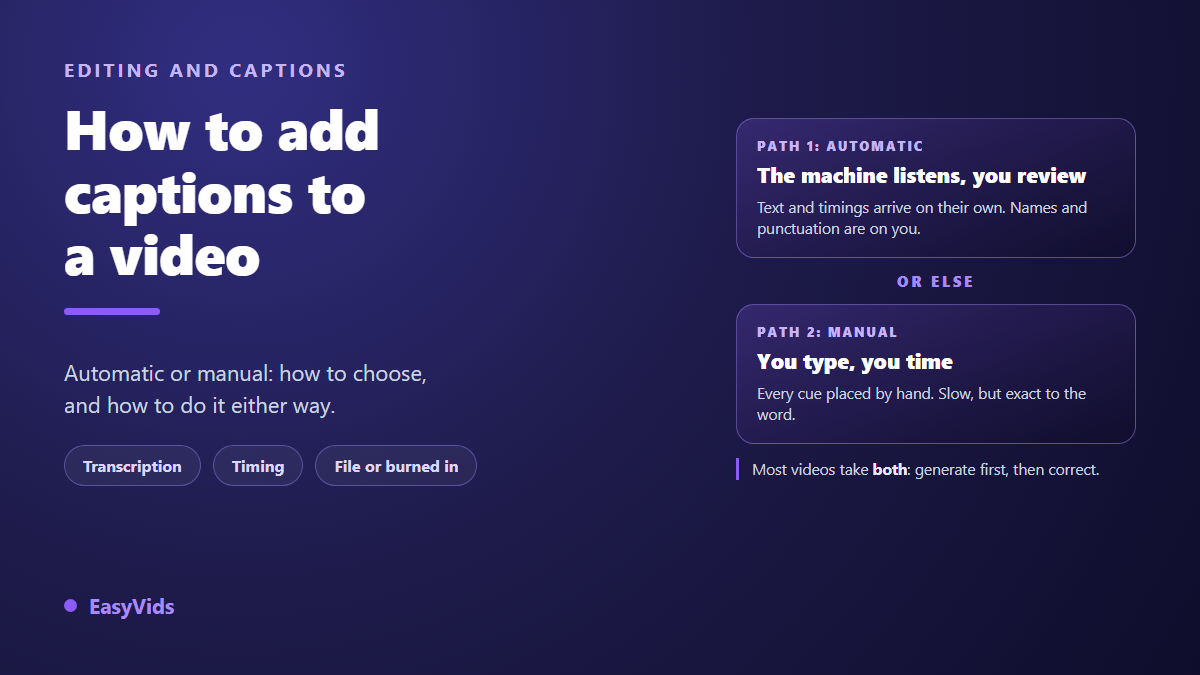
Your video is finished. It is heading for a feed where a large share of viewers will watch it with the sound off, on a train, in an open office, or simply while doing something else. Adding captions is the last mandatory step, and that is where the real question shows up: let a machine transcribe on its own, or type the text by hand?
Both methods work, and they suit different videos. What decides is not your software or your skill level, it is your audio. This guide compares the two paths, gives the workflow for each, and settles the question of a caption file against text burned into the picture. If you want the mechanics of speech recognition first, our guide to automatic subtitles covers that ground.
The short answer
For most videos the right method is mixed: run an automatic transcription, then review the result on screen, inside the video, fixing names and punctuation as you go. You skip the long job, which is timing, and you keep control of accuracy. Switch to manual typing in three cases: difficult audio, specialist vocabulary, or a clip so short that reviewing takes longer than typing.
Automatic or manual: two routes to the same thing
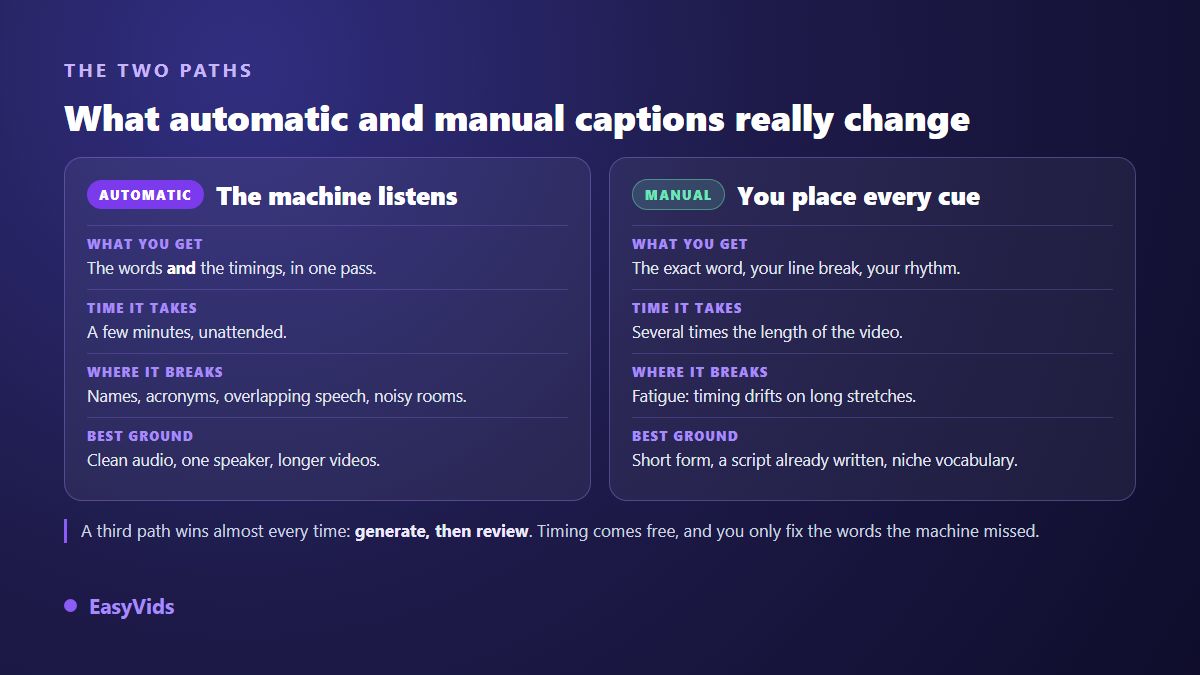
Automatic captioning runs on speech recognition. The tool listens to the audio track, writes what it hears, and attaches a start time and an end time to every group of words. That second part is where the value sits. You could type the words yourself in a few minutes. Timing them to a tenth of a second is the real work, and it is exactly what the machine hands you.
Manual captioning means typing the text, then placing those same timings, cue by cue, while listening. It comes in two flavours. Straight typing, where you write as you listen. And pasting a script you already have, which the tool then aligns to the voice. The second flavour is far more comfortable, because the exact wording already exists and only synchronisation is left.
When automatic is more than enough
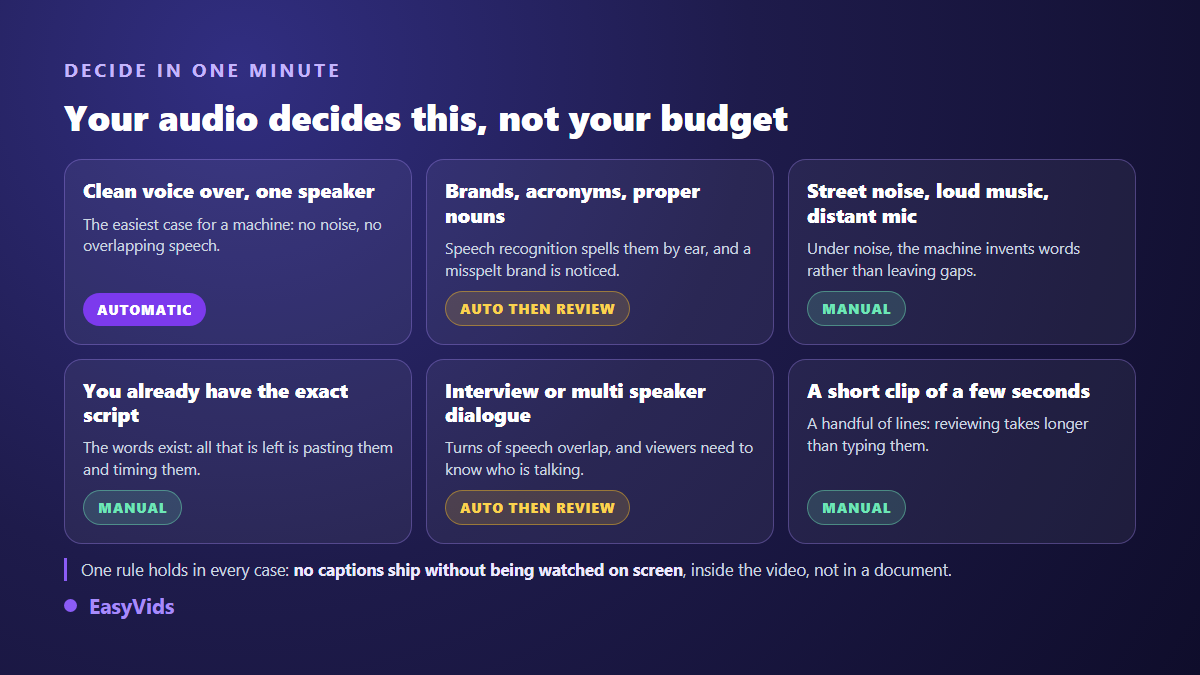
Speech recognition does very well under specific conditions: a clean voice recorded close to the mic, one person speaking, little background noise, everyday vocabulary. A voice over, a talking head tutorial, a lecture filmed in a quiet room all qualify. The longer the video, the better automatic pays off, because the time saved on timing grows with the runtime while review stays proportional.
The YouTube help centre states it plainly on its automatic captions page: accuracy depends on clear speech, recording quality and the spoken language, and it is never guaranteed. In other words, the machine will not tell you when it is wrong. It writes a perfectly plausible sentence in place of the word it missed, and that quiet confidence is exactly why review is not optional.
When manual typing wins
Four situations resist automation. Noisy recordings, where recognition invents words instead of leaving gaps. Specialist vocabulary, with brand names, acronyms and trade terms no model has learned to spell. Multi speaker dialogue with overlapping turns, where you also have to say who is talking. And very short formats, where typing a handful of lines beats reviewing an approximate draft.
A fifth case matters just as much: captions written for accessibility. Success criterion 1.2.2 of the WCAG guidelines published by the W3C asks for captions on all prerecorded audio content, and a raw transcript does not meet it. You also need speaker identification and the meaningful sounds, a door slamming, laughter, music rising. No speech recognition produces that on its own. It is a human addition, line by line.
Adding captions automatically, step by step
The procedure barely changes from one online editor to another. It comes down to six moves, and only one of them really needs your attention. One thing first, if your file comes from a camera or an old phone: converting it to MP4 online, with nothing to install spares you an import rejected at the very first move.
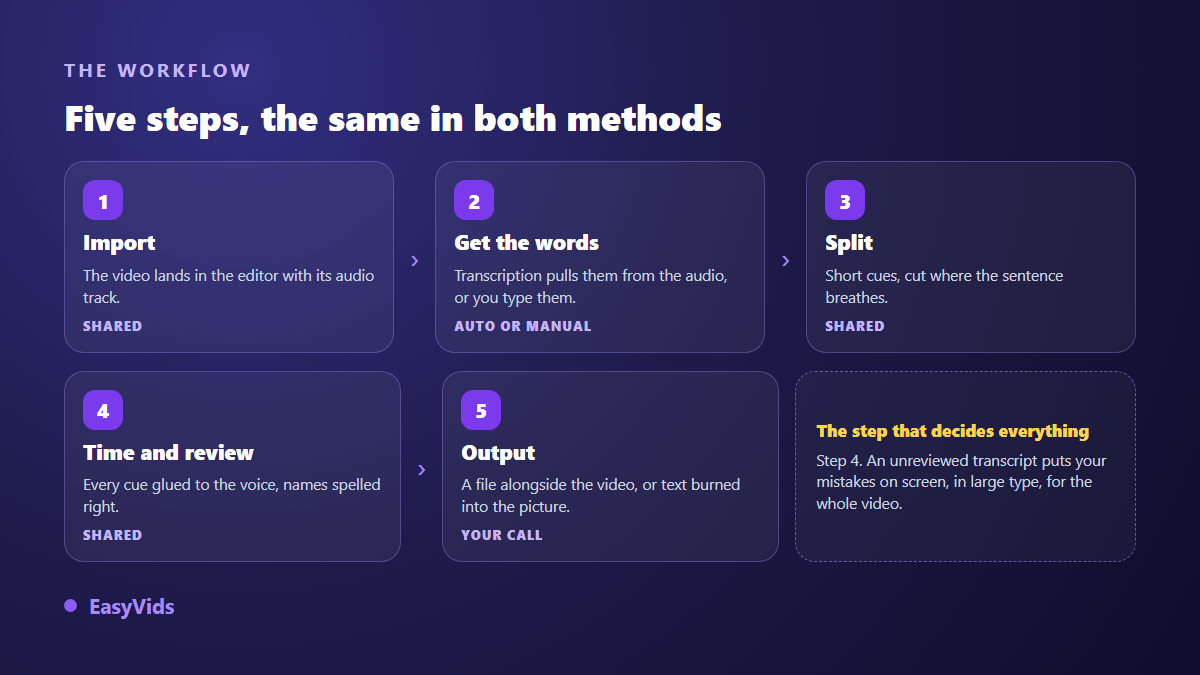
- Import the video into the editor, or start from a video you have just generated.
- Set the spoken language yourself instead of trusting detection, especially when two languages share the same file.
- Run the transcription and let it work: the text comes back already split into cues, with timings attached.
- Review cue by cue while playing the video, never in a separate document: mistakes only show up on screen.
- Fix proper nouns, numbers, punctuation and awkward line breaks.
- Choose the output: a caption file alongside the video, or text burned into the picture.
Step four is the one everyone skips, and the one that separates a careful video from a sloppy one. On our own runs, a three minute video needs roughly ten minutes of attentive review, corrections included. That is very little next to production time, and it is the only moment when you decide what your audience will read.
Adding captions manually, step by step
Manual work rewards the right order. Write or paste the full text first, ignoring timing entirely. Split that text into short cues, cutting where the sentence breathes, never between an article and its noun. Then place the timings while listening, one cue after another. Separating writing from timing avoids the exhausting back and forth that makes synchronisation drift after twenty lines.
Two professional benchmarks are worth knowing. Broadcast subtitle guidelines, the BBC ones for instance, keep lines around forty characters and never show more than two at a time. And a cue has to stay on screen long enough to be read comfortably, which rules out micro captions flashing one word at a time. If you build the file yourself in a text editor, the exact structure is laid out in our guide to the SRT file.
Caption file or text burned into the picture
Once the text is ready, one decision remains, and it has nothing to do with how you obtained it: the shape of the output. A caption file lives next to the video. Viewers can turn it on or off, sometimes translate it, and you can fix it without exporting again. Burned in text, also called open captions, is part of the pixels: nobody can switch it off, and nobody can lose it either. The operation itself, its settings and its traps are covered in our guide to burning subtitles into a video, which this guide deliberately does not repeat.
A quick rule: platforms that accept a file deserve one. The YouTube help centre lists .srt among the caption file formats you can upload in YouTube Studio, and a file stays readable by search engines in a way pixels never will. Short vertical formats, on the other hand, play inside an interface that does not always surface those files, so burned in text becomes the safe choice there. Keep the file either way, because it is the base you will reuse the day you publish the same video in another language, as our method for translating subtitles shows.
Mistakes that ruin otherwise accurate captions
Correct text can still read badly. None of the following flaws come from transcription. They all come from formatting, and they take minutes to fix.
- Cues so long that viewers cannot finish them before they vanish.
- A line break in the wrong place, forcing a second read to understand.
- Text sitting too low, covered by interface buttons on vertical formats.
- Weak contrast: white text with no outline or backing on a bright image.
- Captions left on screen through silences, when nothing is being said.
- Drift that grows through the video, the signature of timing done while tired.
- Missing punctuation, which turns narration into a block of words with no breathing.
How long it actually takes
Rough numbers help you choose. Automatic transcription itself takes minutes, and you do not have to sit through it. Review, on our own runs, lands around three times the runtime for a careful first pass, less once the habit settles. Full manual work takes several times the runtime, more when the audio is poor. That gap, not final quality, is why almost everyone starts with automatic.
The special case of videos written before they are made
One situation removes the question entirely: when the text exists before the image. That covers any video built from a script, and AI generated videos in particular. The voice over was produced from wording known word for word, so the captions do not have to be guessed by a machine listening back. They are already there, exact, and all that remains is splitting and timing them. The EasyVids studio works in that order, which deletes half the problem this article describes.
Frequently asked questions
How do I add captions to a video for free?
The platforms give you a first option: YouTube, TikTok and Instagram all generate automatic captions you can correct before publishing. What they do not give you is a reusable file, and the styling stays theirs. An online editor gives you both, with a free trial to judge it on your own footage, and the plans are on the pricing page.
Are automatic captions reliable?
Reliable on timing, imperfect on words. With clean audio and clear speech most of the text comes back correct, but proper nouns, acronyms, numbers and punctuation almost always need a human pass. Treat a transcript as a very advanced first draft, never as a publishable result.
Should I use a caption file or burn the text in?
A file when the platform can read one, burned in text when it cannot or when the video will be reshared elsewhere. The safe approach is to produce the text once, export a burned in version for short formats, and keep the file for platforms that accept it and for future translations.
Can I add captions from a phone?
Yes, as long as the tool runs in a browser: transcription happens on servers and your device only shows the interface. Manual typing and fine timing stay more comfortable on a large screen, if only to see the video and the cue list at the same time.
How do I add captions in another language?
Always start from the reviewed, timed text in the original language. Translation then reuses the same timings and only touches the content of each cue, so you never redo synchronisation. Leave room: translated text often runs longer, and a cue that fitted on two lines may need three.
Adding captions to a video is not a choice between laziness and rigour. It is a choice between two starting points, and the best one rarely changes: let the machine place the timings, then take the words back with your own eyes. To try it on your next video, creating an account opens the full studio, transcription, review and export included.