You shot three minutes on your phone, forty seconds are worth keeping, captions are needed and it should go out tonight. The next question is always the same: which video editing app to open, and whether one needs installing at all. The real decision is not between two brands. It is between two devices: the phone in your hand, or an editor that opens in a browser tab.
The two routes do different jobs and they hit different walls. The phone wins on immediacy, the browser wins on precision and stamina. This guide sets out what each one allows, what it rules out, and the exact point where switching screens pays off. If you want the mechanics of an editor that runs in a tab first, our guide to editing in the browser walks through it step by step.
The short answer
Edit on the phone as long as the project fits one track and stays under a minute: the footage is already there, nothing to transfer, nothing heavy to install. Move to the browser as soon as you stack several tracks, as soon as text has to be timed to a voice, or as soon as the edit runs past a few minutes. This is not about advertised power. It is about screen surface and stamina. A fingertip covers several frames of the timeline, a cursor covers one.
Two devices, two ways of working
An installed app keeps the project inside the device. Files, intermediate renders and the export all stay local. That is what makes the gesture instant, and it is also what locks it in. The edit exists on that phone and nowhere else. Fill the device, change it, or try to pick the work up on a computer, and continuing becomes a file move.
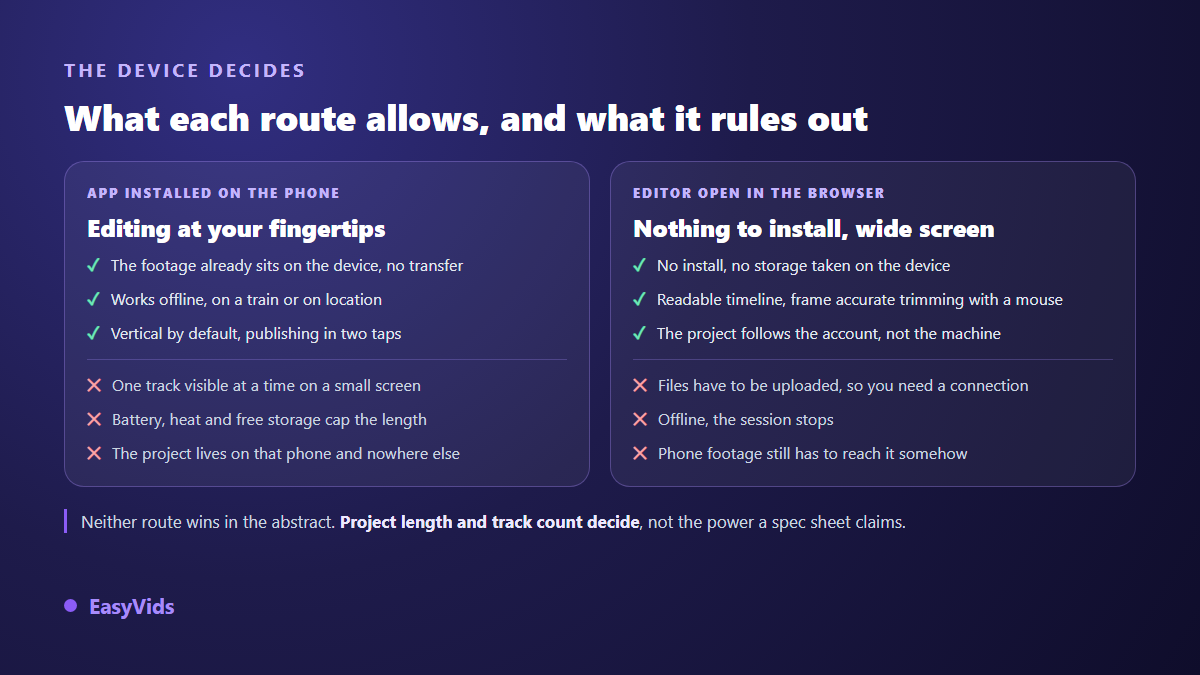
An editor that opens in a browser keeps the project in an account. Nothing to install, nothing to update, no storage taken on the device. In exchange, your files have to travel up there, which needs a decent connection at import and at export. The rest of the work happens on a wider screen, with a timeline you can actually read.
What a phone app genuinely gives you
The first advantage is blunt and decisive: your clips already sit on the device that will edit them. You shoot, you open the app, you trim. No cable, no upload, no wait. On short content published several times a week, that lack of friction beats any advanced feature.
The second is format. A phone works vertically by default, it knows the zones that social interfaces cover with buttons, and it publishes to the next app in two taps. The third is working offline: on a train or on location, with no signal, the app keeps running. It is the only route that survives without a connection, and that alone sometimes settles the question.
Limits appear with complexity. On a small screen only one track is truly visible at a time. Stacking video, voice over, music, captions and a logo means working in a corridor: every setting opens a panel that hides the timeline.
What the browser changes
An online editor removes the install step, and with it the compatibility question. It runs on the office computer and on the tablet on the sofa, and the project stays the same. Our own studio, reachable from the EasyVids home page, works that way: editing, voice over, captions and visuals live in the account rather than in a machine.
The other change is precision. On a wide screen you see several tracks at once, you zoom into the timeline down to the frame, and you place a cut to the tenth of a second without wobble. Keyboard shortcuts come back too, and on a three minute edit, trimming from the keyboard rather than with a thumb saves a great deal of time.
The trade is honest. With no connection, the session stops. Uploading heavy footage takes whatever your upstream speed allows, and that time is routinely underestimated. Start your uploads at the beginning of a session, not at the moment you need the clip.
The six core moves, and where each one belongs
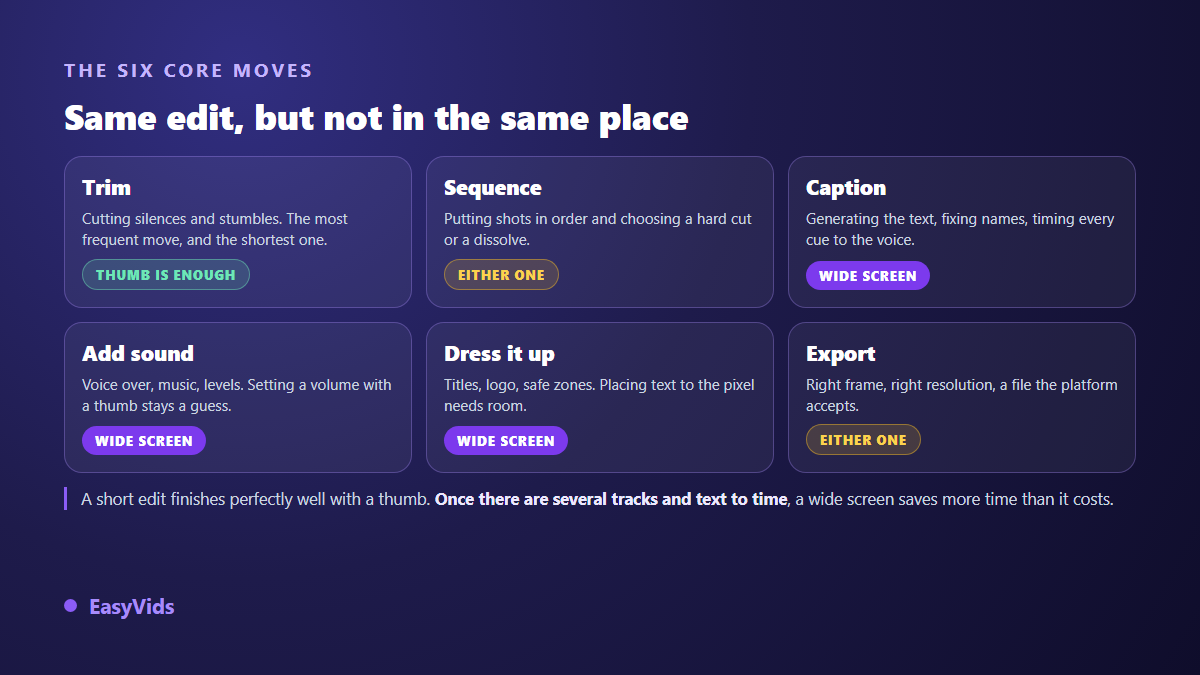
Whatever the tool, an edit comes down to six moves. Look at those before picking a device, because they do not ask for the same screen surface or the same pointing accuracy.
- Trim: cut silences, stumbles and dead seconds. The most frequent move, and the most forgiving to a thumb.
- Sequence: put shots in order, choose a hard cut or a dissolve. Both routes handle this well.
- Caption: generate the text, fix proper nouns, time each cue to the voice. This is where a small screen wears you down.
- Add sound: bring in a voice over and music, then set levels so one does not bury the other.
- Dress it up: a title, a logo, a text box placed clear of the interface buttons. Pixel placement needs room.
- Export: produce a file in the right frame and resolution that the target platform accepts without re-encoding twice.
Trimming, captions and sound in practice
Trimming decides whether a video gets watched. One rule covers most of it: cut the breath before the word, not after. On a phone the move works provided you zoom into the timeline first, otherwise the area your finger covers spans several frames. Hard cuts carry the vast majority of edits, and elaborate transitions age badly. That restraint also pays on a phone: fewer computed effects means less heat and a faster export.
Captions are where the small screen hurts most. Automatic transcription runs equally well on both routes, but correction does not. The keyboard takes the bottom half of a phone screen the moment you tap a word, so you fix text blind, close it, check, and reopen. Sound has the same problem: lowering music under a voice means seeing both tracks stacked and placing volume points at the right spots. A single slider applied to the whole track leaves music too loud under speech and too quiet under the pauses.
Exporting in the right format
Export is where a good edit can still go wrong. Two things matter: the frame and the file. Decide the aspect ratio before you edit, because cropping afterwards always amputates something. For the file, YouTube help documentation on recommended upload encoding settings points to an MP4 container with H.264 video and AAC audio. That combination is accepted everywhere and is the safe default. Exporting at 1080p is enough in most cases: a higher resolution makes the file and the upload heavier with no visible gain on a phone screen.
The four real limits of editing on a phone
These are not app flaws, they are physical constraints of the device. None of them shows on a fifteen second clip, and they all arrive together past a few minutes of editing, usually at the worst moment: the export.
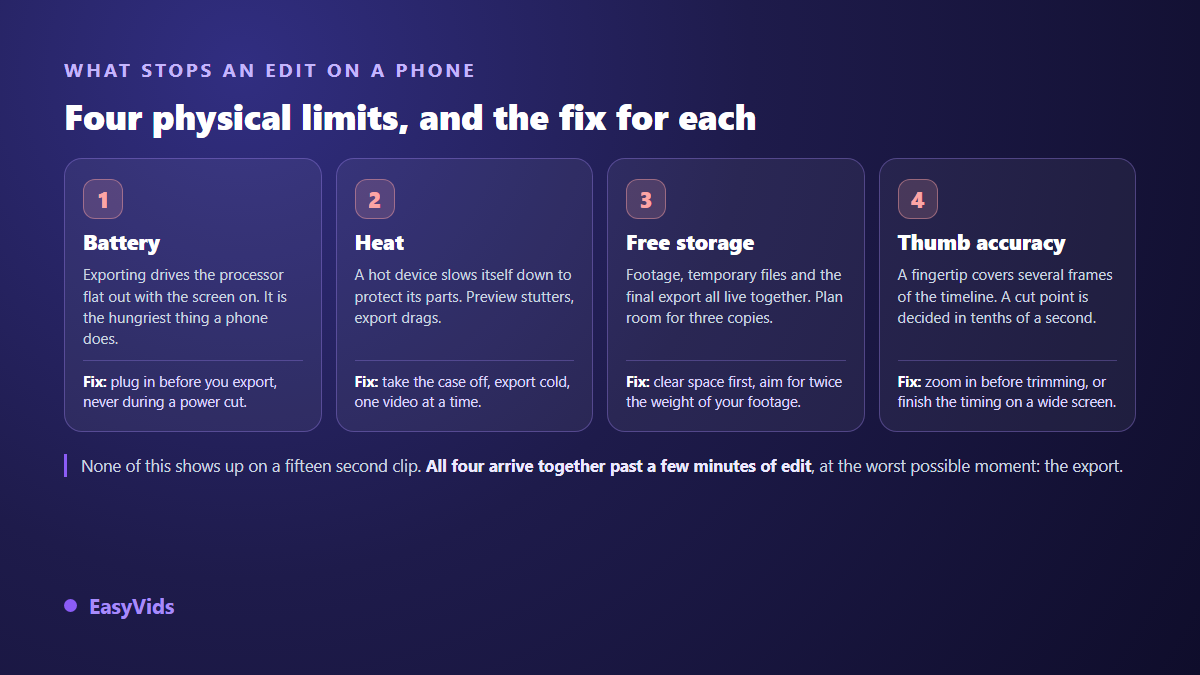
Battery first: exporting drives the processor continuously with the screen on, one of the hungriest things a phone does, so plug in before you start. Heat second: a hot device throttles itself to protect its parts, preview stutters and export drags. Storage third: footage, temporary files and the final export coexist during the render, so plan for roughly twice the weight of your source clips. Accuracy last: a cut point is decided in tenths of a second and a fingertip covers far more, so zoom before trimming or finish the timing on a bigger screen.
Choosing by what you actually produce
The useful question is not which app is best, but what kind of video you publish every week. If the vocabulary is what stops you, our step by step editing guide covers import, cut and export without assuming prior knowledge.
- Short form published daily: phone, no hesitation. Publishing speed matters more than polish.
- Talking video of five to fifteen minutes: browser or computer. Several tracks, long captions, a length that drains a phone.
- Brand or client work: browser, for project recovery and version history. An edit living on one device is a risk.
- Family memories and compilations: either one, depending on length. Past a few minutes of footage, the wide screen wins.
- Work shared with other people: browser only. The project must follow the account, not the hardware.
On budget, since it always comes up: both routes have free options, with different trade-offs from tool to tool. If you would rather compare editors one by one than compare devices, our review of CapCut alternatives sets out what each one covers. For our own plans, the pricing page is the only source that stays current.
The hybrid edit, the one most people actually do
In practice, phone or browser is rarely a camp you pick once and for all. The most common routine mixes both: shoot on the phone, rough cut on the spot by deleting the bad takes, then pick the edit back up on a wide screen for captions, sound and titles. Rough cutting works best while you still remember what you meant to film, and finishing needs quiet, room and real control over levels.
Frequently asked questions
Can you really edit a whole video on a phone?
Yes, and videos published every day prove it. The limit is not the quality of the result but the strain on the device and on your eyes. Up to two or three minutes of simple editing, a phone does the job. Beyond that, exports heat up, preview stutters, and fine corrections cost more gestures than they are worth.
Do you need a permanent connection to edit in a browser?
You need one to import files, to save the project and to retrieve the export. Between those moments, a brief drop does not destroy work in tools that save continuously, but it interrupts the session. If you often edit without reliable signal, keep an installed app for rough cuts.
Does editing in a browser damage video quality?
Not by itself. Loss comes from the number of re-encodes, not from where they happen. Every export recompresses the image, so export once from the final version instead of chaining intermediate exports. A file exported, reimported and exported again has already lost twice.
Which video editing app should a beginner choose?
The one that gets your first video published this week. Start with what you already have, take one short edit from start to finish, and switch tools only when a specific move is missing. Choosing a tool before you have identified a need wastes more time than any technical limit.
How do you continue on a computer an edit started on a phone?
Projects almost never transfer between apps. The method that works is to export the rough cut as a single video file, then import that into the editor where you will finish. You lose access to the cuts already made, so only rough cut what you are sure about before exporting.
The device is only a means. What decides a video is the rhythm of the cuts, the readability of the captions and the balance of the sound, and all three can be worked anywhere. Take the phone for speed, the browser for precision, and switch screens without ceremony when the project grows. To edit, caption and score a video with nothing to install, create an account and try the studio on your next upload.