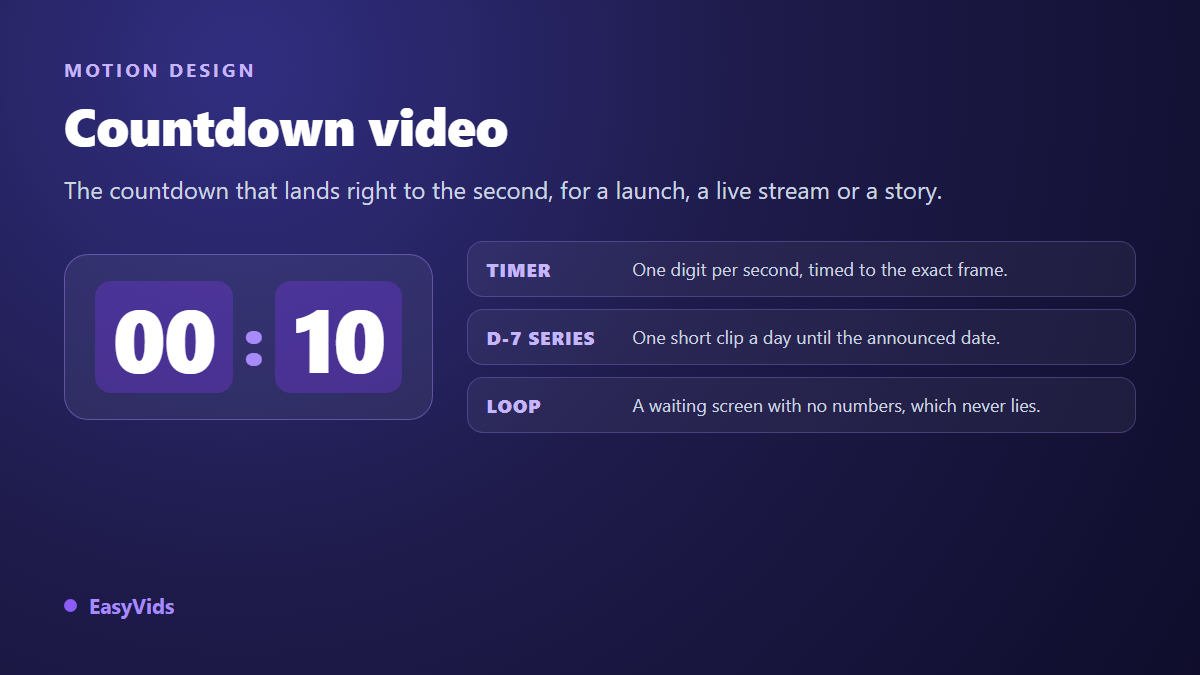
Your live stream starts in ten minutes and you are showing a static image. For those ten minutes nobody knows whether two minutes or eight are left, and part of your audience wanders off. A countdown video solves that without you saying a word: the number falls, viewers wait, and they come back at the exact time. The same object works for an enrolment window, a product drop or a story announcing a date.
The trap sits somewhere unexpected. Making a number go down is easy. Making it go down accurately is not. A timer that loses two seconds over five minutes gives itself away at the precise moment it hits zero and nothing happens. This guide covers both shapes of the format, the second by second timer and the series of clips posted before a date, with the maths, the type settings and the sound cues that make them land. If motion vocabulary is new to you, our complete motion design guide covers the groundwork first.
The short answer
A countdown video is a fixed length clip where a number falls to zero, built in advance and played at the right moment. Three rules govern it. Timing is counted in frames, never in rounded seconds: at 30 frames per second, one second is exactly 30 frames, and the digit change lands on a specific frame. Digits are set in tabular or monospaced figures, leading zero included, so no character jumps in width between steps. And the final ten seconds change pace, because they are the only ones anybody truly watches.
Three different objects share one name
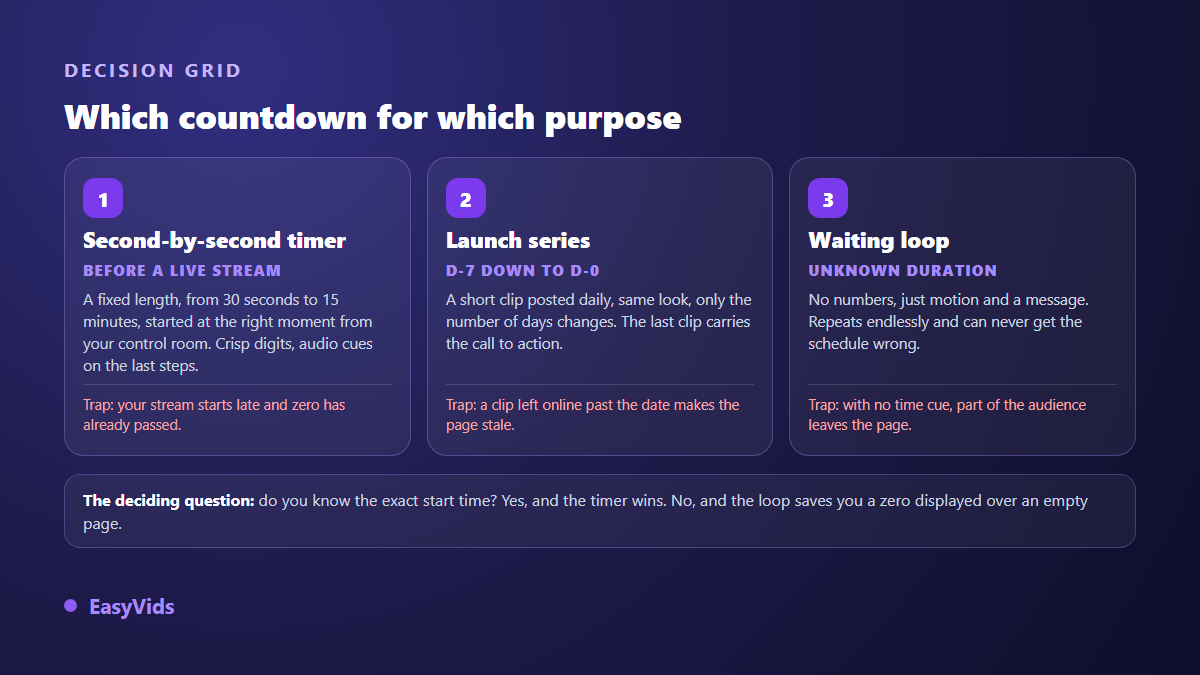
The first is the second by second timer, the holding screen before a live stream, a webinar or a question session. It runs from thirty seconds to a quarter of an hour, shows minutes and seconds, and its whole value rests on being right. The second is the launch series: one short clip a day, from seven days out to launch day, posted as stories or short form video, where only the day number changes. The third, often forgotten, is the waiting loop with no numbers at all: movement, a logo, one sentence, and nothing that can be wrong about the time.
One question decides between them: do you know the exact start time? If you do, the timer wins easily, because it delivers information viewers cannot get anywhere else. If your schedule depends on a guest, an approval or a technical hiccup, the loop spares you the worst outcome of the format: a large zero sitting in front of a page where still nothing is happening.
The maths that stops the drift
A countdown is the one video format where a tenth of a second shows. The cause is nearly always the same: each step was rounded on its own. You ask for sixty one second steps, each is converted to frames with a rounding, and the sixty small errors stack up. Over a minute that stays invisible. Over a quarter of an hour, zero arrives several seconds early or late.
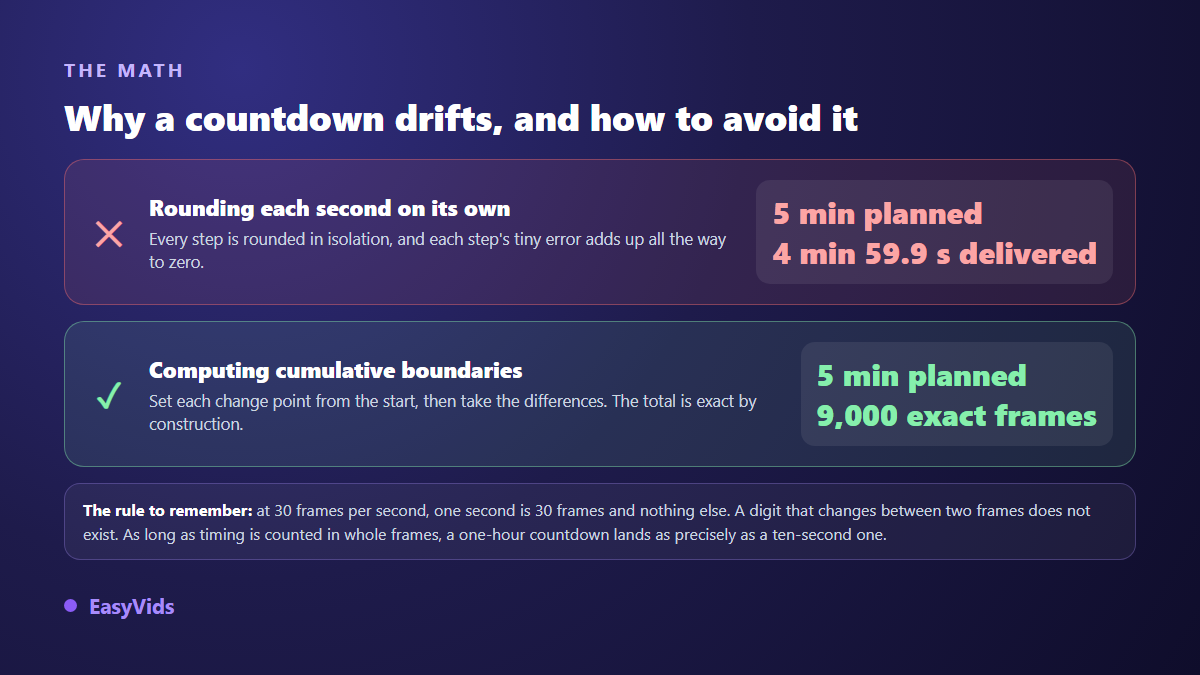
The fix works with any tool: never compute a step duration in isolation. Set the instant of every change from the start of the film, convert those instants to frame numbers, then take the differences. The sum becomes exact by construction. We apply that rule inside our own animation engine, and it is not a theoretical precaution: on a test film the naive method produced 6,133 frames where boundary maths gave 6,136. Three frames, a tenth of a second, invisible in a narration and fatal in a timer.
Anatomy of a screen that reads in one second
A holding screen is watched from a distance, sometimes on a television, often out of the corner of an eye between two tabs. It has to deliver its information with no reading effort. Five layers are enough, and each one does a job the others cannot.
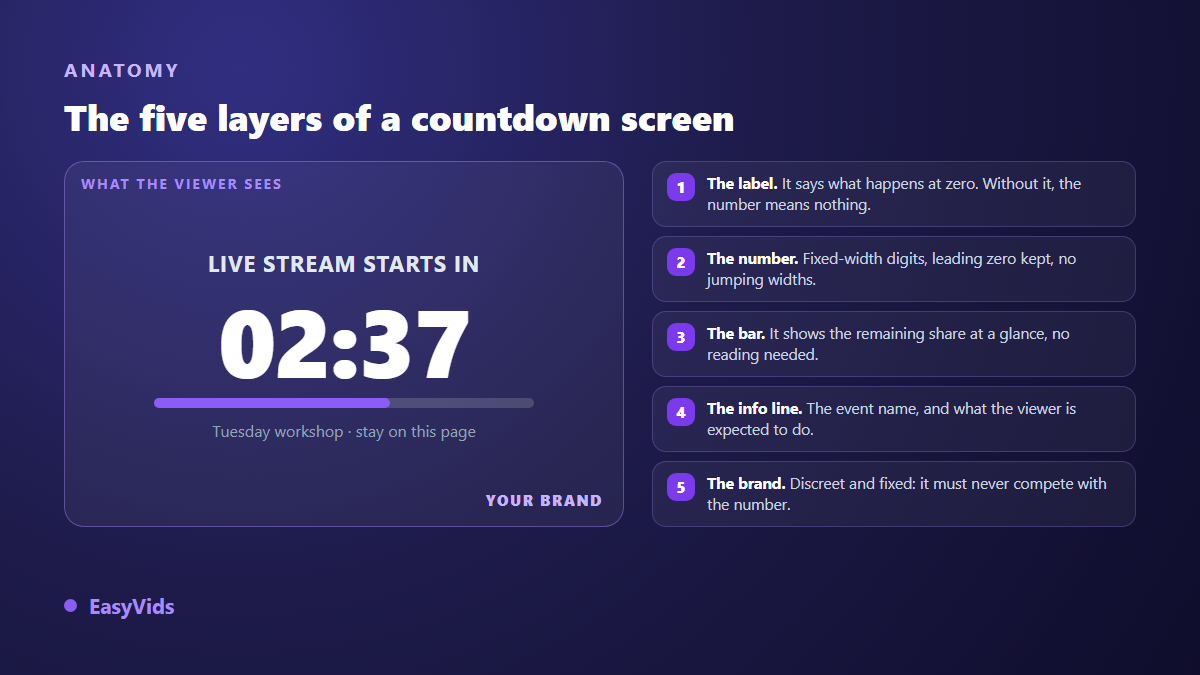
The number itself is the delicate part, for a typographic reason. In most typefaces the 1 is much narrower than the 8, so the number changes width every second and the whole block twitches sideways. The OpenType format provides a set of tabular figures where every digit takes the same width. Turn it on, or pick a monospaced typeface. Keep the leading zero too, because going from 10 to 9 without it shifts everything.
- Tabular or monospaced figures: without them the number dances at every step.
- Leading zero kept: 09 then 08, never 9 then 8.
- One level of precision only: minutes and seconds, or days alone. Never both on screen.
- Strong contrast: the number is almost always the brightest element of the frame.
- No per step animation: an effect replaying every second turns hypnotic in the wrong way.
Around the number, keep the layout plain: a label above, a discreet progress bar, an information line at the bottom, a logo in one corner. If you want to animate the label, use slow entrances and one per screen. The effects worth using here are covered in our nine animated text effects, where restraint matters even more than usual.
The last ten seconds are a different job
For most of its run a countdown is furniture: it fills the screen, it reassures, nobody stares at it. Everything shifts in the final step. At ten seconds attention snaps back, and that is the moment to acknowledge it. Three changes are enough and they stack: the number grows, a slow pulse appears on each second, and a sound marks the passage.
One serious precaution applies to that pulse. The W3C accessibility guidelines for web content, in their 2.1 version published in June 2018, rule out at criterion 2.3.1 any content flashing more than three times per second, because of the risk for photosensitive viewers. A countdown pulsing once a second sits far below that threshold. A strobing effect over the last three seconds falls squarely inside it. Let the rise in intensity come from size, sound and colour, never from fast flashing.
Sound carries half the tension
A silent timer is a clock. A scored timer is an event. It takes very little: a quiet pad throughout, a ticking clock that only appears in the final step, and a single impact at zero. Permanent ticking is the classic mistake, because it tires people within three minutes and leaves no tension in reserve for the end.
The sound library in our editor holds exactly those pieces, produced in house: a tense clock tick, a drum roll, a rising tension bed, a deep impact and a final boom. If you would rather have a bespoke pad than an off the shelf track, our AI music generator guide explains how to get an atmosphere of the length you need, which saves you from crudely looping a track that is too short.
Three ways to build your countdown
The first route is downloading a ready made clip. Fast, often free, and it shows: your brand is nowhere on it, the duration is rarely the one you need, and you meet the same timer on three competitor channels. The second is composing the countdown yourself in an editor, step by step. The third has each shot written for your project, then computed frame by frame.
That third route is what we are building at EasyVids, on the dedicated motion page. No video model is involved. You paste your script, one line becomes one shot, the AI writes an art direction for that specific film and then every animated scene that follows it, and the server photographs the result frame by frame before assembling the film. You can attach up to twelve images, a logo, a typeface and up to five brand colours. For numbers the consequence is decisive: the text stays perfectly sharp and the colours are exactly yours, which no video generation model guarantees today.
Two honest caveats. That part is still under construction and is not open on every account. And every shot there is locked to a voice over, which suits a narrated countdown but not a silent fifteen minute timer. For that case the online editor remains the right answer: one text per step, durations tuned on the timeline, sounds added, then export. The general method is in our online video editing guide, and our plans are listed on the pricing page.
The launch series: one clip a day
The day based version is not a film, it is a collection. You build one template, then derive seven versions where only the number changes. That is where the time saving comes from: one design decision, seven posts. It is also where the trap sits, because a badly dated clip stays online for months after the event.
- One shared layout across the seven clips: same background, same type, same number position.
- A different angle each day: the number catches the eye, the sentence brings the new information.
- The date spelled out inside the clip, so it still makes sense out of context.
- A vertical frame if you post to stories or short form, decided before you compose.
- A distinct final clip, longer, announcing the opening instead of counting.
That final clip deserves separate treatment, because it is the only one asking for immediate action. Build it like an end screen: a promise, a single instruction, and a longer hold than the rest. The layouts that work in that role are gathered in our YouTube outro guide, and they transfer straight to a story or a feed post.
Format and distribution by platform
Choose the frame before writing, never at export. A timer composed in landscape then cropped to vertical loses its label or its information line, and a centred number ends up against the edge. Landscape for a live holding screen, vertical for short form, square for a social feed: size and duration references per platform are gathered in our video format sheet.
Platforms also bring native tools that do part of the job for you. According to the Instagram help centre, the countdown sticker in stories lets viewers turn on a reminder and be notified when the count ends, so your clip becomes the announcement and the reminder handles the follow up. According to the YouTube help centre, a Premiere shows a countdown before the video starts and opens a live chat during the wait. In both cases your video no longer has to be accurate to the second: it dresses the moment, the platform keeps time.
Frequently asked questions
Does a countdown video update itself?
No. A video is a frozen file: the count it shows is the one computed at render time. For a genuinely live count you need a web page widget or a platform sticker. The video keeps two advantages those widgets lack: it posts anywhere, and it carries your full branding.
How long should a pre live holding screen run?
Five to ten minutes in most cases. Shorter, and early arrivals meet a screen already at zero. Longer, and the wait exceeds what most people accept before leaving. A useful habit is to prepare two versions, one long and one short, then play whichever matches the real delay.
Does a countdown need a voice over?
Rarely for a timer, often for a launch series. A holding screen is watched in silence, sometimes for several minutes, and a voice repeating the same line quickly grates. A fifteen second launch clip, on the other hand, gains a lot from a voice giving the date and the reason to show up.
Can a countdown video be looped?
A numbered timer, no: it would restart from its opening value after zero, which reads terribly. A waiting loop with no numbers, yes, and that is its whole purpose. If you want both, play the loop first and start the timer once the schedule is certain.
What frame rate suits a countdown?
Thirty frames per second is plenty, and twenty five works too. What matters is not the value but the consistency: the digit change must land on a whole number of frames at that rate. A fractional rate such as 29.97 complicates the maths without adding anything to an object this simple.
Take your next public appointment, decide whether its start time is certain, then choose between the timer and the loop: half the hard decisions are already behind you. The rest comes down to a monospaced typeface, an honest label and three well placed sounds. To write, illustrate, score and edit all of it in one place, create your account: the EasyVids studio holds those steps together without switching tools.