The shot was supposed to look cinematic. You slowed it down, and now the motion advances in steps, like a stack of photos flipped one by one. A stuttering slow motion video is almost never the fault of the speed slider. It is the fault of how many frames your file held before you touched anything.
The good news is that the problem is predictable with one multiplication, and fixable in a browser with nothing to install. Here is the calculation that decides everything, the settings to apply to a clip, what happens to the sound, and the honest limit of what editing can rescue after the shoot. If browser editing is new to you, our guide to editing video online covers the ground this article assumes.
The short answer
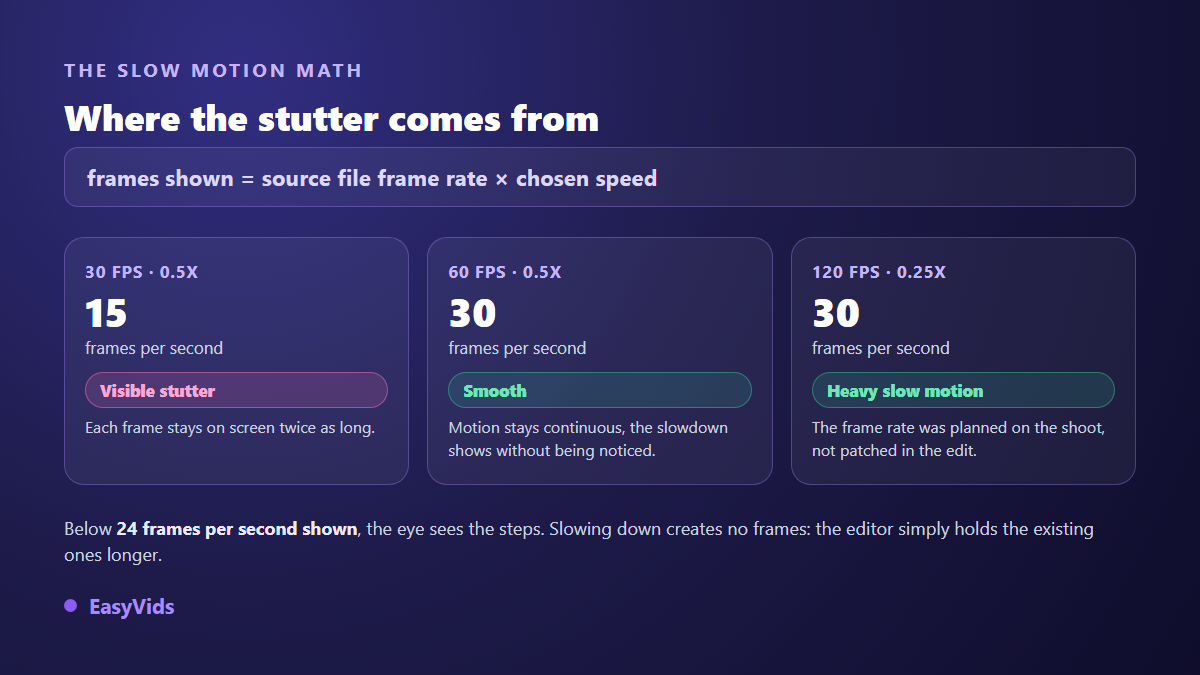
Slow motion stays smooth as long as the video still shows at least twenty-four frames per second after the slowdown. The maths fits on one line: source frame rate multiplied by the speed you choose. A shot filmed at 60 frames per second played at 0.5x still shows 30, and nobody sees a stutter. The same shot filmed at 30 frames per second drops to 15, and everybody does. For strong slow-mo, film at 120 or 240 frames per second. For footage already in the can, stay between 0.5x and 0.8x, and keep the slowed passage short.
Why slow motion stutters
Video is not continuous motion, it is a run of still frames. Slowing down creates no extra frames: the editor simply holds the existing ones on screen for longer. At 0.5x every frame stays twice as long. At 0.25x, four times as long. Motion starts advancing in jumps, and the eye catches it immediately.
Some professional software works around this by computing intermediate frames, a technique known as motion interpolation. It sometimes looks excellent, and sometimes produces rippling edges, melting hands and sliding backgrounds. Our online editor does not invent those frames: it picks the source frame closest to the requested instant. The result is clean and predictable, but the smoothness depends entirely on what your file already contains.
The frame rate table worth memorising
Before you set any speed, check the frame rate of your file. A phone usually records at 30 frames per second in normal video mode, sometimes 60 once the setting has been changed. Here is what each combination actually puts on screen.
- 30 fps at 0.5x: 15 frames displayed. Clear stutter on any fast movement.
- 30 fps at 0.8x: 24 frames displayed. A gentle slowdown that still holds.
- 60 fps at 0.5x: 30 frames displayed. Smooth, and the safe default.
- 60 fps at 0.25x: 15 frames displayed. Too ambitious for the source.
- 120 fps at 0.25x: 30 frames displayed. Strong slow-mo, still clean.
- 240 fps at 0.125x: 30 frames displayed. Spectacular, and daylight only.
The shortcut: divide your source frame rate by 24 and you get the strongest slowdown the file can take before the steps show. A 30 fps file survives a factor of 1.25, which is 0.8x. A 240 fps file survives a factor of ten.
Filming for slow motion
Slow motion is won at the camera. According to the technical specifications published by Apple, recent iPhone models offer a slo-mo mode at 1080p in 120 or 240 frames per second, and most high end Android phones provide equivalent modes. They usually sit in a separate tab of the camera app. Light matters just as much: shooting at 240 frames per second cuts the exposure time of each frame to an eighth of what it is at 30, so the sensor compensates with gain, and grain arrives. Slow motion loves daylight.
Slowing a clip in the browser, step by step
In the EasyVids online editor the whole operation takes under a minute, and the order never changes. The decisive part comes first: isolate the passage you want to slow, otherwise the speed applies to the entire clip. Our method for trimming a video online covers frame accurate cutting.
- Import your file and drop it on the timeline.
- Park the playhead at the start of the passage, press S to split, then repeat at the end so the section becomes its own clip.
- Select that clip and open the Adjustments panel, Speed section.
- Click 0.5x, or type an exact value if you are aiming for a set duration.
- Listen before touching anything else: speed changes the sound too.
- Check the joins with the neighbouring clips, then export.
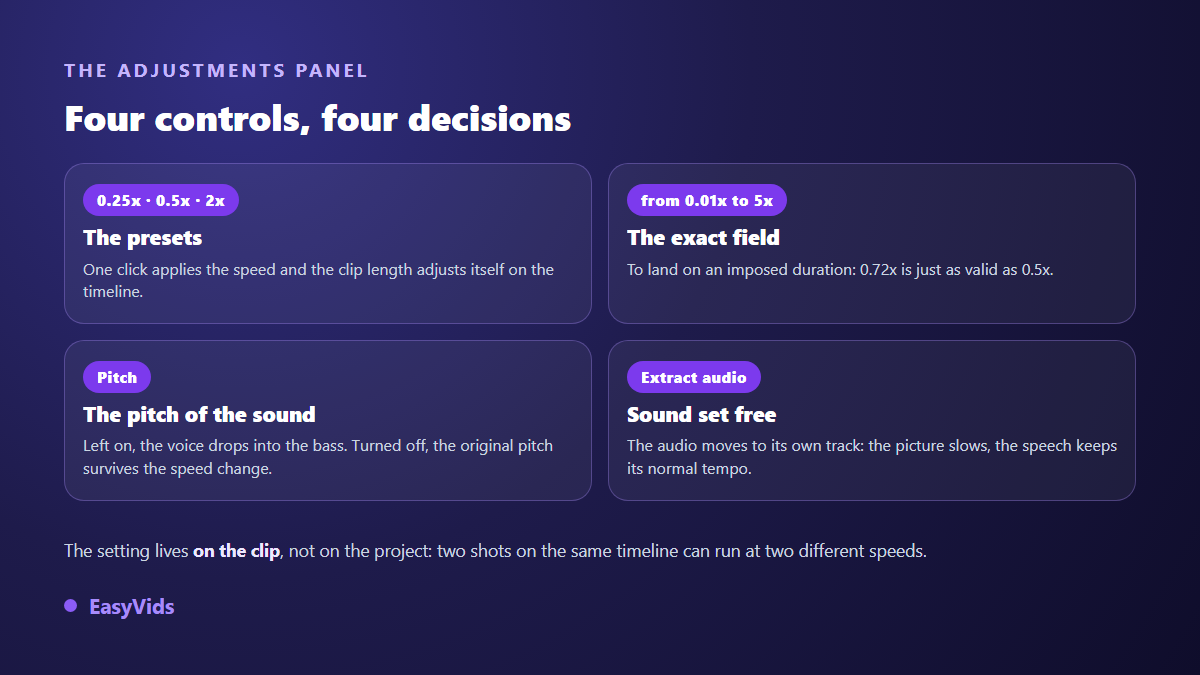
Three details are worth knowing. The setting lives on the clip, not on the project, so neighbouring shots can run at different speeds. Presets run from 0.25x to 4x, and the field accepts any value between 0.01x and 5x for edge cases. The clip length adjusts itself on the timeline: a four second section at 0.5x occupies eight, so leave it room on the track.
The audio follows the speed, and everyone hears it
Slowing a video slows its soundtrack. A voice sinks into the low register, music drags, a sharp sound turns to mush. The Speed panel carries a switch for exactly this: leave it on and the pitch drops with the speed, which gives the familiar cavernous effect. Turn it off and the original pitch is preserved while the duration stretches. On a voice, the second option is almost always right.
On a strong slowdown no setting saves the original audio: at 0.25x speech becomes unintelligible even with the pitch held. Separate the two instead. The Extract audio command moves the shot's sound onto its own track, where it keeps normal tempo while the picture crawls. You can also replace it entirely, and our tutorial on adding music to a video shows how to fit a bed to the exact length of the shot.
Slowing one moment rather than a whole shot
Twenty seconds of slow motion impresses nobody, it bores. The effect draws its power from contrast: normal motion, one or two suspended seconds, then the release. Editors call it a speed ramp.
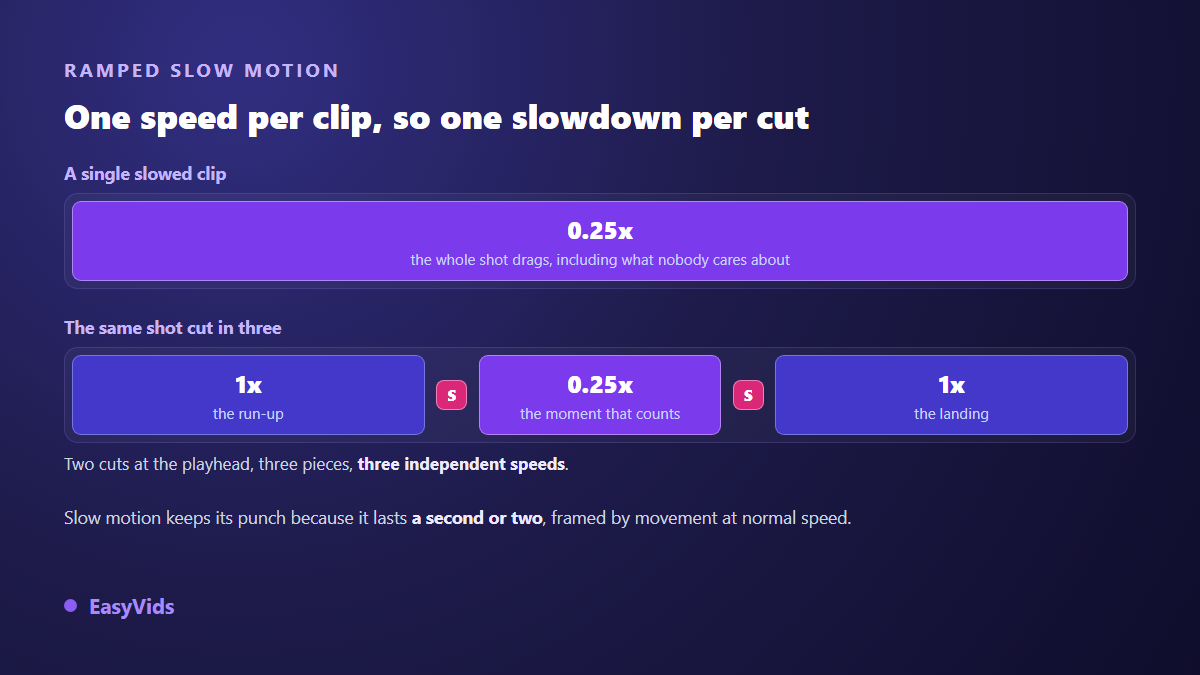
The editor applies a constant speed per clip, with no curve to draw. So the ramp is built by cutting, and what reaches the screen is identical: two cuts around the key instant, three pieces, three speeds. The middle piece goes to 0.25x, the pieces around it stay at 1x. Add a half second audio fade on each side if music runs underneath, otherwise the join is audible.
What slow motion will never fix
Slow motion is a magnifying glass. It holds every frame longer, so it holds every flaw longer. Motion blur that passes unnoticed at normal speed jumps out at 0.5x. Hesitant focus becomes a long soft patch. If the shot already lacks sharpness, deal with that first: seven common causes of blurry video is the better starting point, because no speed setting replaces a sharp frame. Slow motion adds no resolution either, and it gives compression blocks all the time in the world to be noticed.
Slowing an AI generated shot
Current video models deliver short shots, often a few seconds. Slowing them acts as an extension: a five second clip at 0.5x fills ten. It works better on a contemplative shot than on fast action. The alternative is to produce longer sequences directly, which our guide to longer AI videos compares on a real project. One habit beats every setting here: ask for slow motion in the prompt itself. Motion generated slow from the start always looks cleaner than normal footage slowed afterwards.
Exporting without losing the smoothness
The project carries its own frame rate, set in the parameters under Frames per second, with a choice of 24, 25, 30, 60 and 120. That value drives the exported file. Slowing a 60 fps shot and then exporting the project at 24 throws half the work away. The editor limits the risk by raising the project frame rate automatically when you import media that runs faster. According to the YouTube help centre, common supported frame rates run from 24 to 60, and the official recommendation is to encode and upload at the rate you recorded, with no conversion in between.
Frequently asked questions
Can I slow down a video filmed at 30 frames per second?
Yes, as long as you stay modest. Down to 0.8x the result holds; below that the steps become visible on any fast movement. A shot that was already slow, a face, a steady pan, takes a slowdown far better than a quick gesture or a subject crossing the frame.
What speed should I use for slow motion?
0.5x is the safe default once the source runs at 60 frames per second. 0.25x demands 120 frames per second at capture. If you only need to stretch a shot to hit a set duration, something like 0.8x is barely noticeable and costs no smoothness.
How do I slow the picture without wrecking the voice?
Two options. Turn off the switch that lets the pitch fall with the speed, and the original pitch is kept while the duration stretches. Or extract the audio onto its own track, where it keeps normal tempo whatever the picture does.
Does slow motion reduce video quality?
It removes no pixels, but it gives the viewer time to notice existing flaws: motion blur, compression artefacts, soft focus. Resolution itself does not change. A sharp shot slowed stays sharp, and a soft shot slowed becomes genuinely uncomfortable.
Can I slow only part of a video?
Yes. Split the clip at the start and end of the passage, then apply the speed to the middle piece. Every clip keeps its own speed, so you can run 1x, 0.25x and 1x inside a single shot with no extra software.
Good slow motion comes down to very little: a source with enough frames, a speed chosen to match it, a short passage, and audio handled separately. The rest is three clicks. To try it on your own footage, create an account and open the editor in your browser: the EasyVids studio keeps cutting, speed, sound and export in one place.