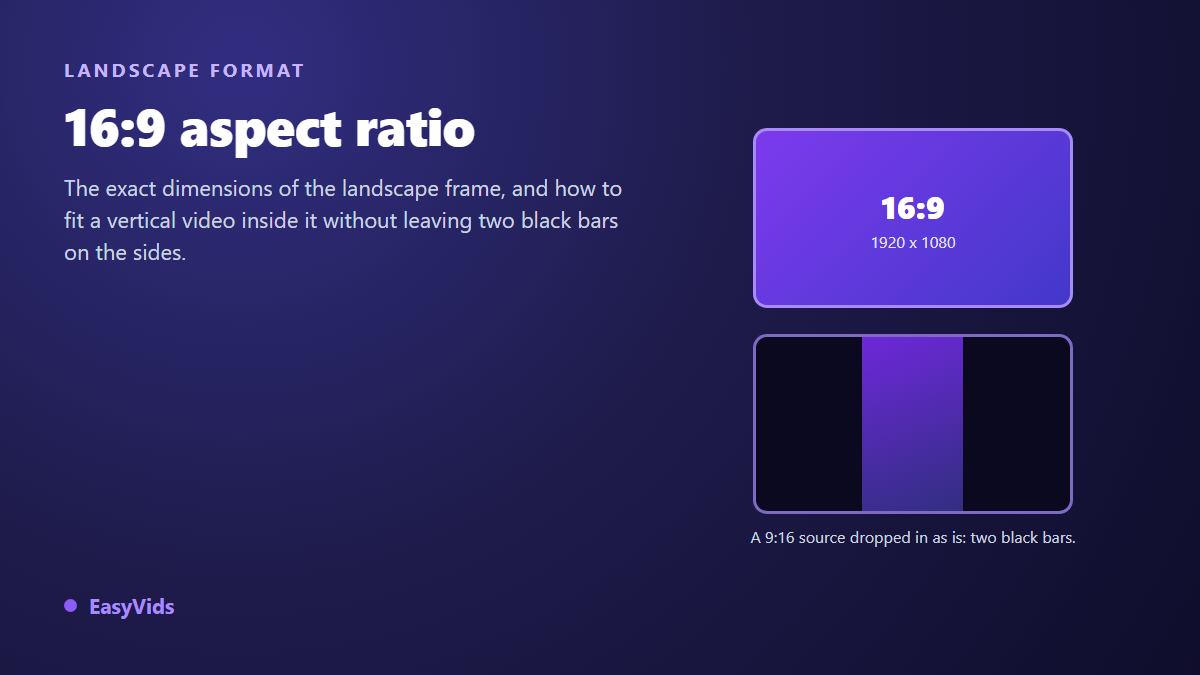
You export your video, you upload it, and two black bars frame the picture. Or the opposite happens: a clip shot on a phone ends up squeezed into the middle of a wide screen, tiny, with empty space on both sides. Both problems share one name, the 16:9 aspect ratio, and both are settled upstream, when you choose your dimensions, not afterwards on a finished file.
16:9 is still the default frame of television sets, computer monitors and horizontal video players. It looks simple, and yet it produces more black bars than any other ratio, because it has lived alongside vertical video for years. This article stays on the technical side: exact dimensions per use case, the precise cause of the bars, and conversion in both directions without leaving a single one. For the platform by platform overview, our general guide to video formats already covers that ground.
The short answer
The 16:9 aspect ratio describes a picture 16 units wide for 9 units tall, a value of 1.7778. Three sizes matter: 1920 x 1080 pixels for a standard export, 3840 x 2160 for 4K, and 1280 x 720 for a light file. Black bars never appear on their own. They tell you a file of a different ratio was dropped into a 16:9 frame. The right answer is always to fill the frame, by cropping, by extending the scene, or by rebuilding the shot in the correct format.
What 16:9 means, and where 1.7778 comes from
A ratio is not a size, it is a proportion. 16:9 says nothing about pixel counts: 1920 x 1080 and 1280 x 720 are two sizes of the same frame. You get the proportion by dividing width by height. 1920 divided by 1080 gives 1.7778, and 1280 divided by 720 gives exactly the same number. That number, and nothing else, decides whether your video fills the screen or floats inside it.
The frame is not arbitrary. Recommendation ITU-R BT.709, which defines high definition television, sets the picture format at 16:9 on a grid of 1920 x 1080 square pixels. Hardware followed: TV panels, webcams, camera sensors in video mode, web players. Other proportions become easy to compare once turned into a number. Old 4:3 is 1.3333, vertical 9:16 is 0.5625, a wide cinema ratio such as 2.39:1 is 2.39. The further you sit from 1.7778, the thicker the bars.
Exact 16:9 dimensions, use case by use case
Not every 16:9 size is worth the same. Pick yours from the destination and from the real quality of your source, never from the idea that bigger is better. Upscaling a soft picture does not sharpen it, it only builds a heavy file that takes longer to upload.
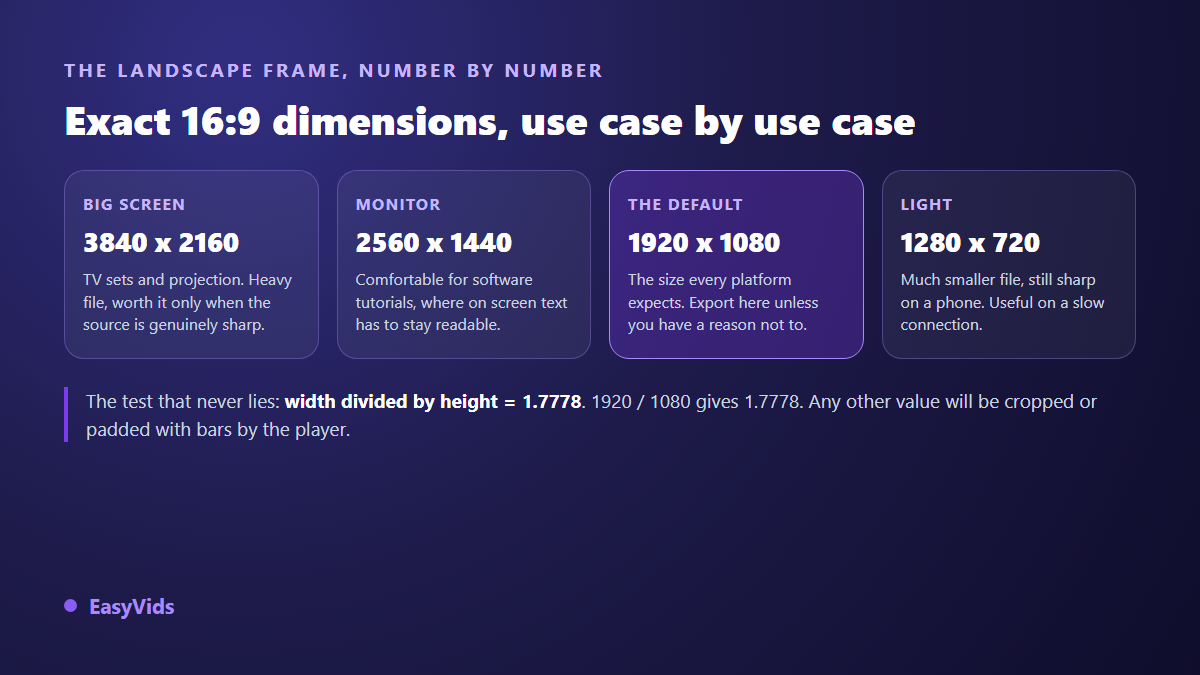
- 3840 x 2160: 4K in 16:9. Keep it for videos headed to a big screen, or when you want room to crop later without losing sharpness.
- 2560 x 1440: comfortable for a software walkthrough, where on screen text has to survive compression.
- 1920 x 1080: the reference size. It is the upload format nearly every landscape platform expects, and the best trade between sharpness and file weight.
- 1280 x 720: half the pixels, a much lighter file, still sharp on a phone. The right pick for messaging or a slow connection.
- 854 x 480: careful, this one is not a perfect 16:9. The exact value would be 853.33, rounded up to 854 to stay even. The gap is invisible, but it explains a one pixel shift on some encoders.
Two practical rules come with those numbers. Width and height must be even, or most encoders will reject the file or trim a pixel. And compressors work in blocks of sixteen pixels: since 1080 is not a multiple of sixteen, the encoder quietly pads the picture, then crops it back on display. Nothing for you to do, but it explains the thin stray line that hand made exports sometimes show along the bottom edge.
Where black bars actually come from
A black bar is not a player defect, it is padding. When a file does not match the proportion of the frame receiving it, the player has two choices: crop the picture until it fits, or shrink it until it fits entirely and then fill the leftover space. Most platforms pick the second option, because it loses no information. That filled space is your bars.
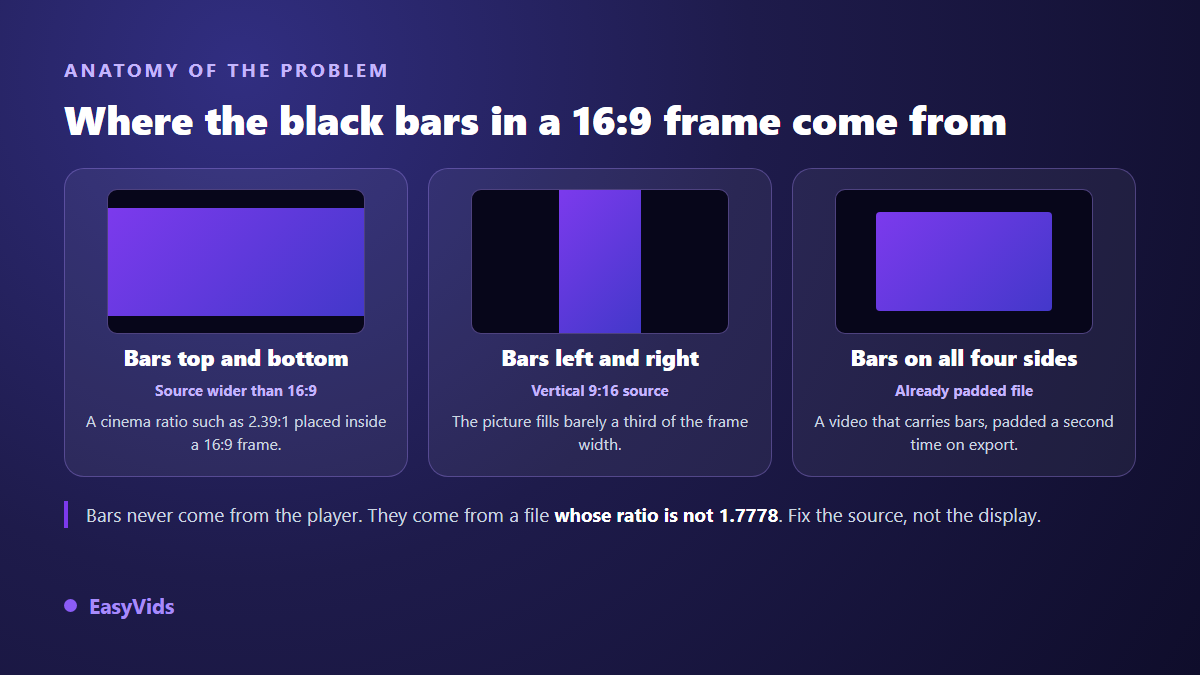
The technical vocabulary names three cases. Letterbox puts the bars top and bottom: the source is wider than 16:9, a cinema ratio for instance. Pillarbox puts them left and right: the source is vertical or square. Windowbox puts them on all four sides, and that one is always a mistake, because a file that already carried bars was padded a second time. Fix it at the source, going back to the original project rather than cropping the export.
The common case: vertical footage in a horizontal frame
This is the situation that shows up most often now that production starts on a phone. A vertical 1080 x 1920 clip placed in a 16:9 frame fills barely more than a third of the width. The arithmetic is simple: the picture has to fit in height, so it shrinks to 608 pixels wide by 1080 tall, leaving 1312 pixels of empty space to split between the two sides. That is close to seven tenths of the usable screen surface gone.
According to the YouTube help centre, the platform player is built around a 16:9 frame, and files of another shape are adjusted to it, Shorts having their own vertical player. The same logic applies to horizontal social feeds and to any website where your video sits in a fixed width block. If that is where your video will live, the recommended upload settings for YouTube cover the resolution and bitrate to aim for.
Converting a vertical video to 16:9 without black bars
Four methods exist, and they are not equivalent. The choice always comes back to one question: what can this particular shot afford to lose?
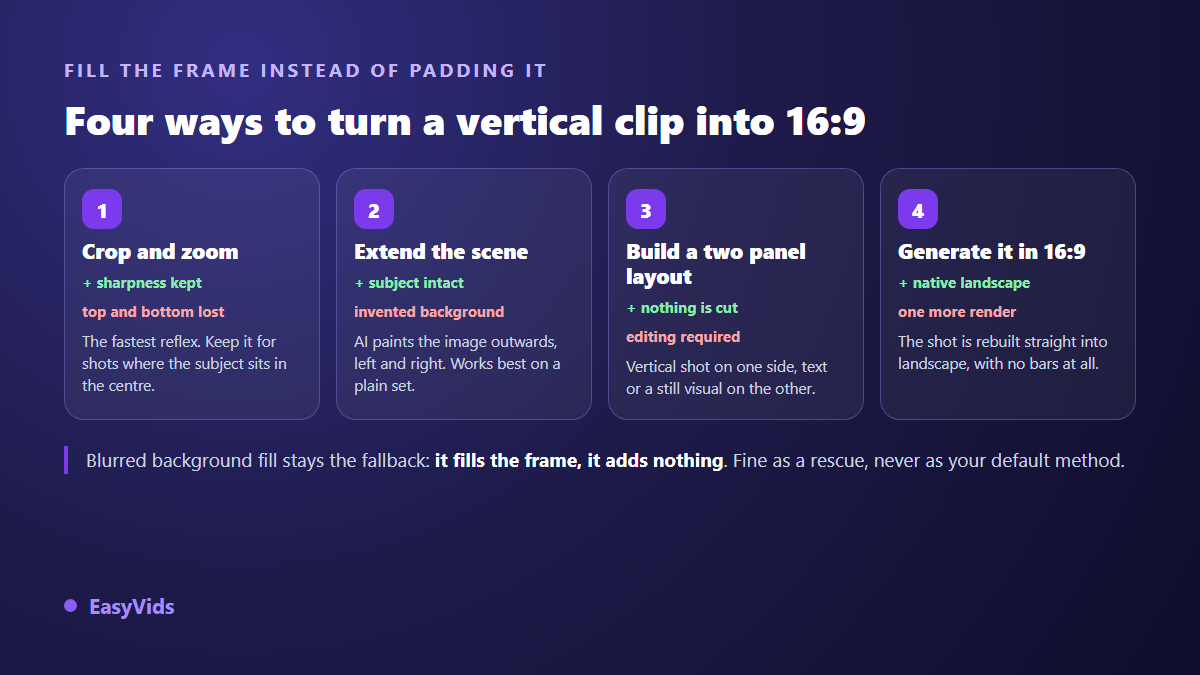
Cropping keeps the central strip of the vertical picture and throws away the top and bottom. It preserves every available pixel of sharpness and takes no time at all, and it cuts off heads or feet as soon as the subject fills the height. Keep it for shots where the action sits in the middle, a close up face for example.
Extending the scene asks an image model to paint the set further left and right until the frame is full. The subject stays whole, nothing is cut, and the added background is invented. It works remarkably well on a plain backdrop, a wall, a sky, a blurred street. It works far less well when the background carries text, a logo, or regular architecture the model will bend out of shape.
A two panel layout puts the vertical shot on one side of the frame and something useful on the other: a headline, a quote, a screenshot, a second angle. It is the standard answer for teaching formats and interviews. It cuts nothing and invents nothing, in exchange for real layout work. The fourth method, the best one whenever it is available, is to generate the shot directly in 16:9 instead of patching what already exists.
That leaves blurred background fill, which is everywhere: the picture is enlarged until it covers the frame, blurred, and the sharp video is laid back on top. Technically there is no black bar left. Visually, the blurred zone carries no information and tells the viewer this shot was never planned for this frame. Keep it as a rescue, never as your default.
The other direction: 16:9 to vertical
Going the other way is harsher, because it throws material away. Cropping a 1920 x 1080 file to 9:16 keeps a column 608 pixels wide by 1080 tall, slightly under a third of the picture. To reach the 1080 x 1920 vertical platforms expect, that column then has to be enlarged, which costs sharpness. Vertical sizes are covered in detail in our article on the 9:16 aspect ratio.
Two habits limit the damage. Shoot or generate in 4K when you know a vertical crop is coming: a column taken from 3840 x 2160 is 1215 pixels wide, enough to fill a vertical frame with no upscaling at all. And track the subject instead of cropping to the centre once and for all, which is exactly what our method for cropping a video without cutting the point describes.
Cropping cleanly, in five moves
- Find the main subject of each shot before touching the frame. A single crop applied to a whole video is bound to off centre some scenes.
- Put the frame on that subject, not on the geometric middle of the picture.
- Check burnt in text: titles and captions from a landscape version almost always fall outside a vertical frame and need repositioning.
- Watch the start and end of each shot. A subject entering from the left vanishes entirely when you only keep the central column.
- Export at the exact size of the destination instead of letting the platform resize your file for you.
Safe areas inside a 16:9 frame
A full frame is not enough, the information still has to be visible. EBU Recommendation R 95, which defines safe areas for 16:9 production, holds that no essential text should touch the edges of the picture. The reason has changed over time: it used to be television overscan, today it is platform overlays, the progress bar at the bottom, the channel name, the subscribe button.
In practice, keep roughly five percent of margin on every edge for anything meant to be read, and more at the bottom where player controls stack up. If you plan to reissue the same video vertically, also compose your shots around a central column: whatever lives in that column will survive the crop, the rest will not.
Produce in the right frame instead of converting
All of this juggling disappears when the format is decided before generation. An online studio has you pick the frame first, then builds every shot, every background image and every text overlay at that proportion. No bars, no cropping, no severed subject, because no picture ever had different dimensions. The EasyVids studio works that way: the format chosen on the first screen is the one every later visual inherits, right through to the exported file.
When one idea has to live in both landscape and vertical, converting is not the best route. Producing two native versions from the same script is. The voice over and the scene breakdown are reused as they are, only the visuals are rebuilt in the right frame. For the vertical version, the expected sizes are listed in our sheet on TikTok video format.
Five mistakes that leave black bars
- Exporting a project made entirely of vertical shots in 16:9. The bars are then baked into the file, and no platform can strip them out later.
- Cropping a file that already carries bars instead of going back to the source. You end up with bars inside bars.
- Picking an approximate size, 1900 x 1080 for example. The ratio does not land on 1.7778, and the player adds a thin bar on one side.
- Relying on the platform to resize. It will, with its own compression, and the result is always softer than a properly calibrated export.
- Forgetting the thumbnail, which follows its own dimensions. A vertical thumbnail on a landscape video reproduces the same bar effect in suggestion lists.
Frequently asked questions
What is the exact size of a 16:9 video?
The reference size is 1920 x 1080 pixels. Any size whose width divided by height gives 1.7778 is also 16:9: 3840 x 2160, 2560 x 1440, 1280 x 720, 640 x 360. Pick the smallest one that still looks sharp on the target screen, and your file will be lighter and quicker to start.
How do you remove black bars from a video?
If the bars are added by the player, re exporting the file at the right proportion is enough. If they are baked into the picture, you have to crop them out, which changes the ratio of the file and usually forces a second adjustment afterwards. Either way, the real fix belongs to the original project, not to the finished video.
Can you convert 9:16 to 16:9 without losing quality?
Without losing sharpness, yes, provided you crop rather than enlarge: you keep the original pixels and discard the top and bottom. Without losing information, no. Only regenerating the shot in landscape or building a two panel layout avoids sacrificing part of the picture.
Is 16:9 obsolete now that vertical dominates?
No, the two frames serve different uses. Vertical rules the feeds people scroll on a phone. 16:9 remains the format of long videos, tutorials, software demos, connected TV sets and any viewing on a wide screen. The channels that perform best publish in both, produced separately rather than converted.
What is the difference between 16:9 and 16:10?
16:10 equals 1.6, a slightly taller frame than 16:9. You meet it on some laptop screens and office projectors, almost never in video distribution. A 16:9 video shown on a 16:10 screen gets two thin bars top and bottom, which is normal and needs no correction on your side.
The 16:9 aspect ratio asks for no complicated expertise: one proportion, 1.7778, one reference size, 1920 x 1080, and one rule, fill the frame instead of padding it. Everything else is decided when you choose the format, before the first image is generated. To build a landscape video framed correctly from the first shot to the export, open an account and start a free trial: the frame you choose at the start is the one you get in the final file.