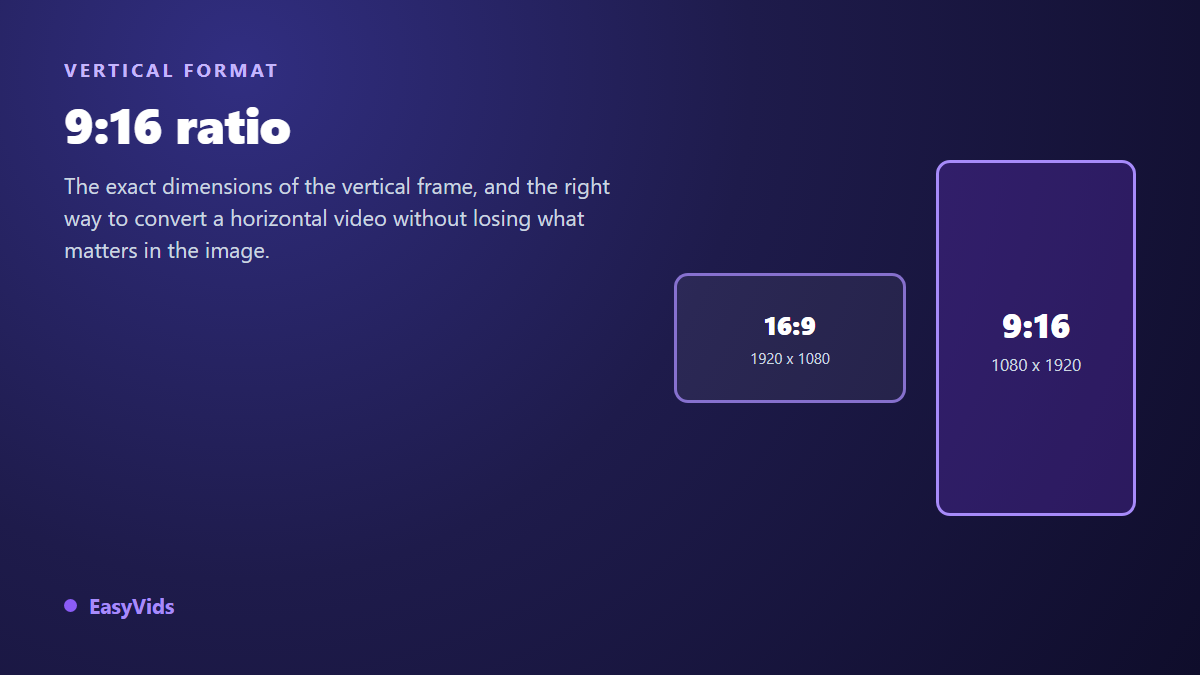
You post a video to a vertical feed and what you see is not what you approved. Black bars top and bottom, a face cut off at the chin, a title half hidden behind the caption. Nine times out of ten the culprit is neither your footage nor your edit: it is the 9:16 aspect ratio, the upright frame every mobile feed expects and that a horizontal file never satisfies on its own.
The good news is that the whole subject fits into three numbers and two gestures. Once the dimensions make sense, conversion becomes mechanical and you stop losing shots at export. This guide gives the exact values, the check that validates any file, and the conversion methods ranked by what each one costs you in image. For a wider table of every format and every platform, our video format reference covers the whole map.
The short answer
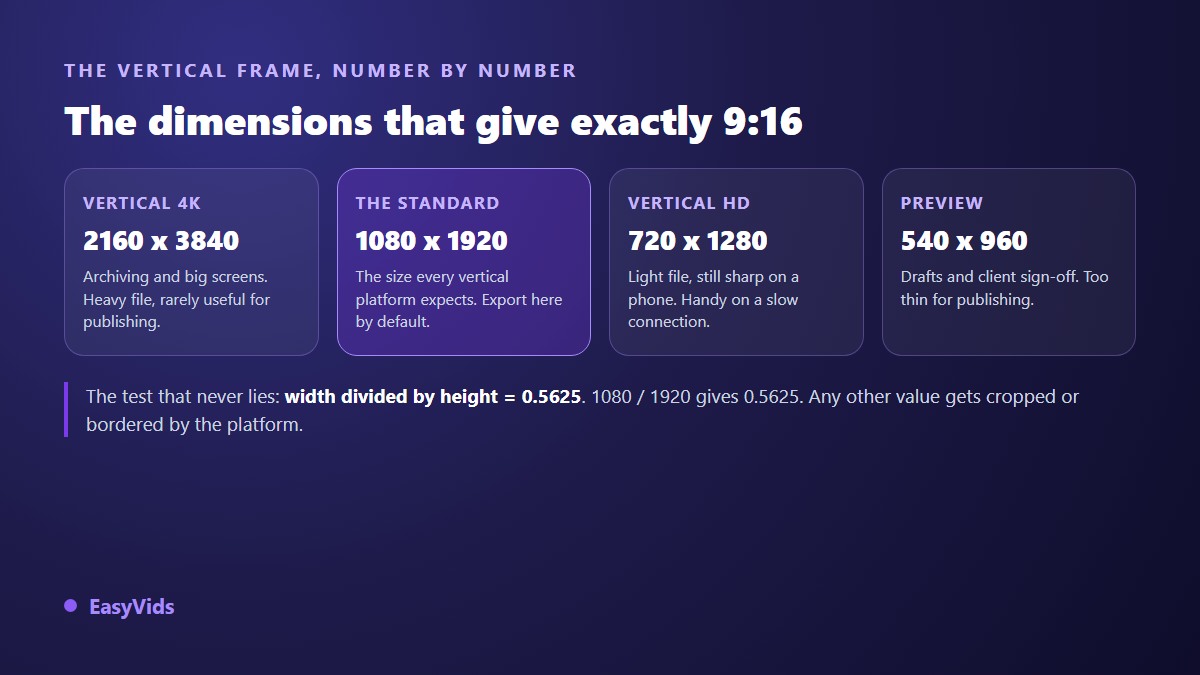
The 9:16 aspect ratio describes an upright frame, 9 units wide by 16 tall. The reference size is 1080 x 1920 pixels, delivered as MP4 with H.264. To check any file, divide its width by its height: the result has to be 0.5625. A 1920 x 1080 file gives 1.7778, which is 16:9, so the platform will either crop it or pad it with bars.
What 9:16 actually means
An aspect ratio is not a size, it is a proportion. It describes the shape of the frame, never its pixel count. Two videos can share the same 9:16 ratio while one weighs ten times more than the other: 720 x 1280 and 2160 x 3840 are identically vertical, only their resolution differs. That is why platforms talk about ratio in one paragraph and recommended resolution in the next. The two ideas complete each other.
9:16 is the exact inverse of 16:9, the wide frame inherited from high definition television. It won for a simple physical reason: a phone is held upright. The thumb scrolls, the screen stays vertical, and a horizontal video occupies only a narrow band in the middle. A 9:16 video fills the whole screen, which is where its watch time advantage comes from.
The exact dimensions that give a perfect 9:16
Every value below matches the proportion to the pixel. The middle one is what matters at export: past a certain point you are building a heavy file the platform will re-encode anyway.
- 2160 x 3840: vertical 4K. Worth it for archiving or a large display, rarely for publishing.
- 1080 x 1920: the reference. The public documentation from TikTok, YouTube and Meta all converge on this size for vertical formats.
- 720 x 1280: half the weight, still sharp on a phone. The sensible compromise when upload speed matters.
- 540 x 960: drafts and client approvals only. Too tight as soon as there is on screen text.
- 360 x 640: the smallest readable size, keep it for technical tests.
One technical detail sinks a lot of homemade exports: some encoders demand even dimensions. Every value in that list qualifies. If you build a custom frame, always round to an even number, otherwise the export stops on an error that explains nothing. For platform specific upload settings, our TikTok video format sheet lists the expected values.
Where 9:16 belongs, and where it does not
The upright frame took over everywhere content is consumed with a thumb: Shorts, Reels, the TikTok feed, stories. According to the YouTube Help Centre, a Short is defined as a vertical or square video that stays short, and it is that shape which sends it into the dedicated feed. Stories push the constraint further because the interface layers elements on top of the picture, which our Instagram story dimensions sheet breaks down zone by zone.
Three use cases go the other way. A software demo, where the captured screen is horizontal by nature. A long tutorial watched on a desktop. And a video embedded on a website or a product page, inside a wide player. Forcing vertical there sacrifices useful information to follow a trend. Pick the format from where the video will be watched, never from taste.
Converting 16:9 to 9:16: three methods, three outcomes
The problem is arithmetic before it is artistic. Take a 1920 x 1080 file. To fill a 1080 x 1920 frame, height becomes the constraint: you keep 1080 pixels of height, so 1080 multiplied by 9 divided by 16, which is 607.5 pixels, rounded up to an even 608. Out of the original 1920 pixels of width, you keep less than a third. Roughly 68 % of the picture width is thrown away. No tool escapes that calculation, there are only three ways to handle it.
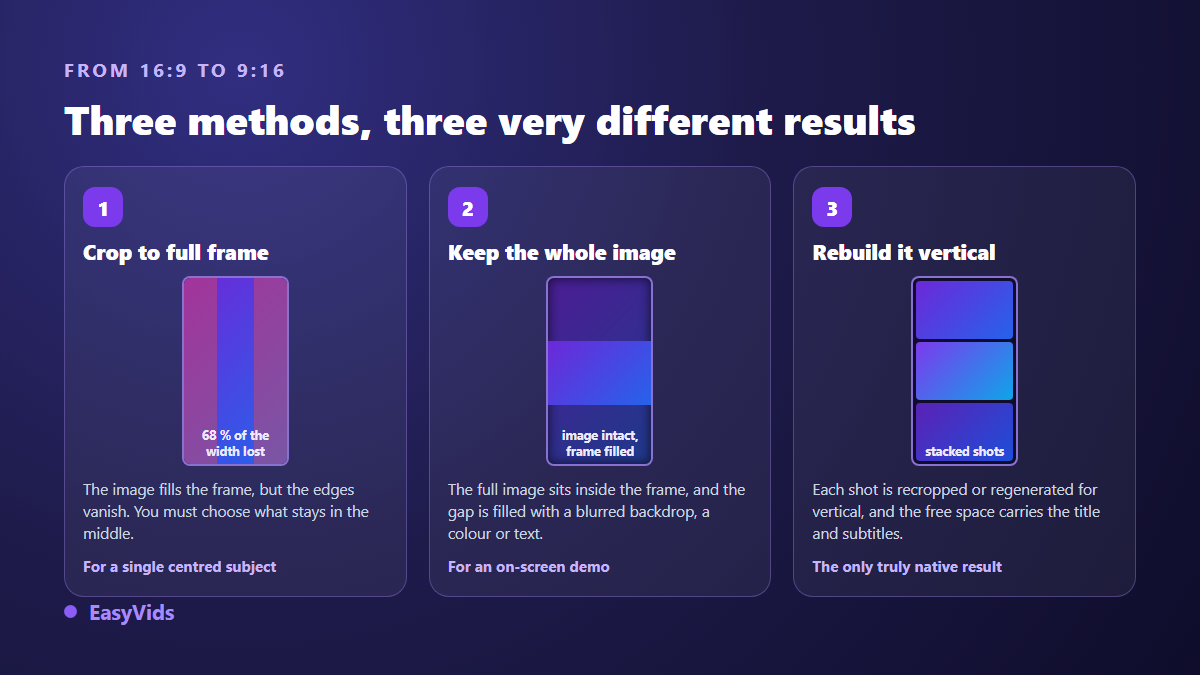
Method one, the fill crop. You scale the picture until it fills the vertical frame, then decide which part stays visible. Sharp, full screen, no bars. It only works when the subject fits a central column: a face, a product, a presenter. As soon as two people talk in shot reverse shot, or text runs across the full width, this method destroys the information.
Method two, the whole picture inside the frame. You keep the full shot and fill the space above and below. A blurred copy of the footage is the most elegant filler, a solid colour the most readable. That space is not wasted: it is where the title, the captions and the call to action live. On a screen demo this is almost always the right call.
Method three, the vertical re-edit. Every shot is rebuilt for the upright frame, cropped individually or regenerated at the right ratio. It is the only genuinely native result, and the only one that costs real work. It pays off when the vertical version is the main version, not a by-product.
Step by step in a browser based editor
The moves are the same in any serious tool, and there are six of them. All of it happens in the browser with nothing to install, as our guide to editing video online explains.
- Create the project at the right frame from the start: the EasyVids editor offers 16:9, 9:16, 1:1 and 4:3 presets, plus a free width and height.
- Import the horizontal video, then drop it onto the vertical canvas.
- Choose your method: scale the clip until it overflows the frame for a full screen crop, or shrink it until the whole shot is visible.
- Move the clip so the subject sits in the upper half of the frame, where the eye lands first.
- Fill the empty space: a blurred copy of the clip behind, a block of colour, a title, captions.
- Check the frame rate before export, 24, 25, 30, 60 or 120 frames per second depending on your source, then export to MP4.
One thing is worth confirming in any tool before you launch a long export: the frame has to belong to the project, not to an export option applied at the last second. A project built in 16:9 and flipped to vertical on the way out gives you a crop you endured rather than a crop you chose.
Safe zones, or why your title disappears
A 9:16 frame is never shown in full. Apps layer their own interface over the video: account name and navigation at the top, caption and action button at the bottom, a column of buttons down the right side. Your picture is complete in the file, but part of it is hidden on screen, and that part shifts from one app to the next.
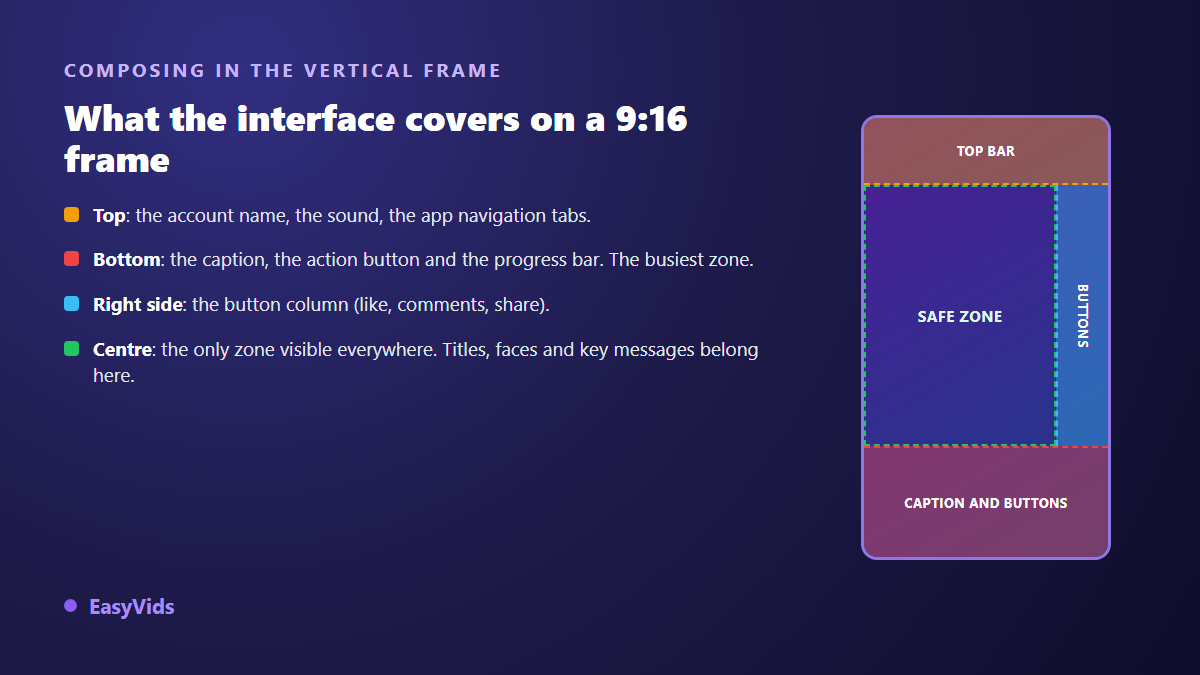
The rule we apply to our own edits is deliberately generous, because interfaces change faster than blog posts: nothing important in the top 15 %, nothing important in the bottom 25 %, and a margin on the right for the button column. What remains is a comfortable central area, plenty for a face, a product and two lines of text. Then test on a real phone before publishing a series. That check is the only one that counts.
Better than converting: produce in 9:16 from the start
Converting is repair work. A clean result always comes from a video conceived vertical from its first frame. When the content is generated, that decision happens before production rather than after: you lock the project format and every shot is born upright. In our studio the choice is stored with the project and held all the way to the final file. An image model that cannot genuinely produce vertical output is refused when you start the job, with a clear message, instead of quietly returning 16:9 you would discover at assembly. The server side edit then builds the frame from that ratio, with the chosen quality setting the short side: in 9:16, a 1080p output is exactly 1080 x 1920. The whole chain lives in the EasyVids studio.
Five mistakes that ruin a vertical video
- Cropping a shot reverse shot interview: two faces never fit a central column, cut to successive shots instead.
- Upscaling low resolution footage to fill 1080 x 1920: the softness comes from the source, not from the frame.
- Placing text at the very bottom: the app caption covers it every single time.
- Exporting odd numbered dimensions: some encoders refuse, and the error tells you nothing.
- Posting a horizontal video to a vertical feed and hoping the platform adapts: it adds bars, and watch time drops.
Frequently asked questions
What is the exact size of a 9:16 video?
1080 x 1920 pixels is the reference, used across every vertical platform. 720 x 1280 stays acceptable and much lighter, 2160 x 3840 is vertical 4K. What matters is the proportion: width divided by height must give 0.5625.
Can you go from 16:9 to 9:16 without losing quality?
Without losing sharpness, yes, provided your source is 1080p or better and you do not scale it beyond its own resolution. Without losing picture, no: a fill crop removes about two thirds of the width. The only way to keep everything is to place the whole image inside the frame and fill the space around it.
Should you film vertical or crop afterwards?
Film vertical when mobile feeds are the priority. Film horizontal and crop when the wide version is the main one, framing your subject centrally during the shoot so the conversion stays possible. Filming wide and planning to crop later without thinking about it on set almost always disappoints.
Does 9:16 work on regular YouTube?
Yes, the platform accepts the upload and pads the horizontal player with side bars. According to the YouTube Help Centre, it is the vertical shape combined with a short runtime that pulls a video into the Shorts feed. A long vertical video stays visible, but on the classic player, with the discomfort that implies on a wide screen.
What is the difference between 9:16 and 4:5?
4:5 is a gentler vertical, historically tied to in feed posts rather than full screen playback. It takes up a good share of the height without filling the screen. 9:16 is the full screen format of immersive feeds. If you only produce one vertical file, produce it in 9:16: cropping down to 4:5 is far easier than the other way round.
Remember three things and you will stop guessing: 1080 x 1920 as the size, 0.5625 as the test, and the format decided before the first frame rather than at export. The rest is tooling comfort. To produce videos at the right frame from the start, with no forced crop and no black bars, open a free account and pick the vertical format when you create the project.