You filmed the right moment, but the picture will not sit still. The framing is fine, the light is fine, and all anyone sees is the wobble. The question always arrives after the shoot is over: can you stabilize shaky video that is already recorded, or do you have to film it again? The honest answer fits in one sentence, and it depends almost entirely on what made the picture move.
Software does not rescue everything. It cancels camera movement, it does not bring back detail that motion erased. This guide separates the three kinds of shake people confuse, walks through four ways to rescue a shot, and states what each one costs. If working with raw clips in a browser is new to you, our guide to online video editing covers the basics first.
The short answer
Yes, you can stabilize video after filming. An editor measures how the picture shifts from one frame to the next, then slides each frame to cancel that shift. It works well on slow drift, partly on fast vibration, and not at all on motion blur or on wobbling vertical lines. Every stabilizer is paid for in picture area: the shot is enlarged to create room, so you lose the edges. You can rework your clips in our online creation studio without installing anything.
Three kinds of shake, three different fixes
Before you run any correction, watch the clip on a loop and ask what is actually moving. Slow drift pushes the frame around: you were walking, or your arm gave up after twenty seconds. Fast vibration makes the picture buzz: an engine, a floor that shakes, a tense hand holding a phone at arm's length. The jello effect does not move the frame at all: it bends vertical lines, which lean and ripple.
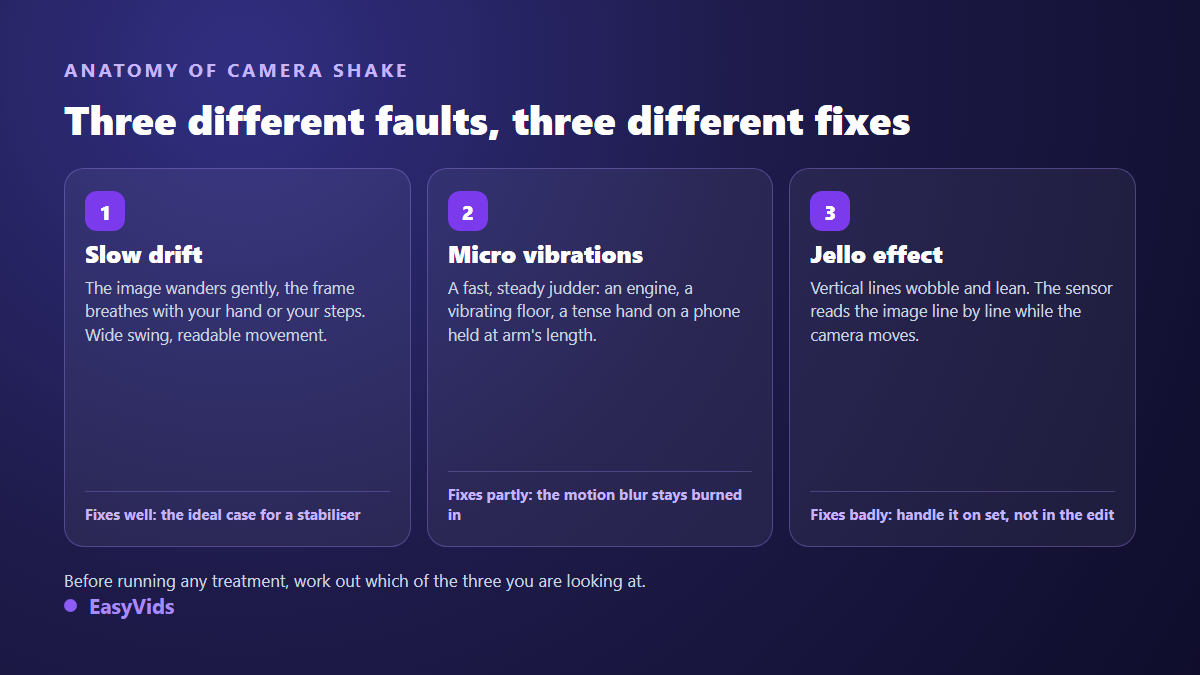
That third family has a precise cause. Most sensors read the image line by line, top to bottom, rather than all at once. When the camera moves during that read, the top and the bottom of the frame are not captured at the same instant, so poles lean and windows ripple. A stabilizer that crops cannot fix it, because the fault sits inside the image, not in its position. Some tools offer a dedicated correction, and it is always partial.
What stabilization takes in exchange: your framing
The mechanism is simple. To cancel movement, the software needs room to slide each frame inside a larger area than the one it shows. So it scales the shot up, then moves the picture within that margin. Adobe makes the trade visible in the Premiere Pro help pages: the Warp Stabilizer framing setting runs from stabilize only, which leaves empty edges visible, to crop with automatic scaling, which hides them by enlarging the picture further.
Two practical consequences follow. The wider the shake, the stronger the enlargement, and the more the final resolution suffers: a clip that was already soft will come back softer. And whatever you framed near the edges disappears. Filming a little wider than you need, when you know the take will be lively, costs nothing and saves the shot.
Method 1: the automatic stabilizer in a desktop editor
This is the normal route on a computer with installed software. Adobe ships Warp Stabilizer with Premiere Pro. Blackmagic Design documents image stabilization in DaVinci Resolve, which also exists in a free version. On the command line, the FFmpeg filter documentation describes the vidstabdetect and vidstabtransform pair, which works in two passes: one to measure the motion, one to apply it.
The logic is the same everywhere: analyse, then recompute the framing. Two settings matter more than the rest. Smoothness: too low and the shake stays, too high and the camera appears to float on an invisible rail, which reads just as wrong. And the type of motion corrected: limiting the fix to translation damages the picture far less than letting the tool rotate and warp the frame as well. Start low, raise it in steps, stop as soon as the shot is watchable.
Method 2: stabilizing by hand with keyframes
Editors that run in a browser do not offer automatic stabilization, ours included: frame by frame analysis needs computing power that does not belong in a tab. What remains is a manual method, precise, and perfectly workable on a short clip. Scale the shot up slightly to create a margin, then push the picture the opposite way at every jolt, using position keyframes. Isolate the section first, which means knowing how to trim a video online.
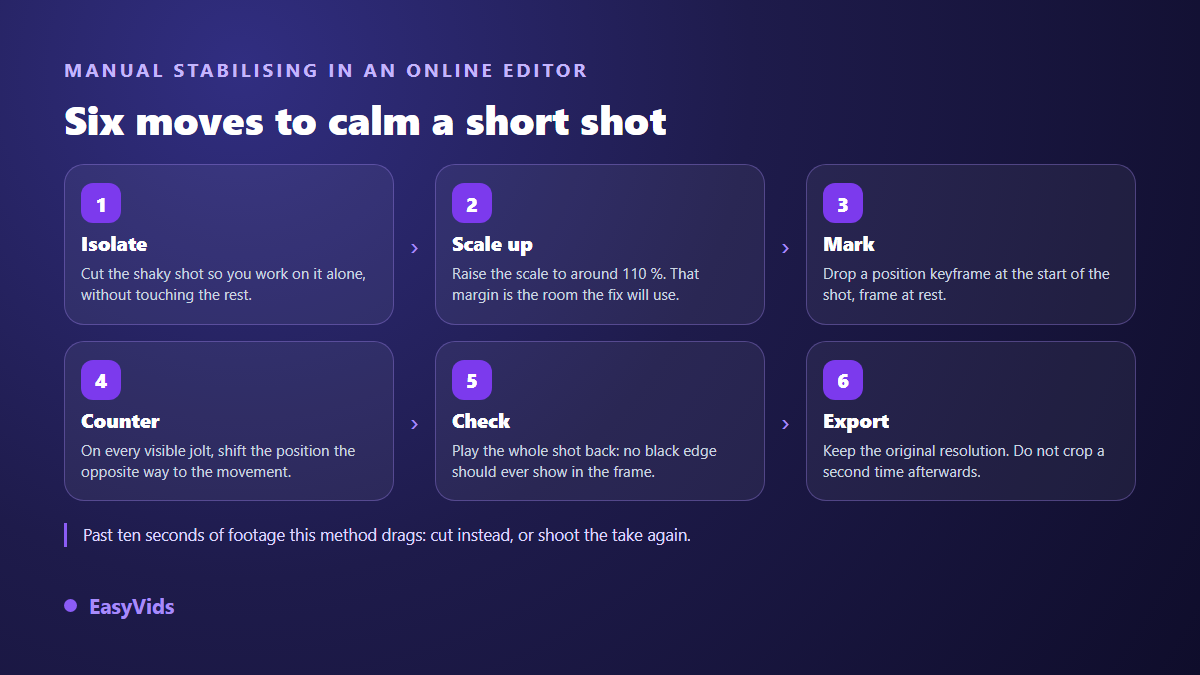
Budget a few minutes of work for three to five seconds of footage. Past ten seconds the method turns tedious, and the result rarely beats a clean cut. Two guardrails while you work: never drop the scale below your starting value, or the empty edges come back; and judge the shot in continuous playback rather than frame by frame, because the eye reads movement, not a list of positions.
Method 3: editing moves that make shake disappear
This is the most underrated answer, and often the most effective. A shaky clip is rarely shaky from start to finish: there are two terrible seconds and four usable ones. Editing exists for exactly that, and it costs neither processing time nor resolution.
- Cut the worst seconds instead of treating them: nobody misses what they never saw.
- Slow the clip down: at reduced speed a jolt becomes a movement, and the eye reads it as intent.
- Hide the jolt behind a cut: switch to another shot at the exact moment of impact, then come back.
- Do not scale a shaky shot up to reframe it: zooming multiplies the amplitude of the movement instead of reducing it.
- Put something steady on screen, a title or captions: the eye anchors on it and notices the drift far less.
- Drop animated zoom effects on that clip: two movements stacked on top of each other feel uncomfortable.
Method 4: replace the shot instead of repairing it
There is a point where repairing costs more than reshooting. For a three second clip filmed at home, taking it again is faster than any setting, and the result will be better. When the scene cannot be replayed, another road stays open: build the shot. A sharp still photo, animated with a gentle virtual camera move, gives a perfectly steady image that often reads better than the original footage. If you only have a phone, making videos from a smartphone works end to end.
What our online editor does, and what it does not
Plainly stated: the EasyVids editor has no stabilize button. What it does have covers the three methods you can run without installed software. You import your own video, image and audio files. You trim tightly. You set scale, position and rotation on every clip, with keyframes, which makes manual stabilization possible. You change speed, from a quarter of normal up to four times. You add text, fades, colour adjustments and captions, then export an MP4 file. Everything runs in the browser, which solves the common case of a clip to rescue on a machine that is not yours. Generation features consume credits depending on the plan, and the detail lives on our pricing page.
Shake or blur: do not treat one for the other
The two faults travel together and call for opposite answers. Shake is a position problem: each frame is sharp, it simply sits in the wrong place. Motion blur is a sharpness problem: during the exposure the subject crossed several points of the frame, and that streak is baked into the file. Stabilizing a blurry clip gives you a still blurry clip, which sometimes makes the softness more obvious. If your footage mainly lacks bite, the seven common causes of blurry video address the right problem.
Filming so you never have to stabilize
The most effective stabilization happens before you press record, and none of it requires buying gear. Across the footage we see, shake almost always traces back to the same causes: walking, an outstretched arm, and digital zoom pushed too far.
- Hold the phone with both hands, elbows pressed against your chest, and breathe slowly during the take.
- Lean on whatever is around: a wall, a table, the back of a chair. One contact point beats a stretched arm.
- When walking, roll through the foot with knees slightly bent, and carry the camera in front of you rather than swinging it.
- Turn on the camera stabilization. Apple states in the iPhone user guide that Action mode needs plenty of light and records at a lower maximum resolution.
- Raise the shutter speed if your app allows it: the 180 degree rule inherited from cinema sets it at double the frame rate.
- Shoot at a higher frame rate when the scene moves: more frames give the stabilizer more to work with, and allow clean slow motion.
- Leave margin around your subject: stabilization will eat the edges, so make sure they hold nothing important.
Frequently asked questions
Can you stabilize video without losing quality?
Not entirely. Stabilization crops and enlarges the picture, so it spends resolution. On a well defined file with moderate shake the loss stays invisible. On a clip that was already marginal it shows. The defence is simple: film at the highest resolution available, and leave space around the subject.
Do you need paid software to stabilize video?
No. Blackmagic Design distributes a free version of DaVinci Resolve that includes stabilization, and the FFmpeg vidstab filters are free, at the price of writing a command line. An online editor lets you trim, slow down and compensate by hand without installing anything. The choice depends mostly on how much time you are willing to spend.
Can you stabilize a video straight from a phone?
Partly. Some phones offer a one tap fix in their gallery app: convincing on slow drift, disappointing on fast vibration. The editor inside YouTube Studio, as described by the YouTube help centre, trims, blurs and adds an end screen, but does not stabilize. For serious work on mobile, use an online editor and rely on cuts.
Does stabilization fix motion blur?
No, and this is the most common misunderstanding. Blur is written into every frame, while stabilization only changes where those frames sit. The only cure for motion blur happens at filming time: more light, a faster shutter, a steady support.
Should you stabilize before or after editing?
Before, clip by clip, while each take is still isolated. A correction applied to a whole timeline treats shots that do not share the same fault, and gives an average result everywhere. Fix the guilty clips, leave the rest alone, then assemble.
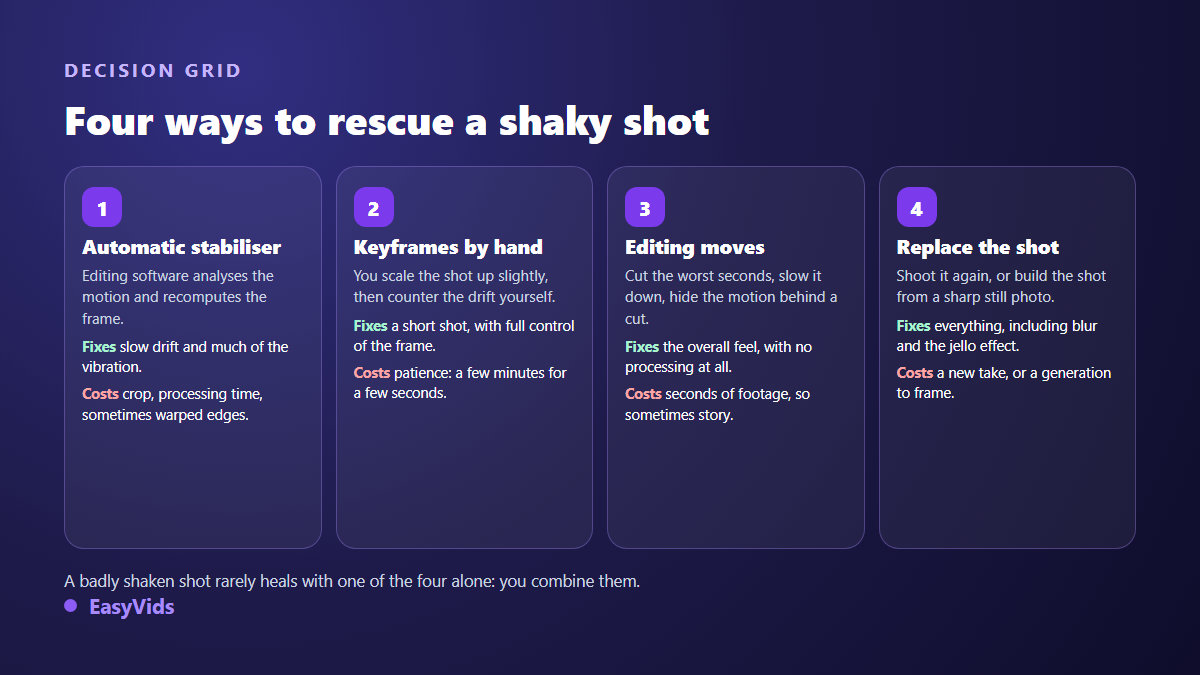
A shaky shot is rarely solved in one move. You identify the fault, cut what cannot be saved, compensate what can, and replace the rest with steady footage. The discipline works the same for a family memory and for a sales video. To try it right now, import your clips and work shot by shot: create your free account and start with the one that bothers you most.