You post a Reel and the bottom line of your text vanishes behind the caption. You upload a video to the feed and it lands framed by black bars. Instagram video size is not an editor's detail: it decides whether your message stays readable or ends up under a button. And it got harder, because the same app no longer shows the same proportions in the feed, on the profile grid and in stories.
This sheet gives the dimensions worth memorising, the strips of screen you should never cover with text, and the method for getting several posts out of a single edit. If you want the full cross platform table, our video format reference by platform applies the same reasoning to YouTube, TikTok and LinkedIn.
The short answer: three sizes cover everything
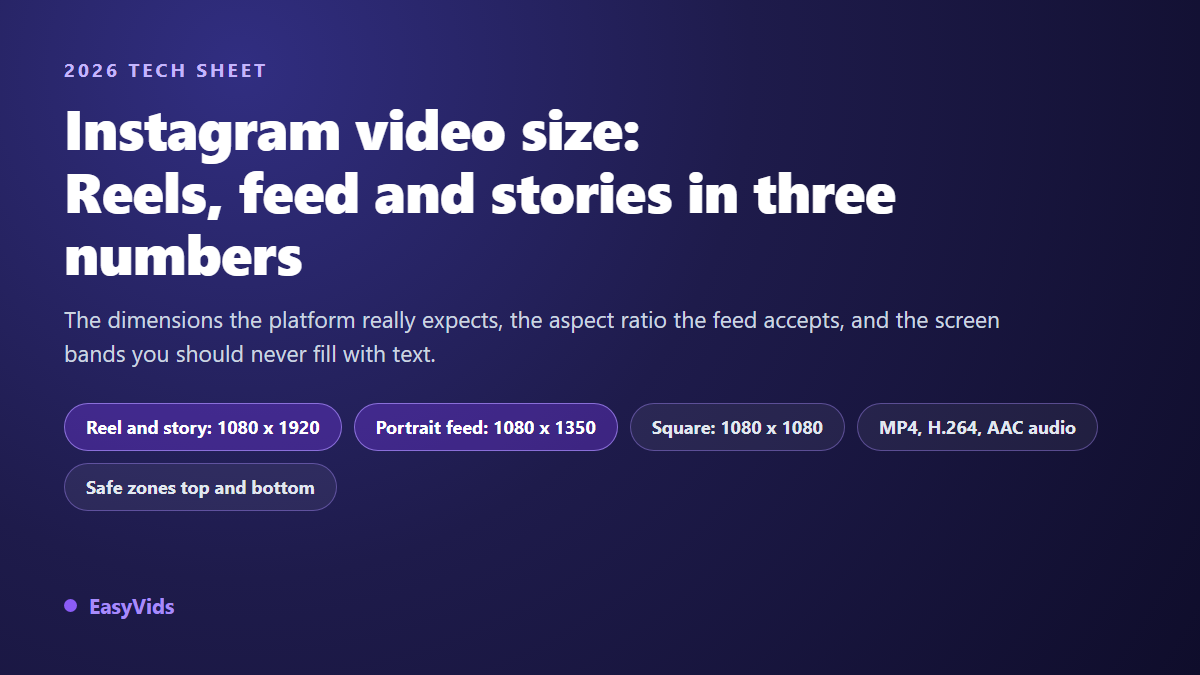
For a Reel and a story: 1080 x 1920 pixels, a 9:16 ratio. For a portrait video in the feed: 1080 x 1350 pixels, a 4:5 ratio, the shape that takes the most screen height without being cropped. For a square: 1080 x 1080. On the file side, an MP4 encoded in H.264 with AAC audio goes through everywhere. Anything else gets cropped, letterboxed or shrunk.
Reels and stories: 1080 x 1920, no exception
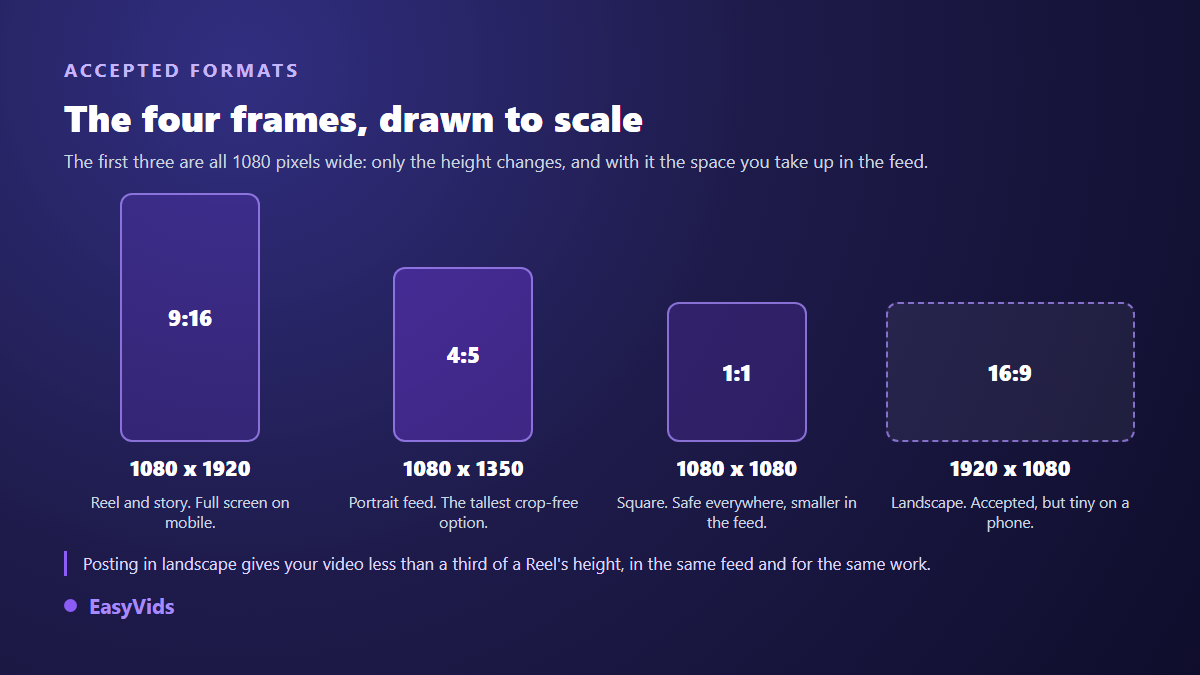
A Reel fills the whole phone screen. According to the Instagram help centre, the expected shape is 9:16, and Meta's consistent recommendation for its vertical surfaces comes down to two numbers: 1080 pixels wide by 1920 tall. Exporting bigger changes nothing you can see, since the platform re encodes every file it receives and brings it back to its own delivery resolution. Exporting smaller, on the other hand, can never be recovered.
A story uses the exact same frame. The difference is not in pixels, it is in what the interface lays on top, and in duration: Instagram automatically splits a long video into several story segments, which cuts a sentence in half if you did not plan the pauses. A Reel is far more generous, up to three minutes according to the platform's help centre.
In the feed, 4:5 has won
For a feed post, Instagram accepts a range of ratios running from 1.91:1 landscape to 4:5 portrait, according to the documentation Meta publishes for developers. Within that range, 4:5 always wins: at equal screen width it takes more height than a square, so more seconds in front of the viewer during a scroll. The reason is mechanical, and it is the only one that matters.
A second change points the same way. The profile grid, long made of square tiles, now shows vertical tiles: Instagram announced that shift in early 2025. A square video still displays correctly, but a portrait video fills the tile better. If you only keep one shape for your feed, keep 4:5.
Where your video shows up, and in which frame
One video can live in five different places, and each imposes its own frame. Keeping this map in mind is what saves you from automatic cropping.
- Reel: 9:16, 1080 x 1920, full screen on mobile.
- Story: 9:16, 1080 x 1920, with interface zones that differ from a Reel.
- Feed video: 4:5, 1080 x 1350, the best portrait compromise.
- Square: 1:1, 1080 x 1080, handy when the video is reused elsewhere.
- Landscape: up to 1.91:1, accepted but barely visible on a phone.
- Profile tile: a vertical frame, where only a centred subject survives for sure.
Safe zones: where your text disappears
Dimensions are not enough, because the interface sits on top of your video. At the top, the account name and the sound controls. At the bottom, the caption, the music title, the share and save buttons. Anything you place inside those strips ends up behind an app element, sometimes on certain phones only, which makes the flaw hard to spot on your own screen.
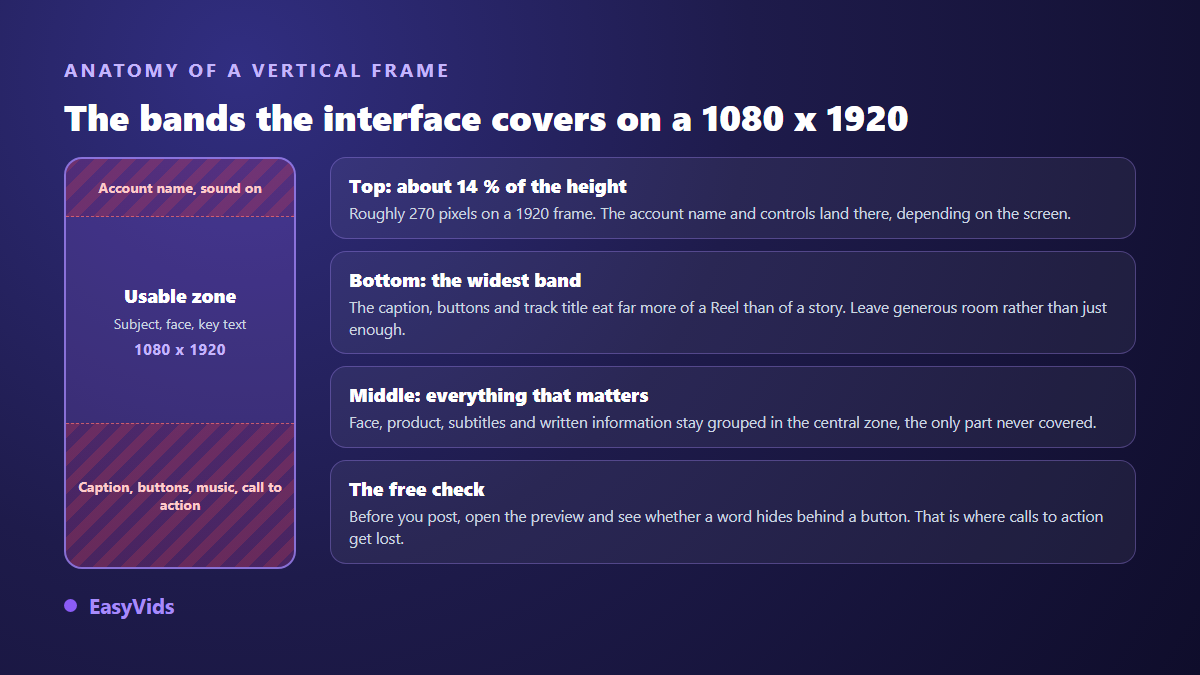
Meta's advertising format guide gives the order of magnitude: keep roughly 14 % of the height clear at the top, and a noticeably wider strip at the bottom, especially on Reels where the caption and buttons climb high. On a 1920 pixel frame, that means putting nothing important in the first 270 pixels, or in the lower third. Captions follow the same rule, and our caption settings for Reels show where to place them so they actually get read.
- Top of the frame: nothing important in the first 270 pixels or so.
- Bottom of the frame: no text and no logo where the caption and buttons sit.
- Captions: above the bottom strip, never glued to the edge.
- Call to action: in the middle of the image, never at the foot of the frame.
- Logo: in a top corner, well away from the account name.
The file: codec, frame rate and compression
Meta recommends an MP4 or MOV file for its video surfaces. In practice an MP4 in H.264 with AAC audio stays the safest choice, because it is the one the platform re encodes best. Keep your edit's frame rate, 25 or 30 frames per second for a standard video, and do not chase a 4K upload: delivery resolution is far lower, and a heavier file only makes the upload longer and more fragile.
Weight deserves a word. An interrupted upload often ends in aggressive compression, and that is where sharpness goes. Export at a sensible bitrate rather than the maximum, then check the result on a phone before blaming the platform. In many cases the source file was already over compressed, and no platform repairs that.
One edit, three posts
Rebuilding the edit for every placement is the surest way to publish nothing. The method that holds is to build one vertical master, then derive the other shapes from it. Direction matters: reducing the height of a vertical frame works cleanly, while stretching a landscape shot into a vertical frame always leaves bars or a soft image. That is the logic our guide to editing video in the browser follows for the rest of the chain.
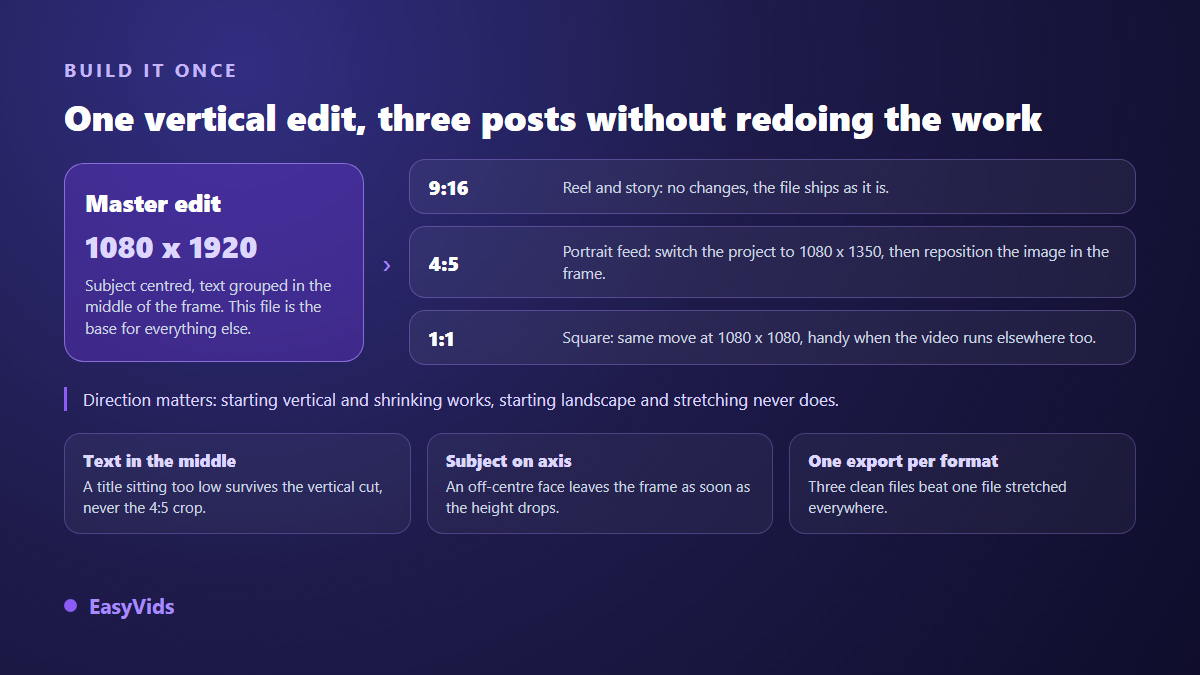
In the EasyVids online editor, the project format is picked from a list of presets: 1920 x 1080 for landscape, 1080 x 1920 for vertical, 1080 x 1080 for square, plus 4:3 and 3:4 frames. Instagram's 4:5 has no dedicated button: you switch to custom size and type 1080 by 1350. Once the frame changes, you reposition and resize each shot inside it, then export to MP4. Three files, one edit.
Generate in the right shape instead of cropping
Cropping is a repair job. When the video is generated by AI, the shape is decided before generation and there is nothing left to fix afterwards: in the EasyVids studio, a video starts in landscape, vertical or square, and the chosen shape holds across the whole project, including when you regenerate a single scene. For Instagram, that means picking 9:16 from the very first scene.
The benefit goes beyond convenience. An image generated vertically composes for vertical: the subject fills the height, the scene organises around it, nothing essential happens at the sides. The same logic applies to every vertical surface, and a clean 9:16 file serves a Reel as well as a Short, as our method for producing YouTube Shorts with AI explains.
Frequently asked questions
What is the exact size of an Instagram Reel?
1080 x 1920 pixels, a 9:16 ratio. That is the shape the platform expects for its vertical surfaces, and the one that fills a phone screen with no crop and no black bars.
Can you post a horizontal video on Instagram?
Yes. The feed accepts landscape, up to 1.91:1 according to Meta's documentation. The video then occupies a small slice of screen height, which makes it much easier to scroll past. Keep that shape for content that mainly lives somewhere else.
What size should an Instagram story be?
The same as a Reel: 1080 x 1920 pixels. Only the protected zones change, because a story's interface elements do not sit exactly where a Reel's do, and viewer replies occupy the bottom of the screen.
Why does my video look blurry after posting?
Because it was re encoded. Publish at the exact dimensions, avoid very fast motion and dark gradients, and start from an edit already 1080 pixels wide. If the image was soft before upload, the platform is not the culprit.
Should I export in 4K for Instagram?
No. The platform brings everything down to its own delivery resolution, which is far lower. A clean, lightly compressed 1080 pixel wide export beats a 4K file sent over an unstable connection.
Remember three numbers and one habit: 1080 x 1920 for vertical, 1080 x 1350 for the feed, 1080 x 1080 for square, and text always grouped in the centre of the frame. The rest is comfort. To produce in the right shape from the start, with no cropping and no rework, create your account and launch your first vertical video.