Your file is 900 MB. The email client refuses it, the upload bar has stopped moving, and every piece of advice you find tells you to drag a random slider in a free converter. You want to compress a video so it finally travels, without it arriving as a blocky mess on the other end.
File size is plumbing, not art. Five things decide what a video weighs, and only one of them really matters. This guide covers which one to touch first, which one never to touch, and how to do the whole thing in a browser. If your actual problem is just getting the file from A to B, our list of ways to send a video that is too large answers that question first.
The short answer
To compress a video with no visible loss: lower the bitrate before you touch the resolution, keep the frame rate, set audio to AAC at around 128 kbps, and re encode once, from the original file. A 1080p export dropped from 20 to 8 Mbps loses more than half its size and looks identical on a phone screen. All of it happens at export time, in the browser, with nothing to install.
What actually makes a video file heavy
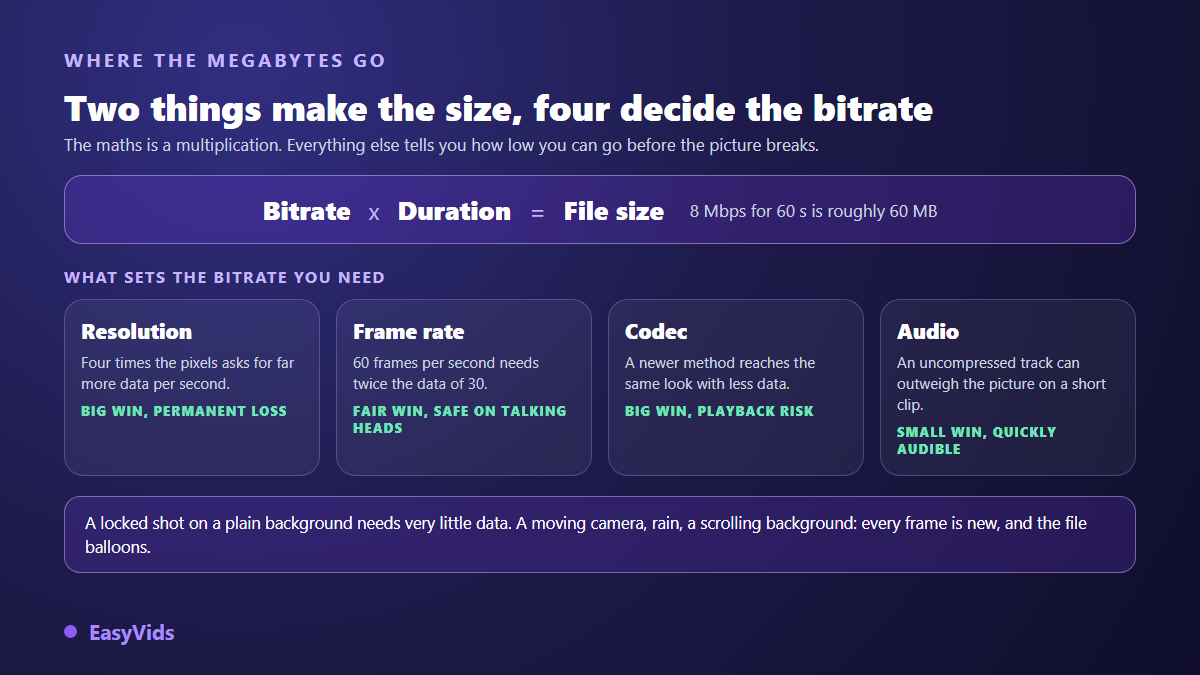
File size is one multiplication: bitrate times duration. Bitrate is how much data the file spends on each second of picture. One minute at 8 Mbps weighs 8 x 60 = 480 megabits, roughly 60 MB. Ten minutes at the same bitrate weigh ten times that. Nothing else enters the sum.
So why does everyone talk about resolution, codec and frame rate? Because those settings decide the bitrate you need for the picture to hold up. Four times the pixels asks for far more data before blocks appear. Sixty frames per second asks for twice what thirty asks. A newer codec asks for less at the same look. Resolution weighs nothing by itself: it sets the floor below which the image falls apart.
Content matters as much as settings. A locked shot on a plain background compresses beautifully, because each frame looks like the one before it and the codec only records the difference. A moving camera, rain, confetti, a scrolling background: every frame is new, and the file balloons. On our own studio exports, two one minute videos with identical settings can differ by a factor of two for that reason alone.
Trimming and re encoding are two different jobs
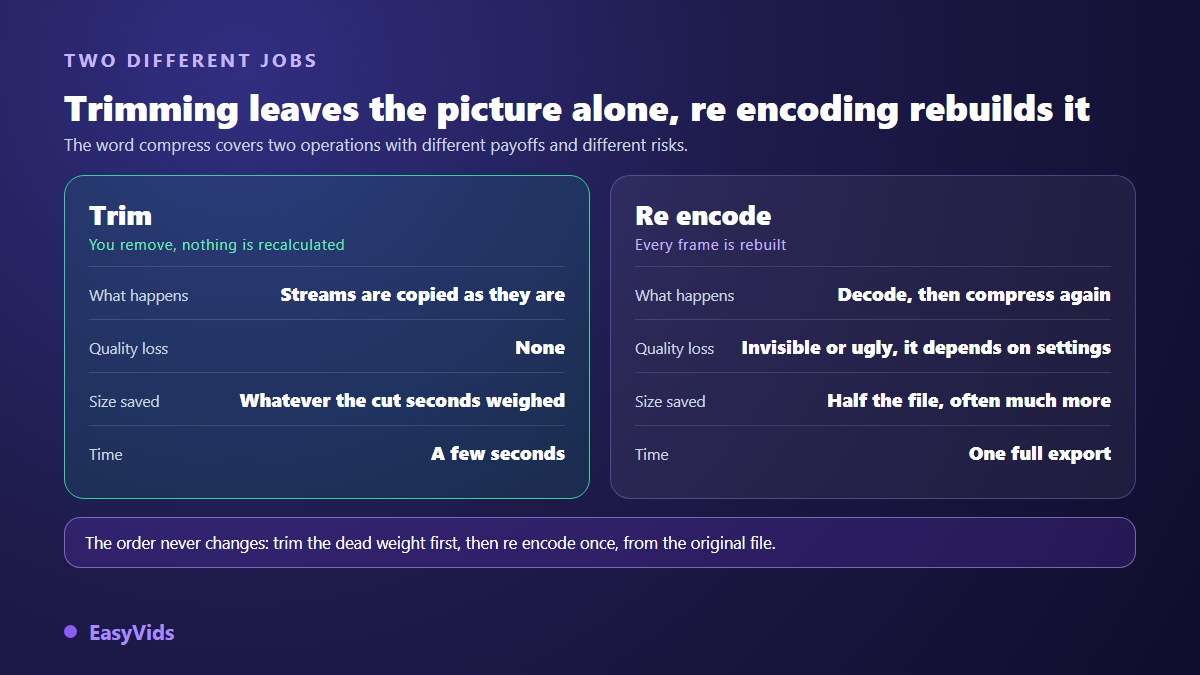
The word compress hides two very different operations. Trimming removes part of the file without touching the rest: cutting ten seconds of silence at the top, dropping an unused audio track, removing an embedded subtitle track. The tool copies the streams as they are. No pixel is recalculated, quality is identical, and it takes seconds.
Re encoding rebuilds every frame. The file is decoded, then compressed again with new settings. That is where size really falls, and that is where quality is won or lost. A well set re encode is invisible. A badly set one leaves banding in gradients, smeared edges and visible squares in dark areas.
So the order never changes: trim first, re encode second. Removing thirty useless seconds removes thirty seconds of bitrate, with zero compromise on the picture. It is the only genuinely free saving in the whole chain, and the one most people skip. Framing follows the same logic: going from 16:9 to 9:16 also shrinks the surface to encode, but it is a framing decision before it is a size decision.
The settings that save the most for the least damage
The levers are not equal. Here they are ranked by return: what each one saves in size against what it risks on screen.
- Bitrate first. Most exports leave with a huge margin, because default settings aim at the worst case. Taking a 1080p file from 20 down to 8 Mbps cuts the size by well over half and stays invisible on a phone.
- Duration, when the edit allows it. Every second you cut is size gone and nothing lost on screen. Dead air at the start, hesitations, the extra shot at the end: that is pure weight.
- Codec, when the destination accepts it. The bodies that published the H.265 standard, also known as HEVC, state roughly half the bitrate of H.264 at comparable quality, and AV1 from the Alliance for Open Media targets the same goal. The cost is playback compatibility.
- Frame rate. Going from 60 to 30 frames per second removes half the frames to encode. Fine on talking heads and calm shots, never on sport or slow motion.
- Resolution, as a last resort. Going from 4K to 1080p saves a lot, but the detail is gone for good. Do it when the video will only ever be watched on a small screen, and never before you have tried bitrate.
That last point deserves a caveat. Resolution is not picked for size, but for the screen that will show the video and for what you plan to do with it later. The 1080p or 4K question is settled use by use, and settling it settles the size question at the same time.
Pick a codec your viewer can actually play
A codec is the compression method. H.264, also called AVC, is still the universal one: it plays on old phones, on televisions and in every messaging app. H.265 and AV1 do better at the same size, but not every device accepts them and encoding takes noticeably longer.
The practical rule fits in one line: if the file has to travel, stay on H.264 in an MP4 container with AAC audio. That is the combination recommended by the YouTube help page on recommended upload encoding settings, and the one nothing refuses. Keep the newer codecs for personal archives or for transfers between two devices whose capabilities you know.
Do not forget the audio track
On a short, well compressed video, the sound track can take a surprising share of the file, especially when it is exported as uncompressed PCM, which some desktop editors still do. Stereo AAC at around 128 kbps is enough for a voice over with background music. Above that, nobody hears the difference in phone earbuds. Speech only videos survive mono at 96 kbps, and a silent video should simply have its track removed. When the track exists only to produce a text, turning a recording into a faithful document works just as well from a very light mono file. Never squeeze the audio on a music video: that is the one place where compression is heard instantly.
Platforms re encode your file anyway
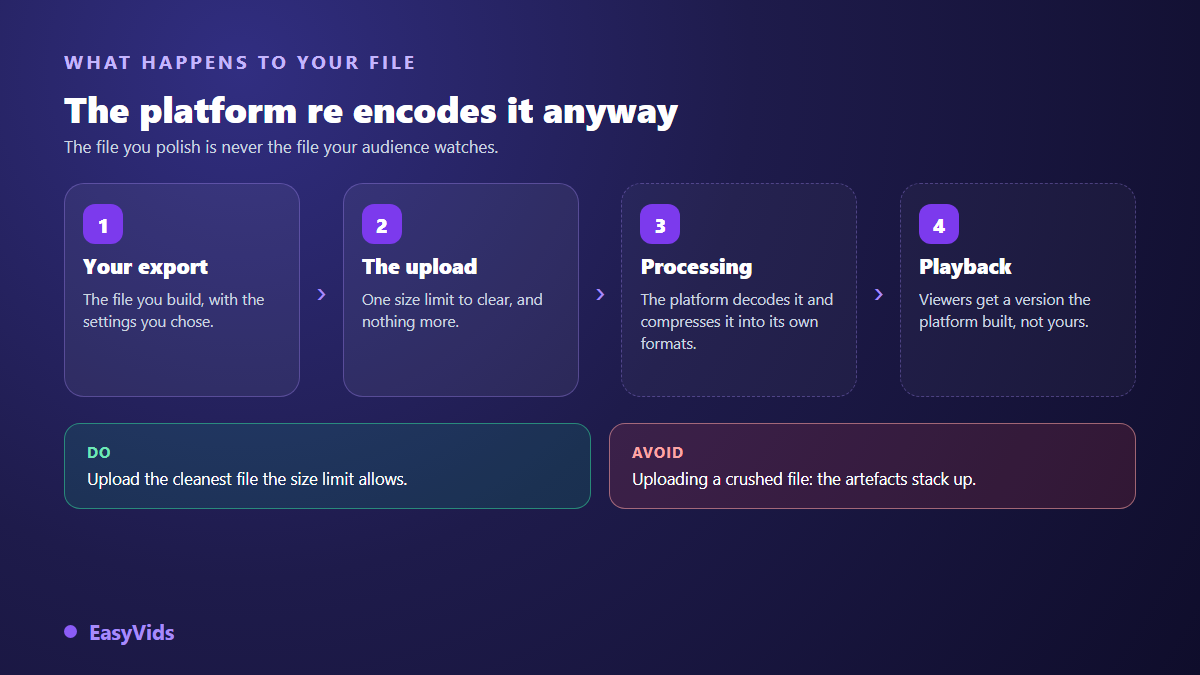
Here is the part most tutorials leave out. You are not sending your file to a viewer: you are sending it to a platform, which decodes it, compresses it again into its own formats, and serves the audience a version it built itself. The help pages of YouTube, Instagram and TikTok all describe that processing step after upload. The file you polished is never the file anyone watches.
Two practical consequences. First: never upload an already crushed file. The platform will compress it a second time, and compression applied to compression stacks artefacts instead of diluting them. Upload the cleanest file the size limit allows and let the platform do its job. Second: heavy compression makes sense for a message or an email attachment, where the file arrives exactly as you sent it, and much less sense for publishing.
How to compress a video online, with nothing to install
A browser is enough, and this route has an advantage converters do not: instead of crushing a finished file, you go back through export and get one clean encode rather than a stack of them. Online video editing makes that possible from a phone or from a locked down work computer. Six steps.
- Load the original file into the project, never a copy that has already been compressed.
- Cut what does not serve: dead seconds at the start and the end, hesitations, the extra shot.
- Check the output format and resolution. Keep the original resolution until you have tried everything else.
- Pick a quality level rather than a target file size when the tool offers both: the result is far more consistent.
- Set audio to stereo AAC around 128 kbps, or remove the track if it serves no purpose.
- Export, then watch the result full screen on the device where the video will be seen, not in a thumbnail.
If the file is still over the limit, do not run a second compression on the export. Go back to the project and step down again, always from the source. Two successive passes always look worse than a single well set pass at the same final size.
Mistakes that damage a video for good
- Compressing a compression. Each pass adds its own artefacts to the previous ones. Always start from the file closest to the original that you still have.
- Setting an absurd target size. Asking a tool to fit ten minutes into a few megabytes does not produce a miracle, it produces squares.
- Lowering the resolution then raising it again. Lost pixels do not come back. Upscaling invents plausible detail, it does not restore the real thing.
- Deleting the source after export. The most painful one: with no source, every new version starts from an already degraded file.
- Changing the frame rate carelessly. Going from 30 to 24 frames per second forces the tool to drop frames at uneven intervals, which shows as permanent judder on movement.
Three checks catch almost everything, and they take a minute. Look at a dark area and a gradient, a sky, a plain wall, a shadow: banding shows there first. Then check the busiest shot, the one that pushes the codec hardest. Finally listen to the start and the end of the audio, where sync drift is easiest to spot. Do all three on the device the video is meant for.
Produce light instead of compressing heavy
Compression is damage control. When the video is built in an online studio, the question is settled upstream: you pick the format and the resolution at the start, the export leaves already calibrated for its destination, and there is nothing left to crush. The sizes each network expects are collected in our video format reference, and the EasyVids studio produces straight to the format you ask for.
Frequently asked questions
Does compressing a video always reduce quality?
Technically yes, as soon as you re encode: information is thrown away and does not come back. Visually, no. Between a very generous bitrate and a sensible one, the eye sees nothing on a phone. Loss becomes visible when you drop below the minimum bitrate your resolution needs, or when you stack several compressions.
What is the best format to compress a video?
An MP4 container with H.264 video and AAC audio. That is the combination recommended by the YouTube help page on upload encoding settings, and the one no phone, messaging app or website refuses. H.265 and AV1 compress better, but they risk playback problems for whoever receives the file.
How do I compress a video without installing software?
Use a tool that works in the browser: drop the file, trim what does not serve, set the resolution and the quality level, then export. It is also the only workable route from a phone or from a computer where you have no installation rights.
Should I compress before uploading to a social platform?
Compress only down to the platform upload limit, never below it. The platform re encodes your file for its own players afterwards. Handing it an already crushed file asks it to compress a compression, and that shows in dark areas and fast movement.
Remember the order: trim, then re encode once from the source, lowering bitrate before resolution. And if you are building the video rather than rescuing it, set the format and the resolution from the start: that is the only way to get a light file that was never damaged in the first place. Create your free account and export your next video already sized for where it is going.