You have a video file that refuses to open. The player shows a black screen, the upload page calls it an unsupported format, the TV does not even list it on the USB stick. In most of those cases the fix is the same: convert the video to MP4. It is the file format that phones, browsers, televisions and social platforms all accept without argument.
The trick is doing it without installing software, without damaging the picture, and without handing a private file to a random website. This guide starts with what an MP4 actually is, because that single point prevents most bad surprises. Then comes the online procedure, the checks to run once the file is back, the source formats that cause trouble, and the cases where converting really does degrade the video. If your problem goes past the format and into the edit itself, our guide to editing video in the browser picks up from there.
How to convert a video to MP4: the short answer
Open an online converter, drop the file in, pick MP4 as the output, leave the video codec on H.264 and the audio on AAC, run it, download. On a short clip it takes under a minute, and most services do it for free. Two settings matter more than all the others: the video codec and the bitrate. Everything else can stay as it is, provided you check the result before publishing it.
MP4 is a box, not a level of quality
MP4 is defined by the ISO/IEC 14496-14 standard, part fourteen of the MPEG-4 family published by ISO. It defines no sharpness, no resolution and no compression. It defines a container: a wrapper that stores several tracks side by side and holds the index saying where each one begins. A box, with a label and a filing plan.
Inside that box live a video track, one or more audio tracks, sometimes a subtitle track, and a metadata header recording duration, frame rate, rotation and chapters. The codec is a different thing entirely: it is the compression method applied inside each track, H.264 or H.265 for pictures, AAC for sound. Mixing up container and codec explains most failed conversions.
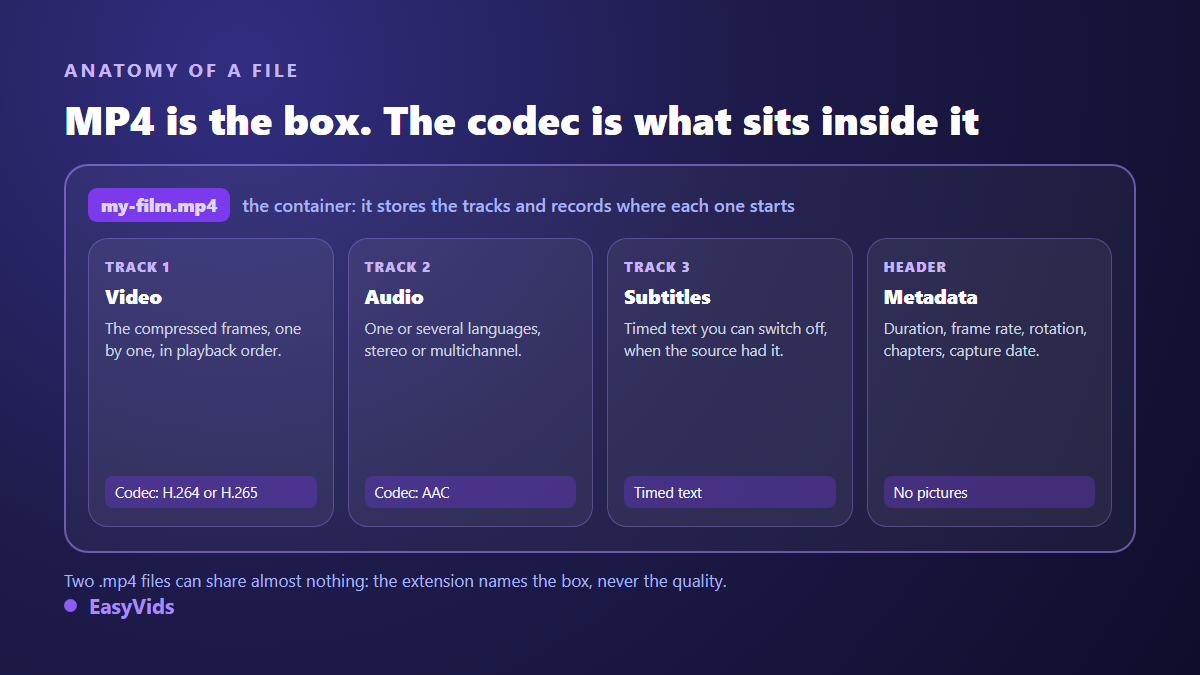
The consequence is immediate. Two files both ending in .mp4 can share almost nothing: one holds H.264 and AAC and plays everywhere, the other holds H.265 and an audio track your living room TV rejects. That is why saying the file is already an MP4 proves nothing, and why you sometimes have to convert an MP4 into an MP4.
Why this format plays everywhere
MP4 inherits from the ISO base media file format, described in part twelve of the same MPEG-4 standard, which itself came from Apple's QuickTime format. That lineage gave it a head start: cameras, phones, action cams and editing software all write it natively, and browsers have played it without a plugin since the HTML5 video tag arrived.
The second reason is hardware. H.264 decoding has been wired into the chips of phones, computers and televisions for well over fifteen years, so playback is smooth and easy on battery, while a newer codec sometimes forces the machine to decode in software. The third reason is editorial: the YouTube Help page on recommended upload settings asks for an MP4 container with H.264 video and AAC-LC audio, and the help pages of the other large platforms point the same way.
The online procedure, with nothing to install
Every online converter does the same thing: it receives your file, hands it to an encoding engine running on its server, and gives you back a download link. The path is identical from one service to the next, and six steps cover it.
- Start from the original file, not from a copy already converted or already sent through a messaging app: every pass leaves marks.
- Drop it into the upload area, or pick it from your cloud storage when the service offers that.
- Choose MP4 as the output, then open the advanced settings if the tool has any.
- Check the video codec: H.264 for maximum compatibility, H.265 only when the file has to stay light and you know exactly where it will be played.
- Leave resolution and frame rate on "same as source". Raising them adds no information and only inflates the file.
- Run it, wait, download, then open the result before closing the tab: that is the only moment when starting over costs two clicks.
Serious services show a progress bar and an estimate. A site that demands a browser extension, a companion player or a download manager before it will give you back your own file deserves to be closed at once. A conversion never needs any of that.
The settings that matter, and the ones to leave alone
The video codec comes first. H.264, also called AVC, is the sane default: everything reads it, including older devices. H.265, or HEVC, produces a lighter file at comparable quality, but a share of players, messaging apps and televisions still refuse it. For a file meant to travel, stay on H.264.
The bitrate comes next. It decides how much data each second of picture gets, and therefore how sharp the result really looks. Too low a bitrate builds blocks in dark areas and during fast movement. Most converters offer three named levels, low, medium and high: for anything you publish, take the high one, and shrink the file afterwards only if the destination forces you to.
Leave the rest alone. Do not touch the frame rate: going from 25 to 30 frames per second forces the engine to invent or discard frames, and motion starts to stutter. Never raise the resolution, since footage shot in standard definition does not become high definition because a dropdown says so. Leave the audio sample rate on whatever the source used.
Copying tracks or recompressing: the choice that decides quality
A conversion can take two very different paths, and most interfaces never tell you which one they took. The first is remuxing, or track copying. When the content of the file already fits an MP4, the tool simply lifts the tracks out of the old box and files them in the new one. The frames are never touched: it takes seconds and costs no quality at all.
The second path is re-encoding. It becomes mandatory when the source codec cannot live inside an MP4, which is the case for the VP9 in WEBM files, for Windows Media WMV, and for old DivX. Every frame is decoded then compressed again. Since video compression throws information away to hit the requested size, that second pass starts from an already thinned picture and thins it further. This is generation loss, exactly like a photocopy of a photocopy.
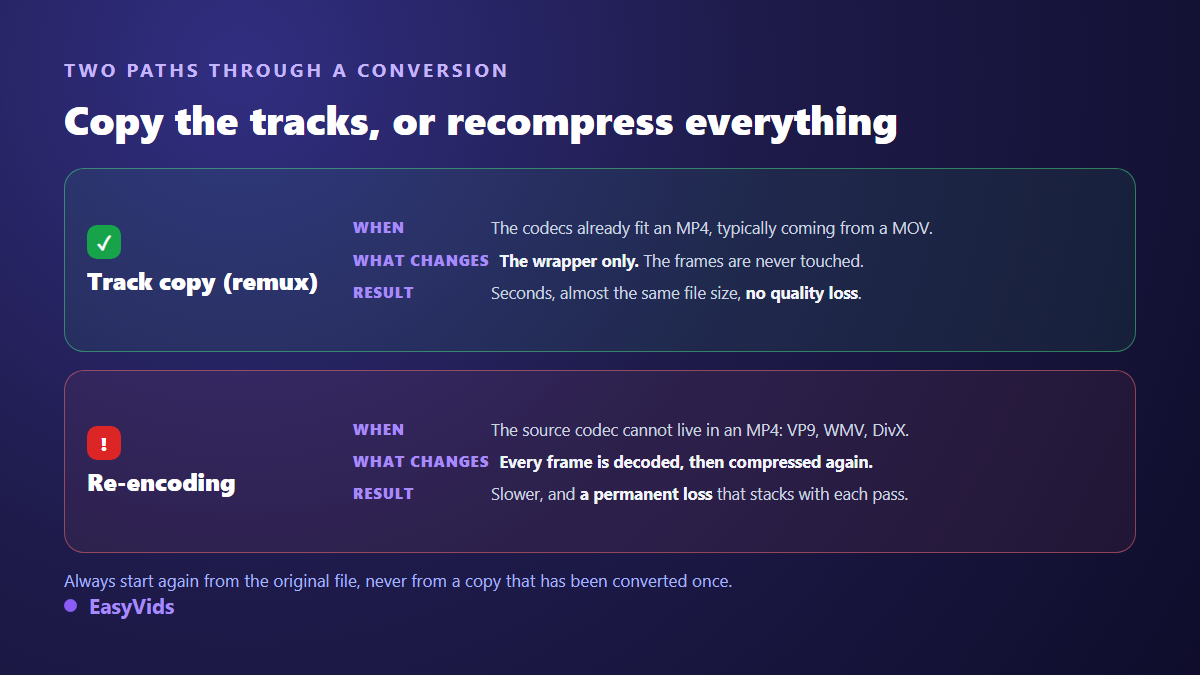
The practical rule fits in one sentence: always go back to the original file. Converting a copy that was already converted, or a file pulled out of a messaging app that recompressed it on the way, stacks the losses. Across our own exports, that single habit changes the final sharpness more than the choice of converter does.
What to check once you have the file back
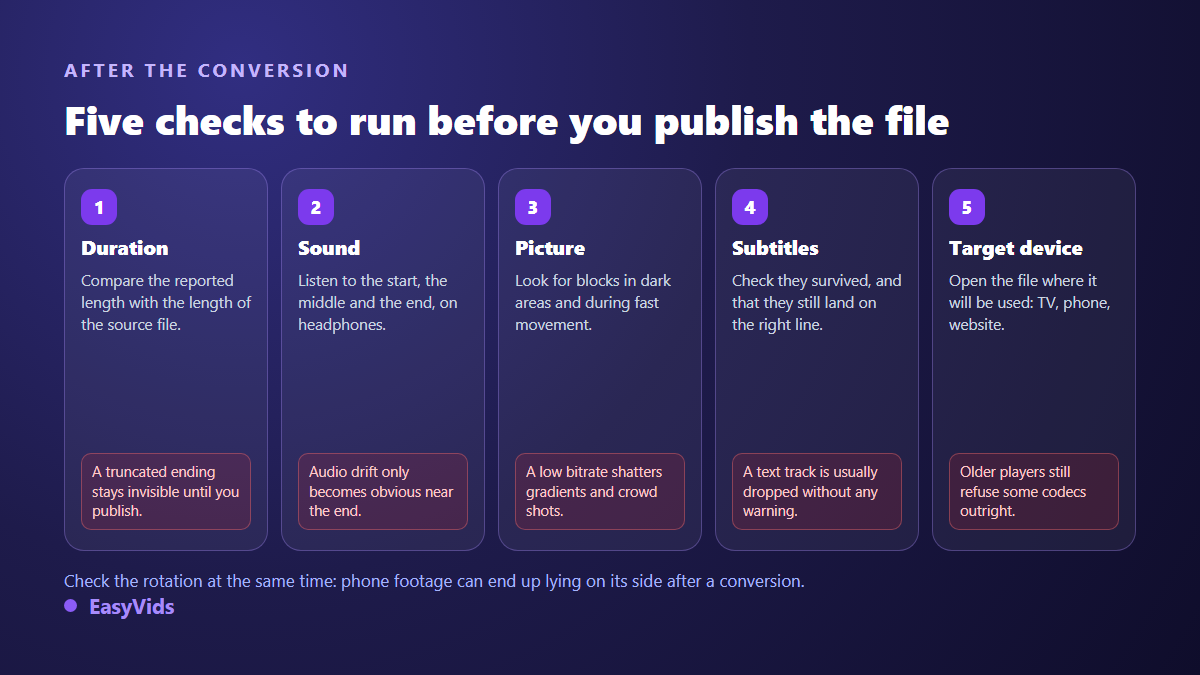
A successful conversion is not judged on the converter's completion screen. It is judged on playback. Five checks are enough, and they take less time than the conversion itself.
- Duration. Compare it with the original. A truncated ending is the most common flaw of an interrupted conversion, and it stays unnoticed until publication.
- Sound. Listen to the start, the middle and the end. Audio drift builds slowly: invisible in the first seconds, obvious in the last minute.
- Picture. Look at a dark area and a fast moving shot. Compression blocks show up there first.
- Embedded subtitles. If the source had them, check they are still present, still switchable, and still on the right line.
- Rotation and playback on the target device. Phone footage can end up lying on its side, and an older TV can refuse a codec a computer plays without blinking.
Subtitles deserve special attention because they disappear silently. MP4 can carry timed text, but it does not know every subtitle format an MKV accepts, and rich styling is dropped along the way. When subtitles really matter, the safest route is a separate text file, as our guide to the SRT file explains, attached or burned in after the conversion.
Common source formats and their traps
Not all conversions to MP4 are equal. What decides the difficulty is not the extension of the source file but what sits inside it.
- MOV. The direct cousin of MP4, from the same container family. The conversion is often a plain track copy. The trap: an edit exported in ProRes is enormous and will genuinely need re-encoding.
- MKV. A very flexible open container that can carry several audio tracks and several subtitle tracks. The trap: MP4 will keep only part of them, and heavily styled subtitles are lost.
- AVI. An old Windows container. The trap: it usually holds legacy codecs that force a full re-encode, and its variable bitrate audio sometimes drifts out of sync.
- WEBM. The open web format, VP8 or VP9 with Opus audio. The trap: none of that fits a standard MP4, so recompression is compulsory.
- WMV. The Windows Media format. The trap: some files still carry copy protection, and no honest converter will touch them.
- MTS and M2TS. Files from AVCHD camcorders. The trap: they are often interlaced, and without deinterlacing you get combing on every movement.
- FLV. The legacy of the old Flash player. The trap: the source is almost always low resolution, and converting never recovers what was never recorded.
- GIF. Not a video at all: no audio track, a limited colour palette. Converting it to MP4 shrinks the file dramatically but will not bring the lost colours back.
One case keeps confusing people: the file already ends in .mp4 and still refuses to play. Most of the time it holds H.265 produced by a recent phone. The conversion then consists of rewriting it in H.264, still inside an MP4. The box does not change, only its content does.
When a conversion really does damage the video
Converting is never neutral once re-encoding is involved, but the damage stays invisible as long as the bitrate holds up. It becomes plain in five specific situations: a bitrate crushed by a "small file" preset, an upscale in resolution, a frame rate change, interlacing left untreated, and conversions stacked on the same file over and over.
The habit that saves you is separating two problems people constantly merge: format and size. If your file will not go through because it is too heavy, the container is not what needs changing, the compression or the length is, and our fixes for sending a video that is too large handle that case on its own terms. Converting to MP4 without touching the settings saves almost nothing on the scale.
Online tools: what you agree to when you upload a file
A free online converter is not magic. Your file leaves your machine, travels the network, lands on a server you know nothing about, gets decoded, recompressed, stored for the duration of the download, then deleted after a delay set by that service's terms. The delay runs from a few hours to several days depending on the site. It is written in the privacy policy, never on the button.
None of that is shocking for a throwaway clip. It deserves real thought for interview rushes, a consultation, an internal document, footage where people are identifiable, or content covered by a contract. A file sent to a third party leaves the perimeter you control, and you can no longer prove it was erased.
- Read the deletion delay stated in the privacy policy before uploading anything sensitive.
- Prefer a tool that converts inside the browser, with no upload, when the file is confidential: those exist and say so plainly, and the file never leaves your machine.
- Be wary of sites demanding an extension, a companion app or an account before returning your own video.
- Do not upload a file covered by a confidentiality agreement to a free service whose host you cannot name.
- Download the result straight away, then close the tab: download links left open linger in shared browsing history.
The best conversion is the one you never have to run. When the video is produced online from the start, it comes out in the right format already: the EasyVids studio exports an MP4 that plays everywhere, with no third party converter in the loop and no file passing through a service you do not know.
Converting a format is not converting for a platform
The two jobs share a name and share almost no work. Changing the file format is what this article describes: the box and the codecs. Adapting a video to a social network is something else: a frame to recompose, a length to respect, zones where the interface covers the picture, text to lift higher. If that is your real need, our method for converting a video for Instagram covers cropping and export platform by platform.
Frequently asked questions
Does converting a video to MP4 lose quality?
Not always. If the source codecs already fit the container, the tool only swaps the wrapper and nothing is lost. If re-encoding is required, part of the quality goes for good, though it stays invisible as long as the chosen bitrate is generous.
Can you convert a video to MP4 free and without signing up?
Yes for most short files. Free services usually cap the file size, the video length or the number of daily conversions, and they show adverts. Those limits are written on their home page, so read them before you start rather than after a ten minute upload.
MP4 or MOV, which one for a final export?
MP4 for anything that has to travel: sending, publishing, playback on an unknown device. MOV keeps its value inside an Apple editing chain, where it carries very high quality working codecs. To deliver a file to someone else, MP4 raises the fewest questions.
Why does my MP4 not play on my television?
Almost always the codec, not the container. An older TV reads H.264 but stumbles on H.265, or cannot handle some multichannel audio tracks. Re-encode the file to H.264 with stereo AAC audio and it will go through. Check the media too: the file system on an old USB stick refuses the largest files before codecs even enter the discussion.
How do you convert a video to MP4 on a phone?
The same way as on a computer: an online converter runs in the phone browser, the file leaves from the gallery and comes back in the downloads folder. Plan for a stable connection, because uploading a long video over mobile data is the most fragile part of the whole operation.
MP4 is not a quality level, it is a box everyone knows how to open. Keep the box separate from its contents in your head and you will know why a file plays here and not there, when a conversion costs nothing and when it costs sharpness. To stop converting altogether, produce the video in the right format from the start: create your account and export a ready to publish MP4, with the voice over and the captions already in place.