The file is several hundred megabytes. Your mail client refuses it, the chat app takes it but turns it to mush, and the upload stalls at 80 per cent. Knowing how to send large video files is one of the few technical problems that hits everyone the same way: your phone records at a very high resolution, and almost nothing downstream was built to swallow that weight.
The good news fits in one sentence. A video file has no fixed size. It has a resolution, a frame rate, a bitrate and a duration, and each of those four settings can be changed in minutes. The result is a new file calibrated for the channel you are aiming at, which is exactly what an editor that runs in your browser does when it exports. Here are the seven methods, ranked from the strongest to the most marginal.
The short answer
There are two roads, and the right one depends on your deadline. If the file really has to travel through that channel, re-export it at 1080p one quality step lower. On footage shot in 4K, that single move is enough most of the time. If nothing forces you to move the file itself, upload it to cloud storage and send the share link instead. No attachment limit applies, and your recipient gets the original quality.
Why your video is so heavy
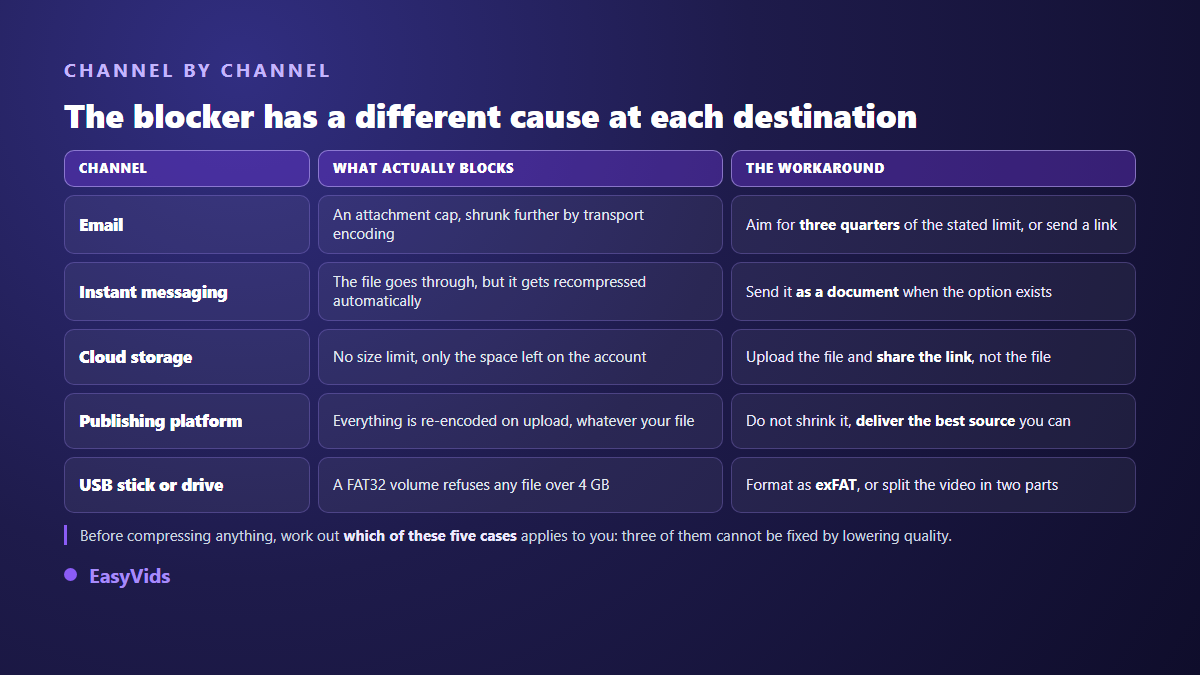
A video file weighs, near enough, its bitrate multiplied by its duration. Bitrate is measured in megabits per second. One minute recorded at 10 megabits per second is 600 megabits, roughly 75 MB. Everything else, resolution, frame rate, codec, exists to decide how much bitrate the picture needs to stay clean. Keep that in mind: in a tool where bitrate is a separate setting, lowering the resolution without lowering the bitrate changes almost nothing.
This is where your phone works against you. The camera settings screen on iOS shows the order of magnitude before you even press record: around 65 MB per minute at 1080p and 30 frames per second, and several hundred megabytes for the same minute in 4K at 60 frames per second. Three minutes of a birthday party shot at the maximum setting is therefore far beyond what most mail services accept as an attachment.
The limits you actually hit
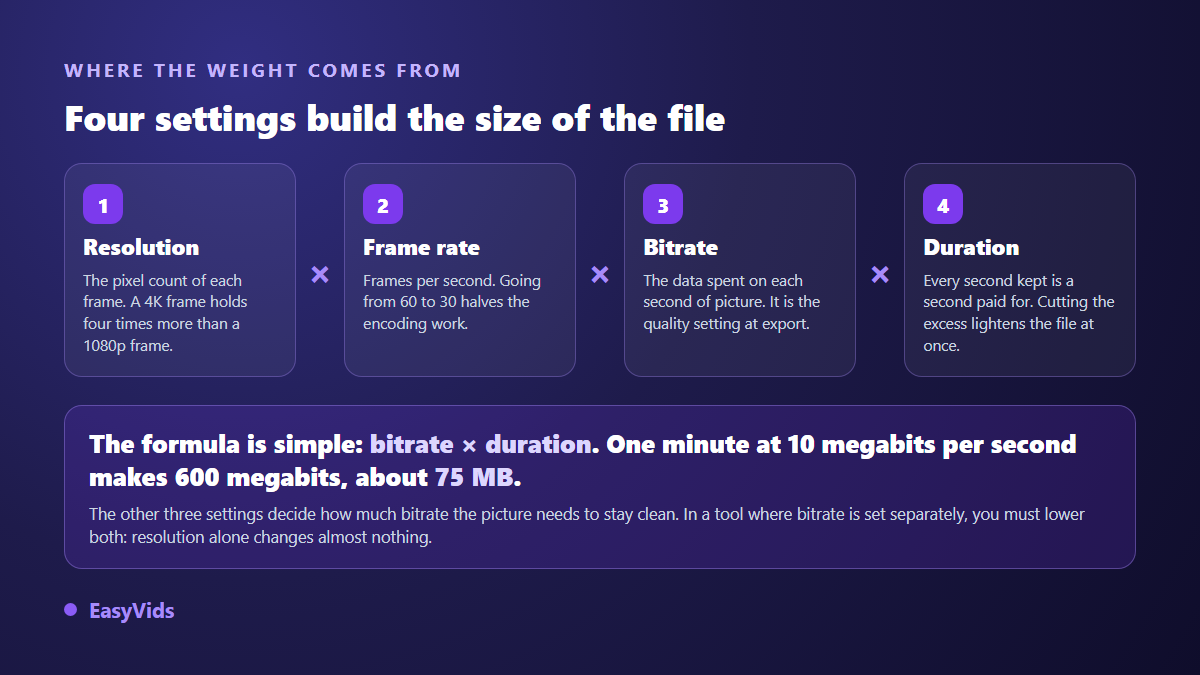
Every channel enforces its own rule, and those rules have nothing in common. A file rejected by mail on size grounds may sail through a chat app, only to land degraded. These are the five blockers you will meet.
- Mail blocks on size. According to the Gmail help centre, an attachment cannot exceed 25 MB, and beyond that the file is placed on Google Drive and sent as a link.
- The stated cap is not the real cap. The base64 encoding that the MIME standard requires for attachments inflates a file by about a third in transit. Aim for three quarters of the announced limit.
- Chat apps degrade the picture. They accept far heavier files, then recompress the video on the way: it arrives, and it arrives soft. Sending it as a document, an option several of them offer, keeps the file untouched.
- Statuses and stories block on duration, not on size: a video that runs too long is split or refused whatever it weighs.
- USB drives formatted in FAT32 refuse any file over 4 GB, even with space to spare. Reformatting to exFAT removes that ceiling.
1. Drop the resolution, the strongest lever
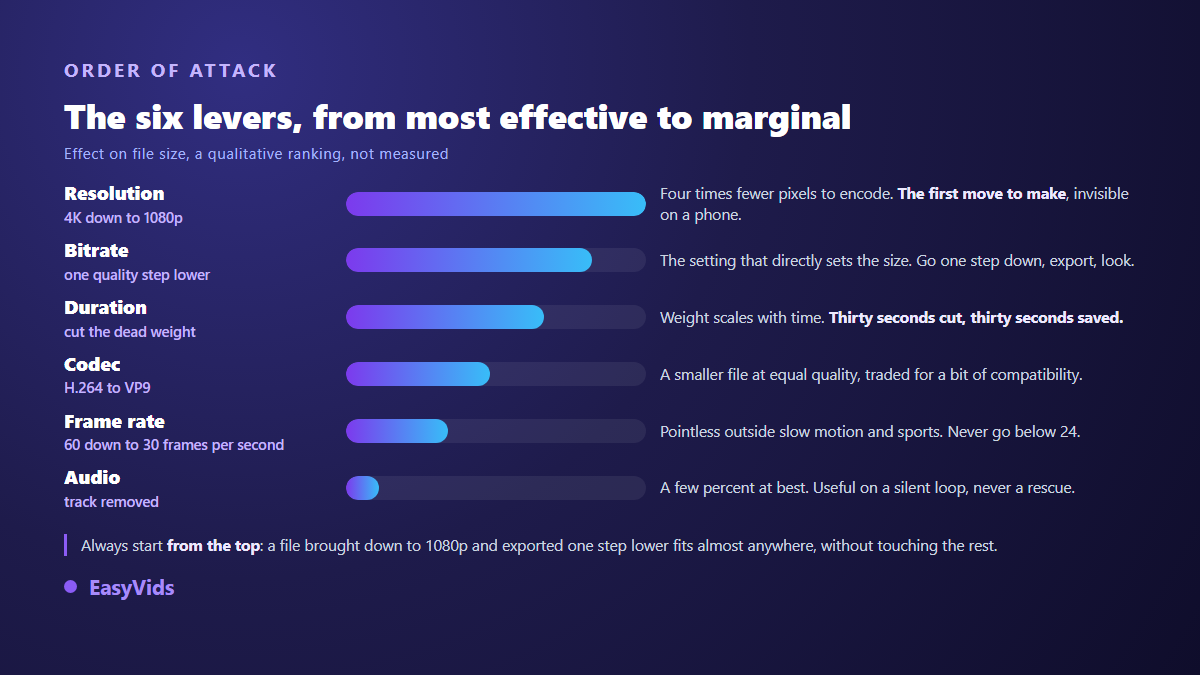
Resolution comes first because it commands everything else. A 4K frame holds four times as many pixels as a 1080p frame, so it demands a far higher bitrate to stay sharp. Bringing your edit back to 1920 x 1080 cuts the size in comparable proportions, and nobody will spot the difference on a phone or inside a chat window. Go down to 1280 x 720 when the channel is genuinely narrow. Resolution and aspect ratio are best decided before you shoot, and our reference sheet on video formats by platform lists what each destination expects.
2. Go one quality step down
The second setting is the export quality level, which sets the bitrate directly. The EasyVids online editor offers four levels at export time, from lightest to heaviest, and the resulting file follows that scale faithfully. One step below your usual setting cuts the size noticeably without breaking the picture, especially on calm shots. Two steps down, flat colour areas start to band as soon as a scene moves.
One habit saves you the back and forth: drop one step, export, watch the result full screen. If the picture holds, you are done. That beats calculating a target bitrate on paper, because size also depends on what your video contains. A locked shot compresses far better than a camera that never stops moving.
3. Cut what nobody needs
Since size is proportional to duration, removing thirty seconds of intro, waiting or dead air removes thirty seconds of weight. On family videos the gain is often dramatic: the first and last seconds, where the camera hunts for its frame, are missed by nobody. Cut first, tune later. A tight two minute edit gets through where a ten minute rush never will, and it is more watchable anyway.
4. Switch codec
At equal perceived quality, a newer codec produces a smaller file. H.264, found in the MP4 files of nearly every camera and phone, is the most compatible and the least efficient. VP9, used inside WebM files, does better for the same picture. The EasyVids editor offers both outputs: MP4 in H.264 for maximum compatibility, WebM in VP9 for a lighter file. The trade off is easy to settle. WebM opens without trouble in a browser and on recent devices. MP4 opens everywhere, including on an old television set or in editing software that has a few years behind it.
5. Go back to 30 frames per second
Shooting at 60 frames per second doubles the number of frames to encode compared with 30. On slow motion, sport or fast action, that frame rate earns its place. On a talking head, a wedding speech, a product demo or a tutorial, it adds nothing visible and costs a lot of megabytes. Re-exporting at 30 frames per second lightens the file without hurting the motion. Do not go below 24 frames per second though: judder becomes noticeable, and you lose more in comfort than you gain in size.
6. Lighten or drop the audio track
Audio is small next to picture, but there are cases where it serves no purpose: a background loop, an animated screen, a silent demo built for a website. The editor lets you untick audio at export and produce a picture only file. On a short, already well compressed clip that removed track is not a negligible share. Do not count on it to rescue a file of several hundred megabytes though. In that case the problem lies elsewhere, and resolution is what you should look at first.
7. Do not send the file, send a link
This is what mail services do themselves the moment you exceed their cap. Upload the video to cloud storage, then share the address. Your recipient gets the original quality, you do not sit through the same upload three times, and the file stays available for days. According to the Google help centre, a free account shares 15 GB across Gmail, Drive and Photos, which comfortably covers occasional transfers.
One variant is worth knowing for client work. According to the YouTube help centre, a video uploaded as unlisted does not appear in search, on your channel or in recommendations: it stays reachable only by people who have the address. It is a simple way to get an edit approved without forcing a download on anyone, and without publishing anything.
The full method in an online editor
The whole thing takes a few minutes and needs no software installed, since it happens in the browser. The EasyVids studio imports your image, video and audio files, then exports whatever you have set. Here is the order that stops you doing the same work twice.
- Import the video into the studio and drop it on the timeline.
- Trim the start, the end and the dead passages: it pays the most, and it improves the video at the same time.
- Set the project resolution in the settings, where common sizes are offered and a custom size stays available.
- Bring the frame rate back to 30 unless your footage is slow motion.
- Export with your chosen format, quality level and audio setting, then check the resulting file size before you send it.
Three false good ideas
Zipping a video gains almost nothing: the file is already compressed, and the archive weighs practically the same. Renaming the extension changes the label, not the content, and usually makes the file unreadable. And splitting the video into five parts to send one by one produces five messages, a reassembly job for your recipient and a good chance that they give up halfway.
Check what your compression tool does to the picture before trusting it with an irreplaceable memory. Some free services re-encode the video and stamp a visible mark on it, something we covered in our piece on watermark free video exports. Same caution for captions: if they live in a separate file, they will not follow the re-export, whereas captions burned into the picture stay readable in any player.
Frequently asked questions
How do I email a large video without losing quality?
Do not attach it. Upload it to cloud storage and paste the share link into your message. The original quality survives and your recipient downloads whenever they want. Most mail services offer that switch automatically as soon as you cross their limit.
Does shrinking a video always cost quality?
Yes, any recompression discards information. The useful question is whether the loss shows. Going from 4K to 1080p is invisible on a phone. One step down on the quality level almost always is too. What does show is stacked reductions and repeated recompressions of a file that has already been squeezed several times.
What is the maximum video size on a chat app?
It varies by app, by version and sometimes by country: the current figure always sits in the official help centre of the service concerned. That is not the real trap. A video sent inside a conversation is recompressed automatically even when it uploads without error. To keep your file intact, send it as a document where that option exists, or share a link.
Should I compress before or after editing?
After, always. Work from the original files, then export a lighter version meant for sending. Editing from an already compressed file adds a generation of loss, and the final result will be dirtier than it needs to be at exactly the same size. Keep the heavy file on your drive for the day you want to republish elsewhere.
Can I shrink a video from a phone?
Yes, as long as the editor runs in the mobile browser: importing, trimming and exporting all happen from the phone screen with nothing to install. Plug the device in during a long export, since encoding leans hard on the processor and drains the battery faster than playback does.
A file that is too heavy is not a technical fate, it is a setting left on default when you pressed record. Pick the channel first, deduce the size you have to hit, then bring the resolution and the quality level down until you reach it. To do it with nothing to install, create your account and drop your video into the editor: trimming, resolution, codec and export all live in the same place.