You open yesterday's phone footage on a computer and the subject is lying on its side. On the phone screen, the very same clip played perfectly upright. Learning how to rotate a video suddenly becomes urgent, especially when the file has to reach a client, a channel or an edit within the hour.
The file is not damaged, and you did nothing wrong while filming. The problem comes from a small piece of information stored next to the pictures, which some players read and others ignore. It takes about thirty seconds to fix in a browser, using the same gestures described in our guide to editing video online. You just have to pick the right fix, because two very different operations share the same name.
The short answer
To rotate a video without installing anything, import the file into an editor that runs in the browser, click the clip in the preview, drag the rotation handle a quarter turn in the right direction, set the scene format to match the new frame, then export. The correction is then written into the pixels of the exported file, so it holds on every platform and every player. Your original file stays untouched on your device.
Why an upright clip plays sideways somewhere else
A phone does not spin its sensor when you turn your wrist. It always records pictures the same way round, the sensor way, and separately notes how you were holding it. That note is a single angle: 0, 90, 180 or 270 degrees. The player is supposed to read it and straighten the image at display time.
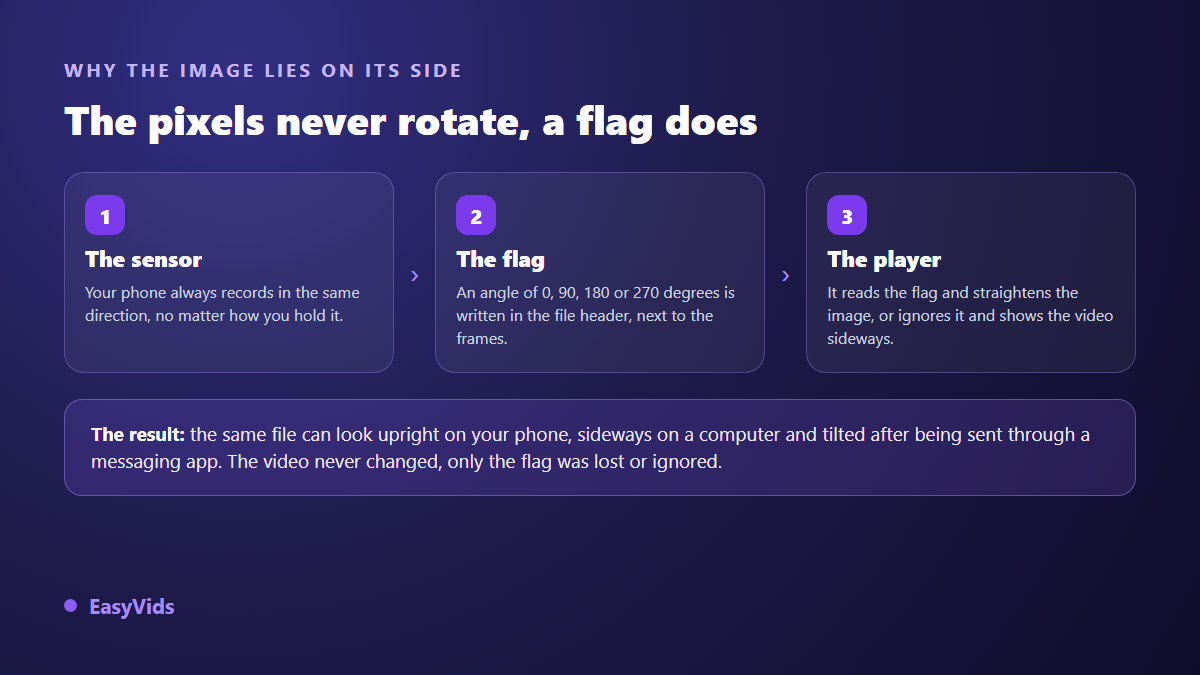
The mechanism is not exotic. The ISO base media file format standard, from which the MP4 container used by almost every phone derives, defines a transformation matrix in the header of each video track. That is where orientation lives. It is the direct cousin of the EXIF orientation tag on photographs, which causes exactly the same annoyance on still images.
Trouble starts when that note is dropped or ignored. An old piece of software, a service that re-encodes whatever it receives, a quick conversion, a messaging app: at every step the angle can vanish while the pictures stay the sensor way round. The video never rotated, the instruction was simply forgotten. Hence the puzzling situation where one file is upright on one device and sideways on another.
Display rotation versus rotation baked into the pixels
Two fixes are called rotation, and they do not produce the same outcome. The first only rewrites the angle stored in the file header. It is instant, it touches no pixel, it degrades nothing. But it remains an instruction, so it evaporates the moment a piece of software ignores it.
The second actually recomputes the pictures the right way round, then re-encodes the video. It costs the time of an export and sends the file through a compressor again. In exchange, nothing depends on a player's goodwill any more: the video is upright, permanently. That is the one to choose as soon as the file will be published, sent to someone, or edited alongside other clips.
- A file you keep for yourself and play on your own devices: display rotation is enough, and it is instant.
- A file heading to a platform, a client or an edit: bake the rotation into the pictures.
- A video that will go through another conversion, compression or messaging app: bake it, or the angle will be lost on the way.
- A video already published sideways: republish a baked version, because rewriting the flag fixes nothing after the fact.
Rotating a video online, step by step
An editor that runs in the browser saves you the install, and above all it saves the upload. In the EasyVids studio the imported video is kept in the browser's local storage, on your own machine, and the export is computed on the spot by the browser's own encoding functions. Nothing travels to a server just to be straightened, which matters when the footage is personal.
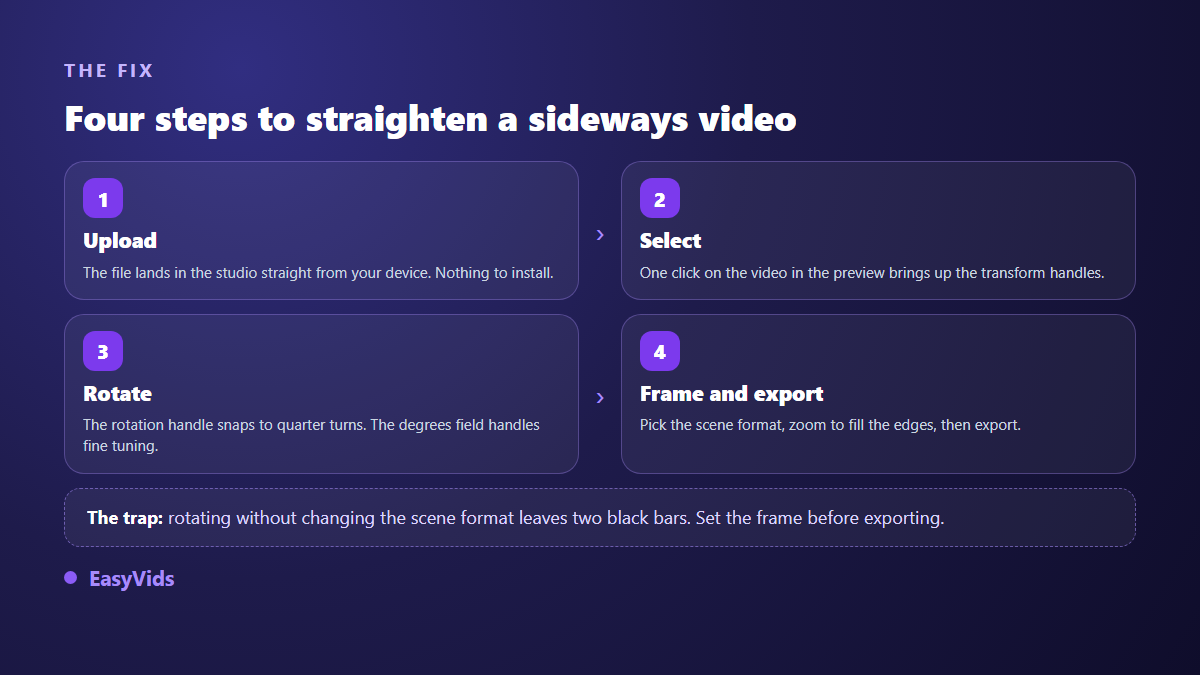
- Open the studio and drop your file into the import area. The video lands on the timeline.
- Click the clip in the preview window: the transform handles appear around the image.
- Grab the rotation handle and turn. It snaps to quarter turns, so you never have to aim for a right angle by hand.
- For an exact value, use the rotation field in the properties panel: it takes an angle to the degree, negative or positive.
- Set the scene format to the frame you want, scale the image up slightly if empty edges appear, then export to MP4.
One useful detail about importing: the studio reads the display dimensions declared by the file. In other words, when the orientation angle is still present and correct, your video already arrives upright on the timeline and there is nothing to fix. If it arrives sideways, that is precisely the sign the instruction was lost somewhere, and baking the rotation becomes the right move.
Picking the right angle first time
Three angles cover almost every case, and a fourth setting handles clips that are merely tilted. The habit that saves time is to look at where the top of the subject points, not at where the edges of the frame point.
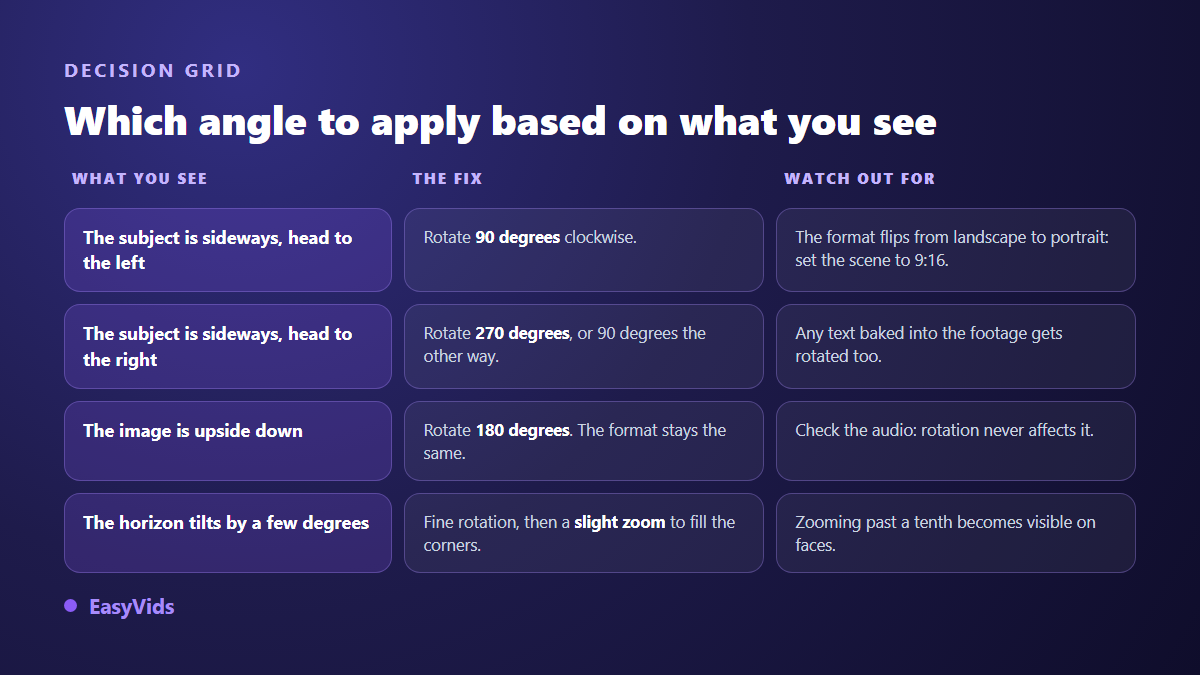
If you hesitate between 90 and 270 degrees, apply the first and look at the preview. Any readable landmark settles it at once. Correcting a wrong angle costs one click, correcting a wrong export costs a whole new encode, so validate orientation on playback before you launch the final render.
Straightening a horizon that leans a few degrees
Not every crooked clip is lying flat on its side. Footage shot at arm's length often leans by two to five degrees, and the eye catches it immediately on a horizon line, a wall or a door frame. The rotation field accepts those fine values to the degree, and the preview updates while you adjust.
A few degrees of rotation do leave four empty triangles in the corners, since the turned rectangle no longer covers the frame. The remedy is one gesture: scale the image up slightly once it is straight, until the corners are filled. Stay moderate. Past roughly a tenth of extra scale, softness starts showing on faces and the cure becomes more visible than the problem.
After rotating, the frame has changed
A quarter turn turns a wide picture into a tall one. If the scene stays set to 16:9 while your clip has become vertical, the export will carry two wide black bars. Set the scene format before exporting: vertical for short form, square for a feed, horizontal for long form. Our reference on video formats by platform lists the dimensions each destination expects.
According to the YouTube help centre, the player adapts automatically to the aspect ratio of the uploaded video, with 16:9 remaining the platform's reference format. A vertical video uploaded without any frame setting will not be rejected, but it will occupy less of a wide screen, and the side bars will be part of your file instead of being handled by the player.
What rotation really costs in quality
Baking the rotation means re-encoding, so recompressing a video that was already compressed. The loss is real but small when you export at high quality, and invisible for everyday use. Two precautions are enough: do not chain successive exports on the same file, and always start again from the original rather than from an already reworked copy.
One detail catches projects that already carried text. Captions burned into the picture rotate with it and end up vertical after a quarter turn, so they have to be redone. Straighten first, then burn the captions into the upright video, and the problem disappears.
Rotating a video from a phone
The editor opens in a mobile browser and rotation works with a finger on the preview. Exporting, however, depends on the browser's encoding abilities. On iPhone and iPad, in browser video encoding is not available, including with another browser installed, so the export cannot run there. The studio detects that case and warns you before starting a render that would fail. On Android, and on a computer with a recent version of Chrome, Edge or Firefox, exporting works normally, with the reminder that a phone has less memory than a computer.
Frequently asked questions
Does rotating a video reduce its quality?
It depends on the method. Rewriting only the orientation flag touches no pixel and degrades nothing. Baking the rotation into the pictures requires a re-encode, so a light recompression. At high quality and on a single export, the difference is invisible to the naked eye.
Can I rotate a video without installing anything?
Yes. An editor that runs in the browser is enough, and the computation happens on your own machine. You install no software, and the video never has to be uploaded to a server just to be straightened and exported.
Why is my video upright on my phone but sideways on my computer?
Because the phone reads the orientation instruction stored in the file and straightens the picture at display time, while the desktop software ignores it or no longer receives it. The pictures themselves have stayed the sensor way round since the moment you filmed.
How do I rotate a video 90 degrees without stretching it?
Apply a quarter turn, then set the scene format to the new width to height ratio. Distortion only appears when you stretch the picture to fit a frame that is no longer its own. As long as you change the frame rather than the proportions, the image stays intact.
Should I rotate before or after editing?
Before, without hesitation. Straightening first gives you a faithful preview for everything that follows: framing, on screen text, captions and transitions are then set against the final image. Rotating last forces you to reposition everything you had already placed.
A sideways video is almost never a lost video. It is an angle badly passed between two pieces of software, and fixing it takes less time than hunting for the cause. Straighten, set the frame, export once, and the file will be upright everywhere, including for viewers whose player ignores the flag. To do it right now in your browser, create your account and open the studio, or see the full set of creation and editing tools on the EasyVids home page.