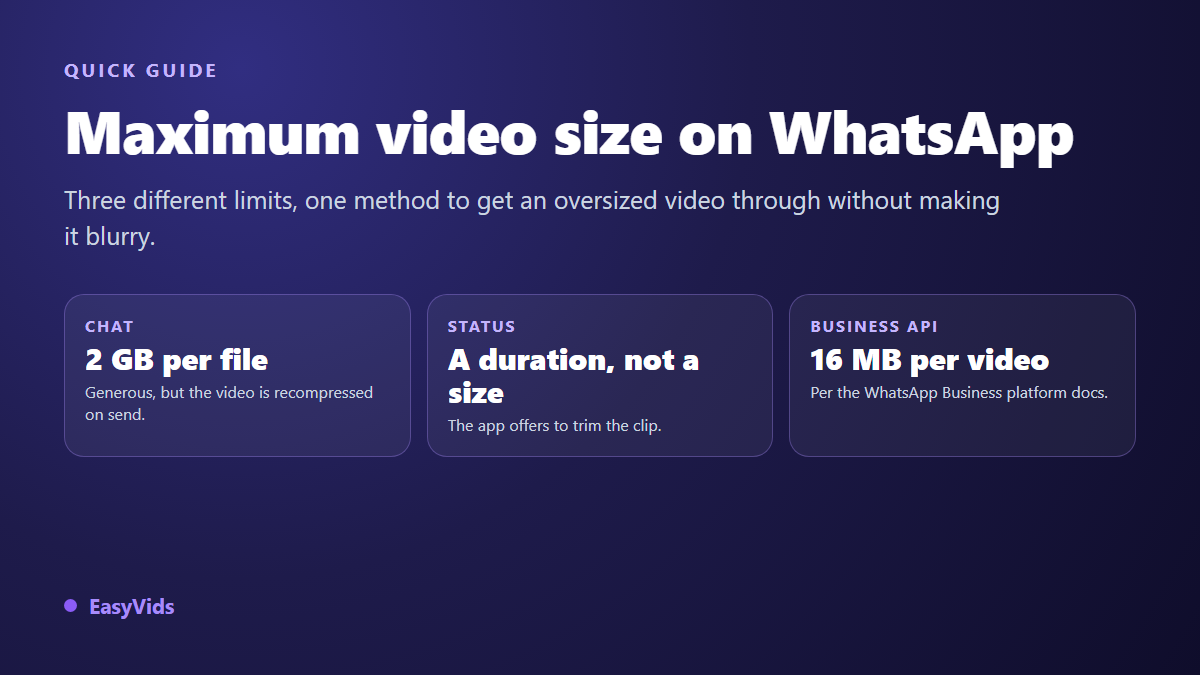
You try to share a video on WhatsApp and the app stops you. Or worse, it goes through and the person on the other end gets a smear of pixels. The WhatsApp video size limit is not one number, and that is where the confusion starts. There are three separate rules: the one for a file shared in a chat, the one for a status update, and the one for messages sent automatically by a business. Mixing them up explains most failed sends.
The rest comes down to a stubborn misunderstanding. File weight does not follow duration alone, nor resolution alone. It follows the bitrate, the amount of data recorded every second. That is the dial you can actually move. This page covers the limits that apply, how to know what your file really weighs, and how to shrink it without wrecking it. If you are chasing dimensions and aspect ratios instead, our reference sheet on video formats covers that ground.
The short answer
In a chat, the WhatsApp help centre states a 2 GB ceiling per shared file, videos and documents alike. That is generous, and it is rarely the real problem. Three other constraints matter more: WhatsApp recompresses videos before sending them, status updates are capped by duration rather than by weight, and messages sent through Meta's WhatsApp Business platform stop far lower, at 16 MB for a video according to its supported media documentation. Faced with a heavy file, trim the duration, drop the resolution, then lower the bitrate before sending, instead of letting the app decide for you.
Three limits that have nothing in common
The 2 GB ceiling applies to the file as you pick it from your gallery or your file browser. It treats a video, a document and an archive the same way. On a mobile connection, reaching that ceiling stays theoretical: long before 2 GB, upload time and the recipient's data plan become the real constraint. A file weighing several hundred megabytes downloads badly, and plenty of people simply never open it.
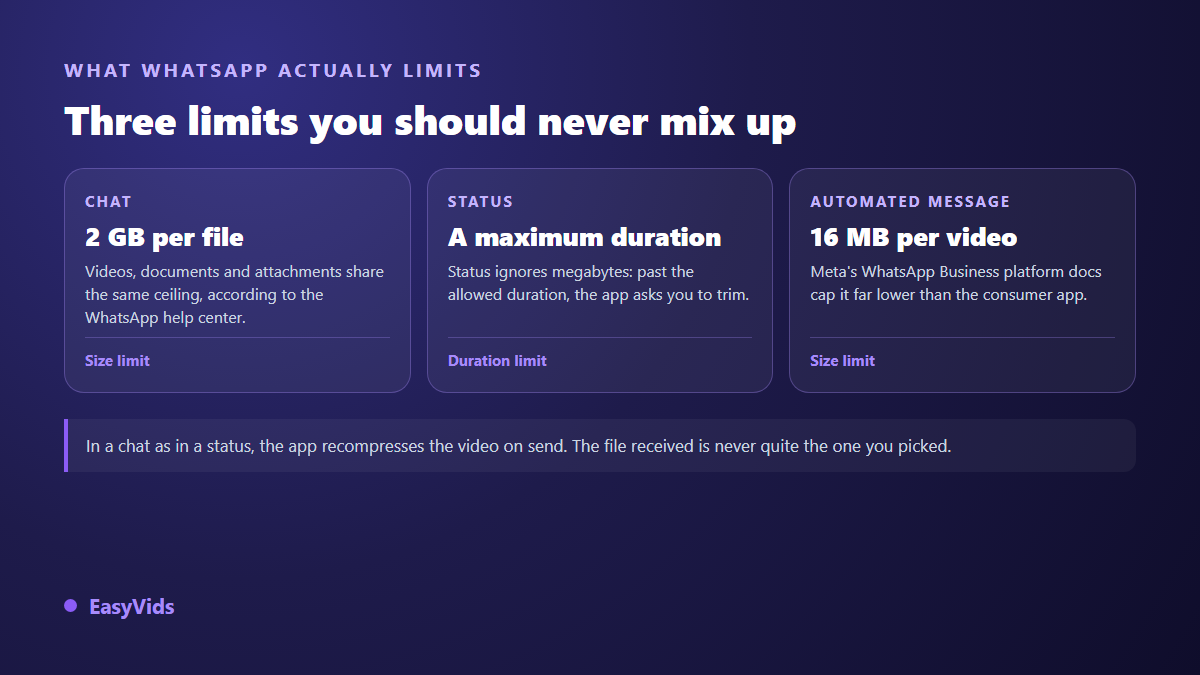
The second limit governs status updates, and it is not counted in megabytes at all. It is counted in seconds. The third one applies to companies sending messages from software wired into Meta's programming interface, where the ceiling sits very low. A video produced for a video channel never fits there untouched. If you automate notifications or customer support, plan a lighter version at production time, not at sending time.
Status updates are capped by duration
When you post a video as a status, the app never mentions weight. It offers to trim the clip so it fits the allowed duration, and blocks you until you do. That duration has moved several times across versions, generally upward. You will not find a fixed number here, for a simple reason: it would be wrong within months. The references that hold are the posting screen in your own app, and the WhatsApp help centre on the day you publish.
The practical consequence matters more than the number. A video meant for status is edited short from the start, with the useful information in the opening seconds. Trimming at the last moment almost always cuts a sentence in half, and the message loses its payoff. The same logic applies to every vertical format: duration belongs in the brief, alongside framing, rather than being discovered once the edit is finished.
Why your video looks blurry on the other end
This is the most common complaint, and it has nothing to do with the 2 GB ceiling. WhatsApp recompresses videos sent from the gallery so they travel quickly over slow networks. Your careful export comes out at a much lower bitrate, and the busiest areas degrade first: on screen text, moving faces, gradients. The paradox is worth remembering: the heavier the source file, the harsher the recompression.
Two habits limit the damage. In the app settings, the storage and data section offers a media upload quality choice, and the higher setting preserves detail noticeably better. Then send a file that is already clean and reasonable rather than an enormous one, because a video exported at a sensible bitrate gets treated far more gently. If your footage lacks sharpness before it is even sent, the cause sits upstream, and our breakdown of blurry AI video walks through the usual suspects.
File weight is one multiplication
The maths is plain: bitrate multiplied by duration gives weight. One minute encoded at 5 Mbit/s weighs roughly 37 MB. The same minute at 2 Mbit/s lands near 15 MB. Nothing else enters the equation. That is why two minutes filmed on a phone can outweigh a properly encoded ten minute film: phones record at a very high bitrate to protect the footage, not to share it.
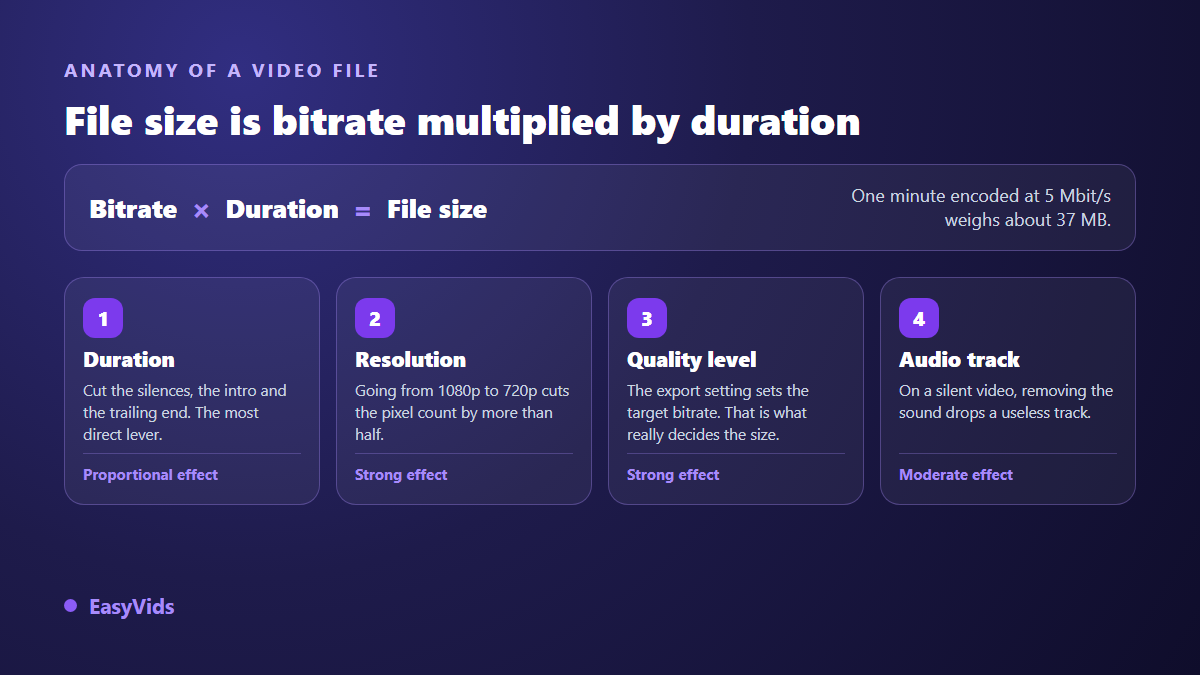
So you have four levers, and only one of them hurts. Cutting dead seconds costs no quality at all. Moving from 1080p to 720p more than halves the pixel count, which is barely noticeable on a phone held at arm's length. Lowering the export quality acts straight on the bitrate, so move it one step at a time. Dropping the audio track only makes sense on a genuinely silent clip, since voice weighs very little.
- Cut first: intro, silences, the ending that drags. Instant gain, zero quality loss.
- Drop the resolution next. 720p is plenty for anything watched on a phone.
- Lower the quality level last, one step at a time, checking the result after each pass.
- Only remove the audio if there is no useful sound in the clip.
- Avoid recompressing a file that has already been through several rounds: each pass degrades the image.
Compressing a heavy video in the browser
Nothing to install. The online video editor accepts your own images, videos and audio, and works inside the browser tab, keeping your media stored locally while you edit. The export runs on your machine too, using the encoders built into recent browsers. The file makes no round trip to a server, so you never wait twice.
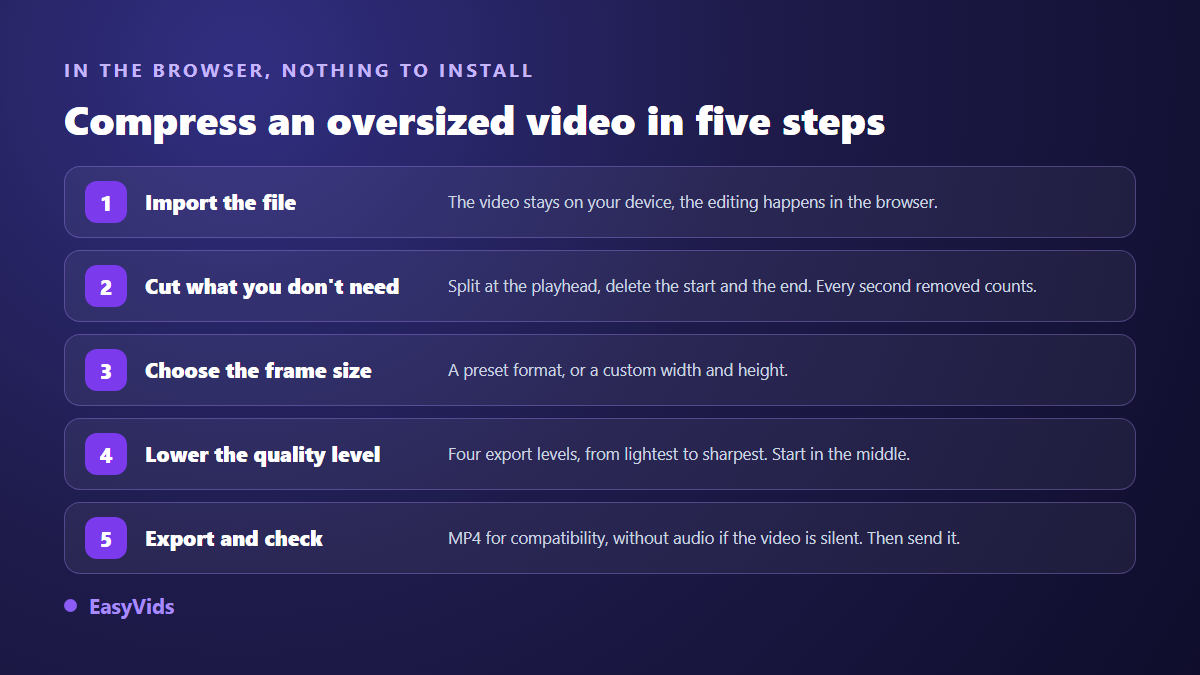
The path is five moves. Import the video, split it at the playhead to remove what earns nothing, choose the frame size from the presets or type a custom width and height, set the quality level, then export. Four quality levels are offered, from lightest to most detailed: start in the middle, check the result, drop one step if the file is still too heavy. MP4 stays the safe pick for compatibility, while WebM produces smaller files at comparable quality. A checkbox decides whether the sound travels with it.
One honest limitation, because it would cost you time: this in browser export relies on encoders that Safari on iPhone and iPad does not provide. On those devices the editor shows a warning instead of letting you start an export that would fail. A computer, or a recent browser on Android, handles it without trouble.
Produce at the right weight instead of fixing it later
Compressing afterwards is repair work. Producing a calibrated file in the first place works better. When a video is built in our studio, the resolution is chosen before assembly, at 720p, 1080p or 4K, with a 16:9, 9:16 or square frame. For anything headed to a status update or a chat, 9:16 at 720p gives a light file that looks sharp on a phone and needs no cropping. Late cropping remains the surest way to lose half a composition.
The final edit comes out as MP4 encoded in H.264, with the file index placed at the front so playback starts before the download completes, which matters a lot on a slow connection. The word weight shows up elsewhere with wildly different ceilings: a video thumbnail has to stay under 2 MB according to the YouTube help centre, and our sheet on thumbnail dimensions covers that case.
Sending without compressing, when that is the right call
Sometimes quality beats convenience. To pass a file along intact, attach the video through the document picker rather than the gallery: the app then transmits it as is, with no recompression. The recipient downloads it and opens it in a player, without a playable preview in the thread. That is the method for sending raw footage to an editor, or a video meant to be reworked.
The other route is to send nothing at all and share a link instead. Cloud storage, a transfer service, or simply the page where the video is published. The link weighs a few characters, the recipient picks their moment, and you keep control of the quality. This becomes the only sensible answer past a hundred megabytes or so, especially since other channels stop far lower: according to Gmail help, an attachment cannot exceed 25 MB, beyond which the service switches to a link automatically.
Frequently asked questions
What is the maximum video size on WhatsApp?
The WhatsApp help centre states 2 GB per file shared in a chat, videos included. In practice, aim far lower: a file of a few dozen megabytes uploads quickly, downloads without trouble, and survives recompression in much better shape.
Why does my video look blurry after sending?
Because the app recompresses videos sent from the gallery to cut their weight. Pick the higher upload quality option in the storage and data settings, and start from a file that is already reasonable: the loss will be far less visible.
How long can a status video be?
The cap is expressed as a duration rather than a file size, and it has changed several times across app versions. Trust the posting screen, which offers to trim as soon as the clip runs long, or the WhatsApp help centre on the day you publish.
How do I compress a video without installing software?
A browser based editor is enough. Import the file, cut what earns nothing, reduce the frame size, lower the quality level, then export to MP4. The export happens on your own machine, with no upload first.
Do I have to pay to send bigger videos?
No. The WhatsApp ceiling is the same for everyone and cannot be bought. On the production side, resolution and duration are chosen when you create the video, and our plans are laid out on the pricing page.
Keep the order in mind: cut, reduce the resolution, lower the quality, and only then send. A video designed from the outset to be watched on a phone almost never needs rescuing at the last minute. To produce vertical videos that are calibrated and ready to share, create your account and keep control of both format and resolution. Everything else, writing, voice, editing and export, sits in one place inside the EasyVids studio.