You have a handful of clips on your phone or a memory card, and one question in mind: how to edit videos when you have never opened an editor in your life. The hard part is almost never technical. The buttons take an evening to learn. What actually stops people is not knowing what order to work in, and spending three hours on a transition when the film still has no beginning.
This guide walks the full path, from import to export, in the order a beginner really meets each move. The vocabulary gets explained as it comes up: footage, timeline, hard cut, matching shots, colour grading, mixing. Every step points to the tutorial that goes deeper when you want it, and if your first question is where to do this work without installing anything, our guide to editing in the browser answers that one.
The short answer
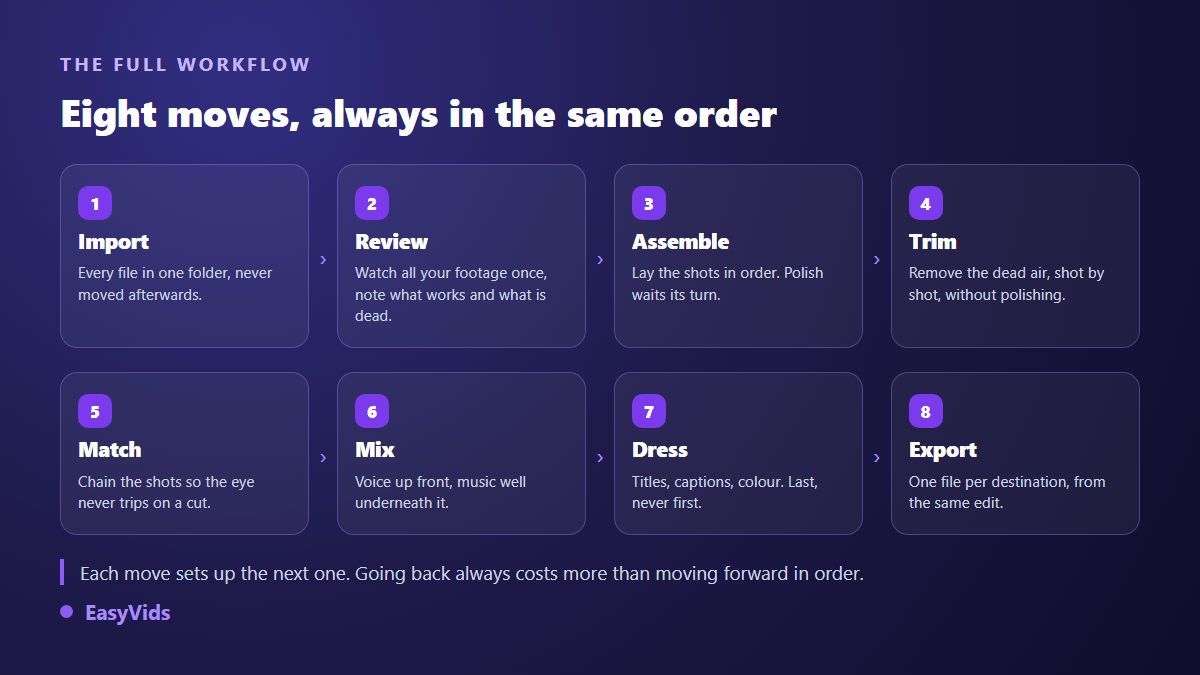
Editing a video means running through eight moves, always in the same order: import your files, watch them once to sort them, lay a rough assembly, cut the dead air, smooth the joins, balance the sound, add text and captions, then export in the format your platform expects. The rule that saves the most time fits in one sentence: polish nothing until the order of the shots is locked. For a first two minute video, expect one to two hours, half of which goes to watching your edit rather than clicking in it.
The words you need, explained once
Editing carries a vocabulary inherited from cinema, and it often puts people off before the first click. It comes down to about ten words. Here they are, in the order you will meet them, with the only definition that matters when you start.
- Footage, or rushes: your original files, straight out of the camera or phone. An edit never alters them, it only reads them.
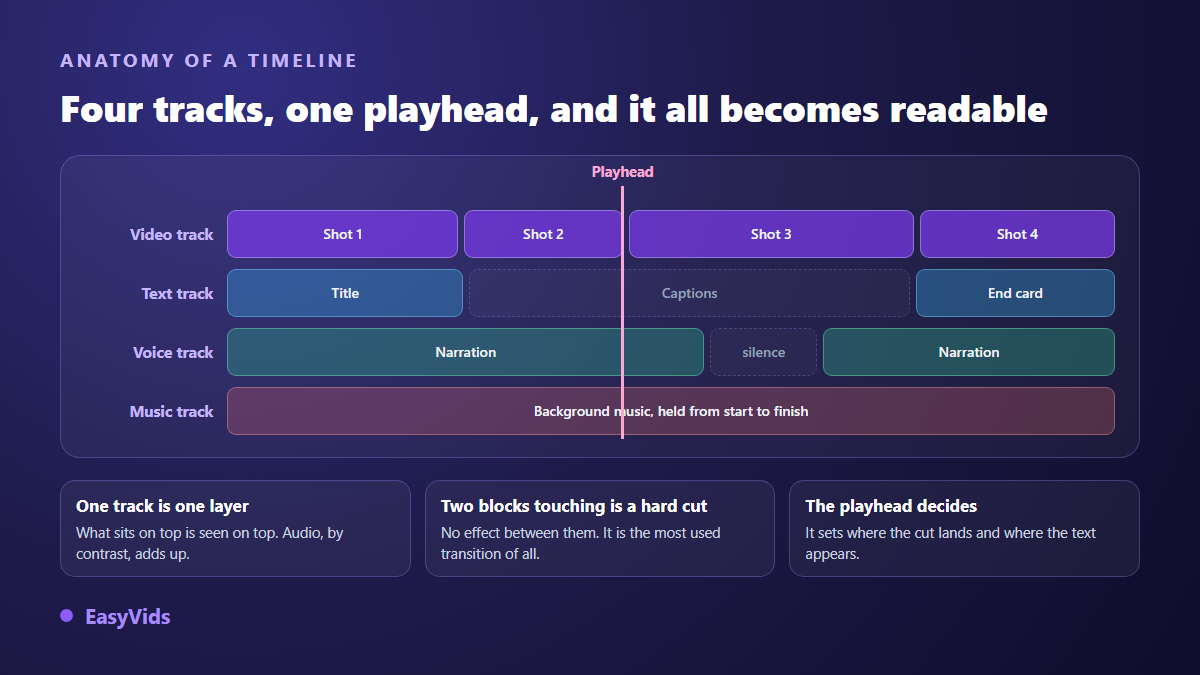
- Timeline: the horizontal band where you lay your shots, left to right, in playback order.
- Track: one layer of the timeline. One for picture, one for voice, one for music, one for text. Pictures cover each other, sounds add up.
- Playhead: the vertical line showing where you are in the film. It decides where the cut lands.
- Shot: a piece of footage sitting on the timeline between two cuts. It is the basic unit of an edit.
- Hard cut: moving from one shot to the next with no effect at all. By far the most used transition, in cinema and on social feeds alike.
- Match: the way two shots follow each other without the eye tripping. A good match goes unnoticed.
- Colour grading: balancing colour and light once the edit is locked.
- Mixing: the balance of levels between voice, music and ambience.
- Export, or render: the calculation of the final file, the one you publish or send.
Step 1: import and review before you edit anything
Gather every file into a single folder, and never move them afterwards. An editing project does not contain your videos: it contains references to them. Moving or renaming a file after importing it means a black screen and an error message where your shot used to be. It is the most common breakdown among beginners, and it has nothing to do with editing itself.
Then comes reviewing, which simply means watching everything once before you start. Open a document and note, for each file, what is usable and at what moment. You will see immediately what is missing, and you will stop hunting for a shot you are no longer sure exists. An hour of reviewing saves several hours of editing, and it is the one step beginners skip every single time.
Step 2: build the assembly, your first rough pass
The assembly is the first version of a film: every shot in the right order, still too long, no music, no titles, no effects. It looks bad, and that is normal. Its only job is to answer one question: does the story stand up? While the answer is no, no effect will rescue it. Technically it is nothing more than laying several clips end to end in one file, in the order you want them discovered. Then watch the whole thing without touching the mouse. That first viewing tells you almost everything: where it drags, where it confuses, which shot earns nothing.
Step 3: cutting, the move you will repeat most
Cutting is deciding what the viewer will not see. The gesture never changes: place the playhead, split the shot, delete the useless part. Three shortcuts cover most editors, and our tutorial on trimming a video with nothing to install shows how to land on the exact frame.
The real question is not how to cut but when. Cut as soon as a shot has delivered its information. A hesitation, a breath before the first sentence, two seconds where nothing moves: all of it goes. Editing is subtraction, and beginners almost always keep too much. When you hesitate over a shot, remove it and watch the sequence without it. If its absence goes unnoticed, nobody was missing it.
Step 4: matching shots and finding the rhythm
A cut gets noticed when it surprises the eye: two near identical shots stuck together, a movement interrupted halfway, a frame that jumps a few centimetres. Two habits fix most of it. Cut during a movement rather than on a still frame, because the gesture carries the eye across the join. And change the shot size between two views of the same subject, a wide then a close up, instead of gluing two similar framings together.
Sound does even more work than picture on a join. Let the voice of the next shot start half a second before the picture changes, or hold the previous sound half a second longer, and the transition becomes invisible. Editors call these two moves the J cut and the L cut, after the shape the blocks draw on the timeline. On rhythm, resist the urge to speed everything up: a speed change should serve a precise intention, and it is worth doing properly, as our tutorial on speeding up a video shows.
Step 5: sound carries half the perceived quality
Average pictures with clean sound get watched. Beautiful pictures with clipped or muddy sound do not. Set the voice first, it is your reference, then place the music well below it, around a fifth of its level. Music should be audible when the voice stops and step back the moment it returns. For choosing a track and dealing with usage rights, our guide to adding music to a video covers the method.
Two checks before moving on. Listen to your edit on a phone speaker, without headphones: that is how much of your audience will hear it. And spot any moment where you feel the urge to reach for the volume yourself, because that reflex always exposes an uneven mix worth fixing before export.
Step 6: on screen text and captions
Text comes now, not earlier: a title placed on a shot you later cut is wasted work. Three rules are enough. Large, contrasted, short. Text has to stay readable on a phone screen held at arm's length, and stay on screen long enough to be read twice. Our tutorial on adding text to a video covers the sizes and the animations that do not tire the eye.
Captions are no longer optional. Part of your audience will watch with the sound off, on a commute or in a waiting room, and captions also change how accessible your work is to deaf and hard of hearing viewers. Automatic transcription does the bulk of the job in seconds; what remains is proofreading proper nouns and punctuation, as our guide to automatic captions explains.
Step 7: colour, the touch that comes last
Colour grading means bringing every shot into the same light so they look like they belong to one film. It comes last because it applies to a finished edit: grading a shot you later delete is time thrown away. Start with what pays off, in this order: lift the shadows slightly, set the white point, then correct the colour cast of shots filmed under different light. Stay restrained. A heavy filter dates quickly, a balanced picture does not.
Step 8: exporting, the only moment settings matter
Export is the calculation of the final file, and three settings cover almost every case: aspect ratio, resolution and frame rate. Keep the frame rate of your footage, usually 25 or 30 frames per second, keep its resolution, and export MP4 with H.264 video, the format every major platform accepts and every device plays.
The classic trap is aspect ratio. A video conceived in 16:9 then pushed into 9:16 for a story loses the edges of the frame, and often the faces with them. Decide the ratio before you edit, and if you have to serve two destinations, produce two exports from the same edit by following the method for reframing without losing the subject. An oversized file is also solved here, by lowering the bitrate rather than the resolution: the picture stays sharp, only the weight goes down.
The beginner mistakes that cost the most time
None of these mistakes is serious on its own. They simply all have the same effect: they make you start over. Knowing them before you sit down beats discovering them three hours in.
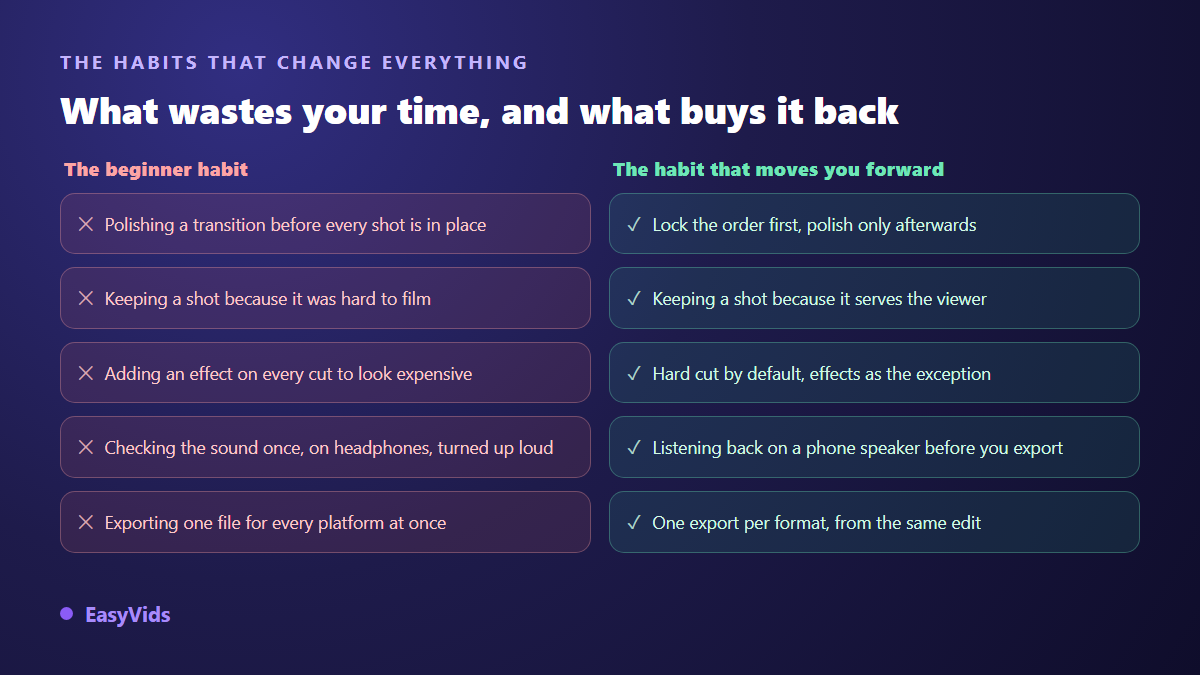
- Polishing a transition before every shot is in place: the order almost always changes, and the work is lost.
- Keeping a shot because it was hard to get. The viewer has no idea what it cost you.
- Adding an effect on every cut. The hard cut is the default, an effect needs a reason.
- Editing on headphones only, then finding the voice inaudible on a phone speaker.
- Moving or renaming source files after import, which breaks the project without warning.
- Choosing the music before the picture rhythm is set: the edit leads, not the track.
- Exporting once, assuming a single file will suit every platform.
How long an edit really takes
For a two to three minute video cut from twenty minutes of footage, a clean first version takes one to two hours when you start, and around half an hour once the moves are second nature. The ratio worth knowing is edit time against footage time: the more you filmed, the heavier the review. That is why a short, deliberate shoot always produces a fast edit.
There is also a shorter path when you have no footage at all. A video can be built from plain text, with generated visuals, a voice over and an edit timed automatically to each sentence, then opened in the editor to adjust what matters. That is the logic behind the EasyVids studio: automatic editing delivers a watchable base in minutes, and you keep control over every shot.
Frequently asked questions
Do I need a powerful computer to edit video?
Not to start. A few minutes of 1080p runs fine on an ordinary machine, and an editor that works in the browser moves most of the calculation off your processor. Power matters for 4K, long projects and heavy effects. If playback stutters, lower the preview quality first: that alone usually fixes it.
Can I edit a video straight from a phone?
Yes, and it is the most common case for vertical formats. A phone is enough to trim, add text and publish. The screen becomes the limit as soon as you work with several tracks or need frame accurate precision, where a larger display is far more comfortable.
Do I have to pay to edit a video?
Not for most needs. Free tools let you trim, assemble, add text and export without a watermark. Paying makes sense for generated visuals, voice overs, high resolution exports or working as a team. Our plans, free trial included, are set out on the pricing page.
How long does it take to learn editing?
The basic moves take an evening: import, cut, move, export. What takes longer is judgement, meaning knowing when to cut and what to remove. That comes from editing, not from reading. Edit three short videos rather than one long one and you will progress much faster.
Do I need a script before I start editing?
Not a full script, but one sentence stating what the video has to get across. That sentence is what lets you decide about every doubtful shot. Without it, everything looks useful, and the edit grows longer without ever getting clearer.
You now know how to edit videos from start to finish: import, sort, assemble, cut, match, mix, dress, export. Nothing on that list takes special talent, only order and a little patience while watching. Take your latest footage, set yourself a short running time, and go all the way to export today: one finished edit teaches more than ten tutorials. Creating an account opens the editor and the full studio, with no bank card.